
How to Remove "Activate Windows" Watermark Permanently

Callum specializes in breaking down complex technology topics into easy-to-understand guides. He has a background in computer science and technical writing.
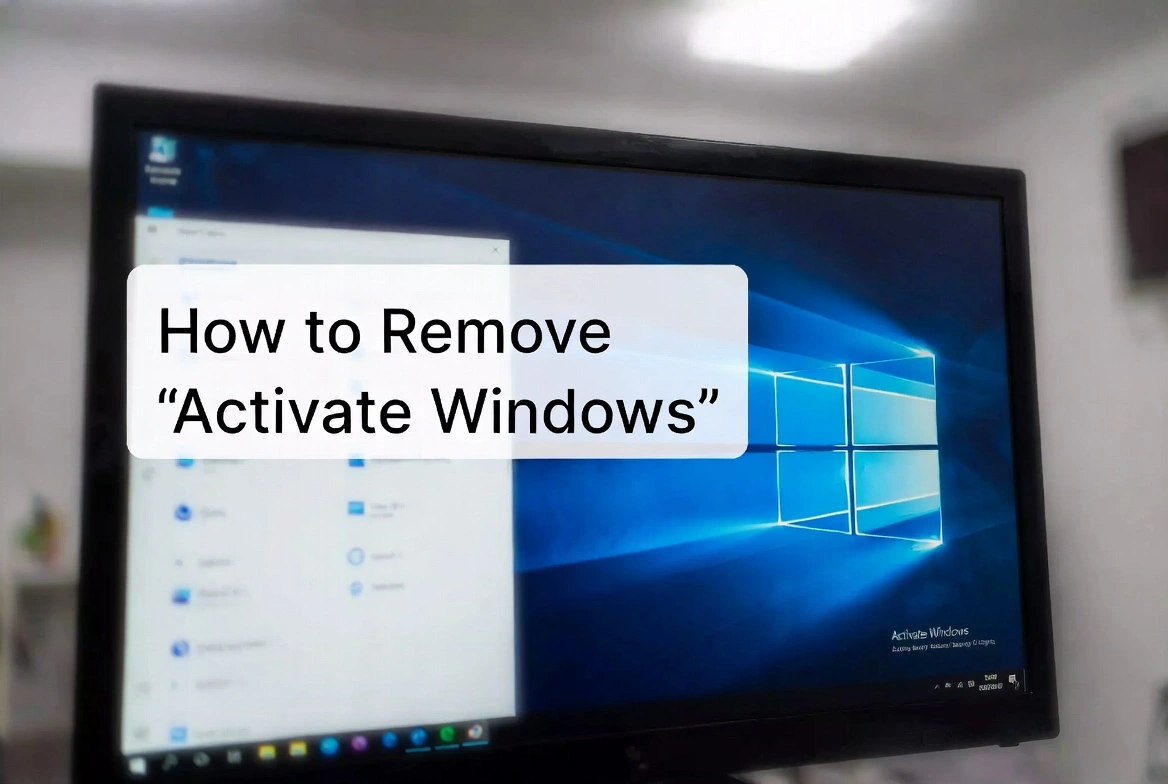
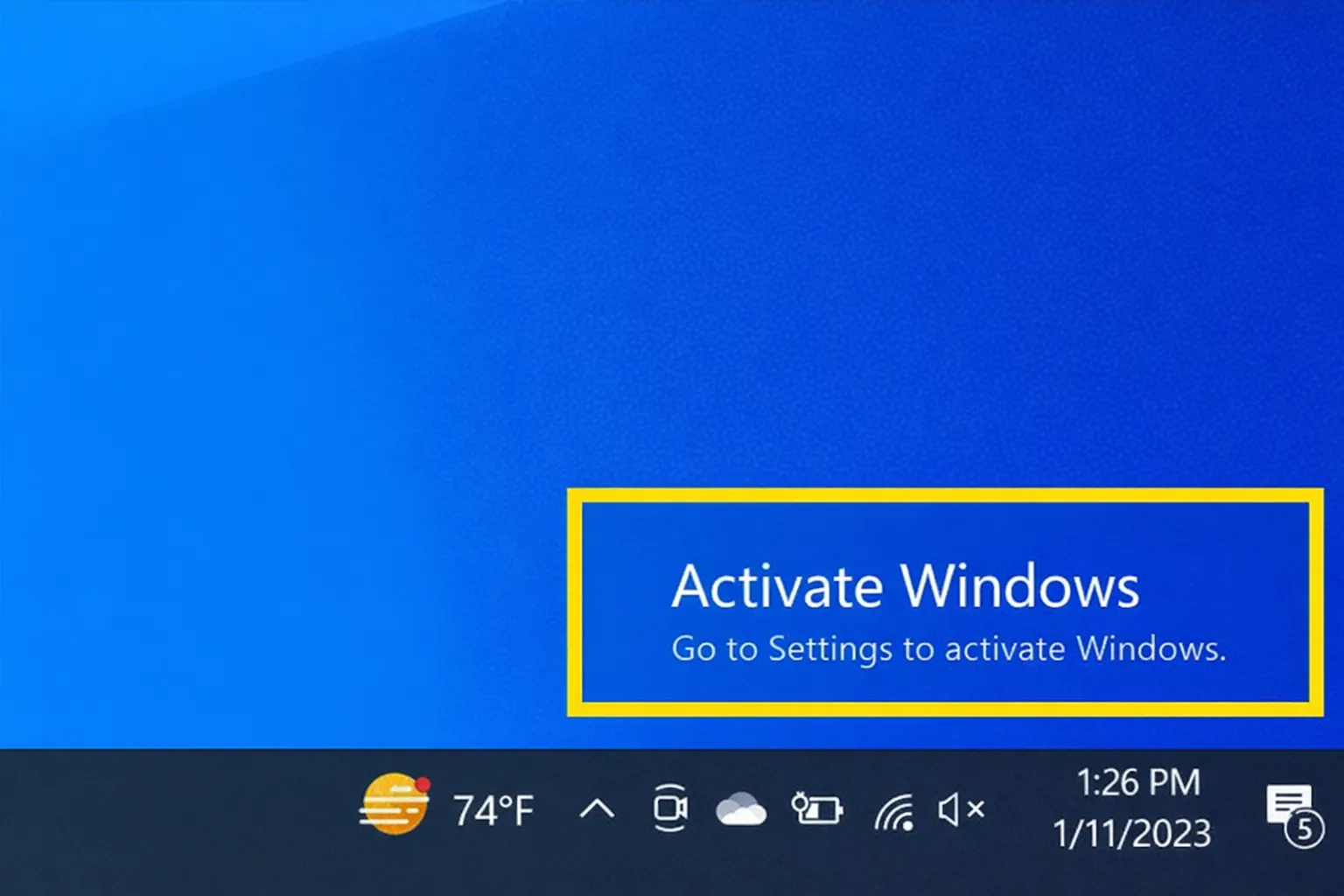
That "Activate Windows" watermark in the corner of your screen is not just annoying—it is a constant reminder that your copy of Windows is not fully licensed. While there are temporary workarounds floating around the internet, the only way to remove the Activate Windows watermark permanently is to actually activate Windows with a genuine product key. Let us walk through all your options, from quick fixes to the real solution.
The Only Permanent Solution
Activate Windows with a genuine product key. Everything else—registry edits, CMD tricks, third-party tools—is either temporary, risky, or both. A legitimate key costs less than you think and removes the watermark forever.
Why Does the "Activate Windows" Watermark Appear?
The watermark shows up when Windows detects that your installation is not activated. This happens in a few scenarios:
- •Fresh install without a key: You installed Windows without entering a product key during setup
- •Trial period expired: The grace period for activation has ended
- •Hardware changes: Significant hardware upgrades (especially motherboard) can deactivate Windows
- •Invalid or blocked key: The key you used was revoked by Microsoft
Beyond the watermark, an unactivated copy of Windows also locks you out of personalization settings—you cannot change wallpapers, colors, or themes. It is Microsoft's way of nudging you toward activation.
Method 1: Activate Windows with a Product Key (Permanent Fix)
This is the only method that permanently removes the watermark and unlocks all Windows features. If you already have a product key, here is how to use it:
How to Enter Your Product Key
- 1Press Windows + I to open Settings
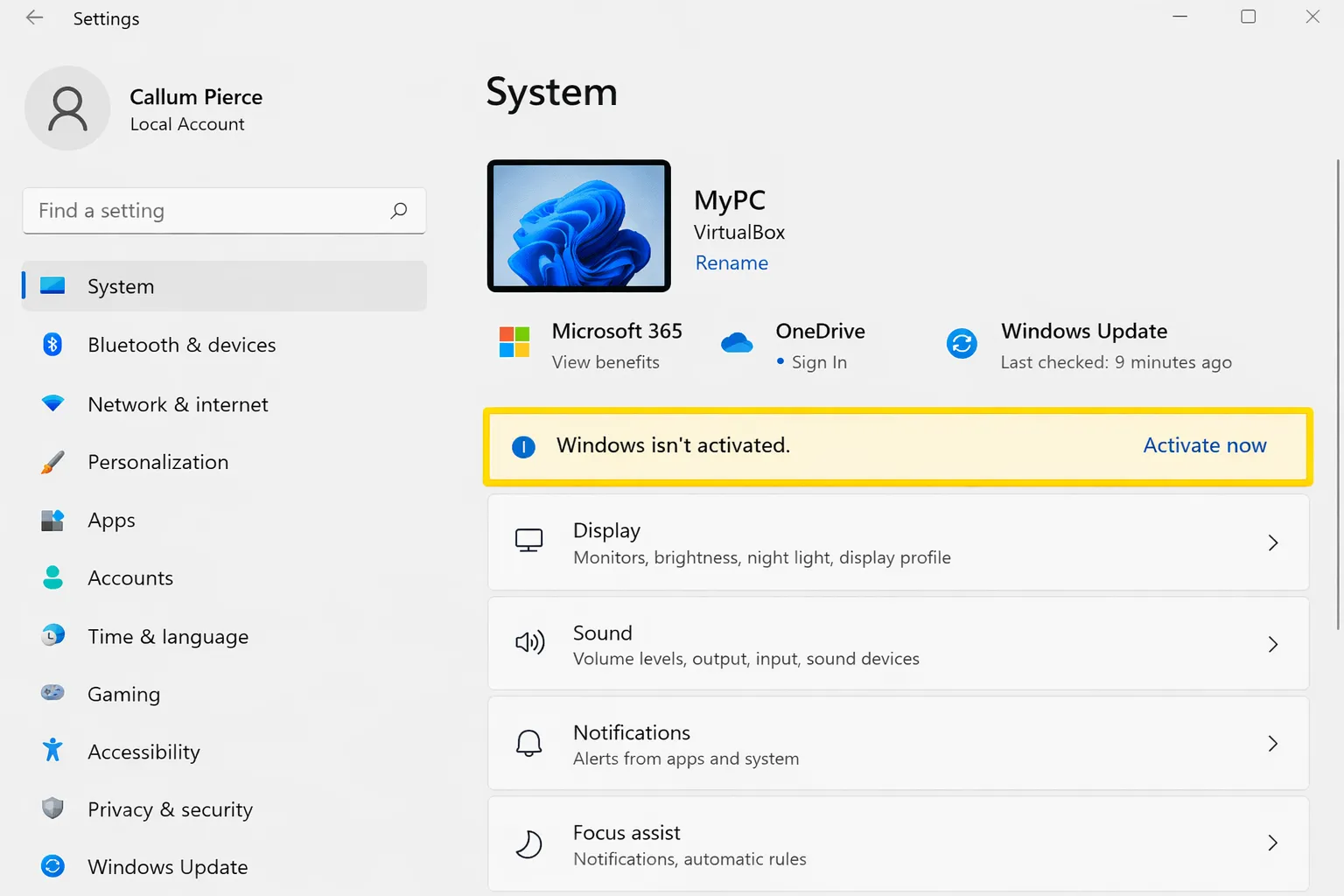
- 2Go to System → Activation
- 3Click Change product key
- 4Enter your 25-character product key
- 5Click Next and wait for activation to complete
Once activated, the watermark disappears immediately and will not come back. Your license is linked to your hardware (or Microsoft account if you choose to link it), so it survives reinstalls.
Do Not Have a Product Key?
You do not need to pay Microsoft's retail price of $139+ for Windows 11. Authorized resellers offer genuine Windows keys at a fraction of the cost—often under $20 for a lifetime license that activates through Microsoft's official servers.
Method 2: Command Prompt Activation (If You Have a Key)
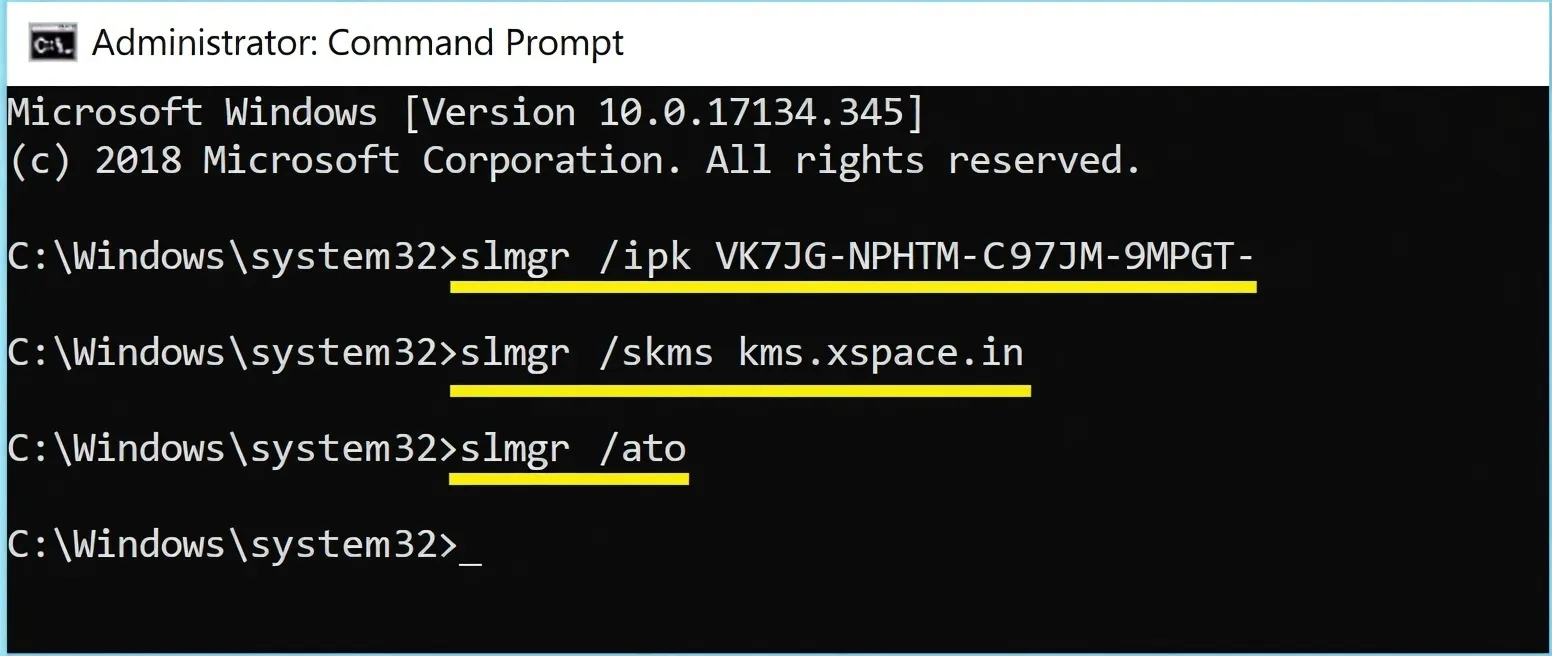
If the Settings method does not work, you can activate Windows via Command Prompt. This is useful when the GUI activation fails or you are troubleshooting.
Run as Administrator:
slmgr /ipk XXXXX-XXXXX-XXXXX-XXXXX-XXXXXslmgr /atoReplace the Xs with your actual product key. The first command installs the key, and the second activates it online. You should see a confirmation message if successful.
Important Note
This method only works with a valid product key. It is not a workaround—it is just an alternative way to enter your key. If you do not have a legitimate key, this will not help.
Method 3: Registry Edit (Temporary, Not Recommended)
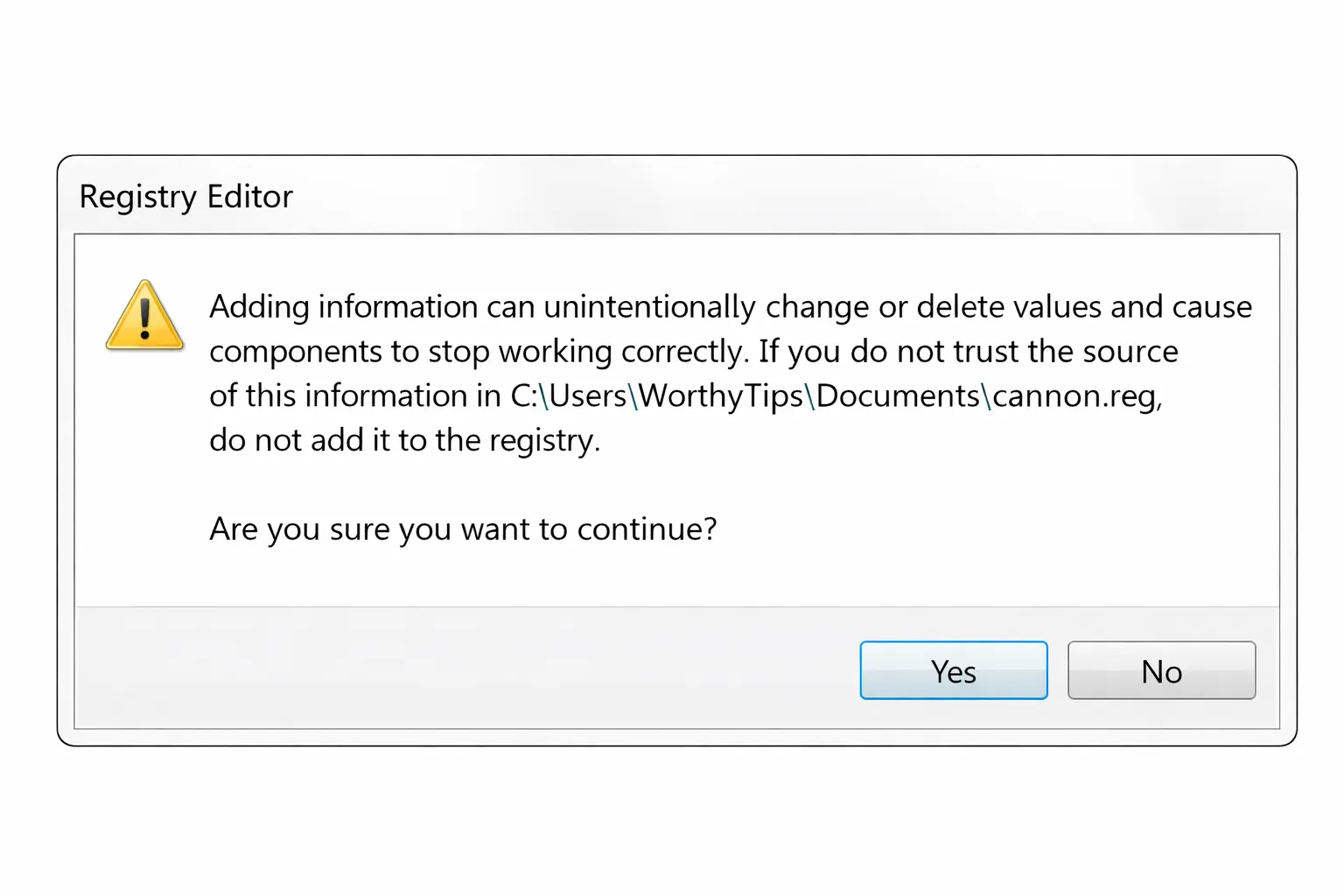
You will find tutorials online about editing the registry to hide the watermark. Here is the truth: it is temporary at best and potentially risky.
The registry hack typically involves modifying values in:
HKEY_LOCAL_MACHINE\SOFTWARE\Microsoft\Windows NT\CurrentVersion\SoftwareProtectionPlatform\ActivationWhy Registry Edits Are a Bad Idea
Problems
- Watermark often returns after updates
- Can cause system instability
- Windows still shows as "not activated"
- Personalization remains locked
- Risk of corrupting registry
Proper Activation
- Permanent watermark removal
- Full personalization access
- All Windows features unlocked
- No risk to system stability
- Survives all updates
Bottom line: registry edits are a band-aid, not a solution. You are better off spending $15 on a genuine key than fighting with workarounds that break after every update.
Method 4: Third-Party Activators (Dangerous—Avoid)
Let us address the elephant in the room: those "Windows activators" you see on shady websites. Tools like KMSpico, Microsoft Toolkit, and similar programs promise free activation. Do not use them.
Why Activators Are Risky
- Malware magnet: Most "activators" are bundled with trojans, keyloggers, or ransomware
- Temporary activation: They often require re-running every few months
- Antivirus conflicts: Your antivirus will flag and remove them
- License violations: Using them violates Microsoft's terms of service
- System corruption: They modify core Windows files, risking stability
The irony? A genuine Windows key often costs less than fixing a malware-infected PC. It is just not worth the risk.
What About Changing the Wallpaper Without Activating?
Some people just want to personalize their desktop without paying for a key. Windows does lock the Personalization settings, but there is a workaround:
- Right-click any image file and select Set as desktop background
- For accent colors, some third-party themes work, but options are limited
This does not remove the watermark—it is just a way to change your wallpaper despite the restrictions. The watermark will still be there, floating over your new background.
Check if Windows is Already Activated
Before troubleshooting, verify your current activation status:
- 1Press Windows + I to open Settings
- 2Go to System → Activation
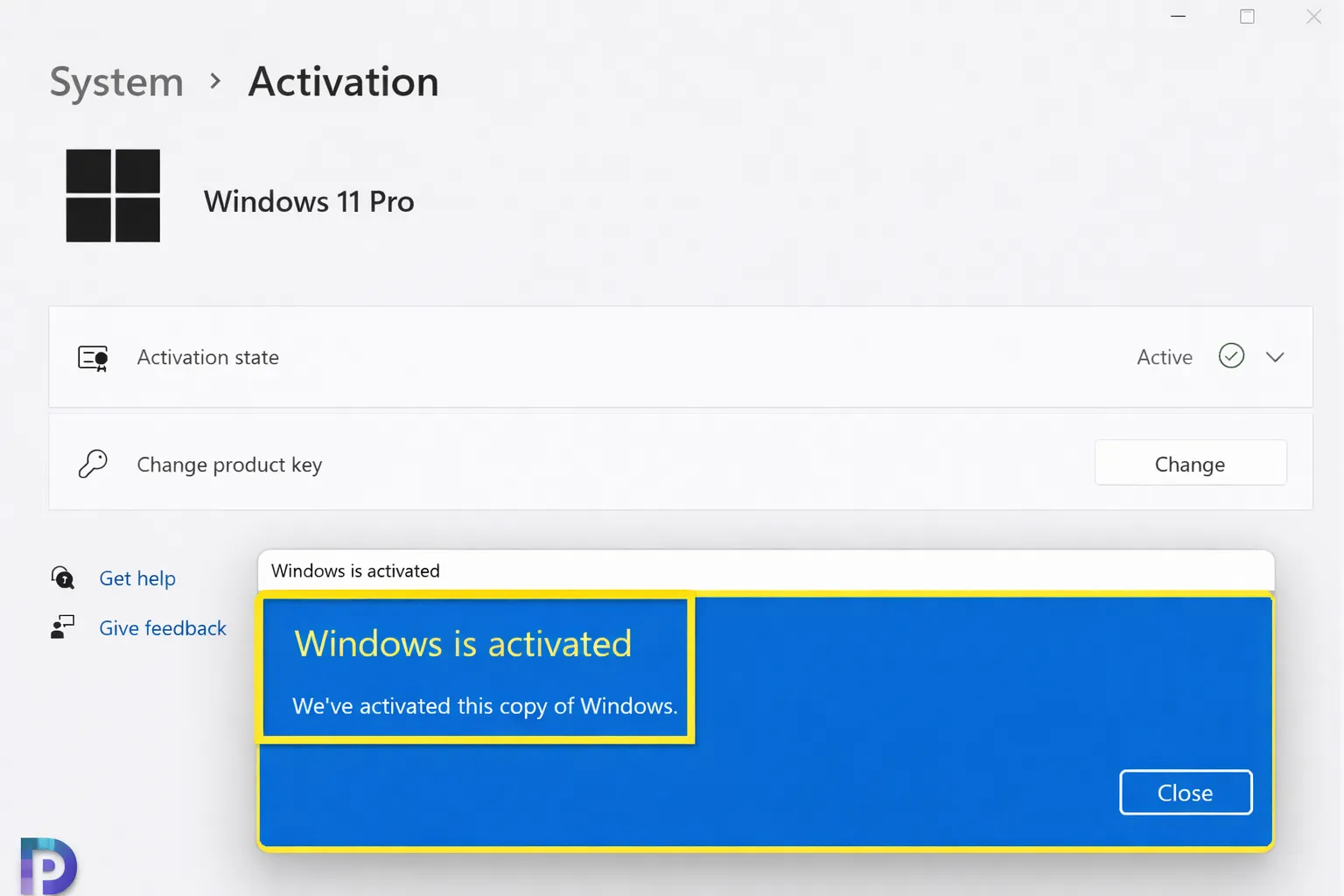
- 3Look for "Activation state"
If it says "Windows is activated with a digital license" or "Windows is activated," you are good—the watermark should not appear. If it does, try restarting your PC or running the Activation Troubleshooter.
Activation Troubleshooter for Previously Activated PCs
If your PC was previously activated but shows the watermark after a hardware change or reinstall:
- 1Go to Settings → System → Activation
- 2Click Troubleshoot
- 3Select "I changed hardware on this device recently"
- 4Sign in with your Microsoft account and select your device
This works if your digital license was linked to your Microsoft account. It is the legitimate recovery method for hardware changes.
Frequently Asked Questions
How do I permanently remove the "Activate Windows" watermark?
Activate Windows with a genuine product key. Go to Settings → System → Activation → Change product key, enter your key, and the watermark will disappear permanently.
Can I remove the watermark without a product key?
There is no legitimate way to permanently remove it without activating. Registry edits and third-party tools are temporary fixes that often cause more problems than they solve.
Are cheap Windows keys legitimate?
Keys from authorized resellers are genuine and activate through Microsoft's servers. Avoid grey market keys (often under $5) as these may be revoked. Reputable resellers offer keys in the $15-30 range.
Why did my Windows watermark come back after activation?
This can happen after major hardware changes or if the key was blocked. Run the Activation Troubleshooter or contact Microsoft support. If you used a grey market key, it may have been revoked.
Is it safe to use KMSpico or Windows activators?
No. These tools frequently contain malware and violate Microsoft's terms of service. A genuine key is cheaper than dealing with a compromised PC.
Can I use Windows without activating?
Yes, Windows runs fully with the watermark—it is a reminder, not a hard block. However, you lose personalization options and must tolerate the persistent watermark.
Final Verdict
The internet is full of "hacks" to remove the Activate Windows watermark, but let us be real: the only permanent, safe solution is activating Windows with a genuine key. Registry edits break after updates. Third-party activators are malware traps. And living with the watermark means locked features and constant visual annoyance.
Genuine Windows keys from authorized resellers cost less than a pizza dinner. You get permanent activation, full access to all features, and peace of mind knowing your system is not compromised. For something you will use every day for years, it is a small investment.
Do not waste time on workarounds. Get a real key, activate properly, and never see that watermark again.