
How to Fix "Windows License Will Expire Soon" Error

Callum specializes in breaking down complex technology topics into easy-to-understand guides. He has a background in computer science and technical writing.
You're in the middle of something important—a work presentation, a gaming session, or just browsing—when Windows throws that dreaded notification at you: "Your Windows license will expire soon." It's annoying, slightly alarming, and often confusing. If you've already purchased a key, the frustration doubles.
Don't panic. This is one of the most common Windows issues, and in most cases, it's fixable in under ten minutes. Whether you're dealing with a genuine activation hiccup, a corrupt license file, or just need to re-enter your product key, this guide walks you through every realistic fix.
I've personally troubleshot this error on dozens of machines—from fresh installs to enterprise PCs handed down through IT departments. Here's what actually works, and what's usually a waste of time.
Why Does Windows Say Your License Will Expire?
Before diving into fixes, it helps to understand why your windows license expiring message even appears. Windows activation is tied to a digital license or product key that Microsoft's servers verify. When something breaks that connection—or the license itself is invalid—Windows starts warning you.
Here are the most common causes:
- Hardware changes: Swapping your motherboard or making significant hardware upgrades can trigger reactivation requirements.
- Expired volume license: If your PC came from a workplace or school, it might use a time-limited license that genuinely expired.
- Corrupt license files: System updates, crashes, or malware can corrupt the activation data stored locally.
- Invalid or reused key: Keys from shady sellers are sometimes already used on other machines or flagged by Microsoft.
- Server communication issues: Sometimes Windows just fails to reach Microsoft's activation servers, even with a valid license.
💡 Quick Check
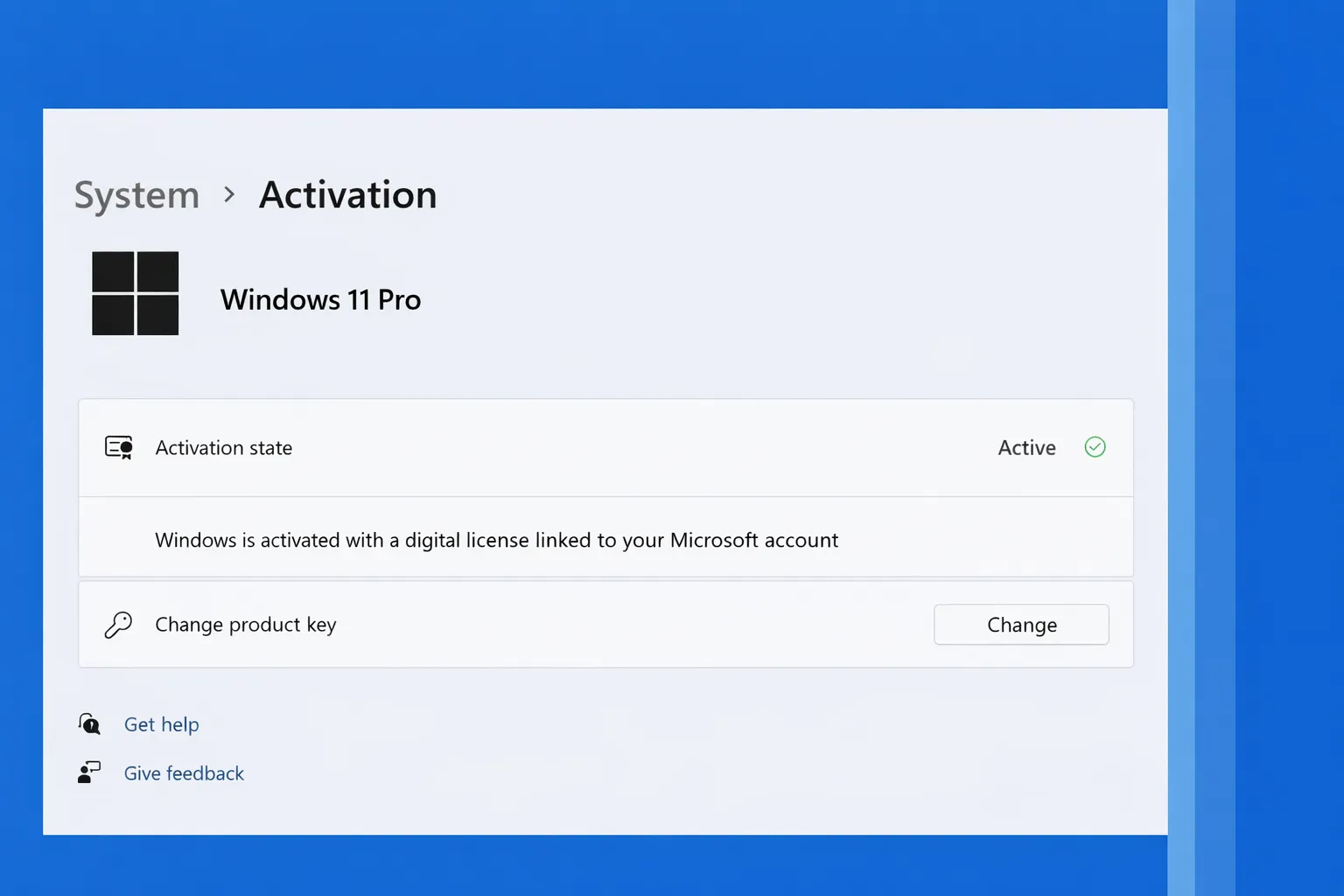
Press Win + I → System → Activation to see your current activation status. If it says "Windows is activated with a digital license," the error might be a temporary glitch.
I Already Have a Key—Why Is This Happening?
This is the most frustrating scenario: windows license will expire soon but i have a key, and you're staring at an error anyway. Here's the thing—having a key doesn't automatically mean Windows knows about it.
Your key might not be activated yet, could be entered incorrectly, or Windows might have "forgotten" it after an update. It's also possible the key is tied to a different edition (like Home vs. Pro) or was purchased from an unreliable source.
First, Verify Your Key Is Actually Active
- Step 1: Open Settings (Win + I) and navigate to System → Activation.
- Step 2: Look for "Activation state." If it says "Not activated," your key isn't applied.
- Step 3: Click "Change product key" and enter your 25-character key exactly as provided.
- Step 4: Click "Next" and let Windows attempt activation.
If activation succeeds, you're done. If it fails with an error code, note that code—we'll address specific errors below.
Step-by-Step Fixes That Actually Work
Based on years of troubleshooting, here are the fixes ranked by how often they solve the windows license expiring problem. Start from the top and work down.
1. Re-enter Your Product Key
Sometimes Windows just needs a reminder. Even if you've entered your key before, doing it again can resolve temporary activation failures.
- Go to Settings → System → Activation
- Click "Change product key"
- Enter your key and click Next
2. Run the Activation Troubleshooter
Microsoft's built-in troubleshooter is surprisingly effective for common activation issues. It can detect and fix server communication problems, license file corruption, and mismatched editions.
- Open Settings → System → Activation
- Click "Troubleshoot" (only visible if Windows detects an issue)
- Follow the on-screen prompts
- If prompted, sign in with your Microsoft account linked to a digital license
⚠️ Important
The troubleshooter works best when you're connected to the internet and signed into the same Microsoft account used to purchase or link your license.
3. Reset Windows Licensing Status
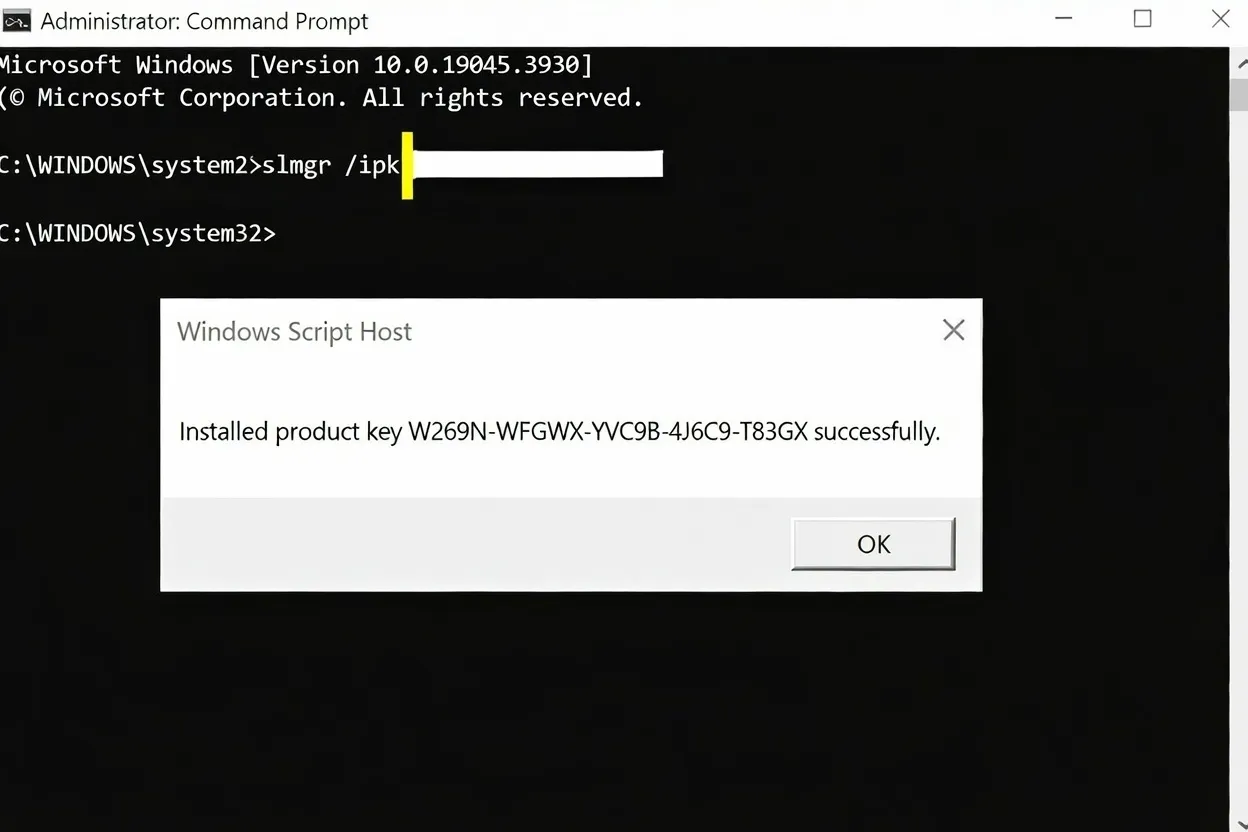
If your license file is corrupted, you can reset Windows' licensing components using Command Prompt. This forces Windows to re-check your activation status from scratch.
- Open Command Prompt as Administrator (search "cmd," right-click, select "Run as administrator")
- Type:
slmgr /rearmand press Enter - Wait for confirmation, then restart your PC
- After reboot, re-enter your product key
Note: The rearm command has a limited number of uses (typically 3). Don't overuse it.
4. Check for Windows Updates
Outdated Windows versions sometimes have activation bugs that Microsoft patches in updates. Make sure you're running the latest version.
- Go to Settings → Windows Update
- Click "Check for updates"
- Install any pending updates and restart
5. Use Phone Activation (Last Resort)
If online activation keeps failing, you can activate Windows via phone. It's old-school but reliable when servers aren't cooperating.
- Open Command Prompt as Administrator
- Type:
slui 4and press Enter - Select your country/region
- Call the provided number and follow the automated prompts
- Enter the confirmation ID when provided
How to Stop the License Expiring Notification
Wondering how to stop windows license expiring notification from popping up constantly? The permanent solution is proper activation—but if you're waiting on a key or troubleshooting, here's how to reduce the annoyance temporarily.
| Method | Duration | Recommended? |
|---|---|---|
| Activate with genuine key | Permanent | ✓ Best solution |
| Run activation troubleshooter | Permanent (if successful) | ✓ Yes |
| Use slmgr /rearm command | 30-90 days (temporary) | ⚠ Only while troubleshooting |
| Disable notification service | Until next update | ✗ Not recommended |
Disabling notifications without fixing the underlying issue just delays the problem. Eventually, Windows will watermark your desktop and limit personalization features.
Common Error Codes and What They Mean
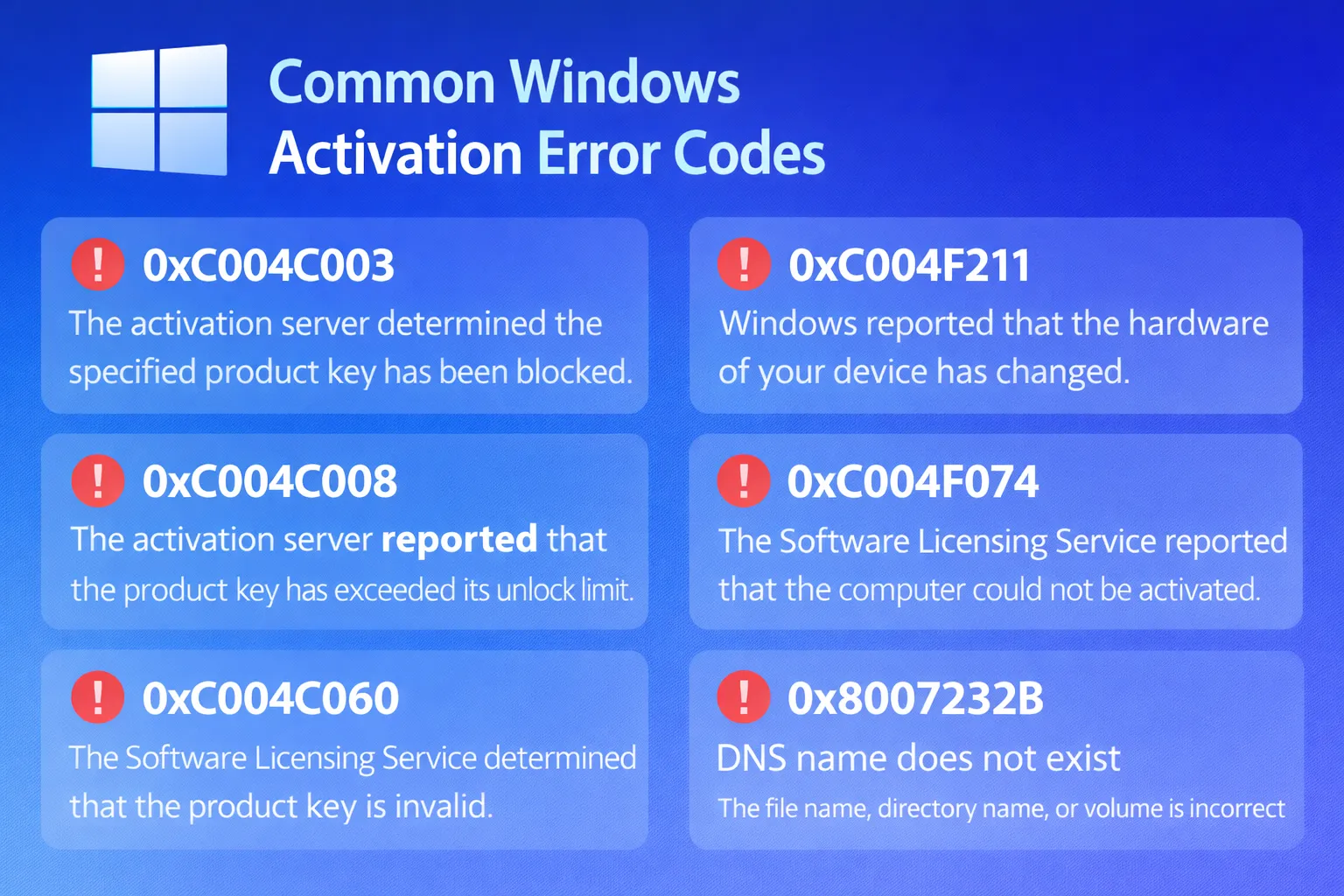
When activation fails, Windows usually provides an error code. Here's what the most common ones mean:
0xC004C003 – Key already in use
Your key is activated on another device. Contact the seller or Microsoft support.
0xC004F074 – KMS server unavailable
Common on enterprise PCs. Your workplace's activation server might be down or unreachable.
0xC004F034 – Edition mismatch
You're trying to use a Home key on Pro, or vice versa. Check your Windows edition.
0x803F7001 – No valid license found
Windows can't find any license. Re-enter your key or link your Microsoft account.
When You Actually Need a New License
Sometimes, no amount of troubleshooting will help because the underlying license is genuinely invalid. Here's when you need to purchase a new key:
- Your key was purchased from an unauthorized reseller and has been revoked by Microsoft
- You're using a volume license that your organization no longer maintains
- The key is for a different Windows edition than what's installed
- You've made major hardware changes and can't reactivate even with Microsoft support
Where to Get a Genuine Windows Key
If you need a legitimate Windows license, we offer genuine lifetime activation keys with instant delivery. All keys are verified and come with activation support.
View Windows 11 Pro Lifetime Key →Frequently Asked Questions
Why does my Windows say license will expire when I already activated it?
This usually happens after major Windows updates, hardware changes, or if your license was a temporary evaluation copy. Check your activation status in Settings to confirm whether the license is still valid.
Can I use Windows without activating it?
Technically yes, but with limitations. You'll see a watermark, can't personalize your desktop, and may miss security features. For long-term use, activation is necessary.
Will I lose my files if my Windows license expires?
No. Your files, programs, and data remain intact. An expired license only affects customization and shows activation reminders—it doesn't delete anything.
How do I find my existing Windows product key?
Open Command Prompt as Administrator and type: wmic path softwarelicensingservice get OA3xOriginalProductKey. This shows your embedded key if one exists.
Is it safe to buy cheap Windows keys online?
It depends on the seller. Many ultra-cheap keys are volume licenses or already-used keys that get revoked later. Stick to reputable sellers that offer genuine retail or OEM licenses with activation guarantees.
Final Thoughts
Seeing the "Windows license will expire soon" error is frustrating, but it's rarely a dead end. Most cases resolve with a simple key re-entry or running the activation troubleshooter. For persistent issues, the slmgr commands or phone activation usually do the trick.
If you've tried everything and your key still won't activate, the key itself might be the problem—especially if purchased from an unverified source. In that case, investing in a genuine lifetime license saves future headaches and ensures you're always running a fully supported Windows installation.
Whatever route you take, don't ignore the notification indefinitely. An unactivated Windows installation gradually loses features and becomes increasingly annoying to use. Fix it once, fix it right, and move on with your work.