
How to Reinstall Windows Without Losing Your License

Callum specializes in breaking down complex technology topics into easy-to-understand guides. He has a background in computer science and technical writing.
Planning a fresh Windows installation but worried about losing your activation? Here's the good news: you won't lose your Windows license if you reinstall Windows 11—at least not in most cases. Microsoft has made significant improvements to how licenses work, and understanding the system will save you a lot of stress. Let's walk through exactly what happens to your activation when you reinstall, format, or reset your PC.
Quick Answer
No, reinstalling Windows 11 won't remove your license if it's linked to your Microsoft account or stored in your hardware (digital license). You can reinstall as many times as you want on the same PC without losing activation.
How Windows Licenses Actually Work
Before we dive into reinstallation, it helps to understand how Windows licensing has evolved. Gone are the days of typing in 25-character product keys and praying they work after a format. Microsoft now uses a smarter system.
There are two main ways Windows stores your license:
Digital License (Hardware-Linked)
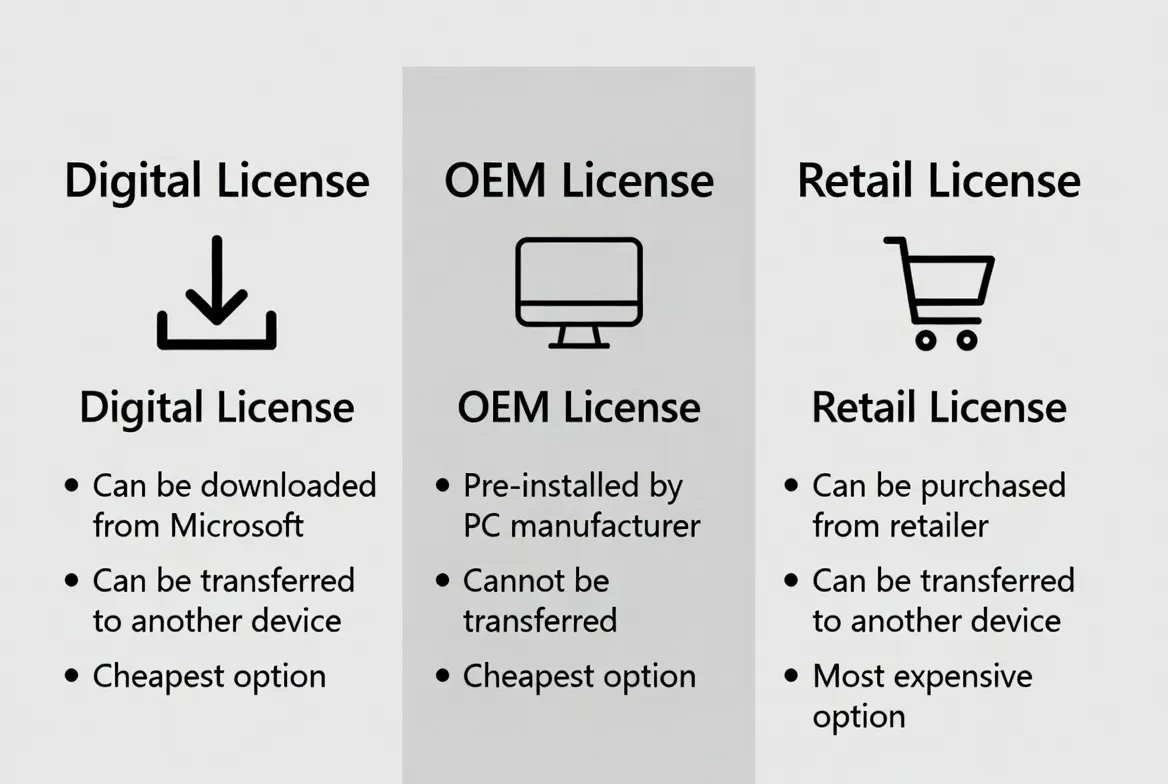
If you upgraded from Windows 7, 8, or 10, or bought a PC with Windows pre-installed, your license is likely a digital license. This type is tied directly to your device's hardware fingerprint—specifically the motherboard. When you reinstall Windows 11, Microsoft's servers recognize your hardware and automatically reactivate. No product key needed.
Product Key License
If you purchased a retail or OEM key, your license is tied to that specific key. The key itself can be linked to your Microsoft account, which makes reactivation seamless even after formatting. OEM keys are locked to the original motherboard, while retail keys can be transferred to new hardware.
| License Type | Hardware Locked? | Transferable? | Survives Reinstall? |
|---|---|---|---|
| Digital License | Yes (motherboard) | No | ✓ Yes |
| OEM Key | Yes (motherboard) | No | ✓ Yes |
| Retail Key | No | Yes (1 PC at a time) | ✓ Yes |
Does Formatting Your Hard Drive Remove the Windows License?
This is one of the most common concerns, and the answer is no—formatting your hard drive does not remove your Windows license. Here's why:
Your Windows license isn't stored on your hard drive. It's either:
- Stored on Microsoft's activation servers and linked to your hardware ID
- Embedded in your BIOS/UEFI (for pre-installed Windows on laptops and branded PCs)
- Linked to your Microsoft account as a digital entitlement
So even if you wipe your drive completely, swap in an SSD, or do a clean install from a USB drive, your license remains intact. After reinstallation, Windows will automatically contact Microsoft's servers, recognize your hardware, and activate itself.
Important Exception
If you're changing major hardware components (especially the motherboard), that's a different story. A motherboard swap can trigger reactivation issues since Windows may see it as a "new computer." More on this below.
Link Your License to Your Microsoft Account (Do This Now)
The smartest thing you can do before any reinstallation is link your Windows license to your Microsoft account. This creates a backup of your digital license in the cloud, making recovery effortless.
How to Check if Your License is Already Linked
- 1Open Settings → System → Activation
- 2Look for the message "Windows is activated with a digital license linked to your Microsoft account"
- 3If it just says "Windows is activated with a digital license" (without the Microsoft account part), you should link it
How to Link Your License to Your Microsoft Account
- 1Go to Settings → Accounts → Your info
- 2Sign in with your Microsoft account (or create one)
- 3Return to Settings → System → Activation
- 4Your license will now sync to your account automatically
Once linked, you can reinstall Windows 11 and simply sign in with the same Microsoft account—activation happens automatically in the background.
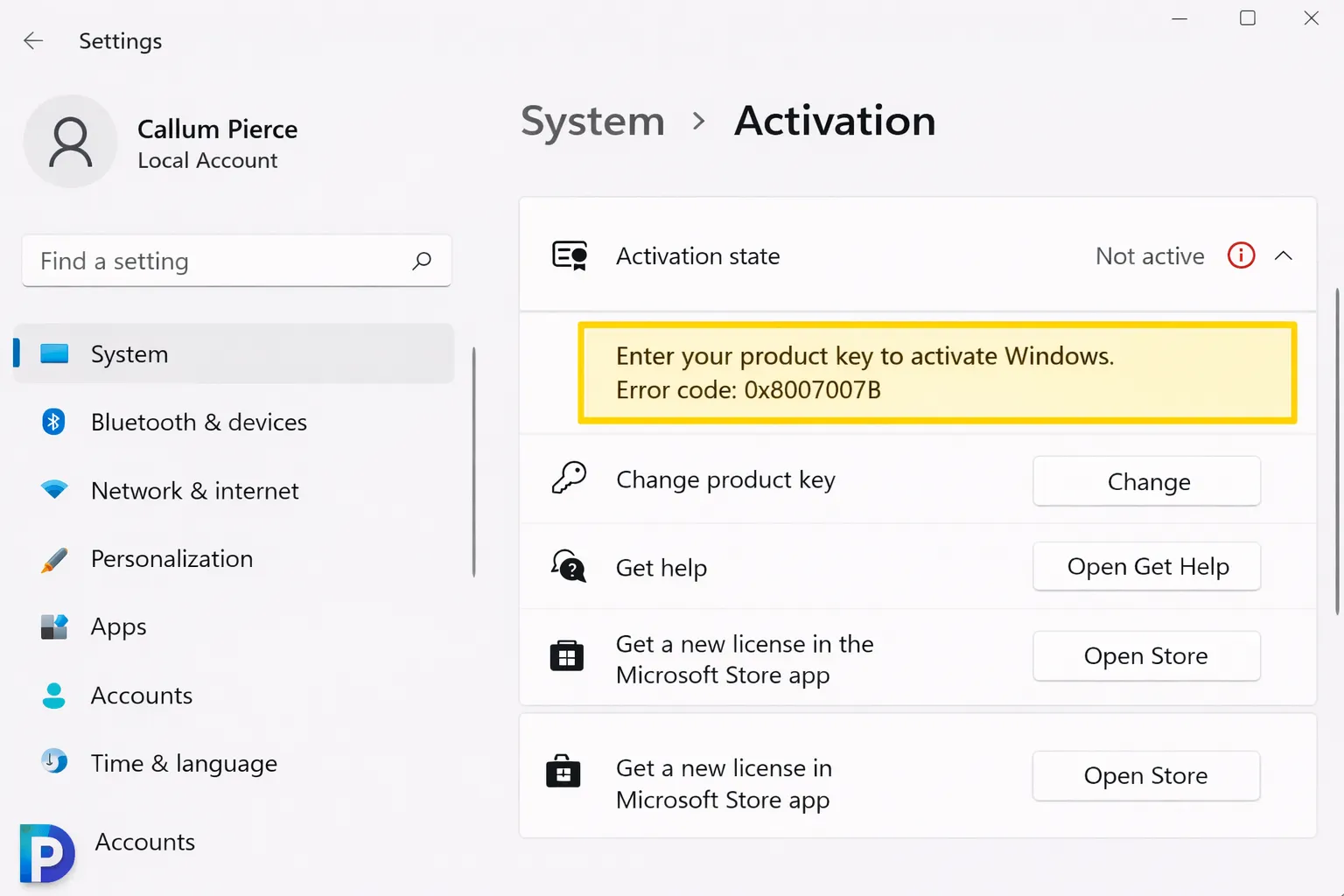
How to Reinstall Windows 11 Without Losing Activation
There are several ways to reinstall Windows 11. Each method preserves your license, but the experience differs slightly.
Method 1: Reset This PC (Easiest)
Built into Windows, this option lets you reset without external media. Go to Settings → System → Recovery → Reset this PC. Choose "Remove everything" for a clean slate. Your license remains untouched.
Method 2: Clean Install from USB
Download the Windows 11 installation media from Microsoft, create a bootable USB, and boot from it. During setup, when asked for a product key, click "I don't have a product key." Windows will activate automatically after installation based on your hardware.
Method 3: In-Place Upgrade (Repair Install)
Mount the Windows 11 ISO and run setup.exe from within Windows. This refreshes system files while keeping your apps and activation intact. Useful for fixing corrupted installations.
Pro Tip: Skip the Product Key During Install
When doing a clean install, don't panic if you don't have your product key handy. Just click "I don't have a product key" and select the edition that matches your license (usually Windows 11 Pro or Home). Once connected to the internet, Windows will recognize your hardware and activate automatically.
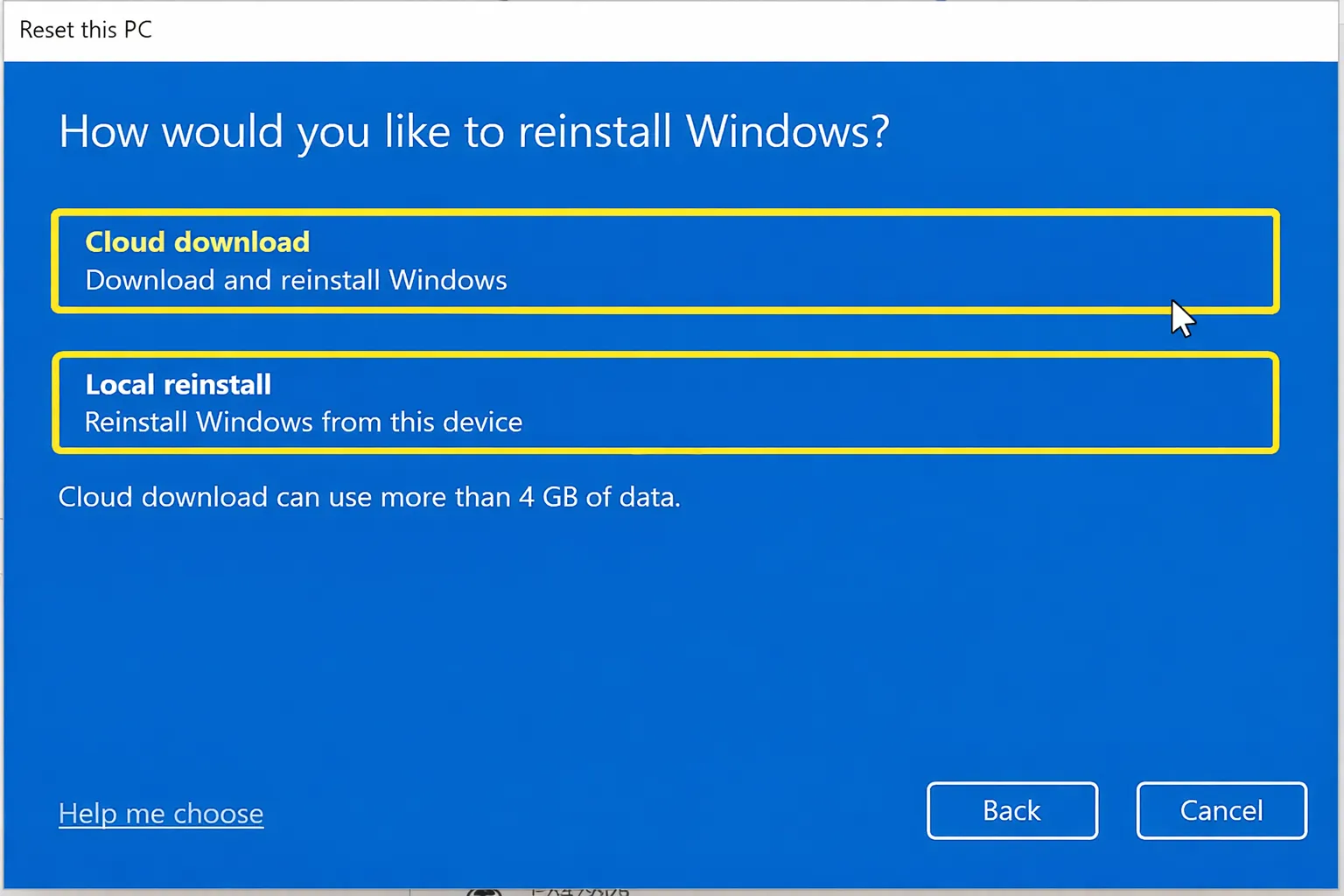
What If Windows Doesn't Activate After Reinstalling?
In rare cases, Windows might not reactivate automatically. Here's how to fix it:
Run the Activation Troubleshooter
- Go to Settings → System → Activation
- Click Troubleshoot
- If your license is linked to a Microsoft account, select "I changed hardware on this device recently"
- Sign in and select your device from the list
- Click Activate
Contact Microsoft Support
If automatic activation fails and you have a legitimate license, Microsoft support can manually activate your copy. Use the Get Help app in Windows or call their activation hotline.
Use Your Product Key Manually
If you have a product key (from a retail purchase or key seller), you can enter it manually:
- Go to Settings → System → Activation
- Click Change product key
- Enter your 25-character key
- Click Next and follow the prompts
Motherboard Replacement: The One Exception
Here's where things get tricky. If you replace your motherboard, Windows treats your PC as a completely new device. This can cause activation problems, especially with OEM licenses.
OEM Licenses After Motherboard Change
OEM licenses are permanently tied to the original motherboard. If that motherboard dies, the license technically dies with it. However, Microsoft has been lenient—if you contact support and explain it was a repair (not a new build), they often reactivate.
Retail Licenses After Motherboard Change
Retail licenses are transferable. After replacing your motherboard, use the Activation Troubleshooter, sign in to your Microsoft account, and reactivate on the "new" hardware.
Digital Licenses Linked to Microsoft Account
If your digital license is linked to your Microsoft account, you have the best protection. Even with significant hardware changes, you can often reactivate through the troubleshooter.
Frequently Asked Questions
Will I lose my Windows license if I reinstall Windows 11?
No. As long as you're reinstalling on the same hardware (same motherboard), your license remains valid. Windows will reactivate automatically when connected to the internet.
How to reinstall Windows 11 without losing activation?
Use "Reset this PC" in Settings, or perform a clean install and skip the product key step during setup. Sign in with your Microsoft account after installation to trigger automatic activation.
Does formatting the hard drive remove my Windows license?
No. Your license is stored on Microsoft's servers (linked to your hardware ID or Microsoft account), not on your hard drive. You can format, replace, or upgrade your drive without affecting your license.
Is my Windows digital license linked to my Microsoft account?
It should be. Check in Settings → System → Activation. If it says "linked to your Microsoft account," you're protected. If not, sign in with a Microsoft account to link it.
Can I reinstall Windows on a new SSD?
Yes. Swapping your storage drive (HDD to SSD, for example) doesn't affect your license. Install Windows on the new drive and it will activate automatically.
What happens to my license if I replace the motherboard?
This can trigger reactivation issues. OEM licenses are tied to the original motherboard and may not transfer. Retail licenses can be reactivated using the troubleshooter. Linking your license to a Microsoft account beforehand gives you the best chance of recovery.
Why does Windows say "not activated" after reinstalling?
This usually resolves itself after connecting to the internet. If it persists, run the Activation Troubleshooter in Settings. If you changed hardware recently, select that option and sign in with your Microsoft account.
The Bottom Line
The short answer to "will I lose my license if I reinstall Windows 11?" is no—not in the vast majority of cases. Microsoft's licensing system has come a long way, and digital licenses linked to your Microsoft account make reinstallation virtually worry-free.
Key takeaways:
- Digital licenses are tied to your hardware, not your hard drive
- Formatting, resetting, or reinstalling won't remove your license
- Link your license to your Microsoft account for maximum protection
- Motherboard replacements may require reactivation steps
- Retail licenses offer more flexibility than OEM
If you follow best practices—particularly linking your license to your Microsoft account—you can reinstall Windows 11 with confidence, knowing your activation will be waiting for you on the other side.