
How to Keep Getting Windows 10 Security Updates After 2025 (ESU Explained)

Callum specializes in breaking down complex technology topics into easy-to-understand guides. He has a background in computer science and technical writing.
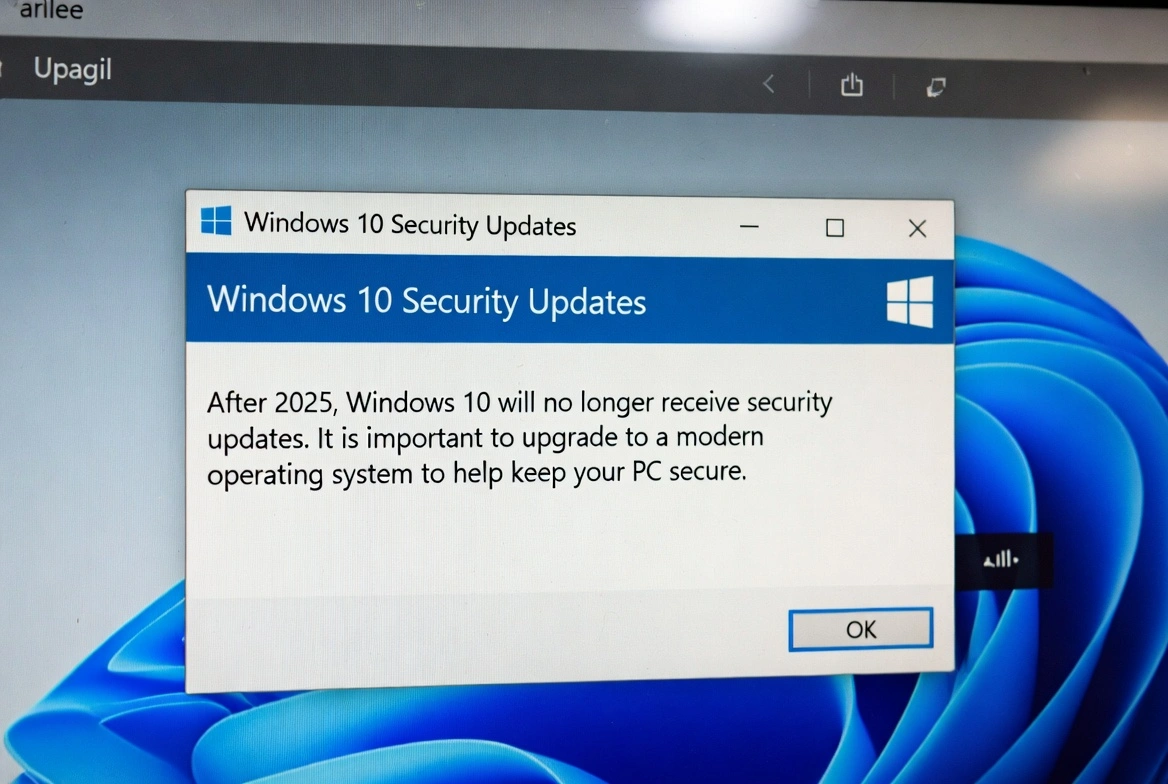
So, you've probably heard the news by now: Windows 10 is hitting its end-of-life in October 2025. No more security updates, no more patches, no more hand-holding from Microsoft. Sounds scary, right? But here's the thing—it doesn't have to be a disaster. Whether you're not ready to upgrade, your PC can't run Windows 11, or you just really love Windows 10, there are ways to stay protected.
In this guide, I'll walk you through everything you need to know about Windows 10 security updates after 2025, including Microsoft's Extended Security Updates (ESU) program, what it costs, how to get it, and whether it's actually worth it. Plus, I'll cover some practical alternatives if paying for updates isn't your thing.
📋 What's in This Guide
What Actually Happens on October 14, 2025?
Let's get one thing straight: your computer isn't going to explode or stop working when the clock strikes midnight on October 14th. Windows 10 will still run just fine. You can still use it to browse the web, write documents, play games—whatever you normally do.
But here's what will change: Microsoft stops releasing security patches. That means if someone discovers a vulnerability in Windows 10 after that date, Microsoft won't fix it. Your operating system becomes a sitting duck for hackers, malware authors, and anyone else looking to exploit known weaknesses.
What "End of Support" Actually Means
- No more security updates or patches
- No technical support from Microsoft
- Third-party software may drop Windows 10 support over time
- Your PC still works—it just gets riskier to use online
Think of it like driving a car that no longer gets safety recalls. The car still drives, but if a brake defect is discovered, you're on your own.
The Real Security Risks (No Fear-Mongering, I Promise)
Okay, I'm not here to scare you into buying a new computer. But let's be honest about what you're facing if you stick with unsupported Windows 10.
Vulnerabilities Will Be Discovered
Hackers actively look for vulnerabilities in operating systems. Once Windows 10 goes unsupported, it becomes an easier target because any new security holes won't get patched. History shows this happens fast—Windows XP had multiple major exploits discovered after its end of life.
You Become a Bigger Target
Cybercriminals love unsupported software. It's like leaving your front door unlocked. They know millions of people will still be running Windows 10, and they'll specifically craft attacks targeting those known vulnerabilities.
Banking and Sensitive Activities Get Riskier
Online banking, shopping, and anything involving personal data becomes more dangerous. If a vulnerability allows keylogging or screen capture, your passwords and financial info could be exposed.
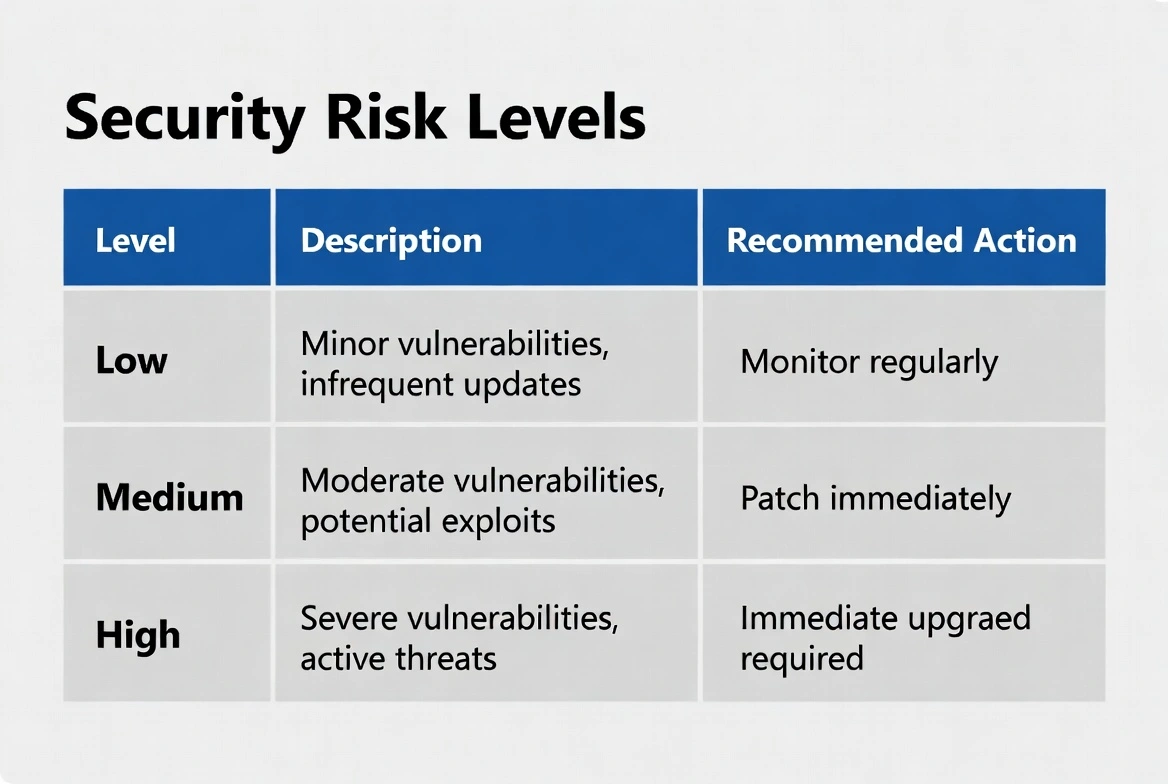
| Risk Level | Activity | Recommendation |
|---|---|---|
| Low | Offline document editing | Relatively safe to continue |
| Medium | Casual web browsing | Use updated browser + antivirus |
| High | Email and social media | Consider ESU or upgrading |
| Critical | Banking & financial transactions | Strongly recommend upgrading |
Extended Security Updates (ESU) Explained
Alright, here's where things get interesting. Microsoft knows not everyone can upgrade right away, so they've created the Extended Security Updates program. It's basically a paid subscription that keeps the security updates flowing for up to three more years after end of support.
What ESU Includes
- Critical security patches: Protection against the most dangerous vulnerabilities
- Important security updates: Broader coverage for significant threats
- Monthly Patch Tuesday releases: Same update schedule you're used to
What ESU Does NOT Include
- New features: No Windows 10 feature updates
- Non-security bug fixes: Only security-related issues get addressed
- Technical support: You're still on your own for troubleshooting
The good news? For the first time ever, Microsoft is offering ESU to regular consumers, not just businesses. This is a big deal because when Windows 7 reached end of life, only enterprise customers could buy extended updates.
How Much Does ESU Cost?
Here's where we need to talk money. Microsoft has announced pricing for the Windows 10 ESU program, and it's... well, let's just say it adds up.
| Year | Consumer Price | Coverage Period |
|---|---|---|
| Year 1 | $30 per device | Oct 2025 - Oct 2026 |
| Year 2 | $60 per device (expected) | Oct 2026 - Oct 2027 |
| Year 3 | $120 per device (expected) | Oct 2027 - Oct 2028 |
| Total (3 years) | $210+ per device | — |
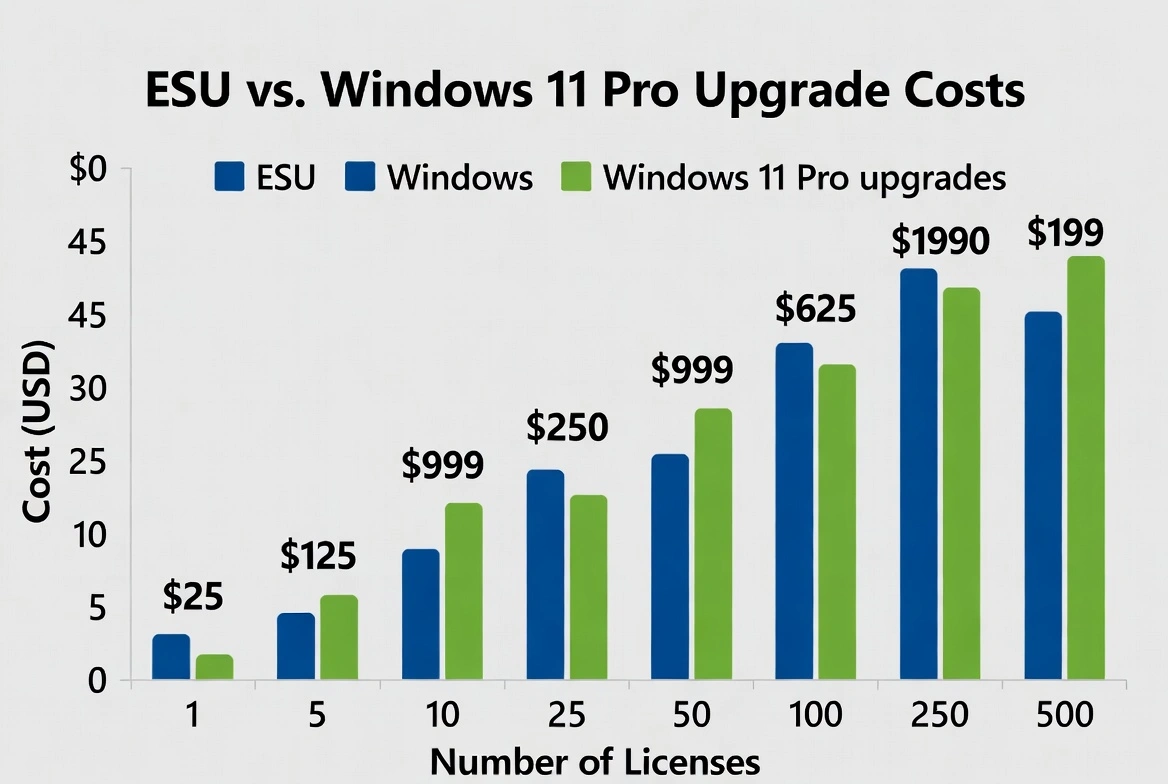
Notice that pattern? The price doubles every year. That's Microsoft's way of nudging you toward upgrading while still giving you an option if you absolutely need more time.
Here's the Thing...
For $210 over three years, you could just buy a Windows 11 Pro license for around $15 and be done with it. The math pretty much speaks for itself—upgrading is almost always the smarter financial choice.
How to Enable ESU on Your PC
If you've decided ESU is the right choice for you—maybe you need that specific application compatibility or you're not ready to make the switch yet—here's how to set it up.
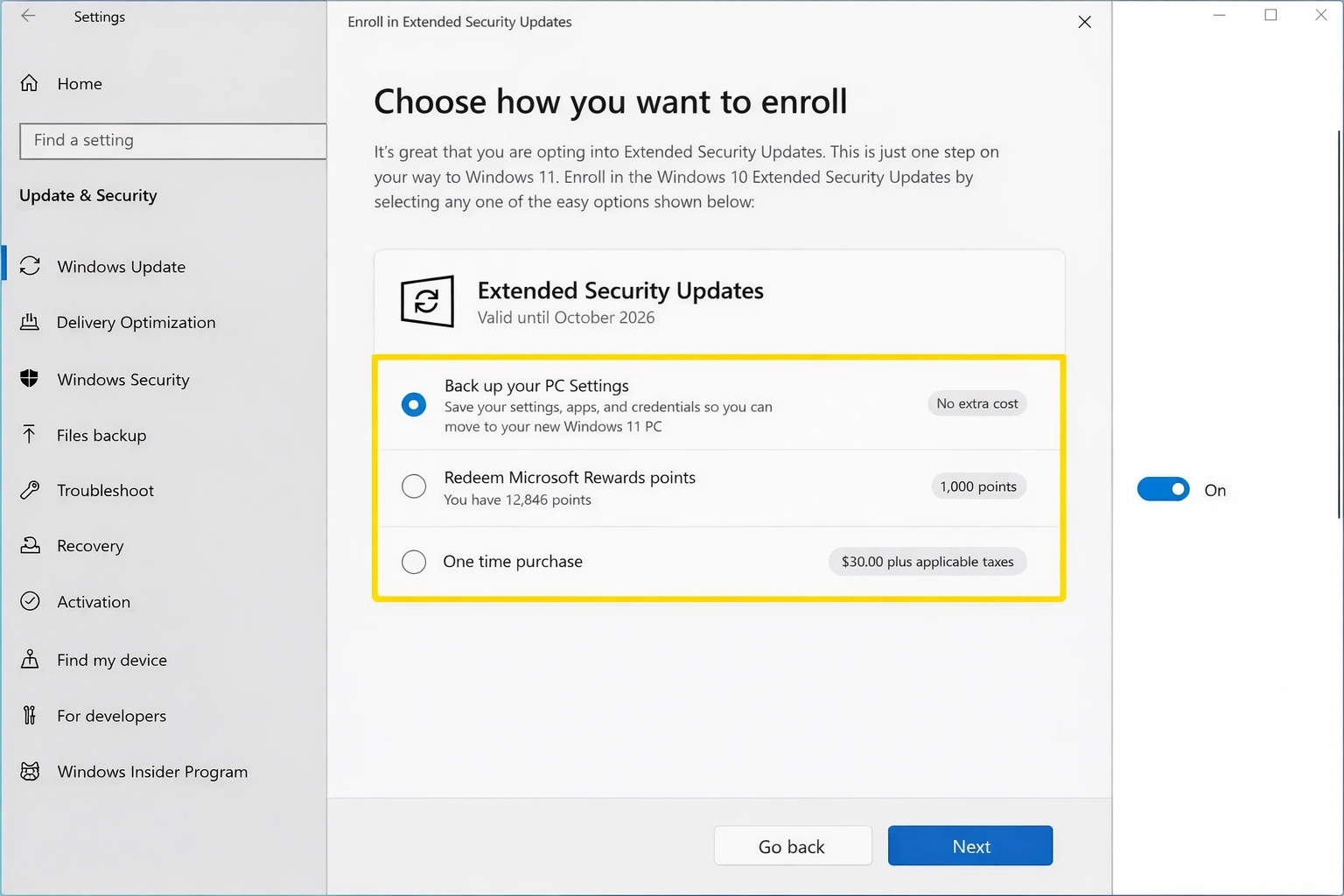
Step-by-Step ESU Enrollment
- Wait for Availability: Microsoft will make ESU available through the Microsoft Store closer to October 2025. Keep an eye out for announcements.
- Purchase Your License: You'll buy the ESU subscription directly from Microsoft. It's tied to your Microsoft account.
- Install the ESU Key: Once purchased, you'll receive a product key. Go to Settings → Update & Security → Activation and enter your ESU key.
- Enable Updates: After activation, security updates will resume through Windows Update just like before.
- Renew Annually: Remember, you'll need to purchase a new license each year if you want to continue receiving updates.
Pro Tip
Make sure your Windows 10 installation is fully updated before the end-of-support date. Install all available patches through October 2025 so you're starting from the most secure baseline.
Free Alternatives to Stay Protected
Don't want to pay for ESU? Fair enough. Here are some ways to reduce your risk without spending a dime on extended updates.
Use a Good Antivirus
Third-party security software like ESET, Bitdefender, or Malwarebytes can catch many threats that slip through unpatched vulnerabilities.
Keep Everything Else Updated
Your browser, Office suite, and other apps will still get updates. Make sure they're always current—browsers especially are a common attack vector.
Use a Standard User Account
Running as a standard user instead of administrator limits what malware can do if it gets on your system. It's a simple but effective defense layer.
Be Extra Careful Online
Avoid sketchy websites, don't download random email attachments, and think twice before clicking links. Good habits are your first line of defense.
Honestly, these practices are things you should be doing anyway. But on an unsupported OS, they become even more critical.
Should You Just Upgrade to Windows 11?
Look, I'll level with you: for most people, upgrading to Windows 11 is the simplest and most cost-effective solution. Here's why.
The Case for Upgrading
- Cost: A Windows 11 Pro key costs less than one year of ESU ($15 vs $30)
- Long-term security: You get security updates until at least 2031
- New features: Copilot AI, better multitasking, Android app support
- Software compatibility: New apps will eventually require Windows 11
Reasons You Might Stay on Windows 10
- Hardware doesn't meet requirements: TPM 2.0 and Secure Boot are strict requirements
- Critical legacy software: Some older business apps might have compatibility issues
- You hate change: Okay, this isn't a great reason, but I get it
What If Your PC Doesn't Meet Windows 11 Requirements?
If your computer fails the Windows 11 compatibility check, you have a few options:
- Check your TPM: Many PCs have TPM 2.0 but it's disabled in BIOS. Worth checking!
- Use unofficial installation methods: There are ways to bypass the checks, though Microsoft doesn't officially support this
- Upgrade your hardware: Sometimes a simple TPM module add-on is all you need
- Buy a new PC: If your computer is that old, it might be time anyway
ESU vs Upgrading: The Honest Comparison
| Factor | ESU (Stay on W10) | Upgrade to W11 |
|---|---|---|
| Cost (3 years) | $210+ | $15 (one-time) |
| Security updates | Until Oct 2028 | Until 2031+ |
| New features | None | Yes, ongoing |
| Learning curve | None | Minimal |
| Future software support | Declining | Full support |
Frequently Asked Questions
Is Windows 10 safe to use after October 2025?
It becomes increasingly risky over time. Without security patches, any new vulnerabilities discovered won't be fixed. For basic offline use, you might be okay for a while. For online activities, especially banking or shopping, the risks grow quickly. I'd recommend either getting ESU or upgrading.
Can I get ESU for free?
For consumers, no—ESU is a paid program at $30/year (doubling each year). However, Microsoft may offer free ESU to organizations using Windows 365 Cloud PCs or Azure Virtual Desktop. Educational institutions might also get discounts.
What happens if I don't buy ESU and don't upgrade?
Your PC keeps working, but you won't receive security updates after October 2025. You become more vulnerable to malware and exploits over time. Your antivirus can help, but it can't patch operating system vulnerabilities.
Will my apps stop working on Windows 10?
Not immediately, but over time, software developers will drop Windows 10 support. Browsers will continue working for a while, but eventually, you might find new apps or updates no longer compatible with Windows 10.
Can I upgrade from Windows 10 to Windows 11 for free?
If you have a genuine Windows 10 license and your PC meets the requirements, Microsoft's free upgrade offer is still available. However, if your PC doesn't meet requirements or you need a clean install, you'll need a new Windows 11 license—which you can get for as little as $15 from authorized resellers.
Is the $30 ESU price per device or per account?
It's per device. So if you have multiple PCs running Windows 10, you'd need to pay $30 for each one. This is another reason upgrading makes more sense financially for most people.
When exactly does Windows 10 support end?
Microsoft has set October 14, 2025 as the end-of-support date for Windows 10. After this date, the only way to get security updates is through the paid ESU program.
Should I buy ESU or just upgrade to Windows 11?
For most people, upgrading is the better choice. It's cheaper ($15 vs $30+), gives you longer support (until 2031+), and includes new features. ESU only makes sense if you absolutely cannot upgrade due to hardware limitations or critical software compatibility issues.
The Bottom Line
Windows 10's end of support doesn't have to be a crisis. You've got options: pay for ESU to buy time, take your chances with careful security practices, or—my recommendation—just bite the bullet and upgrade to Windows 11.
The numbers really don't lie here. For the cost of one year of ESU ($30), you could get a Windows 11 Pro license ($15) and still have money left for coffee. And instead of temporary patches, you get a decade of security updates plus new features.
Whatever you decide, don't just ignore the deadline and hope for the best. October 2025 is coming, and being prepared—whether that's with ESU, an upgrade, or enhanced security measures—is way better than scrambling after the fact.
Stay safe out there!