
Windows 11 System Requirements: Can Your PC Run It?

Callum specializes in breaking down complex technology topics into easy-to-understand guides. He has a background in computer science and technical writing.
Wondering if your PC can run Windows 11? You're not alone. Microsoft's latest operating system introduced stricter hardware requirements that left millions of perfectly capable computers on the sidelines. But here's the reality: understanding the Windows 11 system requirements isn't just about checking a list—it's about knowing what actually matters and what workarounds exist for older hardware.
Quick Compatibility Check
Run PC Health Check (free Microsoft tool) to instantly see if your PC meets Windows 11 requirements. Download it from Microsoft's website or search "PC Health Check" in your browser.
Official Windows 11 Minimum System Requirements
Let's start with what Microsoft officially requires. These aren't suggestions—Windows 11 will refuse to install on hardware that doesn't meet these specs (at least through normal installation methods).
| Component | Minimum Requirement | Recommended |
|---|---|---|
| Processor (CPU) | 1 GHz, 2+ cores, 64-bit compatible | Intel 8th Gen / AMD Ryzen 2000+ |
| RAM | 4 GB | 8 GB or more |
| Storage | 64 GB | 256 GB SSD |
| TPM | Version 2.0 | TPM 2.0 |
| Secure Boot | UEFI, Secure Boot capable | Enabled |
| Graphics | DirectX 12 with WDDM 2.0 | Dedicated GPU for gaming |
| Display | 720p, 9" diagonal | 1080p or higher |
The most controversial requirements are TPM 2.0 and the supported processor list. Even if your PC has plenty of power, failing these checks will block a standard Windows 11 installation.
What is TPM 2.0 and Why Does Windows 11 Require It?
TPM (Trusted Platform Module) is a security chip that stores encryption keys, passwords, and certificates. It's the hardware foundation for features like BitLocker drive encryption and Windows Hello authentication.
Why Microsoft requires it: Windows 11 was designed with security as a core principle. TPM 2.0 enables hardware-level protection against firmware attacks, credential theft, and rootkits. It's not arbitrary—cyber threats have evolved, and Microsoft is betting on hardware security.
How to Check if You Have TPM 2.0
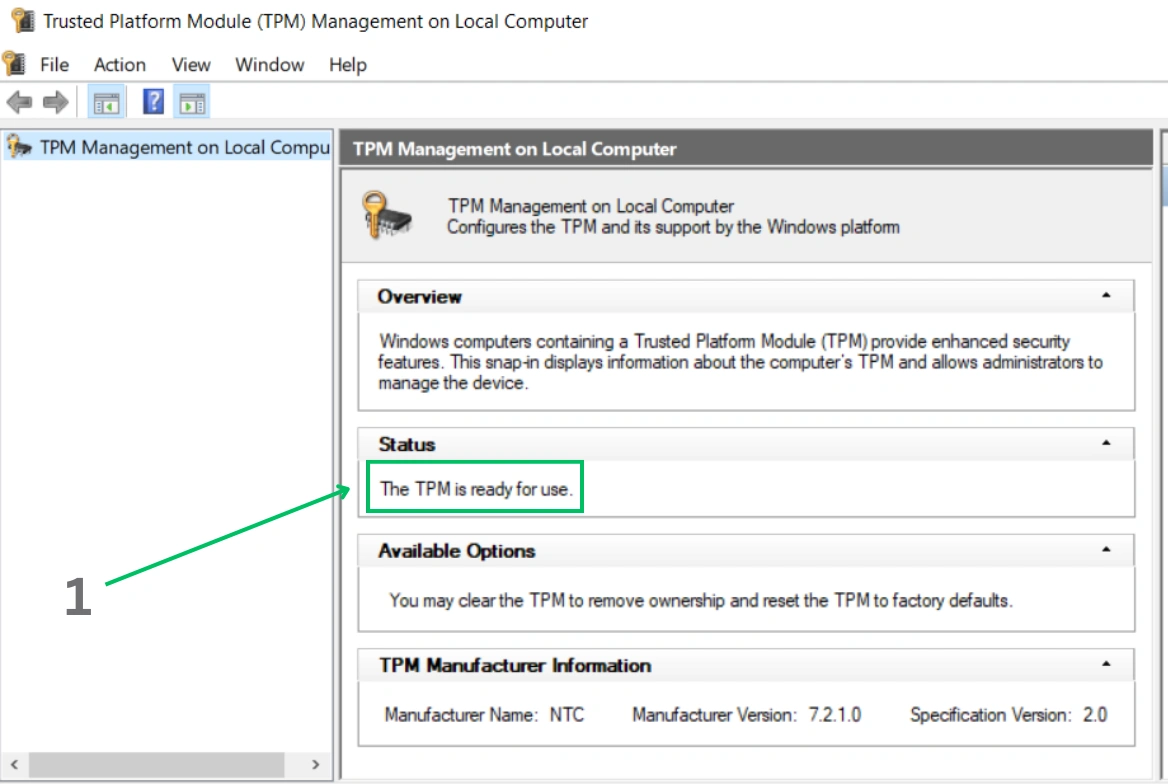
- 1Press Windows + R to open Run
- 2Type tpm.msc and press Enter
- 3Look for "Specification Version" – it should say 2.0
TPM Might Be Disabled
Many PCs have TPM 2.0 hardware but it's disabled in BIOS. Check your BIOS settings under Security or Advanced → look for "TPM," "Security Chip," or "PTT" (Intel Platform Trust Technology). Enable it and your PC might pass the check.
Which Processors Support Windows 11?
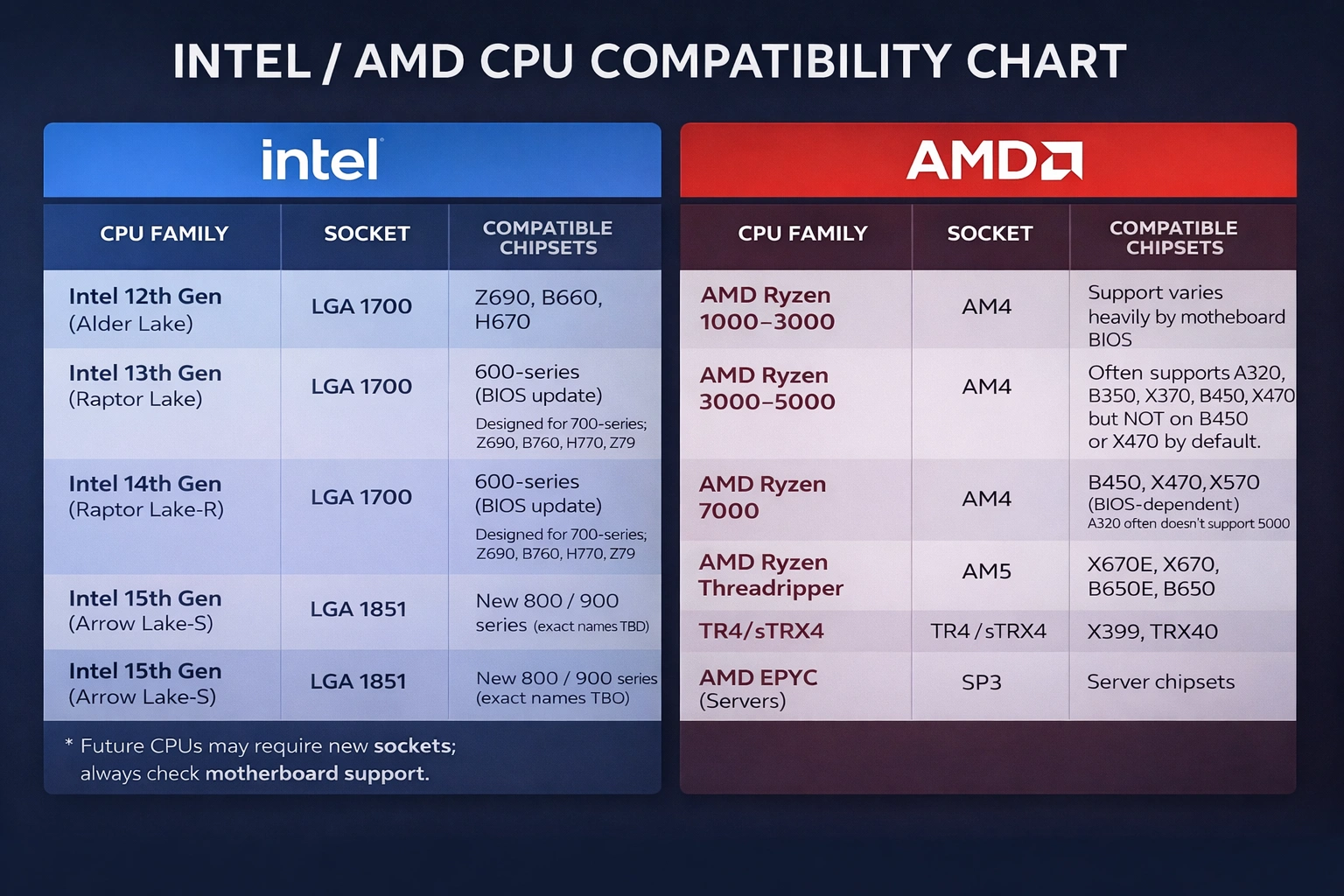
Microsoft maintains a specific list of supported CPUs. Generally:
- Intel: 8th generation (Coffee Lake) and newer – Core i3-8100, i5-8400, i7-8700, etc.
- AMD: Ryzen 2000 series and newer – Ryzen 3 2200G, Ryzen 5 2600, Ryzen 7 2700, etc.
- Qualcomm: Snapdragon 850 and newer (ARM-based Windows devices)
Notable exclusions: Intel 7th gen (Kaby Lake) like the popular i7-7700K, and AMD Ryzen 1000 series. These are capable processors, but they didn't make Microsoft's cut.
Why Are Older CPUs Not Supported?
Microsoft claims it's about driver stability and security features baked into newer silicon. Specifically:
- Mode-Based Execution Control (MBEC) for virtualization-based security
- Hardware-enforced stack protection
- Better crash rates in internal testing
Whether you agree with these reasons is another matter—plenty of users feel their 7th-gen Intel machines deserve Windows 11 support.
RAM and Storage: What You Actually Need
The official minimums are 4 GB RAM and 64 GB storage. Here's the reality:
RAM: 4 GB is Not Enough
Technically Windows 11 will install with 4 GB, but the experience will be painful. Modern web browsers alone can consume 4 GB. For a usable system:
- 8 GB:Comfortable for web browsing, Office, light multitasking
- 16 GB:Recommended for creative work, gaming, development
- 32 GB+:Video editing, 3D rendering, virtual machines, heavy workloads
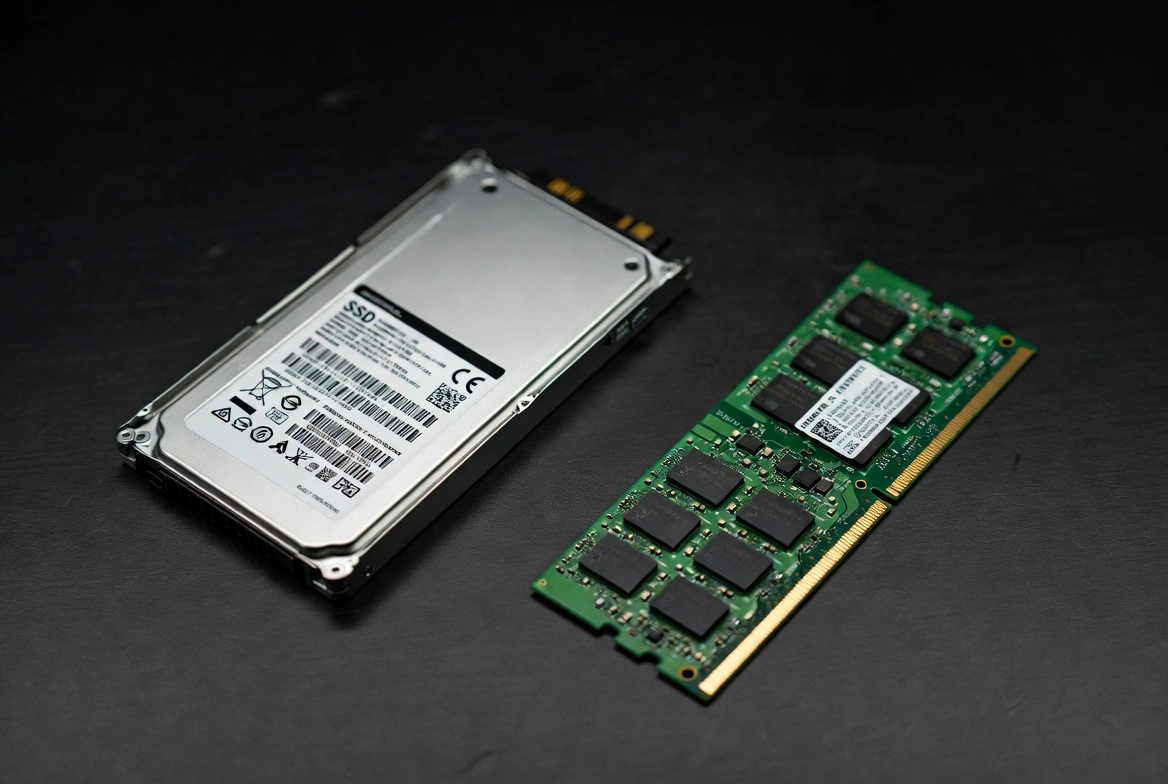
Storage: Go SSD or Go Home
Windows 11 on a traditional hard drive (HDD) is miserable. Boot times stretch to minutes, apps take forever to load. An SSD transforms the experience:
- 256 GB:Bare minimum for Windows + essential apps
- 512 GB:Comfortable for most users with room to grow
- 1 TB+:Gamers, creators, or anyone with large file libraries
If your PC has an HDD but meets other requirements, upgrading to a SATA or NVMe SSD is the single best improvement you can make. Prices have dropped dramatically—a quality 500 GB SSD costs under $50.
Graphics and Display Requirements
Windows 11 requires a GPU compatible with DirectX 12 and WDDM 2.0 drivers. This includes:
- Intel: HD Graphics 500 (Skylake) and newer
- AMD: Radeon RX 400 series (Polaris) and newer, integrated Vega graphics
- NVIDIA: GeForce 600 series (Kepler) and newer
Display: A 720p screen with at least 9 inches diagonal is required. Multi-monitor setups, 4K displays, and high refresh rate monitors all work fine—Windows 11 actually handles scaling better than Windows 10.
How to Check if Your PC Can Run Windows 11
Microsoft provides two official methods:
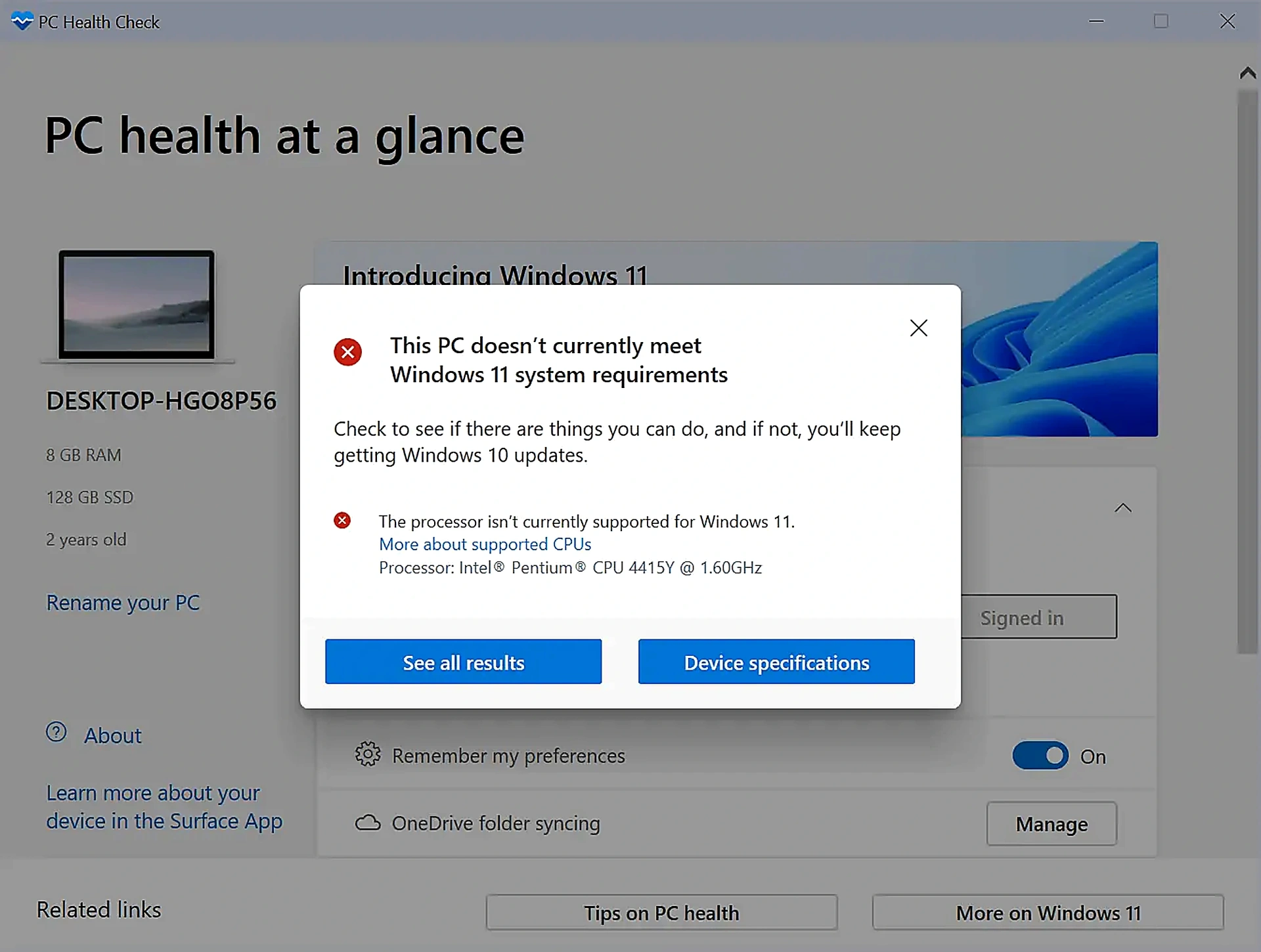
Method 1: PC Health Check App
- 1Download PC Health Check from Microsoft's website
- 2Install and run the application
- 3Click "Check now" under the Windows 11 section
- 4View detailed results showing which requirements pass or fail
Method 2: Windows Update (Windows 10)
If you're on Windows 10, go to Settings → Update & Security → Windows Update. Eligible PCs will see a prompt to upgrade to Windows 11. If you don't see it, your PC likely doesn't meet requirements.
Method 3: Manual Check (Advanced)
For detailed info without third-party tools:
- CPU: Open Task Manager → Performance → CPU to see your processor model
- RAM: Same location shows installed memory
- TPM: Run
tpm.msc - Secure Boot: Run
msinfo32and check "Secure Boot State"
What If My PC Doesn't Meet the Requirements?
Don't give up yet. You have options:
Option 1: Enable TPM/Secure Boot in BIOS
As mentioned earlier, many PCs have these features disabled by default. Check your BIOS settings. Look for TPM, fTPM, PTT, or Security Device Support.
Option 2: Upgrade Your Hardware
If you're just missing RAM or storage:
- Add more RAM (if slots are available)
- Replace HDD with SSD
- Add a TPM 2.0 module (some motherboards have headers)
Option 3: Install Windows 11 on Unsupported Hardware
Disclaimer: Microsoft doesn't recommend this and warns about stability issues. That said, it's possible using registry edits or modified installation media. Your PC won't receive security updates through normal channels, though they often work anyway.
Common methods include:
- Rufus tool with TPM/Secure Boot bypass options
- Registry modifications during installation
- Using Windows Server installation tricks
Our recommendation: If your hardware is close (e.g., 7th-gen Intel), the bypass works fine for most users. If your hardware is significantly older, stability issues become more common.
Option 4: Stay on Windows 10
Windows 10 remains supported until October 14, 2025. After that, you can purchase Extended Security Updates (ESU) for another year of patches. This buys time to plan a hardware upgrade.
Related Articles
Windows 11 Requirements for Specific Features
Some Windows 11 features have additional requirements beyond the basics:
| Feature | Additional Requirements |
|---|---|
| Windows Hello (Face) | IR camera for facial recognition |
| BitLocker | TPM 1.2 or 2.0, Windows 11 Pro/Enterprise |
| Hyper-V | Windows 11 Pro, SLAT-capable CPU |
| Snap Layouts (4+ zones) | 1920px or wider screen resolution |
| Auto HDR | HDR-compatible monitor |
| DirectStorage | NVMe SSD, DirectX 12 GPU |
| Teams Integration | Camera, microphone, speakers |
Recommended Specs for Different Use Cases
Minimum requirements don't equal a good experience. Here's what we actually recommend:
Basic Home Use
Web browsing, email, Office, streaming
- Intel i3/Ryzen 3 (8th gen+)
- 8 GB RAM
- 256 GB SSD
- Integrated graphics fine
Productivity Work
Office apps, multitasking, light photo editing
- Intel i5/Ryzen 5 (8th gen+)
- 16 GB RAM
- 512 GB SSD
- Integrated or entry GPU
Gaming
Modern games at 1080p+
- Intel i5/Ryzen 5 (10th gen+ preferred)
- 16-32 GB RAM
- 512 GB+ NVMe SSD
- Dedicated GPU (RTX 3060+ tier)
Content Creation
Video editing, 3D, development
- Intel i7/Ryzen 7 (10th gen+)
- 32 GB+ RAM
- 1 TB+ NVMe SSD
- Dedicated workstation GPU
Frequently Asked Questions
What are the minimum requirements for Windows 11?
1 GHz 2-core 64-bit CPU, 4 GB RAM, 64 GB storage, TPM 2.0, UEFI with Secure Boot, DirectX 12 GPU, and a 720p+ display. However, we recommend 8 GB RAM and a 256 GB SSD for a usable experience.
Why does Windows 11 require TPM 2.0?
TPM 2.0 enables hardware-based security features like BitLocker encryption, secure credential storage, and protection against firmware attacks. Microsoft designed Windows 11 with these security foundations as mandatory, not optional.
Can I run Windows 11 without TPM 2.0?
Officially, no. Unofficially, bypass methods exist using tools like Rufus or registry edits. This works for many users but Microsoft warns about potential stability issues and update problems.
Is 4 GB RAM enough for Windows 11?
Technically yes, practically no. With 4 GB, Windows 11 runs slowly and struggles with basic multitasking. 8 GB is the realistic minimum for comfortable use.
Why isn't my Intel 7th gen CPU supported?
Microsoft cites reliability data and missing security features in pre-8th gen Intel CPUs. Whether this justifies excluding capable hardware is debatable, but it's the official stance.
Can I install Windows 11 on an unsupported PC?
Yes, using bypass methods. The installation works, and for most users the experience is identical to supported hardware. Microsoft discourages this but doesn't actively block it.
Do I need an SSD for Windows 11?
It's not strictly required, but strongly recommended. Windows 11 on an HDD is painfully slow. A SATA SSD costs around $40 for 500 GB and makes an enormous difference.
How do I check if my PC can run Windows 11?
Download Microsoft's free PC Health Check tool from their website. It scans your hardware and tells you exactly which requirements you meet or fail.
What happens if I install Windows 11 on unsupported hardware?
Windows 11 will install and function normally for most users. You'll see a "not recommended" watermark and Microsoft warns updates may not work—though in practice, they usually do.
Is it worth upgrading to Windows 11?
If your PC meets requirements, yes—Windows 11 offers better performance, modern UI, and improved security. If your PC requires bypasses, weigh the benefits against potential issues and the option of staying on Windows 10.
The Bottom Line
Windows 11's system requirements are stricter than any previous Windows version, and they've sparked legitimate frustration among users with capable hardware. The TPM 2.0 and processor restrictions are real barriers—not performance limitations, but security-focused gatekeeping.
If your PC passes the official check: You're good to go. Windows 11 runs well on any hardware that meets the requirements, and the free upgrade from Windows 10 is still available.
If your PC fails on TPM/Secure Boot: Check your BIOS settings first. Many PCs have these features disabled by default. A quick toggle might be all you need.
If your PC fails on CPU requirements: You have options. Bypass methods work for most users, Windows 10 remains viable until late 2025, and hardware upgrades are more affordable than ever.
Whatever path you choose, understanding exactly what Windows 11 requires—and why—puts you in control of the decision.