
Windows 11 Running Slow? 15 Emergency Fixes When Your PC Suddenly Slows Down

Callum specializes in breaking down complex technology topics into easy-to-understand guides. He has a background in computer science and technical writing.
Did your PC suddenly slow down?
This guide focuses on diagnosing and fixing sudden slowdowns. If your PC has always been slow, check our advanced optimization guide. For gaming FPS improvements, see our gaming optimization guide.
Is your Windows 11 suddenly running slow? When a PC that used to work fine starts crawling, something specific is causing the problem. This troubleshooting guide will help you identify the exact cause and fix it, rather than blindly applying optimizations.
Unlike general optimization guides, here we focus on diagnosing what changed: Was it a recent update? A new program? Malware? A failing hard drive? We will follow a systematic process to find the culprit.
Step 1: Diagnose the Type of Slowdown
Before applying fixes, identify what type of slowdown you are experiencing. Each symptom points to different causes:
Slow boot (over 1 minute)
Likely causes: Excessive startup programs, fragmented/failing hard drive, pending Windows Update
CPU at 100% constantly
Likely causes: Runaway process, crypto-mining malware, Windows Search indexing, stuck Windows Update
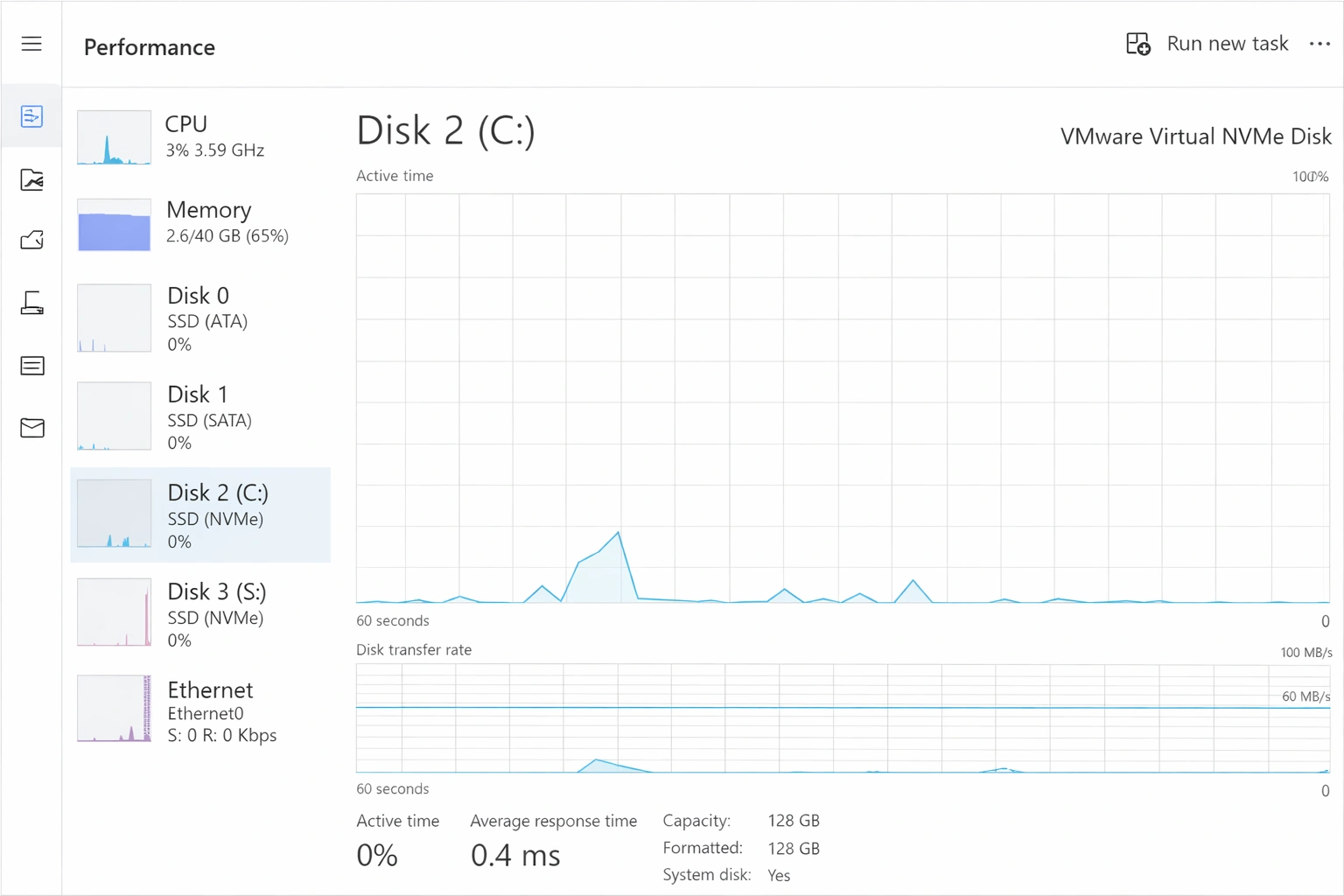
Disk at 100% (frozen system)
Likely causes: SysMain/Superfetch, Windows Search, failing hard drive, low RAM
📋 Index: 15 Fixes to Speed Up Windows 11
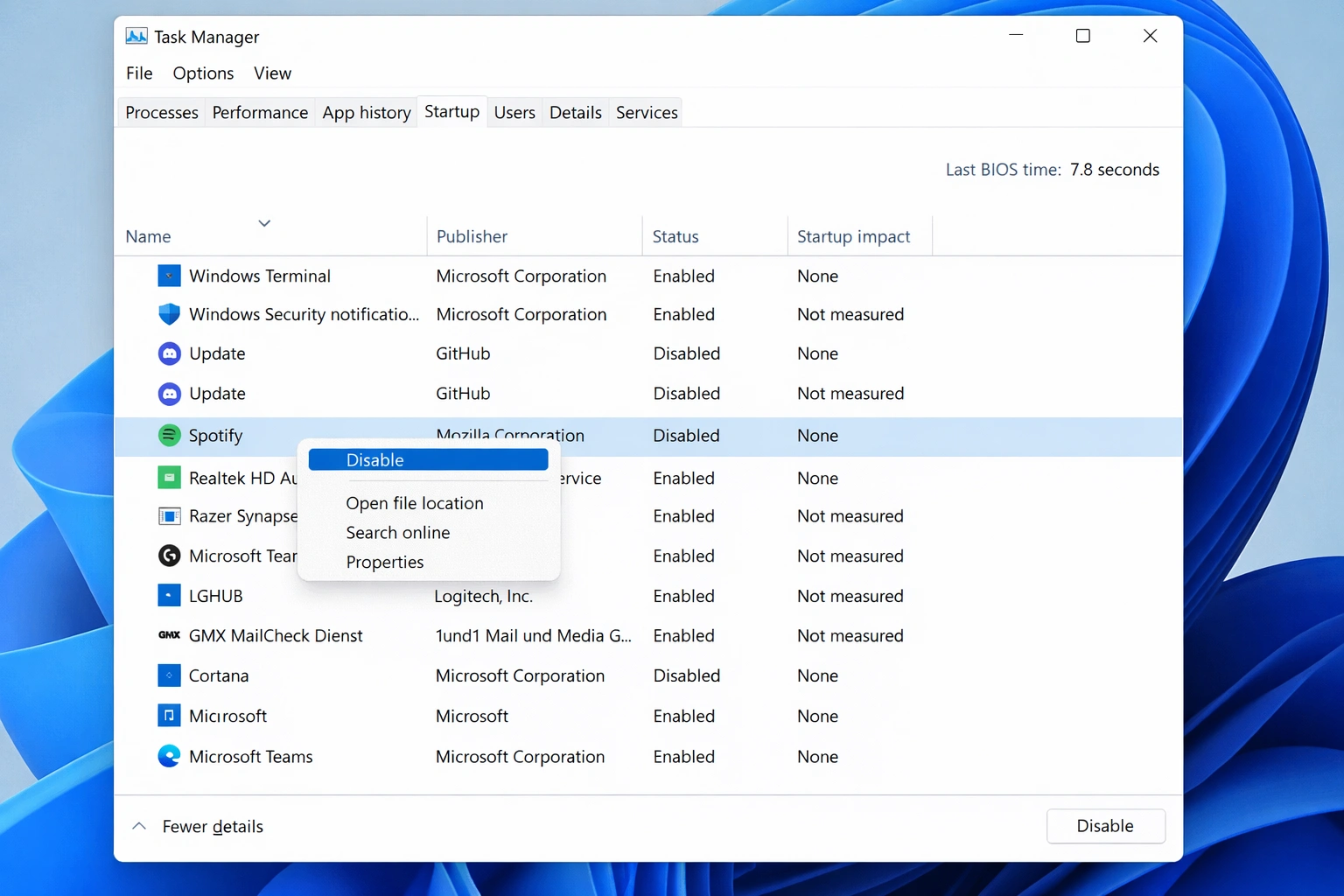
1Disable Unnecessary Startup Programs
This is probably the number one cause of slowdowns in Windows 11 and, fortunately, also the easiest to fix. Every program that starts automatically with Windows competes for system resources (RAM, CPU, and disk access) during boot and continues to consume memory in the background.
It's common for applications like Spotify, Discord, Steam, OneDrive, Skype, and many others to configure themselves to auto-start without the user requesting it. Over time, this list grows to the point where your PC takes several minutes to be truly usable after turning on.
How to disable startup programs:
- Press
Ctrl + Shift + Escto open Task Manager - Click on the "Startup apps" tab
- Review the "Startup impact" column - prioritize disabling those marked as "High"
- Right-click on each unnecessary program and select "Disable"
Which programs NOT to disable?
Keep enabled: antivirus, audio drivers (Realtek, Nahimic), PC manufacturer utilities (Dell, HP, Lenovo), and essential Windows services. If you don't recognize a program, Google it before disabling.
Expected result: Boot time reduction between 30 seconds and 2 minutes, depending on how many programs you disable. You'll also notice the system responds faster immediately after logging in.
2Free Up Disk Space with Storage Sense
Windows 11 needs free space on the system disk to function properly. The operating system uses this space for virtual memory (page file), temporary updates, system cache, and other internal operations. When the disk is full or nearly full, performance degrades significantly.
As a general rule, you should keep at least 15-20% of the C: drive free. If you have a 256 GB SSD, that means keeping at least 40-50 GB available.
Using Storage Sense (automatic):
- Open Settings (Win + I)
- Go to System → Storage
- Turn on "Storage Sense" for automatic cleanup
- Click "Run Storage Sense now" for immediate cleanup
Manually clean files:
On the same Storage screen, you'll see a breakdown of what's taking up space:
- Temporary files: Click to view and delete. Includes Recycle Bin files, old Downloads folder, thumbnails, etc.
- Previous Windows versions: After a major update, Windows keeps the previous version. This can take 10-20 GB and is safe to delete after confirming everything works.
- Apps: Review which apps take up the most space and uninstall those you don't use.
Additional tip: Run cleanmgr (Disk Cleanup) as administrator for deeper cleaning options, including Windows Update files.
3Disable or Reduce Visual Effects
Windows 11 introduced a renewed visual design with fluid animations, soft shadows, rounded corners, and blur effects. While these effects make the system look modern and attractive, they consume CPU and GPU resources that could be dedicated to the applications you actually need.
This adjustment is especially effective on PCs with integrated graphics (Intel UHD, AMD Radeon integrated) or with low RAM. Users with powerful hardware probably won't notice a difference, but on modest machines it can be transformative.
How to adjust visual effects:
- Press
Win + R, typesysdm.cpland press Enter - Go to the "Advanced" tab
- In the "Performance" section, click "Settings..."
- Select "Adjust for best performance" (disables everything)
- Or select "Custom" and keep only the options you consider important
Recommended effects to keep (visual/performance balance):
- ✓ Smooth edges of screen fonts (improves text legibility)
- ✓ Show thumbnails instead of icons (useful for images)
- ✗ Animate windows when minimizing and maximizing (disable)
- ✗ Show shadows under windows (disable)
- ✗ Slide open combo boxes (disable)
4Switch to High Performance Power Plan
By default, Windows 11 uses the "Balanced" power plan, which dynamically reduces processor speed to save battery (on laptops) or reduce power consumption. This means your CPU could be running at a fraction of its capacity even when you need maximum performance.
Switching to the "High performance" plan ensures the processor always runs at maximum capacity. On laptops, this reduces battery life, so it's better to use when plugged in.
How to change the power plan:
- Open Control Panel (search "control panel" in Start menu)
- Go to Hardware and Sound → Power Options
- Select "High performance"
- If you don't see it, click "Show additional plans"
For advanced users: You can create an "Ultimate Performance" plan by running in PowerShell as administrator: powercfg -duplicatescheme e9a42b02-d5df-448d-aa00-03f14749eb61
5Update GPU and Chipset Drivers
Drivers are the software that allows Windows to communicate with your PC's hardware. Outdated or generic drivers can cause performance problems, instability, and conflicts with modern applications.
The most important drivers for performance are:
- GPU (graphics card): Affects games, video playback, multimedia editing, and overall interface fluidity
- Chipset: Optimizes communication between CPU, RAM, and other components
- Storage (NVMe/SATA): Can improve read/write speeds
Where to download official drivers:
- NVIDIA: nvidia.com/drivers (or use GeForce Experience)
- AMD: amd.com/support (GPU and chipset)
- Intel: Intel Driver & Support Assistant
Avoid third-party driver software
Programs like "Driver Booster" or "Driver Easy" often install incorrect or outdated drivers. Always download drivers directly from the hardware manufacturer.
6Remove Bloatware and Pre-installed Apps
"Bloatware" refers to pre-installed applications that come with Windows or that your PC manufacturer added before selling it to you. Many of these apps consume resources in the background and take up disk space without providing real value.
Common Windows 11 bloatware:
- Xbox Game Bar (if you don't game on PC)
- Cortana
- Movies & TV
- Groove Music (replaced by Media Player)
- Feedback Hub
- Tips
- Sticky Notes (if you don't use them)
Typical manufacturer bloatware (Dell, HP, Lenovo, etc.):
- McAfee, Norton, or trial antivirus
- Manufacturer "optimization" software
- Deals and coupon applications
- Office 365 trials (if you already have a license)
How to uninstall:
- Open Settings → Apps → Installed apps
- Sort by "Date installed" or "Size"
- Click the three dots next to each app and select "Uninstall"
For resistant apps: Some Microsoft apps can't be easily uninstalled. You can use PowerShell commands or tools like "O&O AppBuster" (free) to remove them.
7Limit Windows Search Indexing
Windows Search maintains an index of all files on your PC to provide instant search results. However, this indexing process constantly consumes CPU and disk access, especially when you frequently add, modify, or delete files.
If you don't use Windows search much or if you notice the "SearchIndexer.exe" process consuming lots of resources in Task Manager, limiting indexing can help significantly.
Option 1: Switch to Classic mode (recommended)
- Open Settings → Privacy & security → Searching Windows
- Under "Find my files", select "Classic"
- This limits indexing to only Documents, Pictures, Music, and Desktop folders
Option 2: Customize indexed locations
- Search for "Indexing Options" in the Start menu
- Click "Modify"
- Uncheck locations you don't need to search frequently
Option 3: Completely disable (advanced users)
- Press
Win + R, typeservices.msc - Find "Windows Search"
- Double-click, change "Startup type" to "Disabled" and click "Stop"
8Perform a Clean Boot
A clean boot starts Windows with the minimum set of drivers and startup programs. It's an excellent diagnostic tool to determine if a third-party program is causing performance problems.
If your PC runs significantly faster after a clean boot, you know the problem is in one of the disabled services or startup programs. You can then enable them one by one to identify the culprit.
How to perform a clean boot:
- Press
Win + R, typemsconfigand press Enter - Go to the "Services" tab
- Check "Hide all Microsoft services"
- Click "Disable all"
- Go to the "Startup" tab and click "Open Task Manager"
- Disable all startup programs
- Restart the PC
Important: Return to normal
After diagnosing, go back to msconfig and select "Normal startup" or enable the services you need. A clean boot is only for diagnosis, not for daily use.
9Adjust Virtual Memory (Page File)
Virtual memory is hard drive space that Windows uses as an extension of RAM when RAM fills up. The "page file" (pagefile.sys) stores temporary data that doesn't fit in physical RAM.
If you have low RAM (8 GB or less), Windows may be excessively using the page file, which slows down the system because the disk is much slower than RAM. Adjusting the page file size can help.
Recommended settings:
- 4 GB RAM: Page file of 6-8 GB
- 8 GB RAM: Page file of 4-8 GB
- 16 GB or more: You can generally leave it on automatic or reduce it
How to adjust:
- Open System Properties (
sysdm.cpl) - Go to Advanced → Performance → Settings
- In the "Advanced" tab, click "Change" under Virtual memory
- Uncheck "Automatically manage paging file size"
- Select your system disk (C:) and choose "Custom size"
- Enter the initial and maximum size (recommended: 1.5x to 2x your RAM)
- Click "Set" then "OK"
- Restart the PC
10Disable Transparency Effects
Windows 11 includes transparency effects (also called "Mica" and "Acrylic") that create a frosted glass appearance on windows, menus, and the taskbar. While visually attractive, these effects require constant graphics processing.
On PCs with integrated graphics or older graphics cards, disabling transparency can make the system feel more fluid and responsive.
How to disable:
- Open Settings → Personalization → Colors
- Turn off "Transparency effects"
You can also disable animation effects in Settings → Accessibility → Visual effects and turn off "Animation effects".
11Scan and Remove Malware
Malware (viruses, trojans, cryptominers, adware) may be consuming system resources without your knowledge. A common symptom is high CPU usage even when you're not doing anything, fans running constantly, or a PC that heats up more than normal.
Cryptominers are particularly problematic because they use your CPU and GPU at maximum to mine cryptocurrency for the attacker, leaving very few resources for your applications.
Scanning with Windows Security (built-in):
- Open Windows Security (search in Start menu)
- Go to Virus & threat protection
- Click "Scan options"
- Select "Full scan" (takes longer but is more thorough)
- Click "Scan now"
Recommended additional tools:
- Malwarebytes Free: Excellent for detecting malware that Windows Defender may miss
- AdwCleaner: Specialized in adware and potentially unwanted programs (PUPs)
- HitmanPro: Second opinion for deeper scans
12Install Pending Windows Updates
It may seem counterintuitive (many blame updates for slowing down their PCs), but Windows updates frequently include performance fixes, security patches, and important optimizations.
If you have pending updates, Windows may be running background processes waiting to complete installation, which consumes resources. Additionally, older versions may have performance bugs that have already been fixed.
How to check and install updates:
- Open Settings → Windows Update
- Click "Check for updates"
- Download and install all available updates
- Restart when prompted
- Repeat the process until no pending updates remain
Don't forget optional updates
Click "Advanced options" then "Optional updates" to see updated drivers and other improvements that may help with performance.
13Disable Tips, Suggestions, and Telemetry
Windows 11 includes various "helpful" features that monitor your system usage to offer tips, suggestions, and personalized ads. These features consume resources in the background and can contribute to overall slowness.
Disable tips and suggestions:
- Open Settings → System → Notifications
- Turn off "Get tips and suggestions when using Windows"
- Turn off "Show me the Windows welcome experience"
Reduce telemetry:
- Go to Settings → Privacy & security → Diagnostics & feedback
- Change "Diagnostic data" to "Required" (the minimum allowed)
- Turn off "Send optional diagnostic data"
- Turn off "Tailored experiences"
Disable personalized ads:
- Go to Settings → Privacy & security → General
- Turn off all advertising ID and suggested content options
14Upgrade from HDD to SSD (Hardware Upgrade)
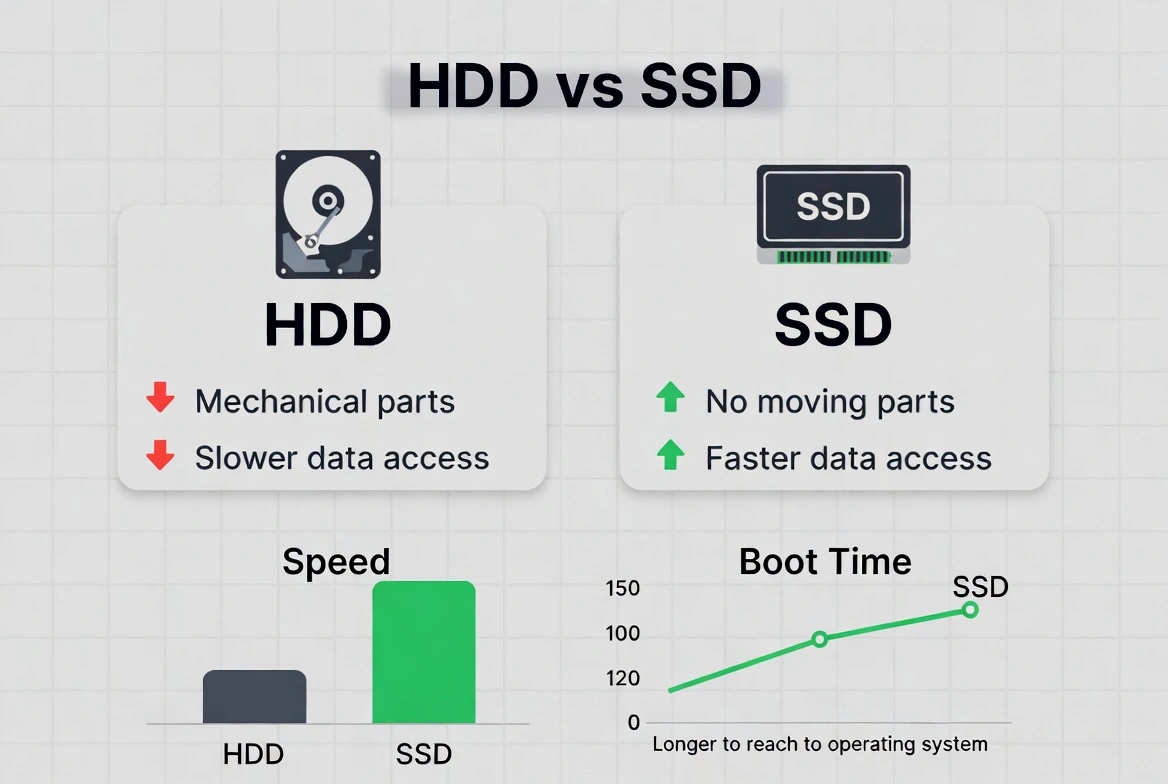
If you're still using a mechanical hard drive (HDD), switching to a solid-state drive (SSD) is probably the most impactful upgrade you can make to your PC. It's no exaggeration: the difference is like going from a horse to a sports car.
Typical improvements with SSD:
- • Windows boot: from 2-3 minutes to 15-30 seconds
- • Application opening: up to 10x faster
- • File copying: speeds of 500+ MB/s vs 50-100 MB/s
- • Overall system response: instant
Which SSD to buy?
- For modern laptops: NVMe M.2 SSD (the fastest)
- For desktops or older laptops: 2.5" SATA SSD (compatible with most)
- Recommended capacity: 256 GB minimum, 512 GB ideal for most users
Reliable brands:
Samsung (870 EVO, 990 PRO), Western Digital (Blue, Black), Crucial (MX500, P3), Kingston (A2000, NV2), Seagate (Barracuda)
15Reinstall Windows 11 (Last Resort)
If you've tried all the above solutions and your PC is still slow, a clean Windows 11 installation may be the definitive solution. This eliminates years of software accumulation, corrupt settings, fragmented registries, and other problems that cleanup tools can't solve.
A clean installation basically gives you a "like new" Windows, with the maximum possible performance for your hardware.
Before reinstalling:
- • Back up all your important files (documents, photos, projects)
- • Note the programs you'll need to reinstall
- • Make sure you have your Windows product key saved
- • Download necessary drivers beforehand (especially network/WiFi)
Option 1: Reset this PC (easier)
- Open Settings → System → Recovery
- Click "Reset this PC"
- Choose "Remove everything" for a complete cleanup
- Select "Cloud download" to get the latest version
Option 2: Clean install from USB (cleaner)
- Download the Microsoft Media Creation Tool
- Create a bootable USB with Windows 11
- Boot from the USB and perform a new installation
- Format the disk during installation to start completely fresh
Conclusion and Summary
With these 15 solutions, you should be able to restore your Windows 11 PC's performance. We recommend following this priority order:
- Start with the easy ones: Disable startup programs, free up disk space, and disable unnecessary visual effects. These three actions usually solve most problems.
- Intermediate optimization: Update drivers, remove bloatware, adjust power plan and virtual memory.
- Advanced diagnostics: Clean boot and malware scan to identify specific problems.
- Hardware upgrades: If all else fails, consider upgrading to SSD or adding more RAM.
- Last resort: A clean Windows installation solves virtually any software problem.
Remember that regular maintenance is key to keeping your PC running well long-term. Schedule a monthly disk cleanup, keep Windows updated, and be selective with the programs you install.