
Windows Security & Malware: Complete Guide to Protect Your PC in 2026

Callum specializes in breaking down complex technology topics into easy-to-understand guides. He has a background in computer science and technical writing.
Windows malware represents one of the most persistent and dangerous cybersecurity threats in 2026. With over 1.4 billion active Windows devices worldwide, cybercriminals continue developing increasingly sophisticated techniques to compromise systems. This comprehensive guide provides everything you need to know about detecting, removing, and preventing malware on Windows 10 and Windows 11, combining Microsoft's built-in security tools with industry-leading cybersecurity best practices.
📋 Table of Contents
Types of Windows Malware: Know Your Enemy
Understanding the different types of malware affecting Windows is fundamental to protecting your system. Each category has unique characteristics, distinct propagation methods, and requires specific detection and removal strategies.
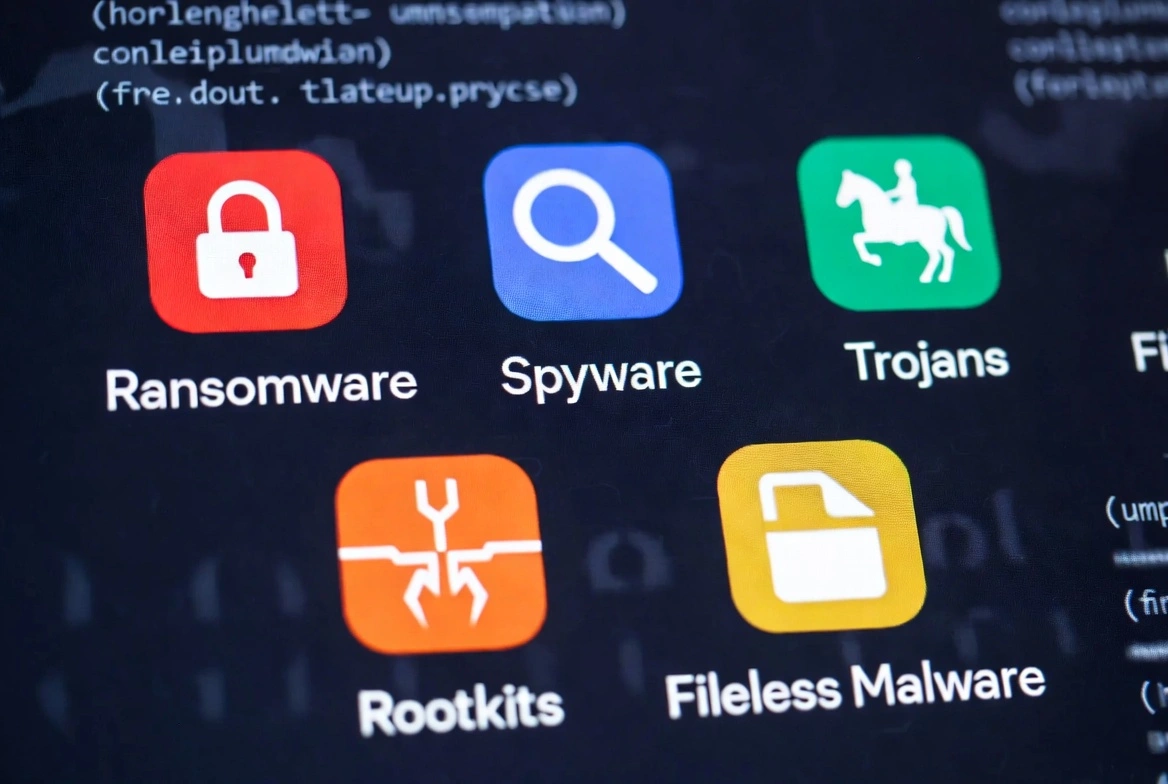
Ransomware
Critical threat: Encrypts your files and demands cryptocurrency payment for recovery. Ransomware attacks have increased 150% since 2024.
2026 Examples: LockBit 4.0, BlackCat, Royal, Akira, Play
Spyware
Silent surveillance: Monitors your activity, captures passwords, banking data, and browsing behavior without leaving visible traces.
Examples: Pegasus, FinFisher, Advanced Keyloggers
Trojans
Digital disguise: Masquerade as legitimate software to open backdoors. They represent 58% of all detected malware.
Examples: Emotet, TrickBot, QakBot, IcedID
Adware
Invasive advertising: Displays unwanted ads, redirects browsers, and can serve as a gateway for more serious threats.
Impact: System slowdown, data consumption
Worms
Self-replication: Spread automatically through networks without user intervention, exploiting system vulnerabilities.
Vectors: Email, USB, network vulnerabilities
Cryptojackers
Hidden mining: Hijack your CPU resources to mine cryptocurrency. Increase power consumption and degrade hardware.
Symptoms: High CPU usage, overheating
Rootkits
Total control: Hide at the operating system kernel level, providing persistent and nearly undetectable access to attackers.
Difficulty: Extremely difficult to remove
Fileless Malware
No files: Operates exclusively in RAM memory, avoiding traditional file signature-based detection.
Technique: PowerShell, in-memory scripts
Windows Threat Statistics 2026
The latest data reveals the magnitude of security challenges in the Windows ecosystem:
New malware variants detected daily
Global cybercrime cost in 2026
Of malware delivered via email
Key Trends 2026:
- Ransomware-as-a-Service (RaaS): Criminal groups now sell ransomware kits to other attackers
- AI in malware: Attackers use artificial intelligence to create more evasive malware
- Supply chain attacks: Compromise legitimate software to distribute malware
- Living-off-the-Land: Using legitimate Windows tools for attacks
15 Signs Your PC Is Infected
Early detection is crucial. Learn to identify malware infection symptoms before they cause irreparable damage:
What To Do If You Detect These Signs
- Don't panic - Act calmly but quickly
- Disconnect from Internet - Prevents data exfiltration
- Don't restart normally - Some malware activates on restart
- Boot into Safe Mode - Follow our removal guide
Microsoft Defender: Master Configuration for 2026
Microsoft Defender has evolved significantly and now competes directly with paid solutions. With the correct configuration, it provides excellent protection against most threats.
Optimal Configuration Step-by-Step
Step 1: Access Windows Security
Open Start menu and type "Windows Security" or press Win + I → Privacy & security → Windows Security
Step 2: Virus Protection
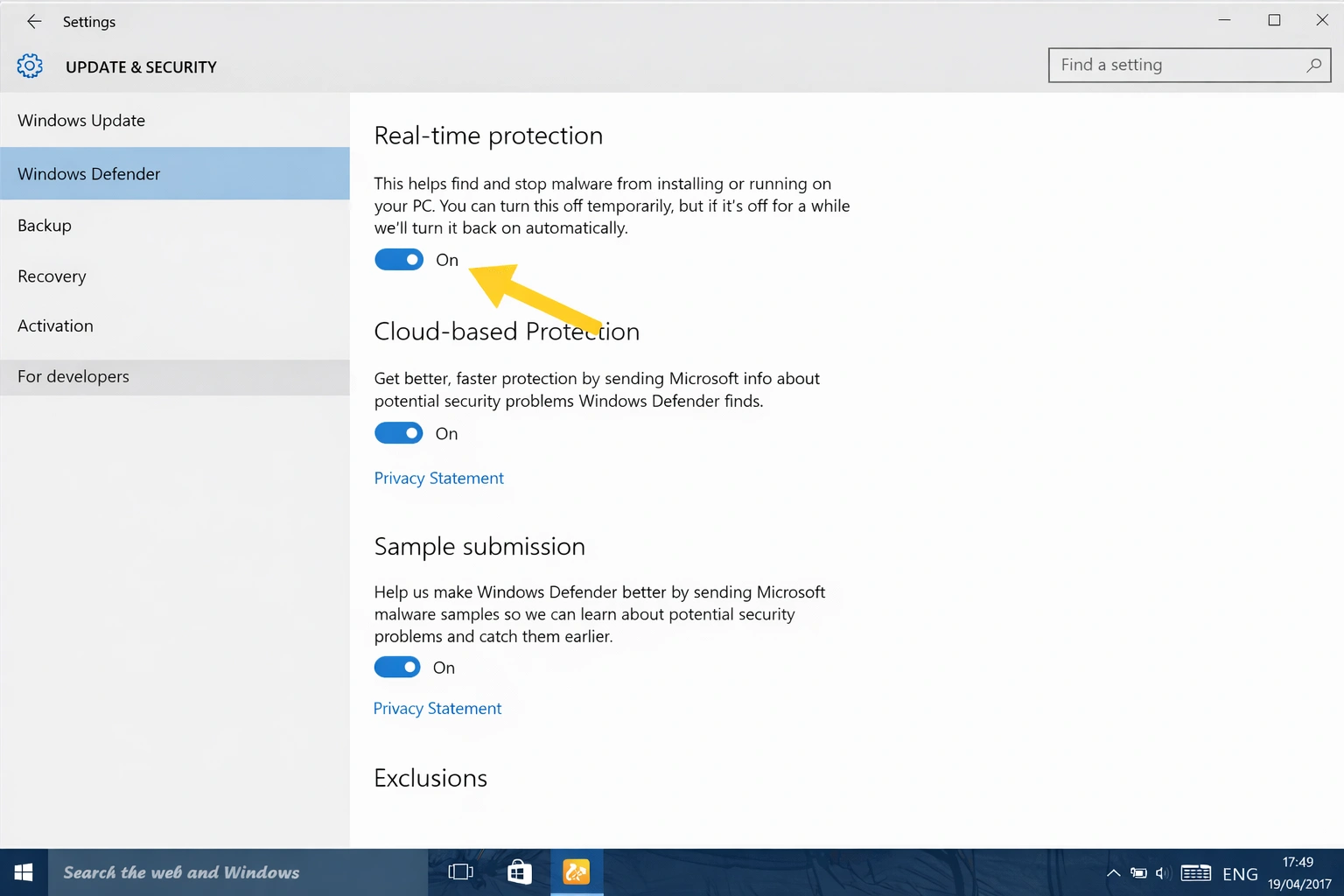
Go to "Virus & threat protection" and enable:
- ✅ Real-time protection
- ✅ Cloud-delivered protection
- ✅ Automatic sample submission
- ✅ Tamper protection
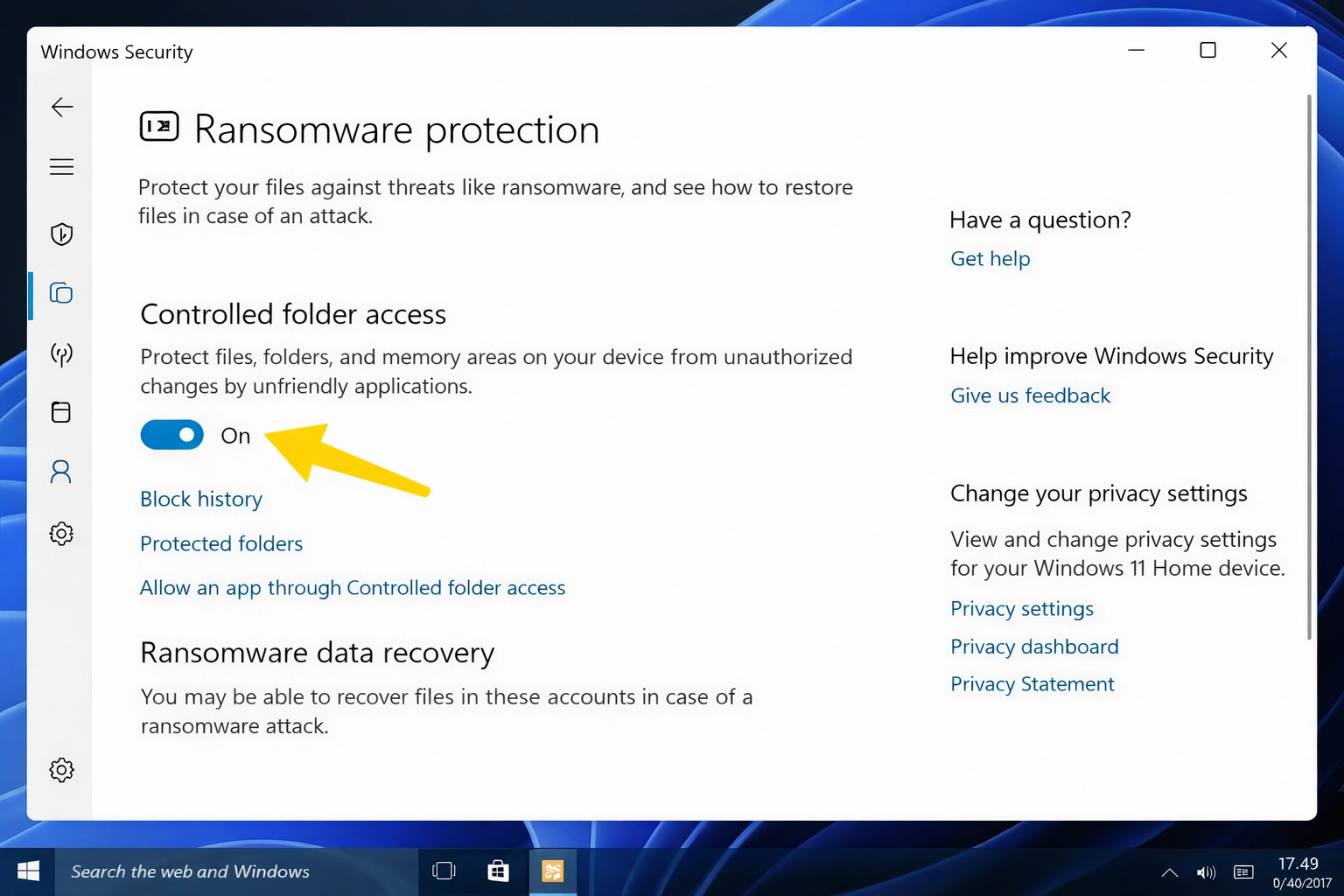
Step 3: Anti-Ransomware Protection
In "Manage ransomware protection":
- ✅ Enable "Controlled folder access"
- ✅ Add your important document folders
- ✅ Configure OneDrive as backup
Step 4: Firewall & Network
In "Firewall & network protection":
- ✅ Firewall active for public, private, and domain networks
- ✅ Block all incoming connections (public networks)
Step 5: App & Browser Control
In "App & browser control":
- ✅ SmartScreen for Microsoft Edge: Warn
- ✅ SmartScreen for Microsoft Store apps: Warn
- ✅ Phishing protection: Enabled
PowerShell Commands for Advanced Users
# Check Defender status
Get-MpComputerStatus
# Update definitions
Update-MpSignature
# Full scan
Start-MpScan -ScanType FullScan
# Quick scan
Start-MpScan -ScanType QuickScan
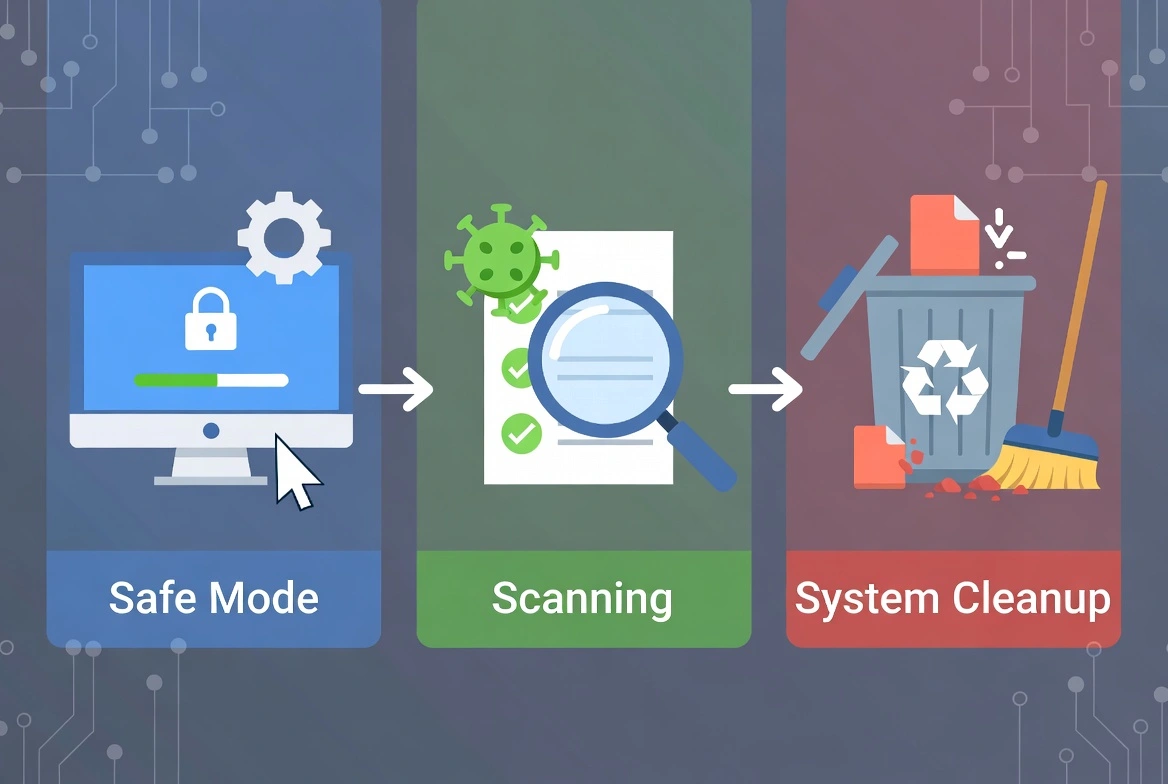
The Definitive Guide to Removing Malware
Follow this systematic process to remove malware from your PC safely and completely:
Step 1: Isolate the System
Immediately disconnect your PC from the Internet and any network:
- Unplug the Ethernet cable
- Disable WiFi (airplane mode for laptops)
- Disconnect external USB devices
- Turn off Bluetooth
Why? Prevents malware from sending data, spreading, or receiving instructions from the attacker.
Step 2: Boot into Safe Mode
Safe Mode loads only essential Windows components:
- Hold the Shift key and click Start → Restart
- Select Troubleshoot → Advanced options → Startup Settings
- Click Restart
- Press F5 for "Safe Mode with Networking"
msconfig in Run → Boot tab → Check "Safe boot"Step 3: Run Multiple Scans
Use multiple tools for maximum detection:
- Microsoft Defender Offline: Scans before Windows boots
- Malwarebytes Free: Specialized second opinion
- AdwCleaner: For adware and PUPs
- ESET Online Scanner: Cloud-based analysis
Step 4: Deep Cleaning
Remove temporary files and residue:
- Run cleanmgr (Disk Cleanup)
- Delete contents of
%temp%andC:\Windows\Temp - Empty the Recycle Bin
- Clear browser caches
Step 5: Review and Clean System
Manual inspection of critical components:
- Installed programs: Settings → Apps → Uninstall suspicious ones
- Browser extensions: Remove unknown ones
- Startup programs:
Ctrl+Shift+Esc→ Startup → Disable suspicious - Scheduled tasks:
taskschd.msc→ Look for malicious tasks - Services:
services.msc→ Identify strange services
Step 6: Restore and Verify
- Restart normally and run a final scan
- Update Windows and all programs
- Change all your important passwords
- Enable two-factor authentication where possible
- Monitor system behavior for a few days
Best Free Anti-Malware Tools 2026
These tools complement Microsoft Defender and offer specialized detection and removal capabilities:
| Tool | Specialty | Main Advantage | Limitation |
|---|---|---|---|
| Malwarebytes Free | Second opinion | Excellent PUP and adware detection | No real-time protection (free version) |
| AdwCleaner | Adware and toolbars | Fast, portable, no installation | On-demand only |
| Kaspersky Rescue Disk | Severe infections | Boots from USB, scans before Windows | Requires creating boot disk |
| HitmanPro | Cloud-based scanning | Uses multiple antivirus engines | 30-day free trial |
| ESET Online Scanner | Deep scanning | Premium detection engine, free | Requires download each time |
| Emsisoft Emergency Kit | Portable, complete | No installation needed, dual engine | Large file (~400MB) |
| RKill | Terminate processes | Stops active malware to allow scanning | Doesn't remove, only stops |
| Autoruns | Startup analysis | Shows EVERYTHING that starts with Windows | Requires technical knowledge |
💡 Recommended Scanning Strategy
- Run RKill to stop malicious processes
- Scan with AdwCleaner to remove adware
- Full scan with Malwarebytes
- Final verification with ESET Online Scanner
20 Essential Prevention Tips
The best defense against malware is prevention. Implement these practices to keep your Windows PC secure:
Updates and Patches
Safe Browsing
Passwords and Authentication
Email Security
Security Habits
Complete Guide: Ransomware Protection
Ransomware is the most destructive and costly threat for Windows users. In 2026, ransomware attacks have caused losses exceeding $30 billion globally.
What is Ransomware?
Ransomware is a type of malware that encrypts your files (documents, photos, videos, databases) and demands payment (usually in Bitcoin) to provide the decryption key. Even after paying, there's no guarantee of recovering your files.
Infection Vectors
- 📧 Emails with malicious attachments
- 🔗 Links to compromised websites
- 💾 Pirated software downloads
- 🔓 Unpatched vulnerabilities
- 🖥️ Exposed Remote Desktop Protocol (RDP)
Active Groups 2026
- 🦠 LockBit 4.0
- 🦠 BlackCat/ALPHV
- 🦠 Royal
- 🦠 Akira
- 🦠 Play
Anti-Ransomware Settings in Windows 11
Configuration Steps:
- Open Windows Security → Virus & threat protection
- Click Manage ransomware protection
- Enable Controlled folder access
- Click "Protected folders" and add:
- Documents, Pictures, Videos, Desktop
- Any folders with important data
- Configure OneDrive for automatic backup
- In "Allowed apps," add legitimate programs that need access
Anti-Ransomware Backup Strategy (3-2-1 Rule)
Copies of your data
Different storage types
Offsite/offline copy
If You Fall Victim to Ransomware:
- DO NOT pay the ransom - No guarantee and funds criminals
- Disconnect immediately from the network
- Document everything - Capture the ransom message
- Report to local authorities and FBI (IC3.gov)
- Search for free decryptors at NoMoreRansom.org
- Restore from clean backups
Defense Against Phishing Attacks
Phishing is the most common attack vector, responsible for 94% of malware incidents. Learn to identify and avoid these deceptions:
Types of Phishing in 2026
📧 Email Phishing
Mass emails that impersonate banks, services, or well-known companies.
🎯 Spear Phishing
Targeted attacks with personalized information about the victim.
📱 Smishing
Phishing via SMS with malicious links.
📞 Vishing
Phone call phishing (fake tech support).
Phishing Warning Signs
Network Security for Windows
Proper network configuration is fundamental to preventing intrusions and network attacks:
Router Configuration
- Change default admin credentials
- Use WPA3 (or WPA2-AES minimum)
- Disable WPS (WiFi Protected Setup)
- Update firmware regularly
- Create a separate guest network
- Consider hiding SSID for sensitive networks
Windows Firewall Configuration
Recommended Rules:
- ✅ Firewall active for ALL networks
- ✅ Block incoming connections on public networks
- ✅ Review and remove rules for uninstalled programs
- ✅ Don't create exceptions for suspicious programs
- ✅ Enable block notifications
VPN: When and Why to Use It
A VPN is essential in these situations:
- Public WiFi (cafes, airports, hotels)
- Accessing sensitive information away from home
- Protecting your traffic from your ISP
- Remote work with corporate data
Advanced Security Configuration
Windows Security Center - Complete Configuration
| Setting | Location | Recommended Value |
|---|---|---|
| Real-time protection | Antivirus → Settings | ✅ On |
| Cloud-delivered protection | Antivirus → Settings | ✅ On |
| Controlled folder access | Ransomware protection | ✅ On |
| SmartScreen for apps | App & browser control | ✅ Warn |
| Exploit protection | App & browser control | ✅ Default |
| Core isolation | Device security | ✅ On |
| Memory integrity | Device security | ✅ On |
Group Policies (For Advanced Users)
Access with gpedit.msc and configure these security policies:
- Computer Configuration → Administrative Templates → Windows Components → Windows Defender Antivirus
- Enable script scanning
- Activate behavior protection
- Configure minimal necessary exclusions
Recovery After an Infection
If your system was compromised, follow this complete recovery process:
Phase 1: Immediate Containment
- Disconnect from network
- Document symptoms and error messages
- Identify the scope of compromise
Phase 2: Eradication
- Run scans in Safe Mode
- Remove detected malware
- Clean registry and scheduled tasks
Phase 3: Recovery
- Restore files from clean backups
- Reinstall programs from official sources
- Update all software
Phase 4: Post-Incident Protection
- Change ALL passwords
- Enable 2FA on all accounts
- Monitor bank and credit accounts
- Consider freezing your credit
- Implement better security practices
When to Do a Clean Reinstall
If the infection was severe (rootkits, ransomware, confirmed remote access), consider doing a clean Windows installation. It's the only way to guarantee no malware traces remain in the system.
🔒 Professional Protection for Your PC
For complete protection against advanced malware, ransomware, and zero-day threats, consider a premium security solution with included technical support.
Frequently Asked Questions (FAQ)
Is Microsoft Defender enough in 2026?
For most users with good digital habits, yes. Microsoft Defender has improved significantly and achieves excellent scores in independent tests. However, users with higher risk exposure may benefit from additional solutions.
Do I need a paid antivirus?
It depends on your risk profile. Paid solutions offer additional features like VPN, password manager, identity protection, and priority technical support. For business users, we definitely recommend premium solutions.
How often should I scan my PC?
With real-time protection enabled, manual scans are less critical. We recommend a weekly full scan and additional scans after downloading suspicious files or visiting risky sites.
How do I know if my PC is infected?
The most common signs include: unusual slow performance, constant pop-ups, unknown programs, disabled antivirus, missing or encrypted files, and high network usage without visible activity.
Conclusion: Your 2026 Windows Security Plan
Windows security requires a defense-in-depth approach: multiple layers of protection working together. There's no magic solution that protects you from everything, but by following the practices in this guide, you'll dramatically reduce your attack surface.
Summary of priority actions:
- Keep Windows and all your software updated
- Configure Microsoft Defender correctly (especially anti-ransomware)
- Implement the 3-2-1 backup rule
- Use strong passwords with 2FA
- Develop the habit of verifying before clicking
Cybersecurity is an ongoing process, not a destination. Stay informed about new threats and adapt your defenses as needed. Your vigilance is your best protection.