
Windows 11 Privacy Settings: Complete Guide to Protect Your Data

Callum specializes in breaking down complex technology topics into easy-to-understand guides. He has a background in computer science and technical writing.
Windows 11 Privacy Settings: Complete Guide to Protect Your Data
Take control of your privacy by disabling telemetry, tracking, and data collection with these essential Windows 11 settings
Windows 11 collects significant amounts of data by default. From diagnostic telemetry to location tracking and personalized advertising, Microsoft gathers information about how you use your PC. This comprehensive guide shows you exactly which privacy settings to change and how to maximize your privacy without breaking functionality.
📋 Table of Contents
Understanding Windows 11 Data Collection
Before diving into settings, it's important to understand what data Windows 11 collects and why. Microsoft categorizes data collection into several types:
Required Diagnostic Data
LowBasic device info, error reports, and app compatibility data. Cannot be fully disabled.
Optional Diagnostic Data
MediumBrowsing history, app usage, inking/typing data. Can be disabled.
Personalization Data
HighInterests, preferences, advertising ID for targeted ads. Can be disabled.
Location Data
HighGPS and network-based location tracking. Can be disabled per-app.

General Privacy Settings
Let apps show me personalized ads by using my advertising ID
OffDisables Microsoft advertising ID used to track you across apps
Let websites show me locally relevant content by accessing my language list
OffPrevents websites from seeing your language preferences
Let Windows improve Start and search results by tracking app launches
OffStops tracking which apps you open and when
Show me suggested content in the Settings app
OffDisables Microsoft's promotional suggestions
Diagnostic & Feedback Settings
Diagnostic data
Required diagnostic data onlyMinimizes telemetry to essential device health data
Improve inking and typing
OffStops sending what you type/write to Microsoft
Tailored experiences
OffDisables personalized tips and recommendations
Delete diagnostic data
Click DeleteRemoves previously collected diagnostic data from Microsoft servers
Feedback frequency
NeverStops Windows from asking for feedback
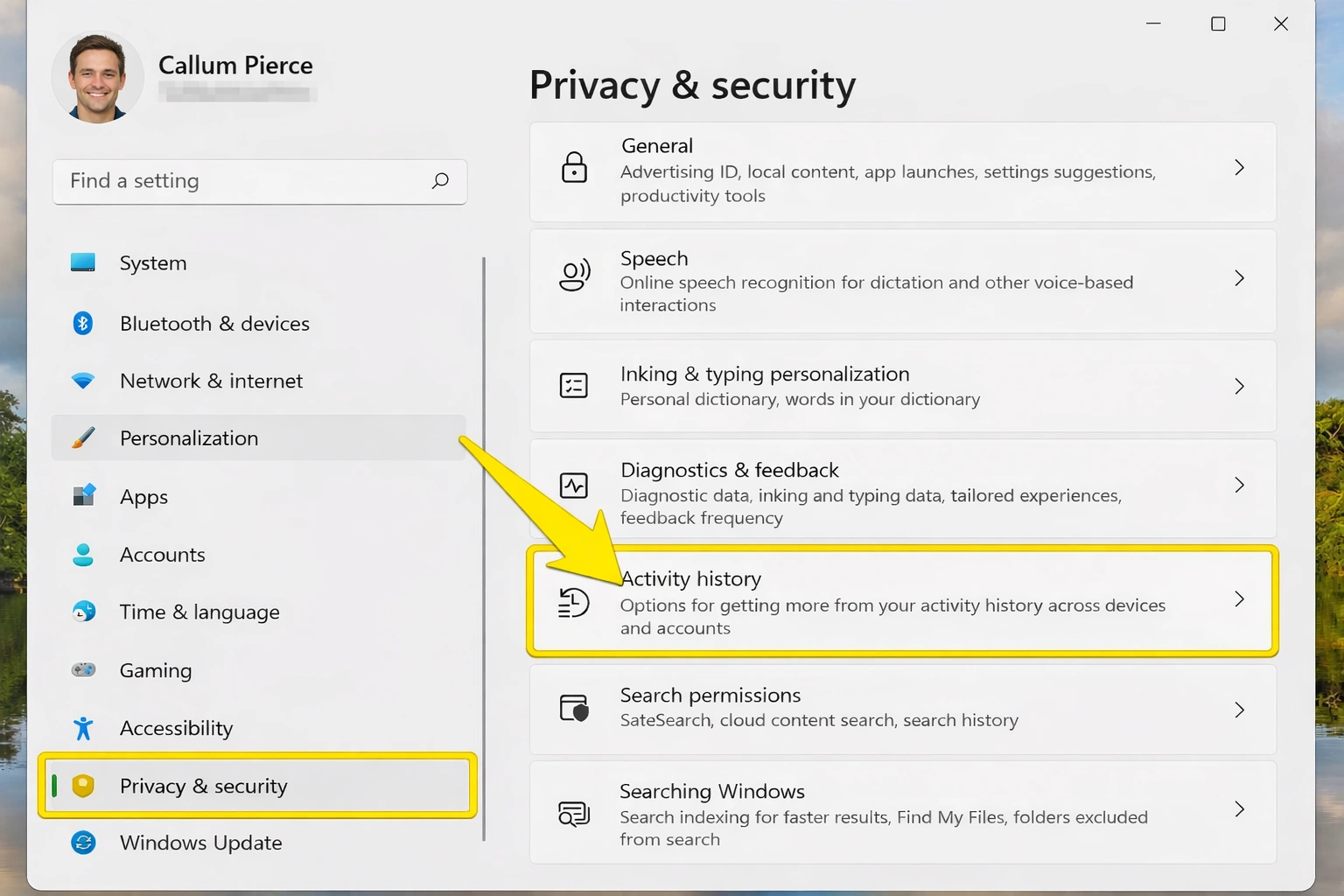
Activity History
Store my activity history on this device
OffStops logging your app and website activity locally
Send my activity history to Microsoft
OffPrevents syncing activity data to Microsoft cloud
Clear activity history
Click ClearDeletes all stored activity history
App Permissions
Location
Disable for apps that don't need it. Consider disabling entirely.
Weather, Maps
Microsoft Store, News, Photos, Camera
Camera
Only enable for video calling apps you trust.
Zoom, Teams, Skype
Microsoft Store, Mail, Cortana
Microphone
Only enable for communication and voice apps.
Zoom, Teams, Voice Recorder
Cortana, Microsoft Store, Xbox
Voice activation
Disable entirely unless you use voice assistants.
All apps
Contacts, Calendar, Email
Only enable for email and productivity apps.
Mail, Calendar, Outlook
Microsoft Store, Cortana, People
Search Permissions
Cloud content search (Microsoft account)
OffStops searching your OneDrive, Outlook, and Bing history
Cloud content search (Work or School account)
Off (unless needed)Disables workplace cloud searches
Search history on this device
Off + ClearStops storing and clears local search history
SafeSearch
Moderate or StrictFilters explicit content in search results
Disable Cortana Completely
- 1Open Task Manager (Ctrl + Shift + Esc)
- 2Go to Startup apps tab
- 3Find Cortana and click Disable
- 4Open Settings → Apps → Installed apps
- 5Search for Cortana, click ⋮ → Advanced options
- 6Under 'Runs at log-in', toggle Off
- 7Under 'Background apps permissions', select Never
Cortana sends voice data, search queries, and usage patterns to Microsoft. Disabling it significantly improves privacy.
Advanced Telemetry Controls
For users who want maximum privacy
Group Policy (Pro/Enterprise only)
- 1Press Win + R, type gpedit.msc
- 2Navigate to: Computer Configuration → Administrative Templates → Windows Components → Data Collection and Preview Builds
- 3Double-click 'Allow Diagnostic Data'
- 4Set to Enabled, select 'Diagnostic data off (not recommended)'
- 5Click Apply and restart
Registry Edit (All editions)
⚠️ Back up registry before editing
- 1Press Win + R, type regedit
- 2Navigate to: HKEY_LOCAL_MACHINE\SOFTWARE\Policies\Microsoft\Windows\DataCollection
- 3Right-click → New → DWORD (32-bit) Value
- 4Name it 'AllowTelemetry', set value to 0
- 5Restart your PC
Disable Connected User Experiences Service
- 1Press Win + R, type services.msc
- 2Find 'Connected User Experiences and Telemetry'
- 3Right-click → Properties
- 4Set Startup type to Disabled
- 5Click Stop, then Apply
Microsoft Edge Privacy Settings
Tracking prevention
StrictBlocks most trackers across all sites
Send 'Do Not Track' requests
OnRequests websites not to track you
Allow sites to check if you have payment methods saved
OffPrevents payment fingerprinting
Help improve Microsoft products
OffStops sending browsing data to Microsoft
Personalize your web experience
OffDisables interest-based browsing suggestions
💡 Consider using Firefox or Brave for better default privacy.
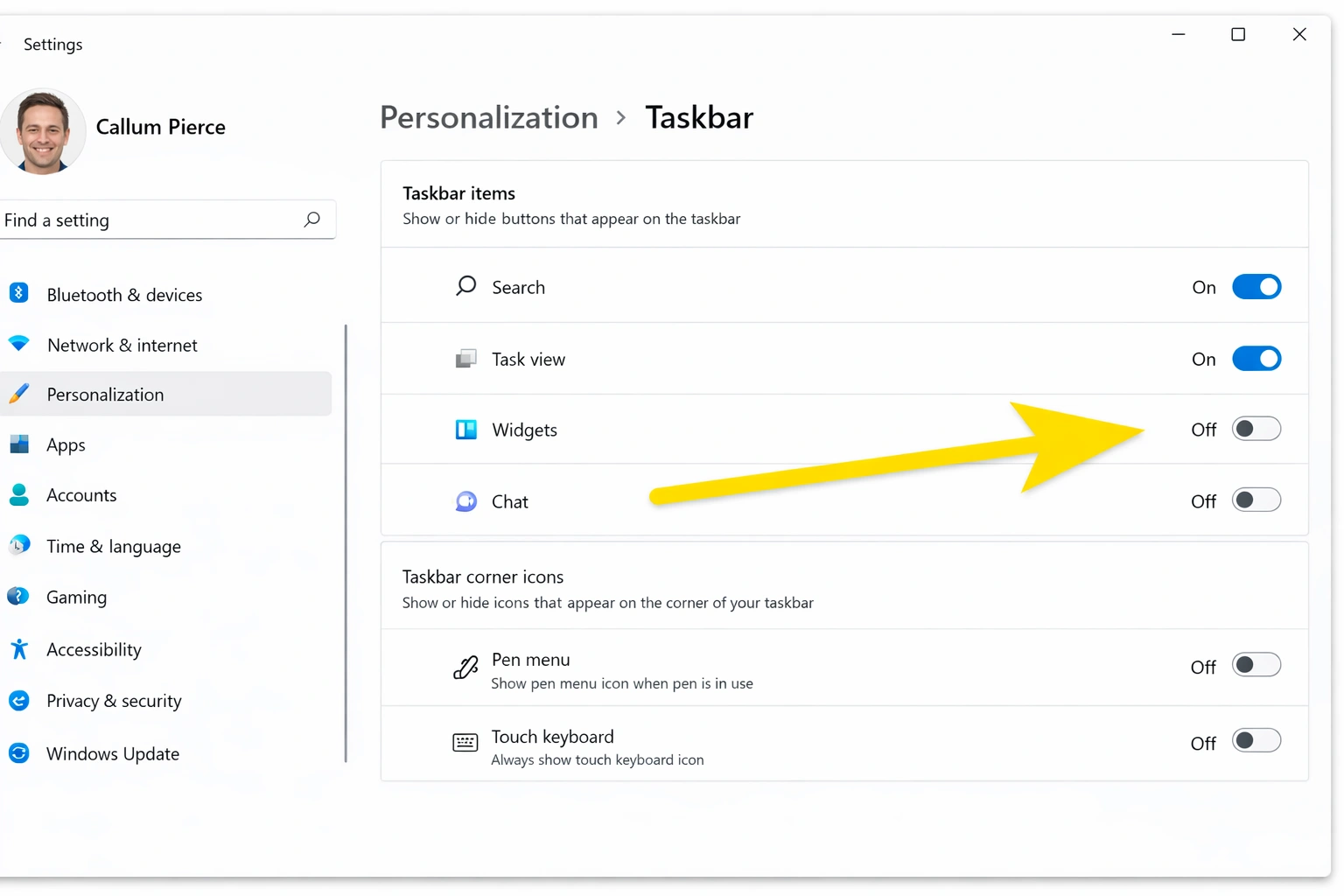
Disable Widgets & News Feed
Widgets collect data about your interests and browsing habits.
- 1Right-click on the taskbar
- 2Click 'Taskbar settings'
- 3Toggle Widgets to Off
- 4Alternatively: Settings → Personalization → Taskbar → Widgets → Off
Local Account vs Microsoft Account
Microsoft Account
- Sync settings across devices
- OneDrive integration
- Microsoft Store purchases
- More data collection
- Activity synced to cloud
- Harder to maintain privacy
Local Account
- Maximum privacy
- No cloud sync of activity
- Data stays on device
- No cross-device sync
- Some apps require Microsoft account
- Manual backup needed
How to switch to local account
- 1Settings → Accounts → Your info
- 2Click 'Sign in with a local account instead'
- 3Enter your Microsoft account password
- 4Create a local username and password
- 5Sign out and sign back in
Privacy Settings Checklist
Essential
- Disable advertising ID
- Set diagnostic data to Required only
- Turn off tailored experiences
- Disable activity history sync
- Review and limit app permissions
- Disable Cortana
- Clear diagnostic data
Advanced
- Disable telemetry via Group Policy/Registry
- Stop Connected User Experiences service
- Switch to local account
- Disable widgets
- Use privacy-focused browser
- Configure Edge tracking prevention to Strict
Final Thoughts
Windows 11 collects more data than most users realize, but you have significant control over what's shared. By following this guide, you can dramatically reduce data collection while maintaining full functionality.
Final Tips
- 💡Review privacy settings after major Windows updates—Microsoft sometimes resets them
- 💡Use the Privacy Dashboard at account.microsoft.com/privacy to see and delete data Microsoft has collected
- 💡Consider third-party privacy tools like O&O ShutUp10++ for additional controls
- 💡Balance privacy with functionality—some features genuinely improve with data