
10 Essential Windows 10 Security Tips to Protect Your PC in 2025

Callum specializes in breaking down complex technology topics into easy-to-understand guides. He has a background in computer science and technical writing.
With Windows 10 end of support approaching in October 2025, protecting your PC has never been more important. This guide covers the best Windows 10 security settings from firewall configuration to ransomware protection. Whether you're staying on Windows 10 or planning to upgrade to Windows 11, these Windows 10 security tips will help keep your system safe.
📋 Table of Contents
Why Windows 10 Security Matters in 2025
Windows 10 still powers millions of PCs worldwide, but with Windows 10 security updates ending in October 2025, users face a critical decision. After that date, Microsoft will no longer release security patches, leaving your system vulnerable to new threats.
Important Warning
After October 2025, Windows 10 won't receive security patches. Hackers often target unsupported software because vulnerabilities remain unpatched indefinitely.
Whether you plan to stay on Windows 10 or eventually upgrade, implementing these Windows 10 security best practices will protect your data, privacy, and digital identity right now.
Tip 1: Keep Windows Updated (Critical Until Oct 2025)
The most fundamental security step is ensuring Windows 10 is fully updated. Microsoft is still releasing Windows 10 security updates until October 2025, and each patch fixes vulnerabilities that attackers could exploit.
How to Check for Windows Updates:
- Press Windows + I to open Settings
- Navigate to Update & Security
- Click Check for updates
- Install all available updates
- Restart when prompted
Enable automatic updates so you never miss critical security patches. This is especially important during the final months of support.
Tip 2: Enable and Configure Windows Defender
Windows Defender (now called Microsoft Defender) is the free antivirus built into Windows 10. For most users, it provides excellent protection when properly configured.
Features to Enable
- Real-time protection
- Cloud-delivered protection
- Automatic sample submission
- Tamper protection
- Controlled folder access
Recommended Checks
- Run full scans weekly
- Check virus definitions
- Review quarantined items
- Verify protection status
- Update definitions manually
For enhanced protection, consider a premium antivirus like ESET that provides additional security layers including banking protection and anti-phishing.
Tip 3: Configure Windows Firewall Properly
The Windows 10 firewall acts as a barrier between your PC and network threats. Configuring it correctly is essential to block unauthorized connections while allowing legitimate traffic.
Firewall Configuration:
- Open Windows Security
- Click Firewall & network protection
- Ensure firewall is enabled for all networks
- Review Allow an app through firewall
- Remove unrecognized programs from allowed list
Tip 4: Enable Ransomware Protection
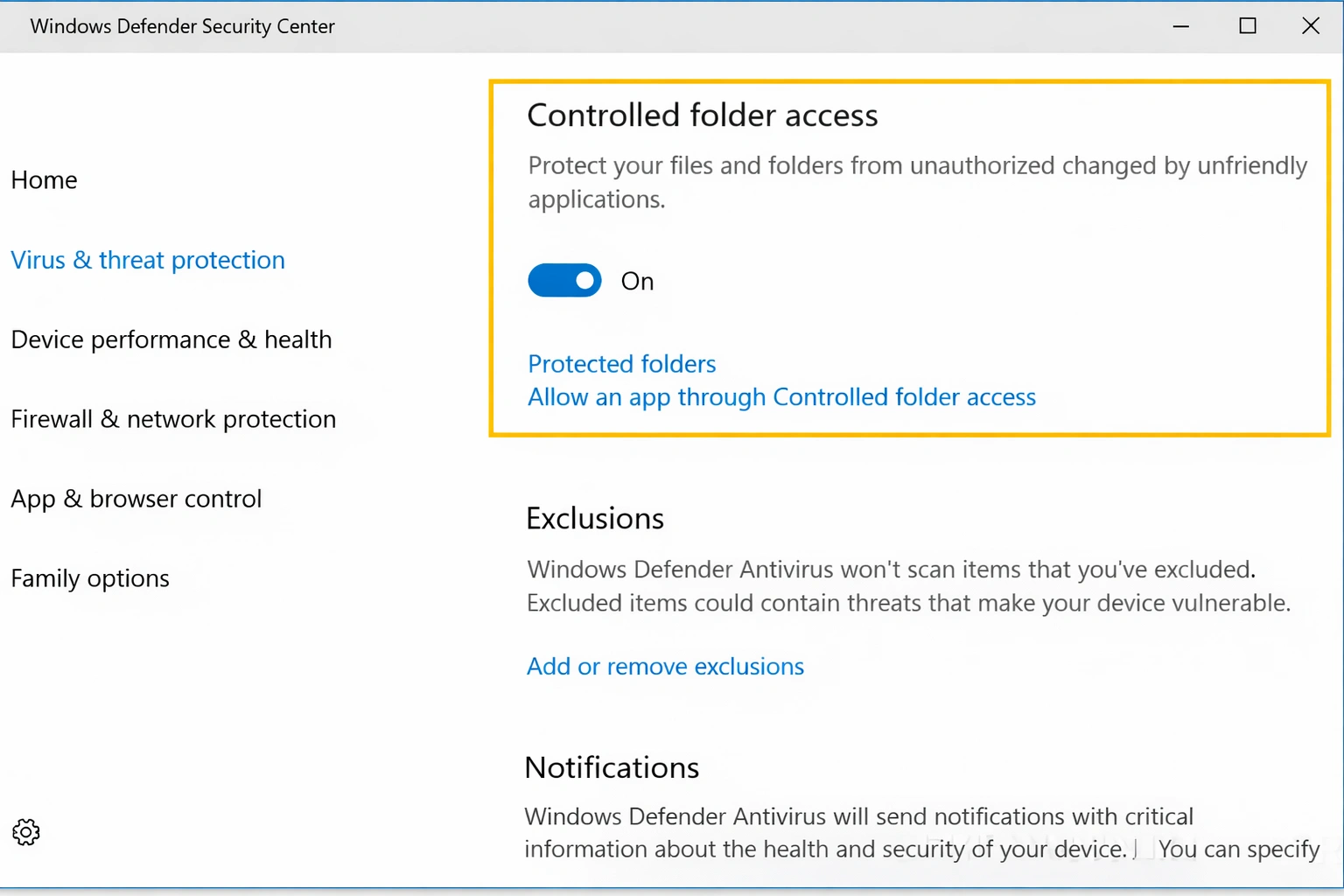
Ransomware attacks can encrypt your files and demand payment. Windows 10 includes controlled folder access to prevent unauthorized apps from modifying your important files.
Enable Controlled Folder Access:
- Open Windows Security
- Go to Virus & threat protection
- Click Manage ransomware protection
- Turn on Controlled folder access
- Add trusted apps to allowed list as needed
Tip 5: Use Strong, Unique Passwords
Weak passwords are one of the leading causes of security breaches. Use a password manager to generate and store strong, unique passwords for every account.
Minimum 12 Characters
Use a mix of letters, numbers, and symbols
Unique for Every Account
Never reuse passwords across sites
Use a Password Manager
Tools like Bitwarden or 1Password store passwords securely
Tip 6: Enable Two-Factor Authentication
Two-factor authentication (2FA) adds an extra layer of security to your Microsoft account and other important accounts. Even if someone gets your password, they can't access your account without the second factor.
For your Microsoft account, visit account.microsoft.com and enable two-step verification. Use an authenticator app instead of SMS for better security.
Tip 7: Secure Your Browser
Your browser is the main entry point for malware. Keep your browser updated, use ad-blocking extensions, and enable phishing protection.
Browser Security Settings:
- Enable enhanced safe browsing
- Block third-party cookies
- Use HTTPS whenever possible
- Install an ad blocker (uBlock Origin)
- Disable JavaScript for unknown sites
Tip 8: Protect Your Network
Your home network security directly affects your PC security. Make sure your router is properly configured.
Change default router password
Use WPA3 or WPA2 encryption
Keep router firmware updated
Consider using a VPN on public networks
Tip 9: Back Up Regularly
Regular backups are your last line of defense against ransomware, hardware failures, and human error. Use the 3-2-1 rule: 3 copies, 2 media types, 1 offsite.
Backup Options:
- OneDrive: Automatic cloud sync (included with Microsoft 365)
- File History: Automatic local backups to external drive
- System Image: Full disk backup for complete restoration
Tip 10: Be Careful with App Downloads
Many malware infections come from downloading software from untrusted sources. Always download apps from official sources like Microsoft Store or developer websites.
Signs of Malicious Software
- Programs promising paid software for free
- Download sites with multiple "Download" buttons
- Software requiring you to disable antivirus
- .exe files in email attachments
What to Do After Windows 10 Support Ends
After October 2025, you have several options to keep your PC secure:
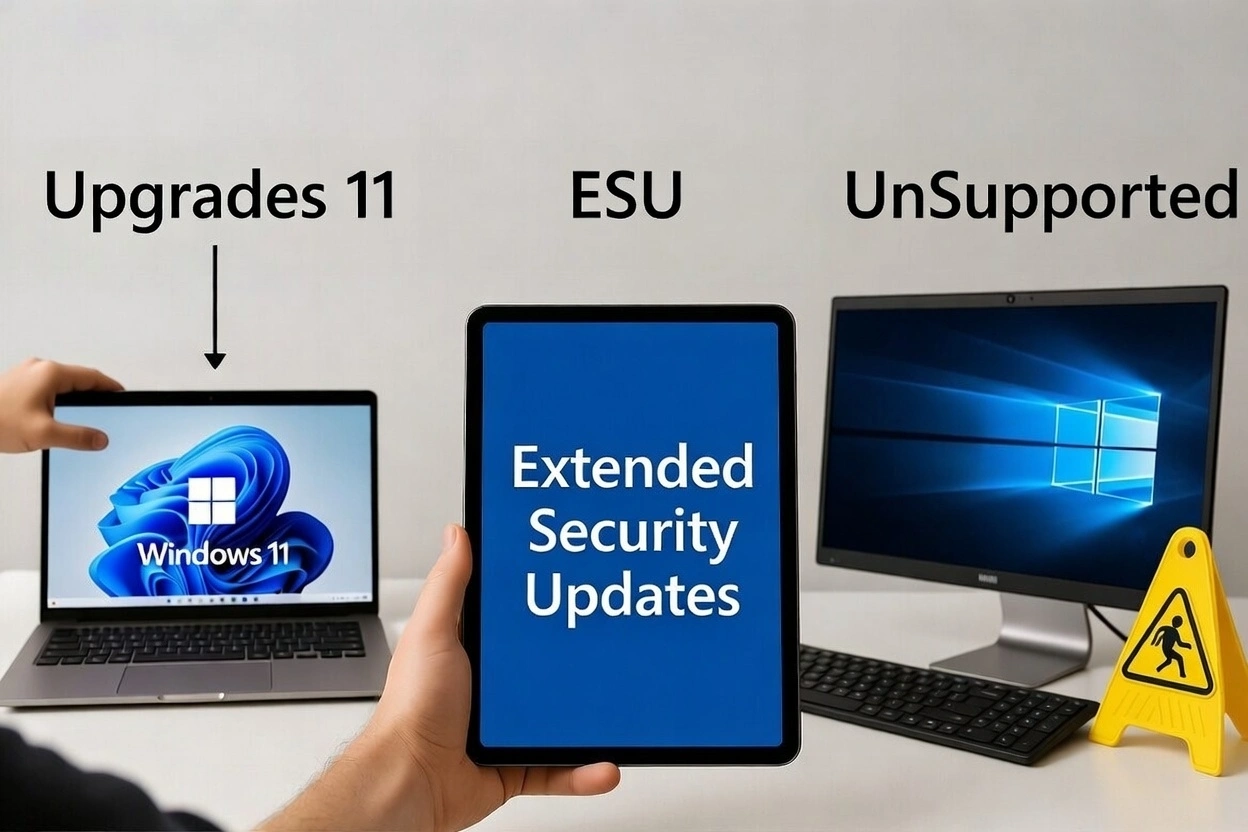
Option 1: Upgrade to Windows 11 (Recommended)
Windows 11 will receive security updates until at least 2031. If your PC meets the requirements, this is the best option.
Option 2: Extended Security Updates (ESU)
Microsoft will offer paid security patches for 3 additional years. Useful for businesses that can't upgrade immediately.
Option 3: Use Robust Security Software
If staying on Windows 10 without ESU, use premium antivirus and follow all best practices in this guide.
🚀 Future-Proof Your PC with Windows 11 Pro
Windows 11 Pro offers advanced security features like hardware-based isolation, BitLocker encryption, and Windows Hello for biometric authentication.
Conclusion
These 10 Windows 10 security tips will help protect your PC against the most common threats in 2025. From keeping your system updated to configuring your firewall and using strong passwords, each security layer reduces your risk.
With Windows 10 end of support approaching, now is the time to evaluate your options. Whether you choose to upgrade to Windows 11 or stay on Windows 10 with enhanced protection, security should be your number one priority.