
Forgot Windows Password? 7 Ways to Reset Windows 10/11 Without Losing Data

Callum specializes in breaking down complex technology topics into easy-to-understand guides. He has a background in computer science and technical writing.
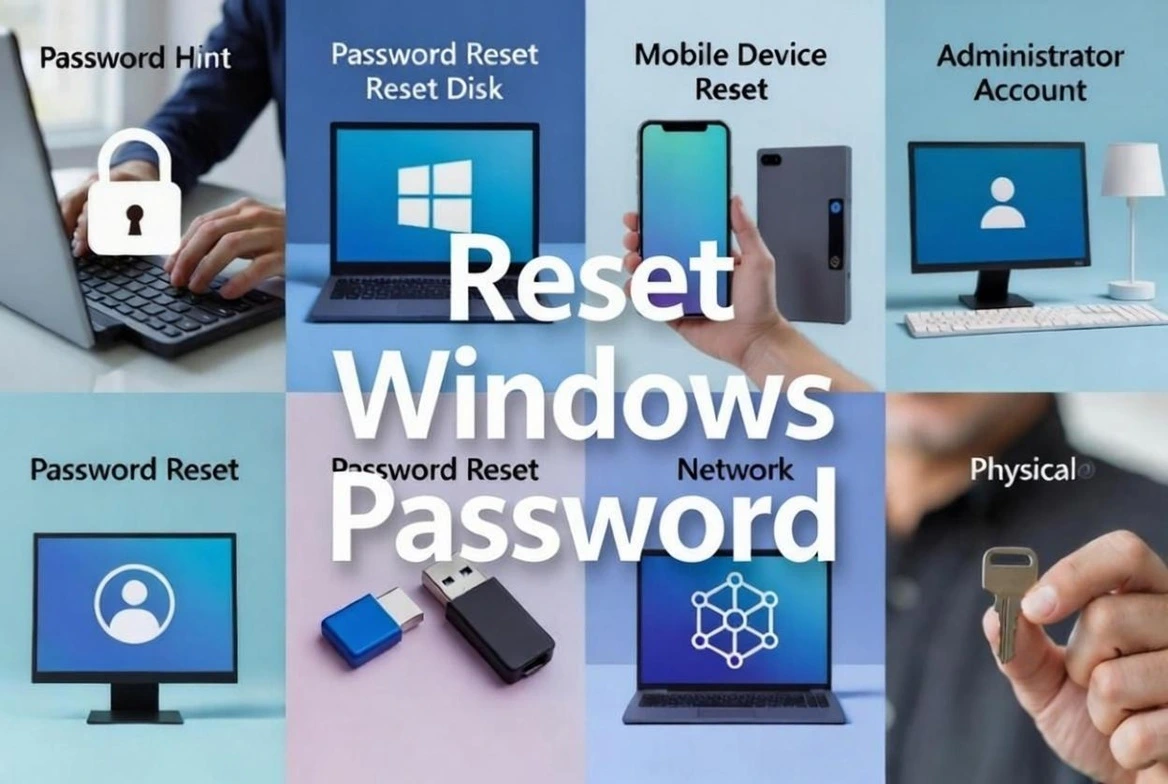
Forgot your Windows password? Don't panic—it's more common than you think. Whether you haven't used your PC in months or simply forgot your password, this guide will show you 7 proven ways to regain access to Windows 10/11 without losing any of your files or data.
1. Windows Account Types Explained
Before resetting your password, it's crucial to understand what type of account you have, as the recovery method depends entirely on this.
🌐 Microsoft Account
- You sign in with an email (@outlook.com, @hotmail.com, @live.com)
- Your settings sync across devices
- You can reset password online from any device
- This is the default account type on Windows 10/11
💻 Local Account
- You sign in with a simple username
- Only exists on this specific PC
- Doesn't require internet connection
- More limited recovery if you forget password
💡 How to Check Your Account Type?
Go to Settings → Accounts → Your info. If you see an email, it's a Microsoft account. If you only see a username, it's a local account.
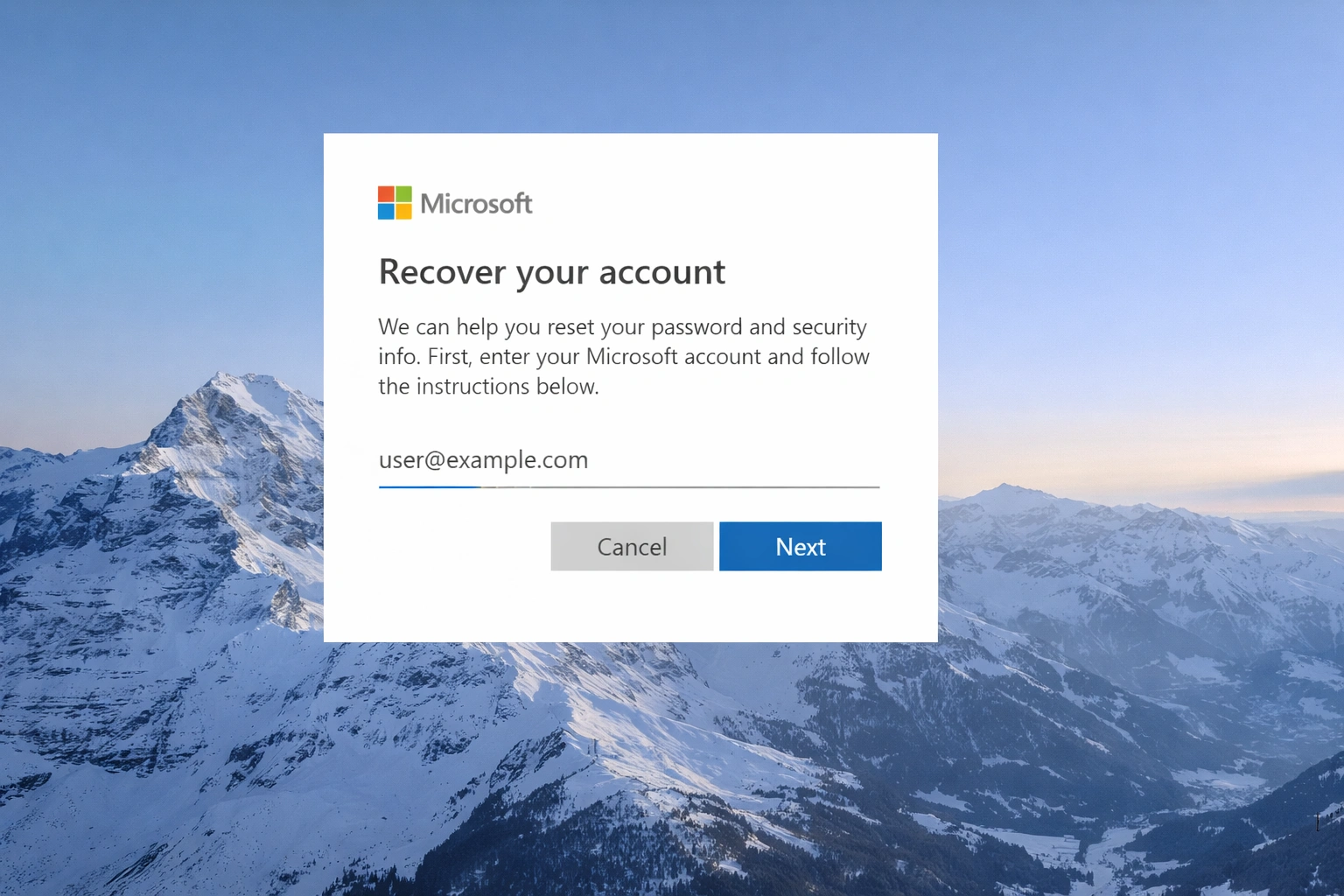
2. Reset Microsoft Account Password
This is the easiest method and works from any device with internet access—your phone, tablet, or a friend's computer.
📋 Steps to Reset
- 1Visit the recovery page: Go to account.live.com/password/reset
- 2Enter your email: Type the email associated with your Microsoft account
- 3Verify your identity: Choose to receive a code via email or SMS
- 4Create new password: Enter a strong and memorable password
- 5Sign in: Connect your PC to internet and sign in with the new password
✓ Advantages of This Method
- You don't lose any data
- You can do it from any device
- It's Microsoft's official method
- Works even if you don't have access to the PC
3. Use Security Questions (Local Account)
If you have a local account and set up security questions when you created your account, you can use them directly from the login screen.
📋 How to Use Security Questions
- 1. On the login screen, try typing any password
- 2. When it fails, click on "Reset password"
- 3. Answer the 3 security questions correctly
- 4. Create a new password
- 5. Sign in with your new password
⚠️ Important
This method only works if you previously set up security questions. If you didn't, you'll need to use another method from this guide.
4. Password Reset Disk
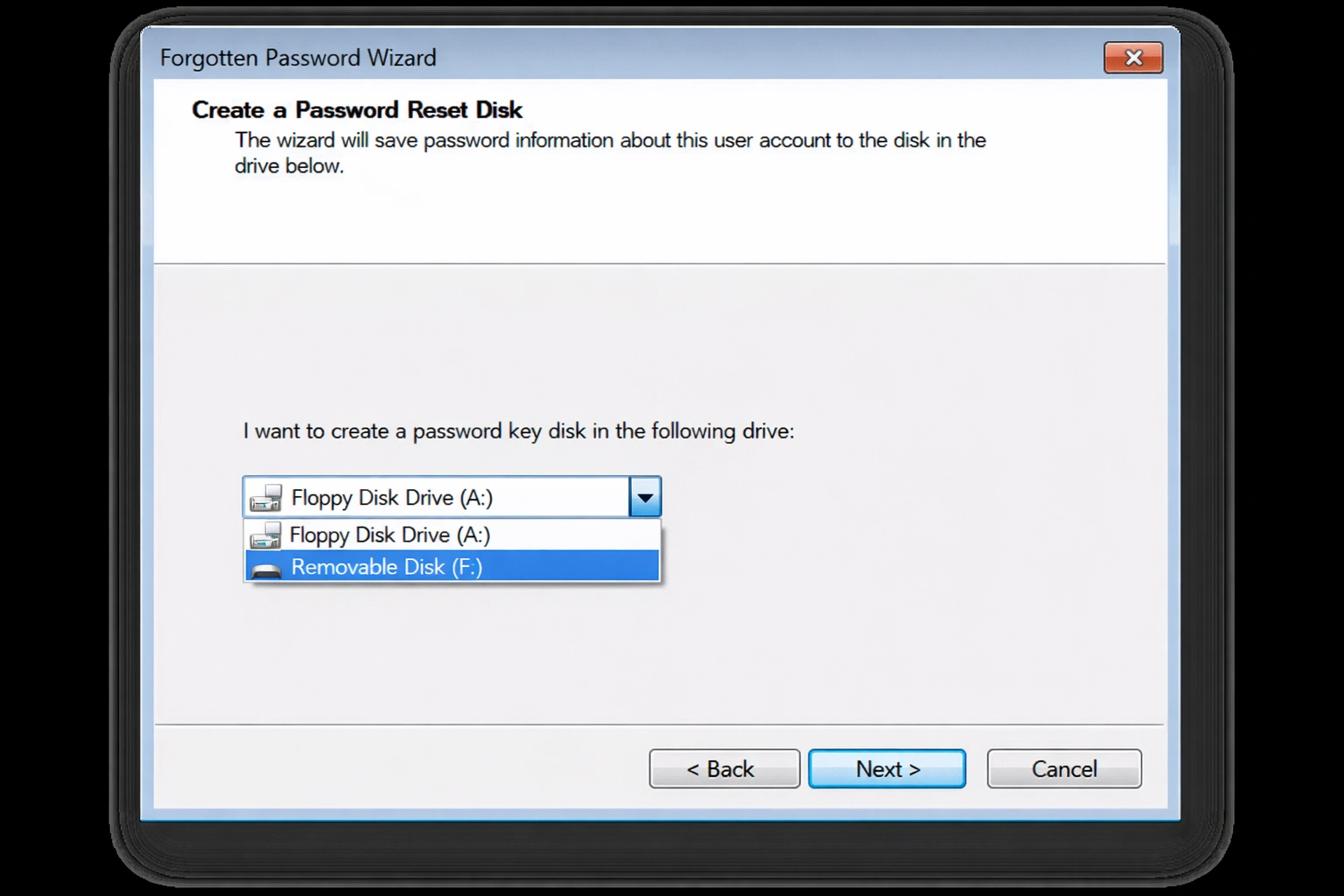
A password reset disk is a USB drive that you create before forgetting your password. It's one of the most secure methods for local accounts.
🔧 How to Create One (Prevention)
- 1. Connect an empty USB drive
- 2. Search "Password reset disk" in Start
- 3. Follow the wizard
- 4. Store the USB in a safe place
🔓 How to Use It
- 1. Connect the USB at login screen
- 2. Try to sign in (it will fail)
- 3. Click "Reset password"
- 4. Follow wizard to create new password
❌ Important Limitation
You can only create a password reset disk BEFORE you forget your password. If you've already forgotten it and don't have one, this method won't help you.
5. Use Another Administrator Account
If you have another account with administrator privileges on the same PC, you can use it to reset the password of any other local account.
📋 Detailed Steps
- 1Sign in with the other administrator account
- 2Press
Win + Rand typenetplwiz - 3Select the account that needs a new password
- 4Click "Reset Password"
- 5Enter and confirm the new password
Command Prompt Alternative: You can also open CMD as administrator and run: net user Username NewPassword
6. Safe Mode with Command Prompt
In some cases, you can access Windows Safe Mode and use Command Prompt to enable the hidden Administrator account.
📋 Steps for Safe Mode
- 1. Restart your PC and press Shift + F8 or interrupt boot 3 times
- 2. Select Troubleshoot → Advanced options → Command Prompt
- 3. Type:
net user Administrator /active:yes - 4. Restart and sign in as Administrator (no password)
- 5. Change your account's password from Control Panel
⚠️ Security Note
Remember to deactivate the Administrator account after recovering access by running: net user Administrator /active:no
7. Windows Installation USB
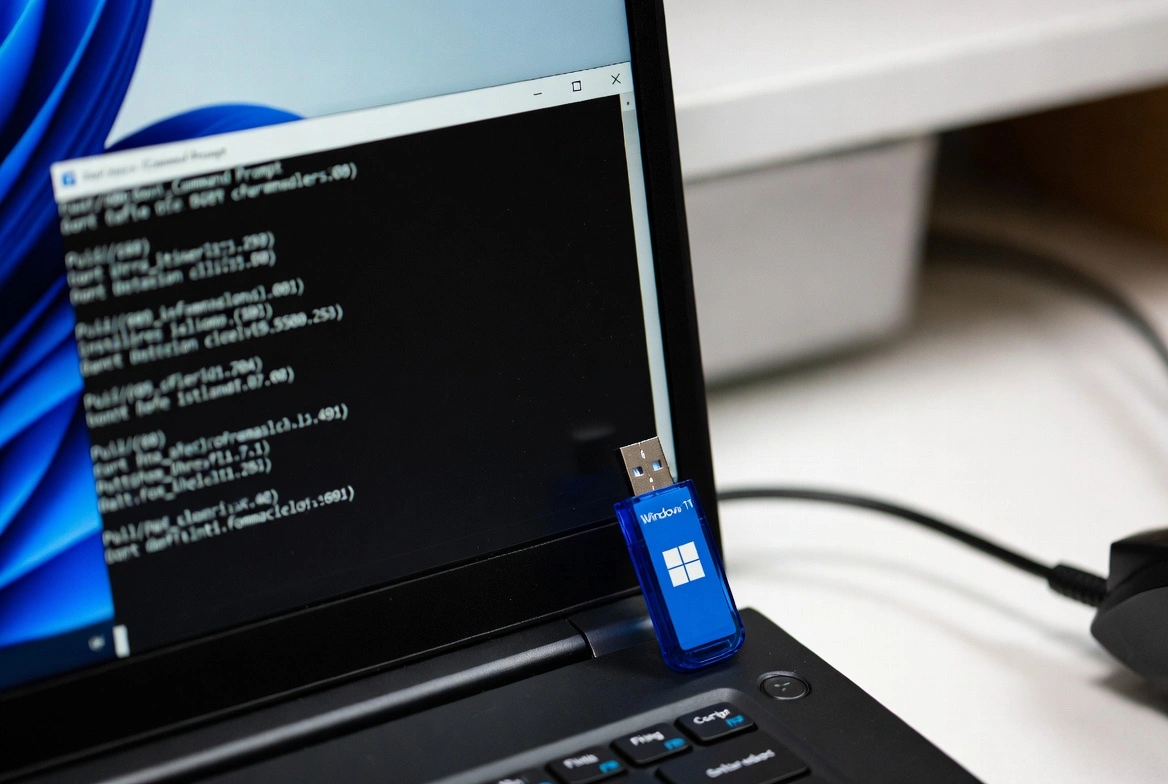
This advanced method uses a bootable Windows USB to access Command Prompt before Windows starts, allowing you to modify user accounts.
📋 Detailed Steps
- 1Create installation USB: Download Media Creation Tool from microsoft.com
- 2Boot from USB: Change boot order in BIOS (press F2, F12 or Del on startup)
- 3Open Command Prompt: Press Shift + F10 when installation screen appears
- 4Run these commands:
move c:\windows\system32\utilman.exe c:\windows\system32\utilman.exe.bak
copy c:\windows\system32\cmd.exe c:\windows\system32\utilman.exe
- 5Restart and change password: On login screen, click Accessibility and run:
net user YourUsername NewPassword
❌ Restore After Using
After changing your password, restore the original file:move c:\windows\system32\utilman.exe.bak c:\windows\system32\utilman.exe
8. Prevention Tips & Best Practices
Prevention is better than cure. Follow these recommendations to avoid getting locked out in the future.
✅ What You Should Do
- Use a Microsoft account for easy recovery
- Set up PIN and Windows Hello as backup
- Create a password reset disk
- Use a password manager
- Keep a recovery email up to date
- Enable two-step verification
❌ What You Should Avoid
- Using easy-to-guess passwords
- Using the same password everywhere
- Writing passwords on visible notes
- Ignoring recovery options
- Using untrusted third-party software
- Sharing your password with others
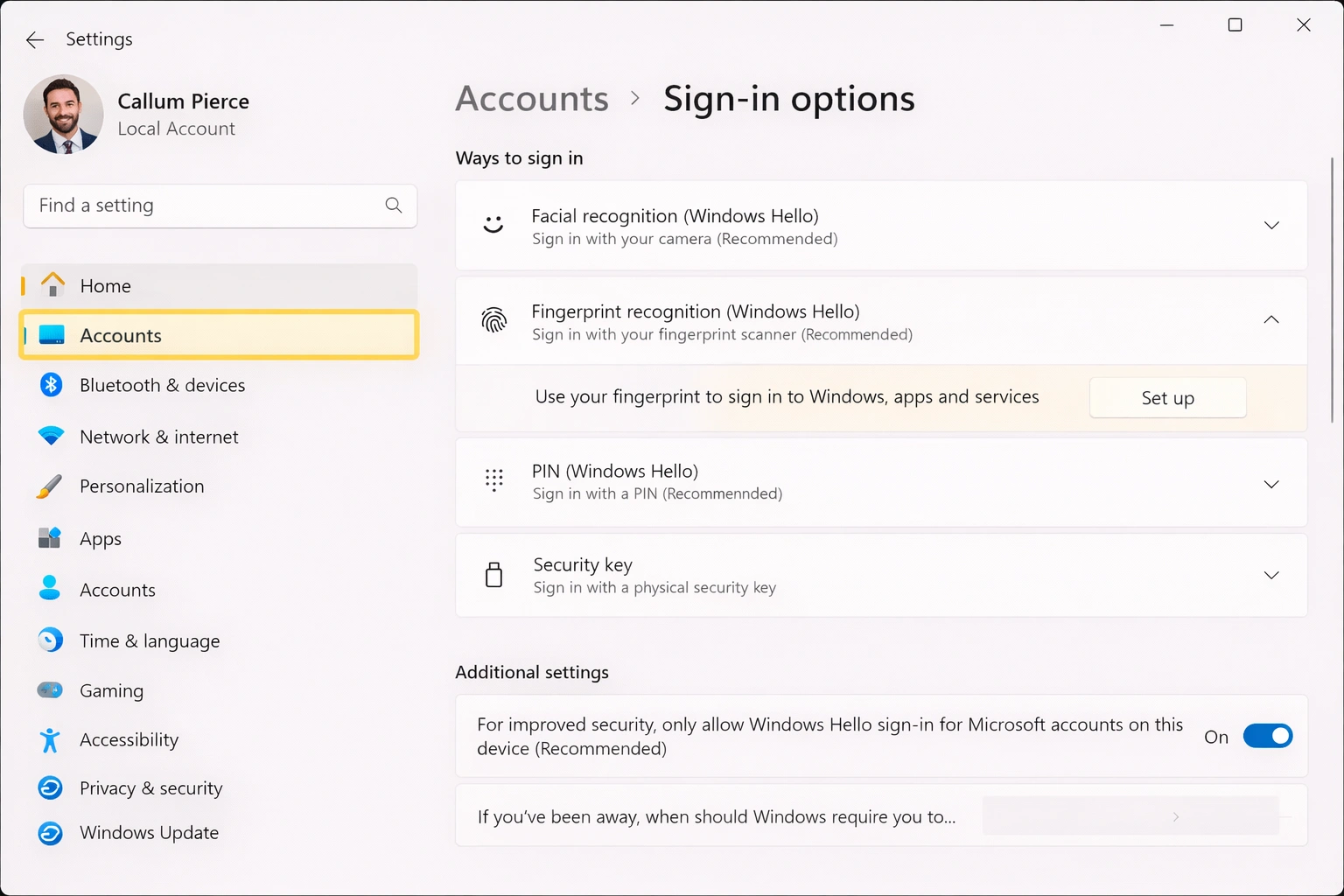
💡 Pro Tip: Set Up Windows Hello
Windows Hello lets you sign in with fingerprint, facial recognition, or a numeric PIN, making it nearly impossible to get locked out. Go to Settings → Accounts → Sign-in options to set it up.
9. Frequently Asked Questions
Will I lose my files when resetting the password?
No, none of the methods in this guide delete your personal files. They only change the access password.
What if I don't have access to the recovery email?
Microsoft has an account recovery form where you can verify your identity with additional information like purchase history or recent contacts.
Do these methods work on Windows 11?
Yes, all methods work on both Windows 10 and Windows 11. The interface may vary slightly but the processes are the same.
Can I use third-party software to reset the password?
While third-party tools exist, we recommend using only official Microsoft methods for security. Some tools may contain malware or violate terms of service.
What if none of these methods work?
As a last resort, you can reset Windows 10/11 from the login screen while keeping your files. Select the power icon, hold Shift and click Restart, then go to Troubleshoot → Reset this PC.
🔑 Need a Genuine Windows License?
Secure your PC with an original Windows 11 Pro license. Get all security features, automatic updates, and official Microsoft support with lifetime activation.
Get Windows 11 Pro - Lifetime License✓ Lifetime license • ✓ Instant activation • ✓ Support included
10. Conclusion
Forgetting your Windows password can be frustrating, but with these 7 methods, you'll always have a way to regain access without losing your files. The ideal method depends on your account type and the recovery options you've set up previously.
Our recommendations: Use a Microsoft account for the easiest recovery, set up Windows Hello as a backup, and create a password reset disk as a last line of defense. With these precautions, you'll never get locked out of your PC again.