
Windows 11 Backup: 5 Best Methods to Protect Your Files (Free & Paid)

Callum specializes in breaking down complex technology topics into easy-to-understand guides. He has a background in computer science and technical writing.
Data loss can strike at any moment: hard drive failures, ransomware attacks, accidental deletion, or failed system updates. This comprehensive guide covers the 5 best methods to back up your Windows 11 files, including free built-in solutions and premium services that offer maximum protection.
Why Windows 11 Backups Are Essential
According to recent studies, 30% of people have never backed up their data, and 29% of data loss incidents are caused by accidents. With Windows 11, you have multiple backup options that can protect everything from family photos to critical business documents.
Common Threats to Your Data
- • Hardware failure: Hard drives have a limited lifespan
- • Ransomware: Attacks can encrypt all your files
- • Accidental deletion: The most common cause of data loss
- • Theft or loss: Laptops and portable devices at risk
- • Natural disasters: Fires, floods, storms
Method 1: Windows Backup (Free)
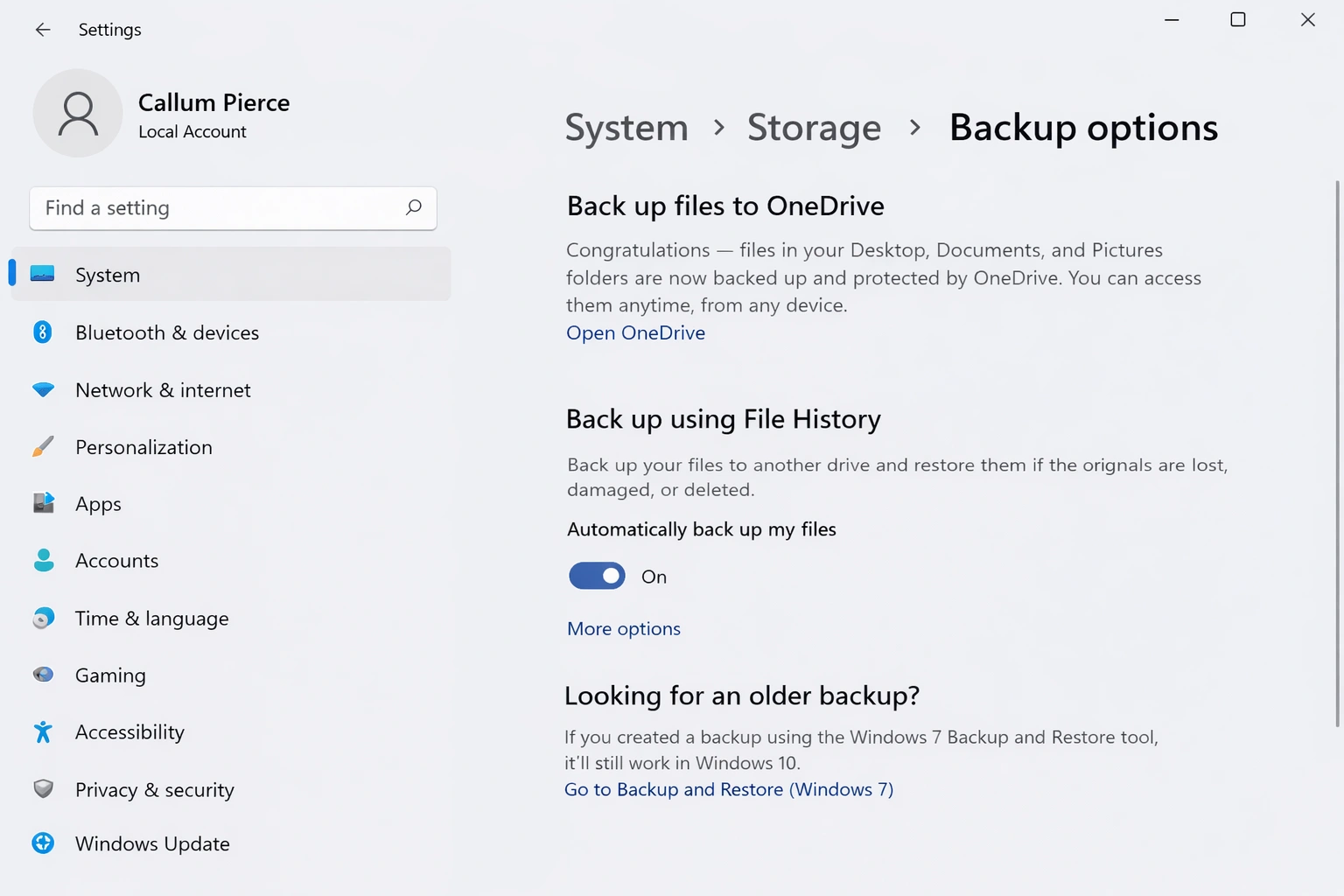
Windows 11 includes a built-in backup tool that syncs your settings, apps, and files with your Microsoft account. It's the simplest option for basic users.
How to Set Up Windows Backup
- Open Settings → Accounts → Windows backup
- Turn on Remember my apps to save your installed apps list
- Turn on Remember my preferences to sync settings
- Enable OneDrive folder syncing to back up Desktop, Documents, and Pictures
- Click Back up to start
Advantages and Limitations
✓ Advantages
- • Completely free
- • Built into Windows 11
- • Very simple setup
- • Automatic synchronization
✗ Limitations
- • Only 5GB free on OneDrive
- • Doesn't create system image
- • Limited customization options
- • Requires Microsoft account
Method 2: File History (Free)
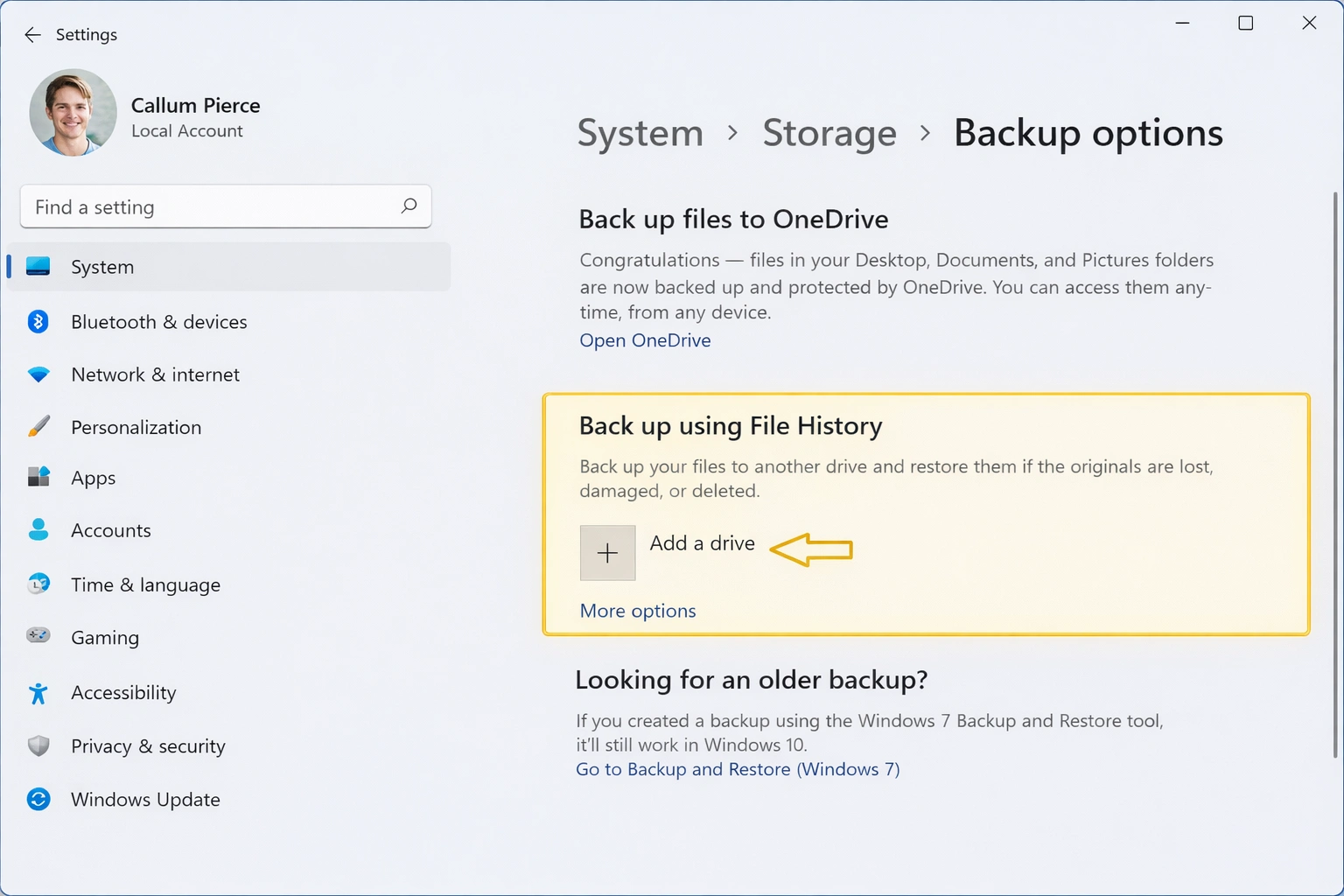
File History is a legacy Windows feature that creates incremental copies of your personal files to an external drive. It allows you to restore previous versions of modified or deleted files.
Setting Up File History
- Connect an external hard drive or USB drive
- Open Control Panel → System and Security → File History
- Click Turn on
- Select Advanced settings to adjust frequency
- Optional: Exclude folders you don't need to back up
💡 Tip: Configure File History to save versions every hour and keep them for at least 1 month. This gives you enough time to recover files you may have accidentally modified.
Method 3: System Image (Free)
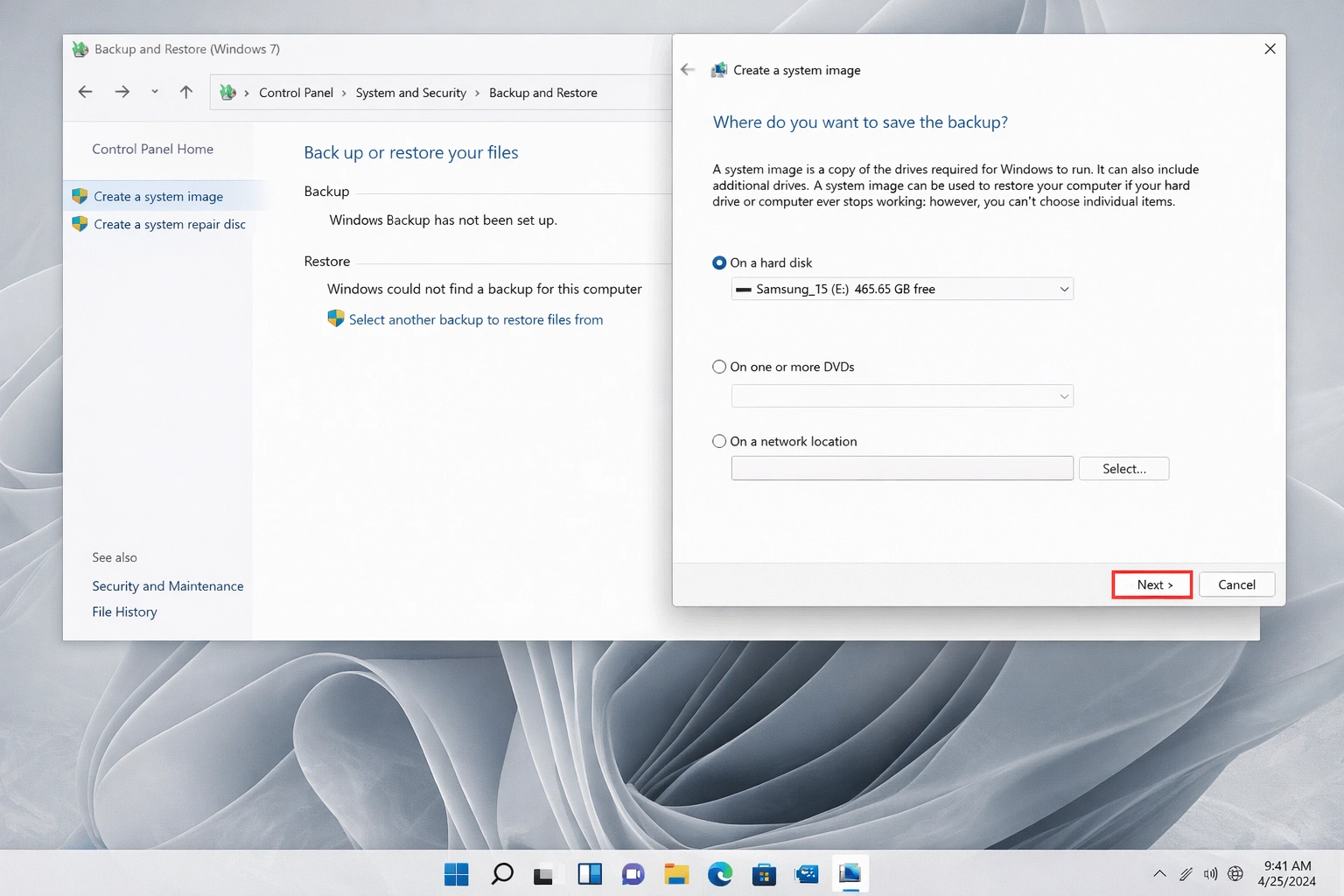
A system image is an exact copy of your entire Windows installation, including the operating system, programs, settings, and files. It's ideal for complete disaster recovery.
Creating a System Image
- Open Control Panel → System and Security → Backup and Restore (Windows 7)
- Click Create a system image
- Select destination: external hard drive, DVDs, or network location
- Choose which drives to include in the image
- Confirm settings and start the backup
- When finished, create a system repair disc
When to Use System Image
- Before major updates: Windows updates, critical software installations
- Perfect configuration: When your PC is optimized and running well
- Disk replacement: For migrating to an SSD or new drive
- Business protection: Quick workstation recovery
Method 4: OneDrive (Free/Premium)
OneDrive offers cloud synchronization with additional protection. Native integration with Windows 11 makes it a convenient option for Microsoft ecosystem users.
OneDrive Plans
| Plan | Storage | Price | Includes |
|---|---|---|---|
| Basic | 5 GB | Free | Basic sync |
| Microsoft 365 Personal | 1 TB | ~$69/year | Office apps, PC Backup |
| Microsoft 365 Family | 6 TB (1 TB/user) | ~$99/year | 6 users, Office apps |
OneDrive Premium Features
- Personal Vault: Protected folder with additional verification
- Ransomware Protection: Detects attacks and allows restoration
- Version History: Restore files from the last 30 days
- PC Backup: Automatic backup of desktop, documents, and photos
Method 5: Third-Party Software (Premium)
For advanced backup needs, specialized software offers more control, flexibility, and professional features. Here are the best options available:
Backup Software Comparison
| Software | Price | Best For | Features |
|---|---|---|---|
| Acronis True Image | From ~$50/year | Complete protection | Anti-ransomware, cloud, imaging |
| Macrium Reflect | Free / ~$70 | Disk imaging | Cloning, fast recovery |
| EaseUS Todo Backup | Free / ~$40 | Beginners | Simple interface, scheduling |
| Backblaze | ~$7/month | Cloud backup | Unlimited storage |
When to Choose Premium Software
- You need scheduled automatic backups
- You want built-in anti-ransomware protection
- You require cloud backup with unlimited storage
- You need to create bootable disk images
- You manage multiple computers
The 3-2-1 Backup Strategy
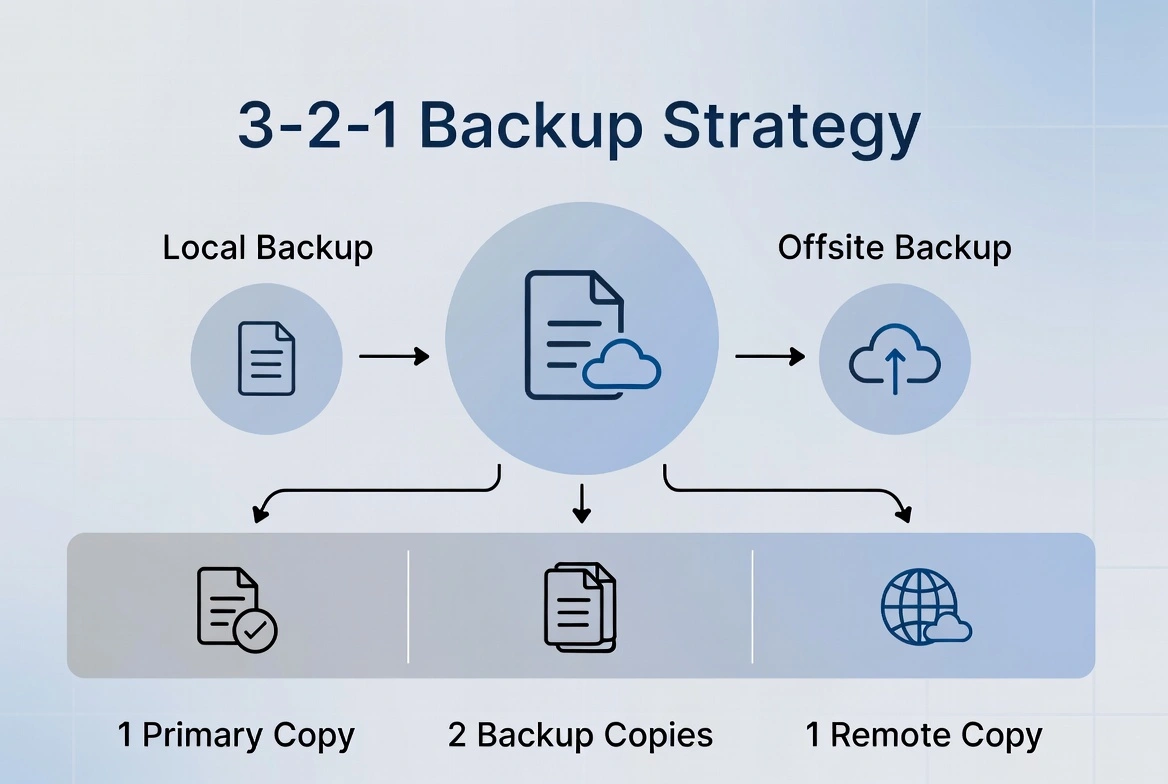
Data protection experts recommend the 3-2-1 rule for optimal protection:
- 33 copies of your data
The original plus two backup copies
- 22 different storage types
For example: internal drive + external drive
- 11 off-site copy
In the cloud or at another physical location
How to Restore from a Backup
Restoring Individual Files
- Open Settings → Update & Security
- Select Backup
- Click More options → Restore files
- Navigate to the file or folder you need
- Click the green restore button
Restoring a System Image
- Boot from Windows installation media or recovery disc
- Select Troubleshoot → Advanced options
- Choose System Image Recovery
- Select the most recent image or choose a specific one
- Confirm and wait for restoration to complete
Backup Best Practices
📅 Regular Schedule
Set up automatic daily or weekly backups. Don't rely on doing them manually.
🔍 Verify Regularly
Test restoring files periodically to ensure your backups work correctly.
🔐 Encrypt Your Backups
Use encryption to protect sensitive data, especially on cloud backups or portable drives.
📋 Document Your Strategy
Keep a record of what's backed up, where, and how to restore in an emergency.
Frequently Asked Questions
How often should I back up my files?
It depends on the importance of your data. For critical work files, daily backup is recommended. For general personal use, weekly is usually sufficient.
How much storage space do I need for backups?
As a rule of thumb, you need at least twice the space of the data you want to back up. For system images, calculate your Windows partition size plus 20%.
Is it safe to store backups in the cloud?
Yes, major services like OneDrive, Google Drive, and Backblaze use strong encryption. However, for highly sensitive data, consider using additional encryption before uploading.
Can I back up Windows 11 to a NAS?
Yes, both the system image tool and third-party software allow you to save backups to NAS devices connected to your local network.
Conclusion
Protecting your files in Windows 11 doesn't have to be complicated or expensive. With the free built-in tools, you can establish a solid basic protection, while premium options offer additional peace of mind with advanced features. The most important thing is to start today: the best backup is the one you have when you need it.
Summary: Your Backup Plan
- Enable Windows Backup for settings and apps
- Set up File History on an external drive
- Create a system image monthly
- Consider OneDrive or premium software for cloud backup
- Verify your backups regularly