
Windows 10 to 11 Free Upgrade Still Works in 2025: Complete Guide

Callum specializes in breaking down complex technology topics into easy-to-understand guides. He has a background in computer science and technical writing.
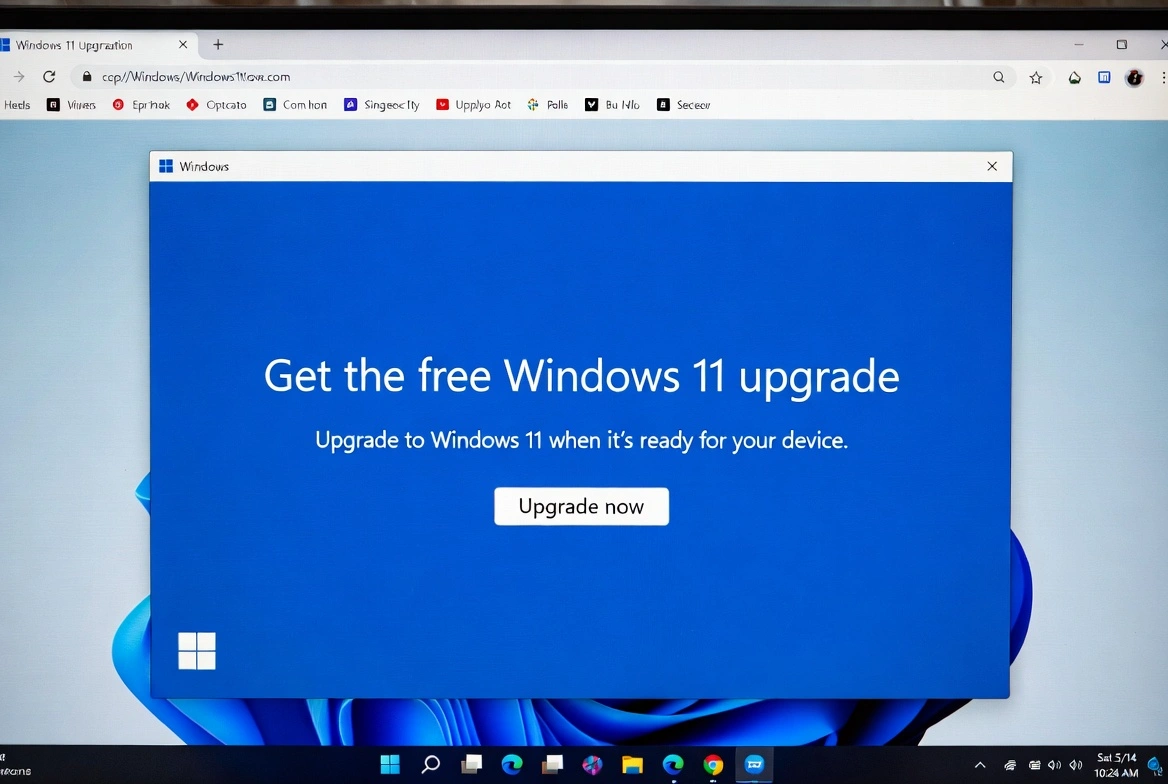
Yes, the free Windows 10 to Windows 11 upgrade still works in 2025! Despite Microsoft officially ending the free upgrade offer in 2022, users with genuine Windows 10 licenses can still upgrade to Windows 11 at no cost. This comprehensive guide shows you exactly how to get the free upgrade, check compatibility, and what to do if your PC doesn't meet requirements.
Table of Contents
1. Is the Windows 11 Free Upgrade Still Available in 2025?
The short answer is YES. Here's the current situation:
- Microsoft's official 'free upgrade offer' ended October 5, 2022
- However, the upgrade path still works for Windows 10 users with valid licenses
- Your Windows 10 product key activates Windows 11 automatically
- This works for both Windows 10 Home → Windows 11 Home and Windows 10 Pro → Windows 11 Pro
- No announcement from Microsoft about when this will truly end
💡 Note: Microsoft has been quietly allowing this upgrade for years. While they could close this loophole anytime, as of December 2024, it still works perfectly.
2. Windows 11 System Requirements
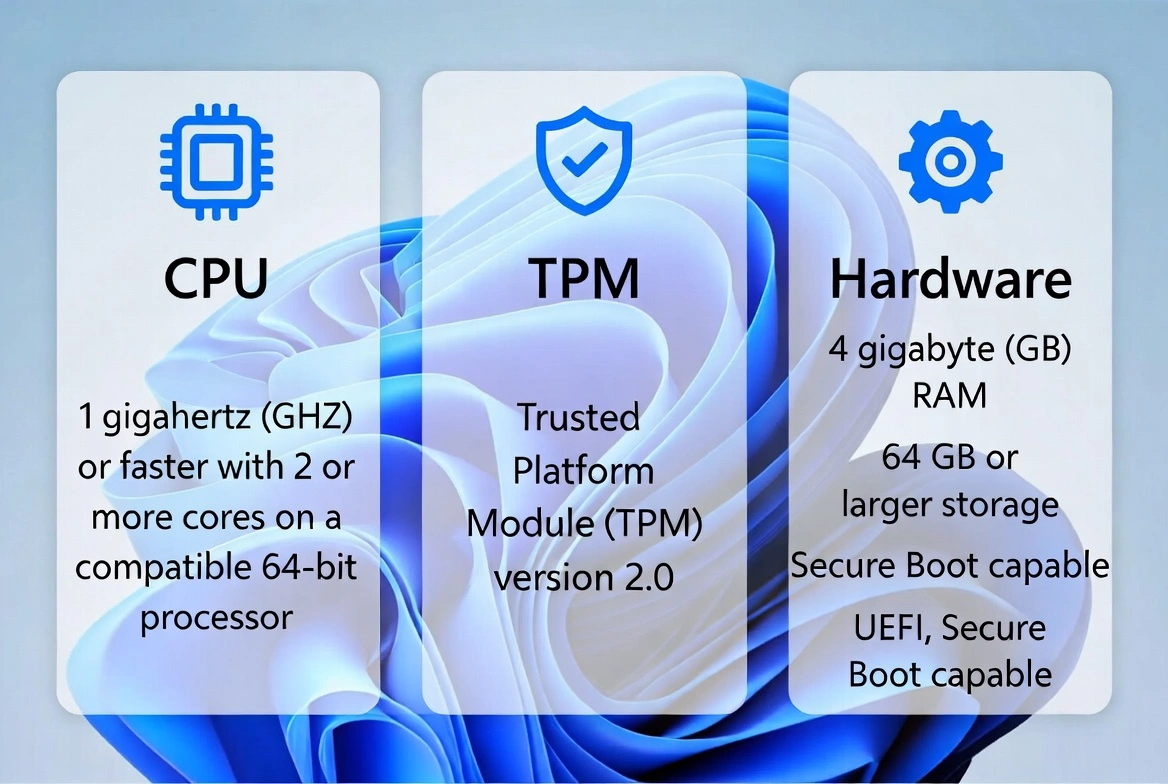
Before upgrading, verify your PC meets these minimum requirements:
Processor
1 GHz or faster with 2+ cores on a compatible 64-bit processor (Intel 8th Gen+, AMD Ryzen 2000+)
RAM
4 GB minimum (8 GB or more recommended for smooth performance)
Storage
64 GB or larger storage device (SSD recommended for best experience)
TPM
Trusted Platform Module version 2.0 (most PCs from 2018+ have this)
Secure Boot
UEFI firmware with Secure Boot capability enabled
Display
HD display (720p) 9" or larger, 8 bits per color channel
3. How to Check If Your PC Is Compatible
Microsoft provides an official tool to check compatibility:
Method 1: PC Health Check App (Recommended)
- Download PC Health Check from Microsoft's official website
- Install and run the application
- Click 'Check now' under 'Introducing Windows 11'
- The tool will tell you if your PC is compatible
- If incompatible, it shows which requirements aren't met
Method 2: Check Manually
- Press Windows + R, type 'msinfo32', press Enter
- Check 'Processor' - must be Intel 8th Gen or AMD Ryzen 2000+
- Check 'Installed Physical Memory' - must be 4GB+
- Check 'BIOS Mode' - should say 'UEFI'
- Check 'Secure Boot State' - should say 'On'
- For TPM: Press Windows + R, type 'tpm.msc', check version is 2.0
4. How to Upgrade Windows 10 to 11 for Free
If your PC is compatible, follow these steps for the free upgrade:
Method 1: Windows Update (Easiest)
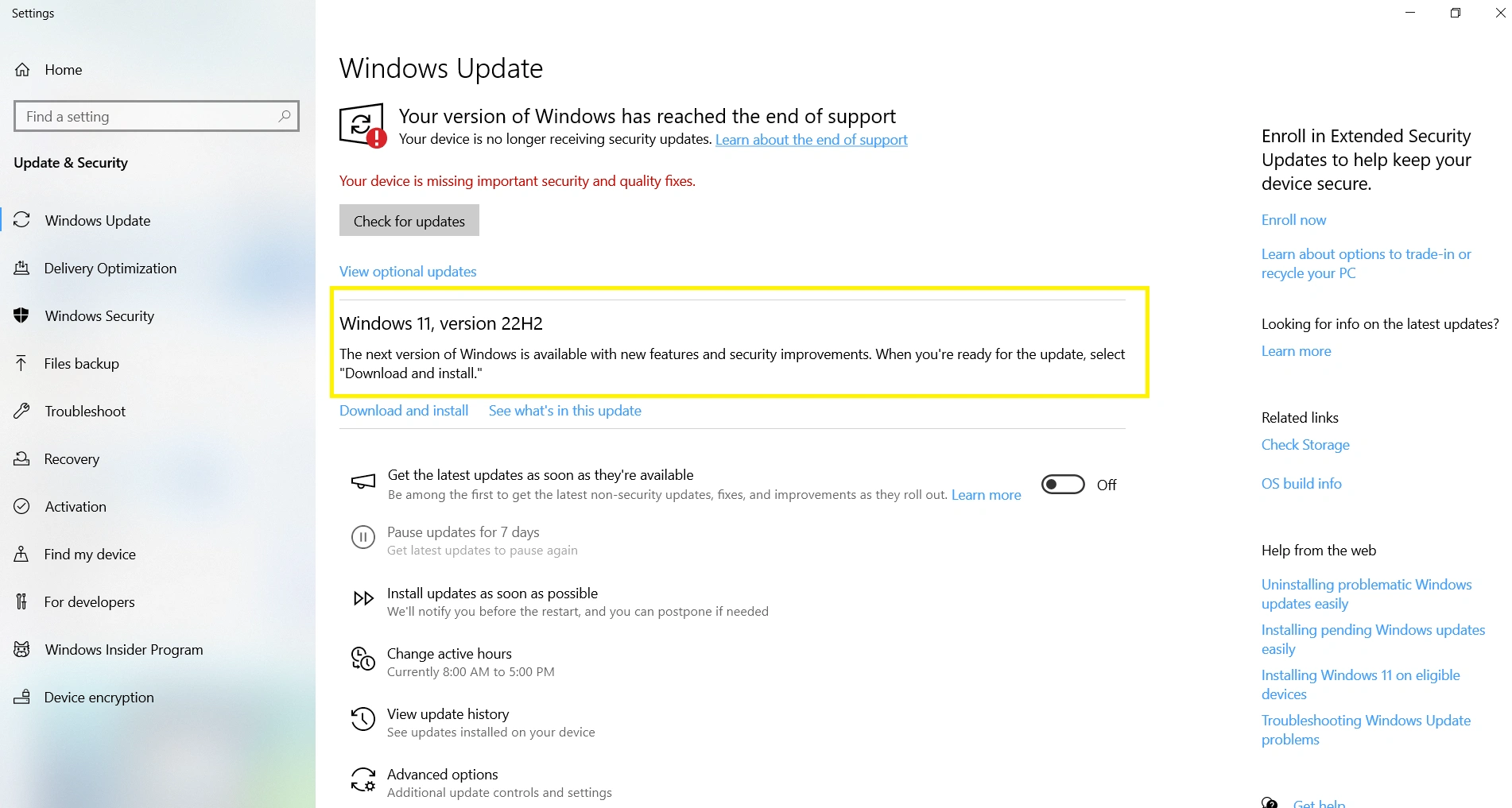
- Open Settings > Update & Security > Windows Update
- Click 'Check for updates'
- If eligible, you'll see 'Upgrade to Windows 11 is ready'
- Click 'Download and install'
- Accept the license terms
- Your PC will download Windows 11 (3-4 GB) and install automatically
- Restart when prompted - the upgrade takes 30-60 minutes
Method 2: Installation Assistant (If Update Not Showing)
- Go to microsoft.com/software-download/windows11
- Download the 'Windows 11 Installation Assistant'
- Run the downloaded file as Administrator
- Accept the license terms and click 'Accept and Install'
- The tool downloads Windows 11 and upgrades automatically
- Your PC will restart several times during installation
- All files, apps, and settings are preserved
Method 3: Media Creation Tool (Clean Install Option)
- Download Media Creation Tool from Microsoft
- Choose 'Upgrade this PC now' for in-place upgrade
- Or create installation media (USB) for clean install
- If doing clean install, back up data first!
- Boot from USB and select 'Custom: Install Windows only'
- Your Windows 10 key will activate Windows 11
5. What If Your PC Doesn't Meet Requirements?
Don't worry - there are legitimate workarounds for unsupported PCs:
Important: Installing Windows 11 on unsupported hardware means Microsoft may not provide updates. Use at your own risk.
TPM/CPU Bypass via Registry
- Download Windows 11 ISO from Microsoft
- Mount the ISO or create bootable USB
- Before installing, press Shift + F10 to open Command Prompt
- Type: reg add HKLM\SYSTEM\Setup\MoSetup /v AllowUpgradesWithUnsupportedTPMOrCPU /t REG_DWORD /d 1
- Press Enter, close Command Prompt, continue installation
- Windows 11 will install bypassing TPM and CPU checks
Using Rufus (Easiest Bypass)
- Download Rufus (free tool) from rufus.ie
- Download Windows 11 ISO from Microsoft
- Open Rufus and select your USB drive
- Select the Windows 11 ISO
- Click 'Start' and choose to remove TPM/Secure Boot requirements
- Create the bootable USB and install normally
6. Before You Upgrade: Preparation Checklist
Prepare your PC for a smooth upgrade experience:
- Back up important files to external drive or cloud storage
- Note down your Windows 10 product key (Settings > System > Activation)
- Update all drivers, especially graphics drivers
- Uninstall old antivirus software (can cause issues)
- Ensure at least 20 GB free space on system drive
- Connect laptop to power - don't let it sleep during upgrade
- Disconnect unnecessary peripherals (printers, external drives)
- Make a list of installed programs in case you need to reinstall
7. What Happens to Your Files and Programs?
Here's what to expect after upgrading:
Kept
- Personal files (Documents, Pictures, Videos, Downloads)
- Most desktop applications and programs
- Browser bookmarks, passwords, and extensions
- Windows settings and personalization
- User accounts and their data
- Network settings and saved Wi-Fi passwords
May Need Reinstall
- Some older antivirus software
- Hardware-specific utilities (update from manufacturer)
- Some games with anti-cheat software
- Very old 32-bit applications
- Custom drivers for specialized hardware
8. Troubleshooting Common Upgrade Issues
Solutions for the most common problems:
Upgrade option not appearing in Windows Update
Use the Installation Assistant instead. Or check that your PC meets all requirements including TPM 2.0.
Error: 'This PC doesn't meet requirements'
Enable TPM and Secure Boot in BIOS. Check processor compatibility. Use bypass methods if hardware is truly unsupported.
Upgrade stuck at certain percentage
Wait at least 2 hours - some stages take longer. If truly stuck, force restart and try Installation Assistant method.
Not enough disk space error
Run Disk Cleanup, delete temporary files, uninstall unused programs. Need at least 20 GB free.
Driver compatibility issues after upgrade
Download latest drivers from manufacturer's website. Use Device Manager to update or roll back problematic drivers.
9. Windows 11 Features Worth Upgrading For
Here's what you get with Windows 11:
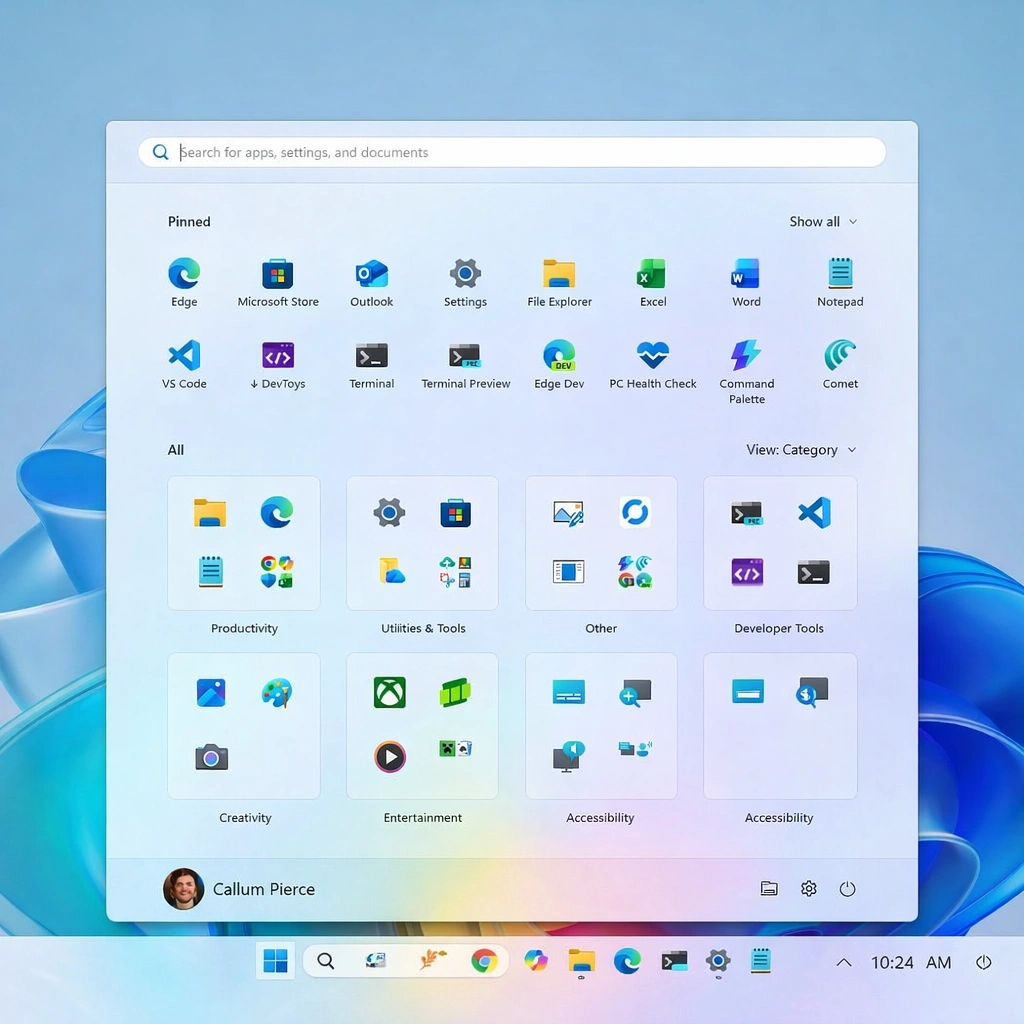
- Modern centered Start menu and taskbar design
- Snap Layouts for better window management
- Virtual desktops with individual wallpapers
- Microsoft Teams integration built-in
- Android app support via Amazon Appstore
- DirectStorage for faster game loading
- Auto HDR for enhanced gaming visuals
- Better touch, pen, and voice input
- Widgets panel for quick information
- Improved Windows Security and TPM-based protection
10. Should You Upgrade? Final Recommendations
Consider these factors:
Upgrade if:
- Your PC meets all requirements naturally
- You want the latest security features
- You value modern UI and productivity features
- You're a gamer wanting DirectStorage/Auto HDR
- Your PC will remain supported with updates
Wait or stay on Windows 10 if:
- Your hardware requires bypasses to install
- You rely on legacy software that may not work
- Your PC is close to end of life anyway
- You prefer the Windows 10 interface
- You're in an enterprise environment with compatibility requirements
Remember: Windows 10 support ends October 14, 2025. After that, no more security updates unless you pay for Extended Security Updates (ESU).