
How to Transfer Windows License to New PC: Complete Step-by-Step Guide

Callum specializes in breaking down complex technology topics into easy-to-understand guides. He has a background in computer science and technical writing.
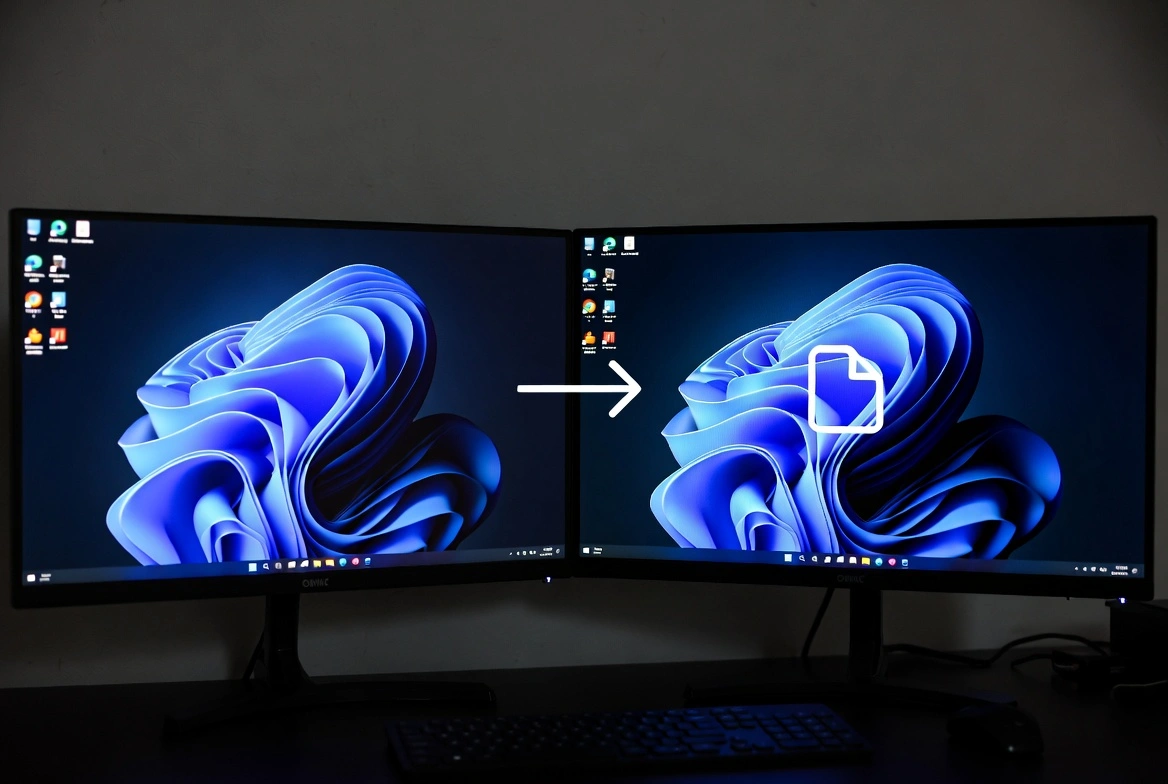
Got a new PC and wondering if you can bring your Windows license along? Good news: in many cases, you can transfer your Windows license to your new computer without spending an extra dime. This guide shows you exactly how to do it, which license types are transferable, and how to avoid common activation headaches.
What's In This Guide
1. Types of Windows Licenses: What You Need to Know
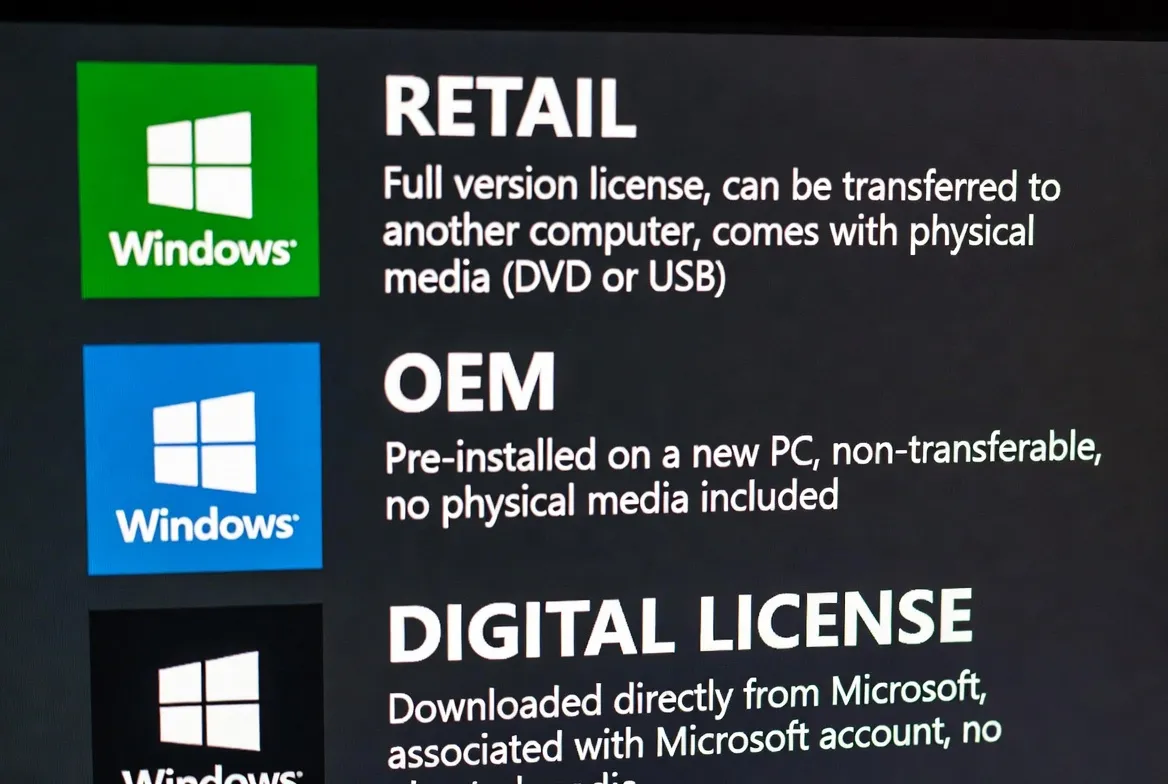
Before attempting to transfer your license, it's crucial to understand what type you have. Microsoft offers three main types of Windows licenses, and each has different rules for transferability.
Retail License
Purchased directly from a store or Microsoft Store. Fully transferable to any PC.
- Can be used on one PC at a time
- Unlimited transfers
- Most flexible option
OEM License
Comes pre-installed on branded PCs (Dell, HP, Lenovo). Not officially transferable.
- Tied to original hardware
- Less expensive
- Dies with the PC
Digital License
Linked to your Microsoft account. Transferable if Retail.
- Automatic activation
- No physical key
- Easy to manage
Important Note
If you upgraded for free from Windows 7/8 to Windows 10/11, your license inherits the original type. An upgrade from a Retail license is still transferable.
2. Can My License Be Transferred? Quick Guide
| License Type | Transferable? | Method |
|---|---|---|
| Retail (boxed/digital) | ✓ Yes | Deactivate → Reinstall → Activate with key |
| OEM (pre-installed) | ✗ No | Purchase new license |
| Volume (business) | ~ Depends | Consult IT administrator |
| Digital linked to account | ✓ Yes* | Sign in with Microsoft account |
*Digital licenses linked to a Microsoft account transfer automatically when you sign in on your new PC, as long as the original license is Retail type.
3. How to Check Your Current License Type
Not sure what type of license you have? Here's how to find out in seconds using Command Prompt.
slmgr /dliStep-by-Step:
- Press Win + X
- Select "Terminal (Admin)" or "CMD (Admin)"
- Type:
slmgr /dli - Press Enter and wait for the popup
- Look for the "Description" line
Understanding the Result:
- RETAIL channel: Transferable ✓
- OEM_DM channel: Not transferable ✗
- VOLUME_MAK: Corporate license
- GVLK: KMS volume license
Alternative Command
For more detailed license information, use:
slmgr /dlv4. Deactivate Windows on Your Old PC
Before transferring, you need to unlink the license from your current PC. This step is essential for Retail licenses and prevents activation issues on your new computer.
Important Warning
Only deactivate the license if you won't use Windows on that PC anymore. Deactivation can't be easily undone and will leave Windows unactivated on that computer.
Deactivation Process:
Open CMD as Administrator
Press Win + X → Terminal (Admin)
Run Uninstall Command
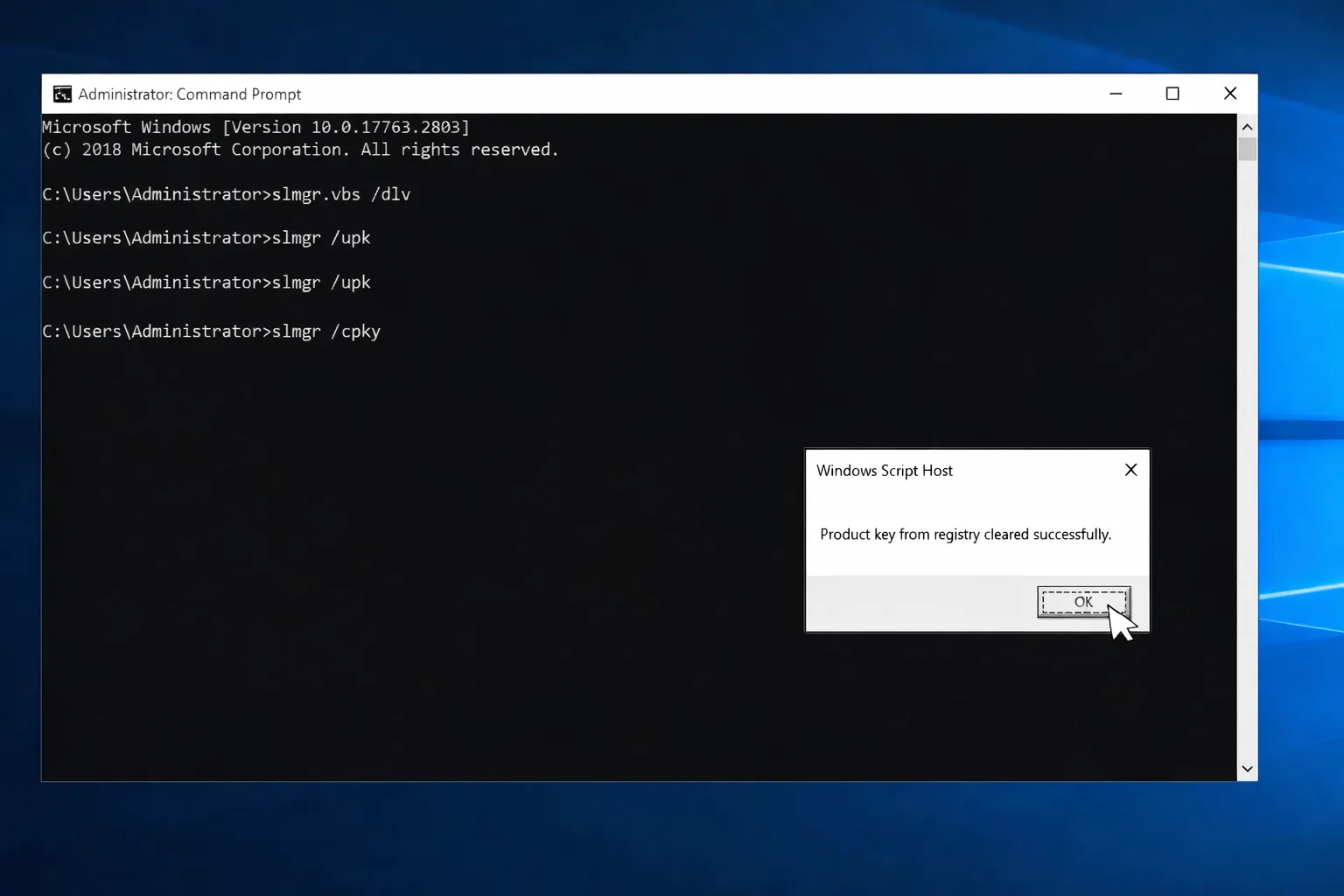
slmgr /upkThis uninstalls the product key
Clear Key from Registry
slmgr /cpkyRemoves the key stored in registry
Confirmation
You'll see messages confirming each action. Your license is now free.
5. Transfer Retail License to New PC
Once you've deactivated the license on your old PC, follow these steps to activate Windows on your new computer using the same product key.
Option A: Clean Installation
- Download Microsoft's Media Creation Tool
- Create a bootable USB with Windows
- Install Windows on your new PC
- When prompted, enter your Retail key
- Complete installation normally
Option B: Windows Already Installed
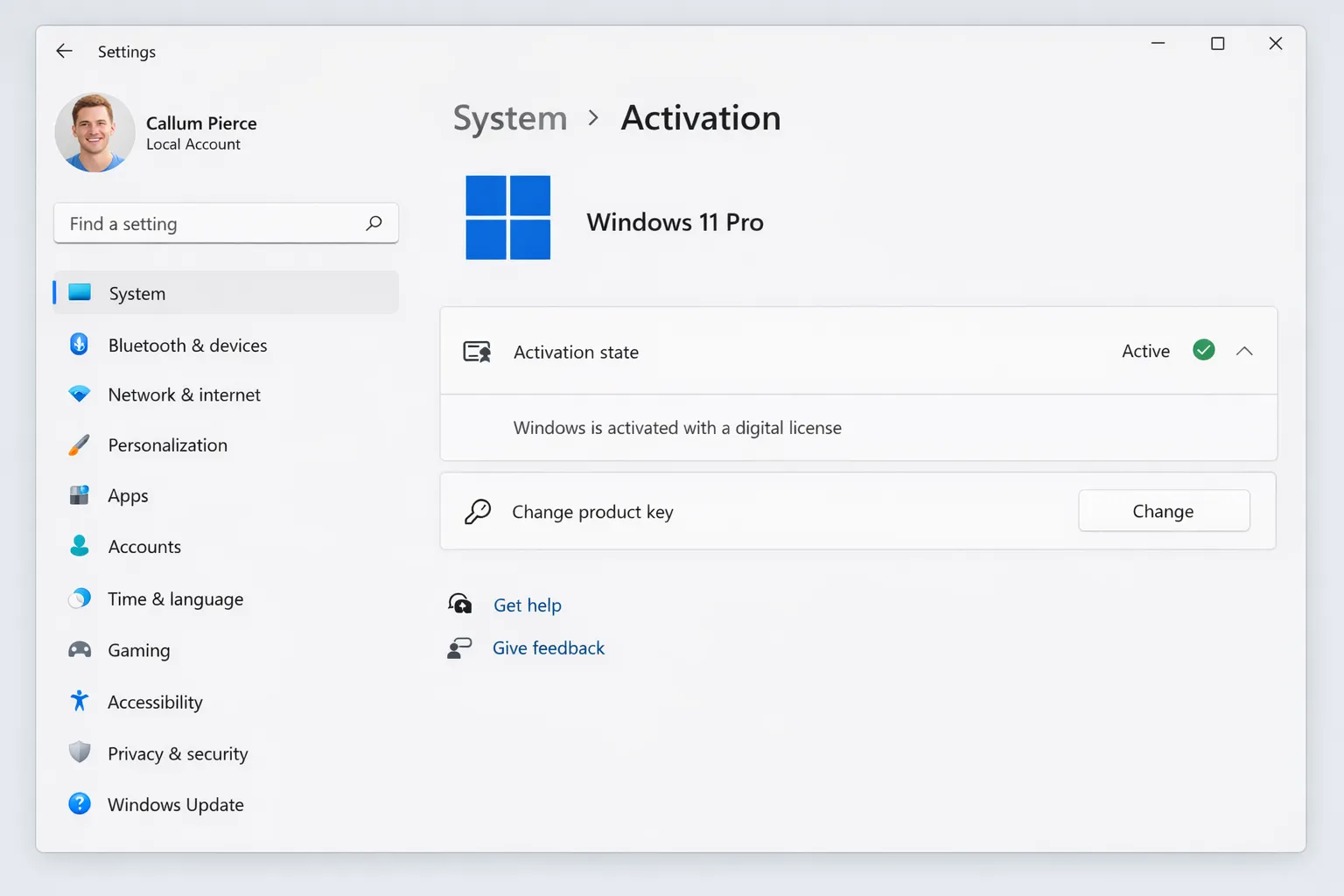
- Go to Settings → System → Activation
- Click "Change product key"
- Enter your Retail product key
- Click "Next" then "Activate"
- Wait for activation confirmation
Pro Tip
If you can't remember your product key, you can retrieve it from your old PC before deactivating using tools like ProduKey or the command wmic path softwarelicensingservice get OA3xOriginalProductKey
6. Transfer a Linked Digital License
If your license is linked to your Microsoft account, the transfer is much simpler. No need to remember keys or run commands.
Steps for Digital License:
Verify the Link
On your old PC: Settings → Accounts → Your info. Make sure you see your Microsoft account.
Set Up New PC
During initial setup, sign in with the same Microsoft account.
Activate Windows
Go to Settings → System → Activation → "Troubleshoot" if it doesn't activate automatically.
Select the Device
If you have multiple devices, select "I changed hardware on this device recently" and choose the license to transfer.
7. Activate Windows on Your New PC
Activation Methods:
AAutomatic Activation (Internet)
If you entered the key during installation and have internet, Windows activates automatically. Check at Settings → System → Activation.
BManual Activation (CMD)
slmgr /ipk XXXXX-XXXXX-XXXXX-XXXXX-XXXXXslmgr /atoReplace the Xs with your actual product key.
CPhone Activation
If online activation fails, run slui 4 for phone activation. Follow Microsoft's automated assistant instructions.
8. Troubleshoot Activation Issues
Error: "This key is already in use on another device"
Cause: You didn't deactivate the license on your old PC.
Solution: Deactivate the license on your old PC using the commands from section 4, or wait 24-48 hours for Microsoft to release it automatically.
Error: "Windows can't activate"
Cause: Connection issues or busy Microsoft servers.
Solution: Check your internet connection, wait a few hours and try again, or use phone activation with slui 4.
Error: "Product key not valid"
Cause: Wrong key or key for different Windows edition.
Solution: Verify the key matches the same edition (Home, Pro, etc.) and that you typed it correctly. Keys are 25 characters.
Digital License Not Showing
Cause: Microsoft account not properly linked.
Solution: In Settings → Activation, click "Troubleshoot" → "I changed hardware on this device recently" → Select your PC from the list.
9. OEM Licenses: Your Options
If you have an OEM license (the one that comes with branded PCs), you officially can't transfer it. But don't worry, you have options:
✓ Recommended Option
Purchase a new license. Windows 11 Home licenses cost around $139 USD directly from Microsoft, or you can find deals at authorized retailers.
- 100% legal license
- Full Microsoft support
- No deactivation risks
Alternative: Unactivated Windows
You can use Windows unactivated indefinitely. The limitations are minimal:
- Watermark in corner
- Can't personalize wallpaper/colors
- All other features available
- Security updates included
Avoid Cheap Keys from Shady Sites
Windows keys for $10-20 on unofficial sites are usually illegal (stolen, volume, or gray market). They can be deactivated anytime and don't include support.
10. Frequently Asked Questions
How many times can I transfer a Retail license?
Unlimited times, as long as it's only active on one PC at a time. Retail licenses are the most flexible.
Can I transfer from Windows 10 to Windows 11?
Yes, if your new PC meets Windows 11 requirements, you can use your Windows 10 license to activate Windows 11 of the same edition.
What happens if I change my PC's motherboard?
Windows may require reactivation. If you have a digital license linked to your Microsoft account, use the activation troubleshooter.
Can I transfer a Home license to Pro?
Not directly. You'd need to purchase a Pro upgrade or a new Pro license.
Can Microsoft revoke my transferred license?
No, if you follow the terms of use. Retail licenses can be legally transferred. Just can't be active on multiple PCs simultaneously.
How long does it take for a license to be released?
If you manually deactivate, it's immediate. If you don't deactivate, Microsoft usually releases the license within 24-48 hours.
Conclusion: Transfer Your License with Confidence
Transferring your Windows license to a new PC is a straightforward process if you have a Retail license or digital license linked to your Microsoft account. Follow the steps in this guide, properly deactivate on your old PC, and activate on the new one.
For OEM licenses, your best option is purchasing a legitimate new license. Avoid cheap keys from unofficial sites that can cause problems down the road.