
Windows 11 Widgets: Complete Customization Guide (Add, Remove, Organize)

Callum specializes in breaking down complex technology topics into easy-to-understand guides. He has a background in computer science and technical writing.
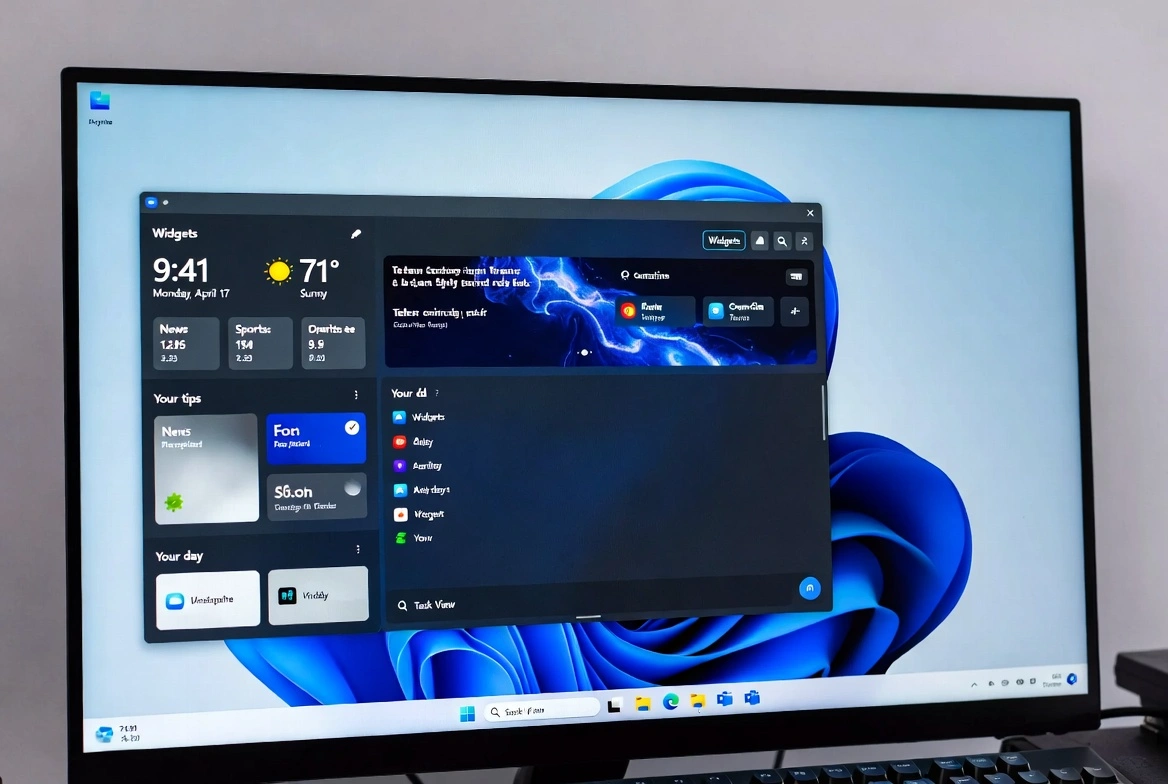
Windows 11 widgets let you quickly access personalized information right from your desktop. This complete guide teaches you how to customize Windows 11 widgets, including how to add, remove, and organize widgets to create your perfect information panel.
📋 Table of Contents
What are Windows 11 Widgets?
Windows 11 widgets are small information cards that display dynamic, personalized content. From weather to news, calendars and more, widgets keep you informed at a glance without needing to open applications.
Instant Information
Access news, weather, sports and more without opening your browser.
Fully Customizable
Choose which widgets to see, their size, and position in the panel.
Cloud Sync
Your preferences sync with your Microsoft account.
Third-Party Widgets
Developers can create custom widgets for the platform.
How to Access the Widgets Panel
There are several ways to open widgets in Windows 11:
How to Add New Widgets
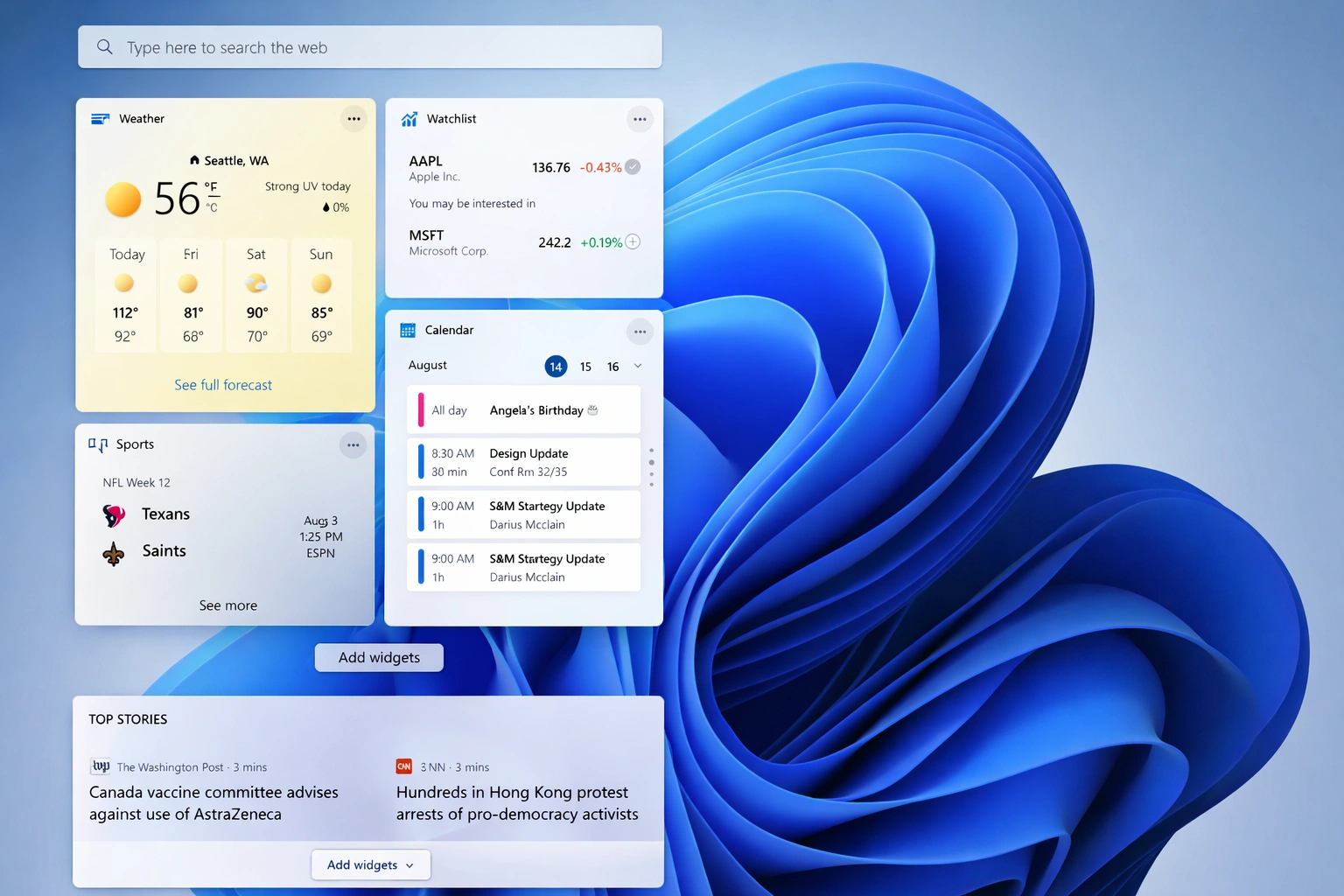
Follow these steps to add widgets to the Windows 11 panel:
Open the Widgets Panel
Press Windows + W or click the weather icon in the taskbar.
Click the "+" Icon
At the top of the panel, look for the "Add widgets" button or plus icon.
Browse Available Widgets
You'll see a list of Microsoft and third-party widgets available to add.
Click "Pin" or "+"
Select the widget you want and click to add it to your panel.
How to Remove Widgets
To remove a widget from the Windows 11 panel:
- Open the widgets panel (Windows + W)
- Hover over the widget you want to remove
- Click the three-dot icon (...) in the widget corner
- Select "Remove widget" or "Unpin"
Important Note
Removing a widget doesn't uninstall it. You can always add it back from the available widgets menu.
Organize and Resize Widgets
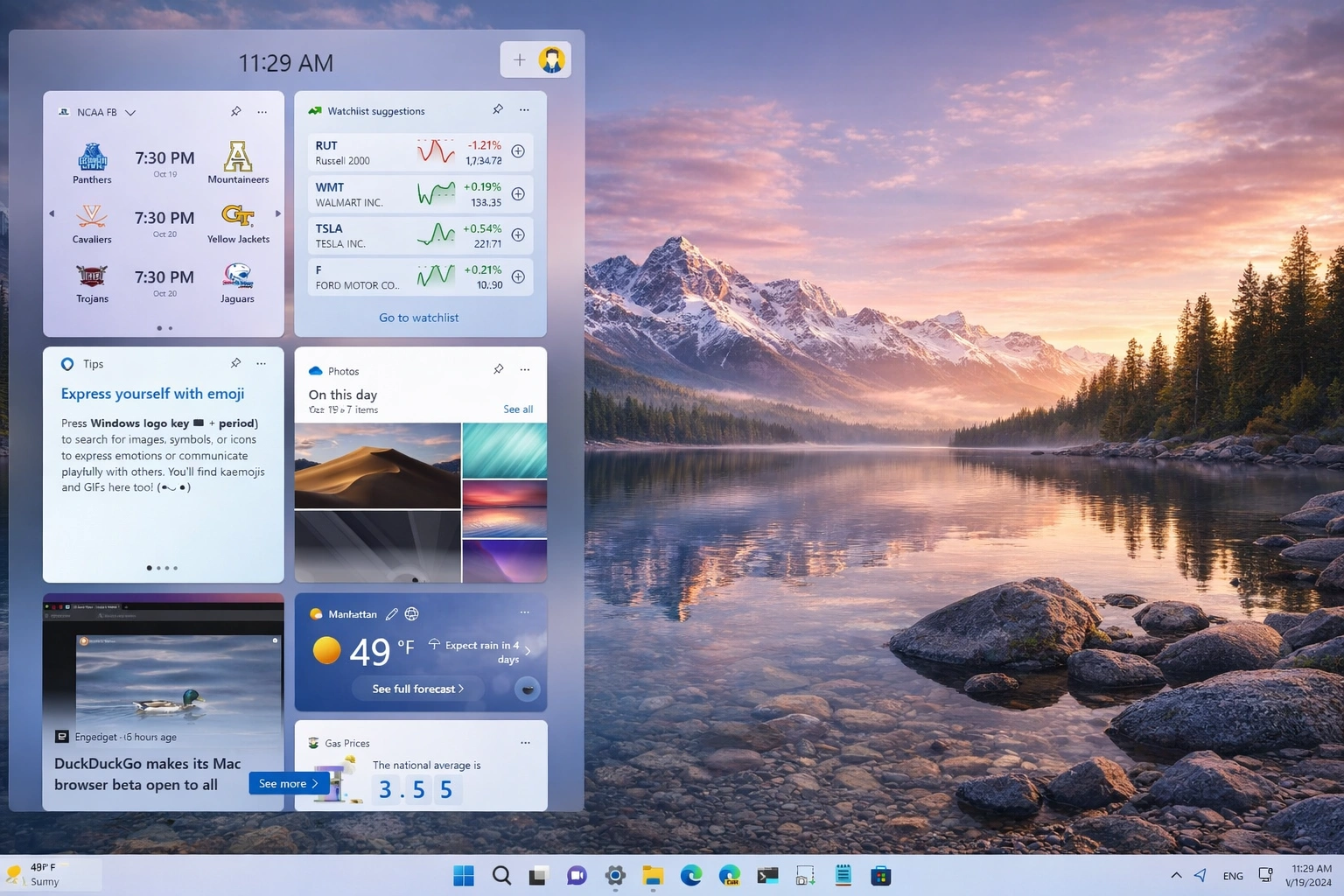
Customize the size and position of your widgets to create your ideal layout:
Move Widgets
Click and drag any widget to change its position in the panel.
Change Size
Use the three-dot menu → "Size" to choose between small, medium, or large.
Available sizes:
- Small: Basic information in compact format
- Medium: Balanced size with more details
- Large: Full view with all available information
Customize Widget Content
Each widget can be individually customized:
Widget Settings
Click the three dots (...) and select "Customize widget" to adjust specific options.
News Interests
Customize topics you're interested in: technology, sports, entertainment, finance, etc.
Location
Set your location for weather, traffic, and relevant local content.
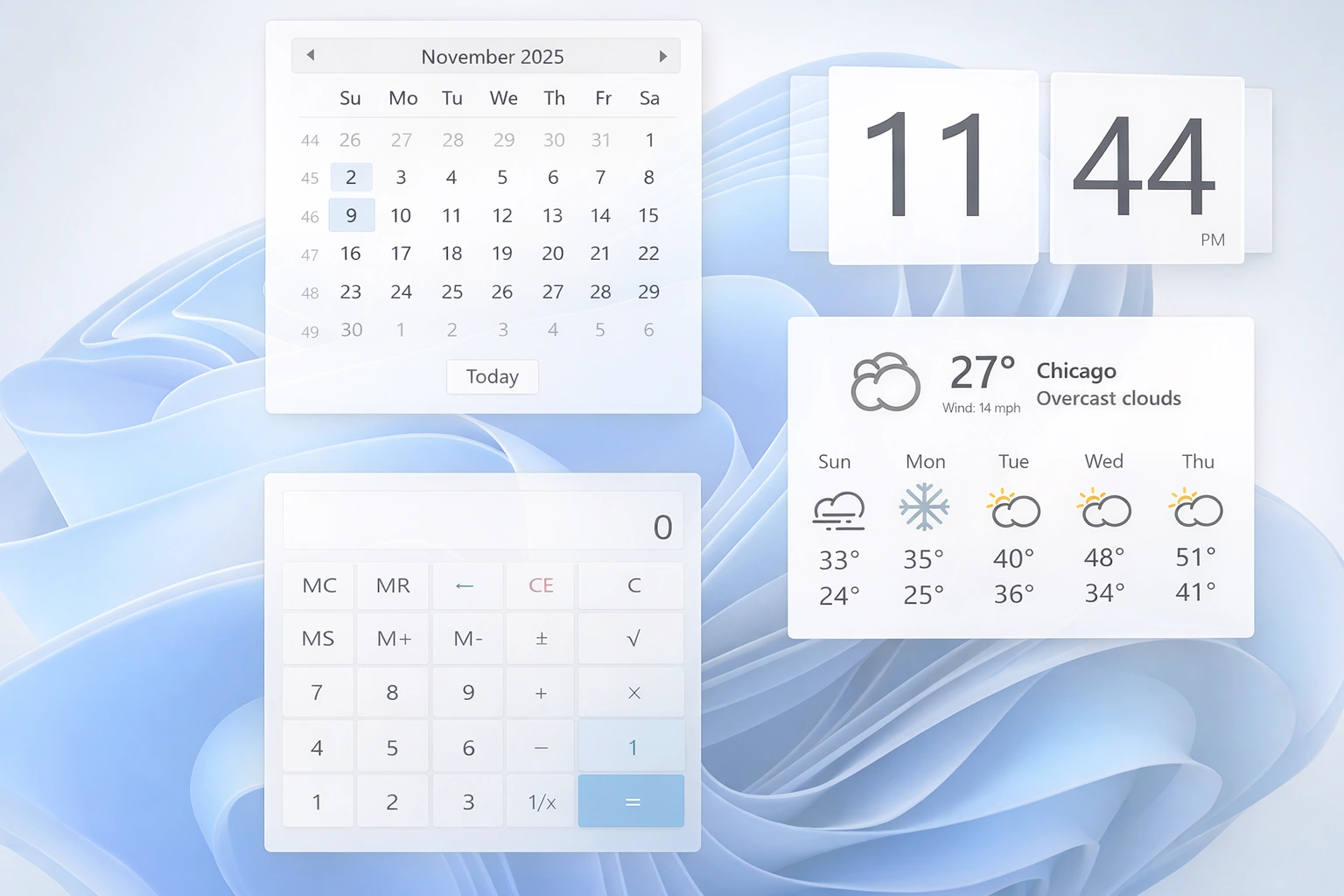
Available Widgets in Windows 11
These are the main Windows 11 widgets:
How to Disable Widgets Completely
If you prefer to hide Windows 11 widgets entirely:
Method 1: From Taskbar
- Right-click on the taskbar
- Select "Taskbar settings"
- Turn off the "Widgets" toggle
Method 2: From Settings
- Open Settings (Windows + I)
- Go to Personalization → Taskbar
- Turn off "Widgets"
Frequently Asked Questions
Do widgets consume many resources?
Windows 11 widgets are optimized and shouldn't significantly affect performance. However, if you notice slowdown, you can disable them.
Can I use third-party widgets?
Yes, Microsoft allows developers to create widgets for Windows 11. You can find additional widgets in the Microsoft Store.
Do widgets work without internet?
Most widgets require an internet connection to update their content. Some may show cached information when offline.