
Windows 11 Storage Management: Free Up Space with Disk Cleanup & Storage Sense

Callum specializes in breaking down complex technology topics into easy-to-understand guides. He has a background in computer science and technical writing.
Table of Contents
1. Introduction
Maintaining sufficient storage space on Windows 11 is essential for optimal system performance. Over time, temporary files, app caches, and unnecessary data can accumulate and take up valuable gigabytes on your disk. This comprehensive guide will teach you how to use Windows 11's built-in tools to free up space and keep your PC running smoothly.
💡 Key Insight: Windows 11 includes automatic tools that can free up 20GB or more without deleting any of your personal files.
2. Storage Sense
Storage Sense is Windows 11's automated space management tool. It automatically removes unnecessary files when you're running low on space or according to a scheduled routine.
How to Enable Storage Sense
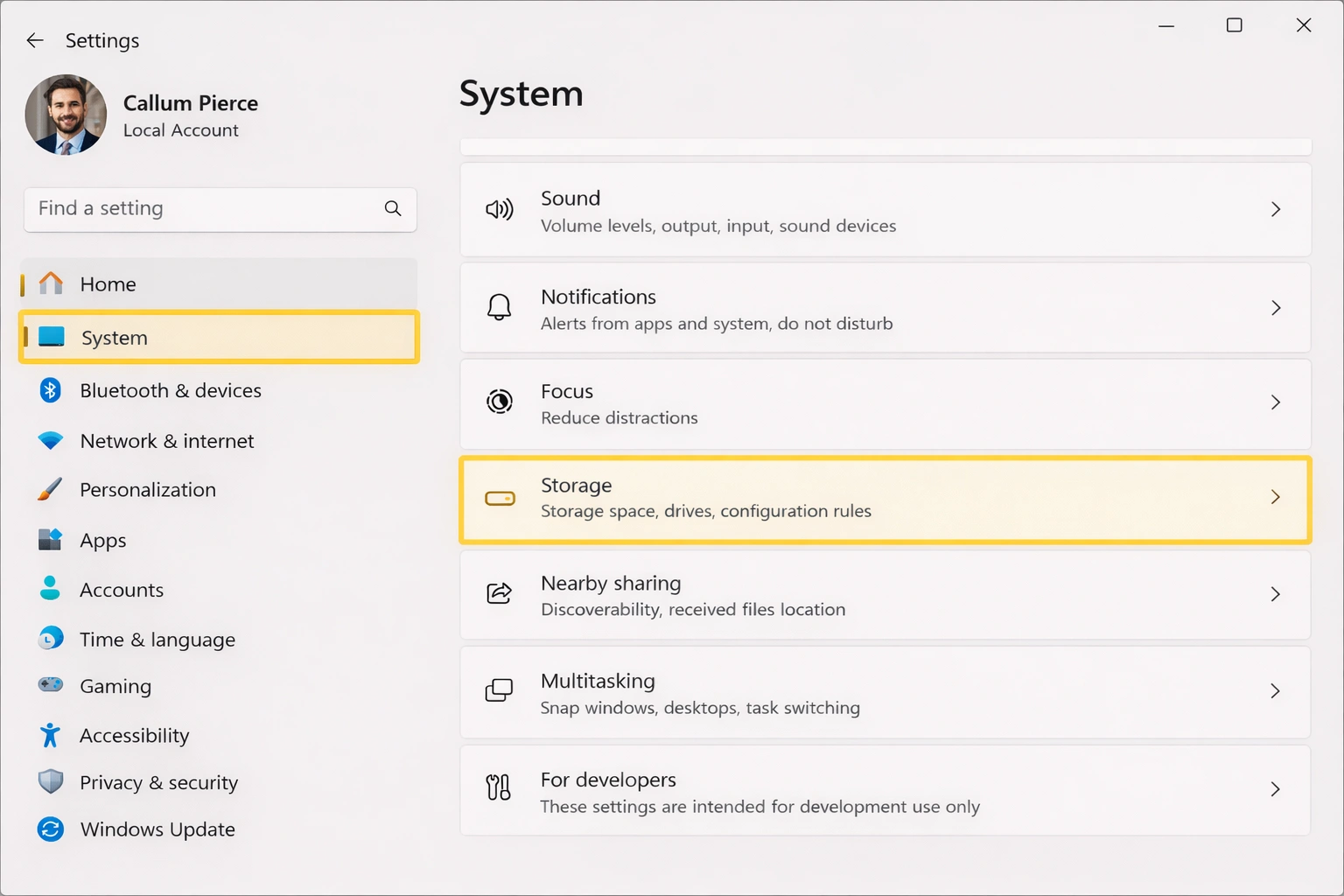
- Open Settings (Windows + I)
- Navigate to System → Storage
- Toggle on Storage Sense
- Click the arrow to configure advanced options
Configuration Options
Run Frequency
Choose from: Every day, Every week, Every month, or During low free disk space.
Recycle Bin Files
Automatically delete files after 1, 14, 30, or 60 days.
Downloads Folder
Delete files from Downloads that haven't been opened in a specific period.
Cloud Content
Convert OneDrive files to online-only if unused.
3. Disk Cleanup
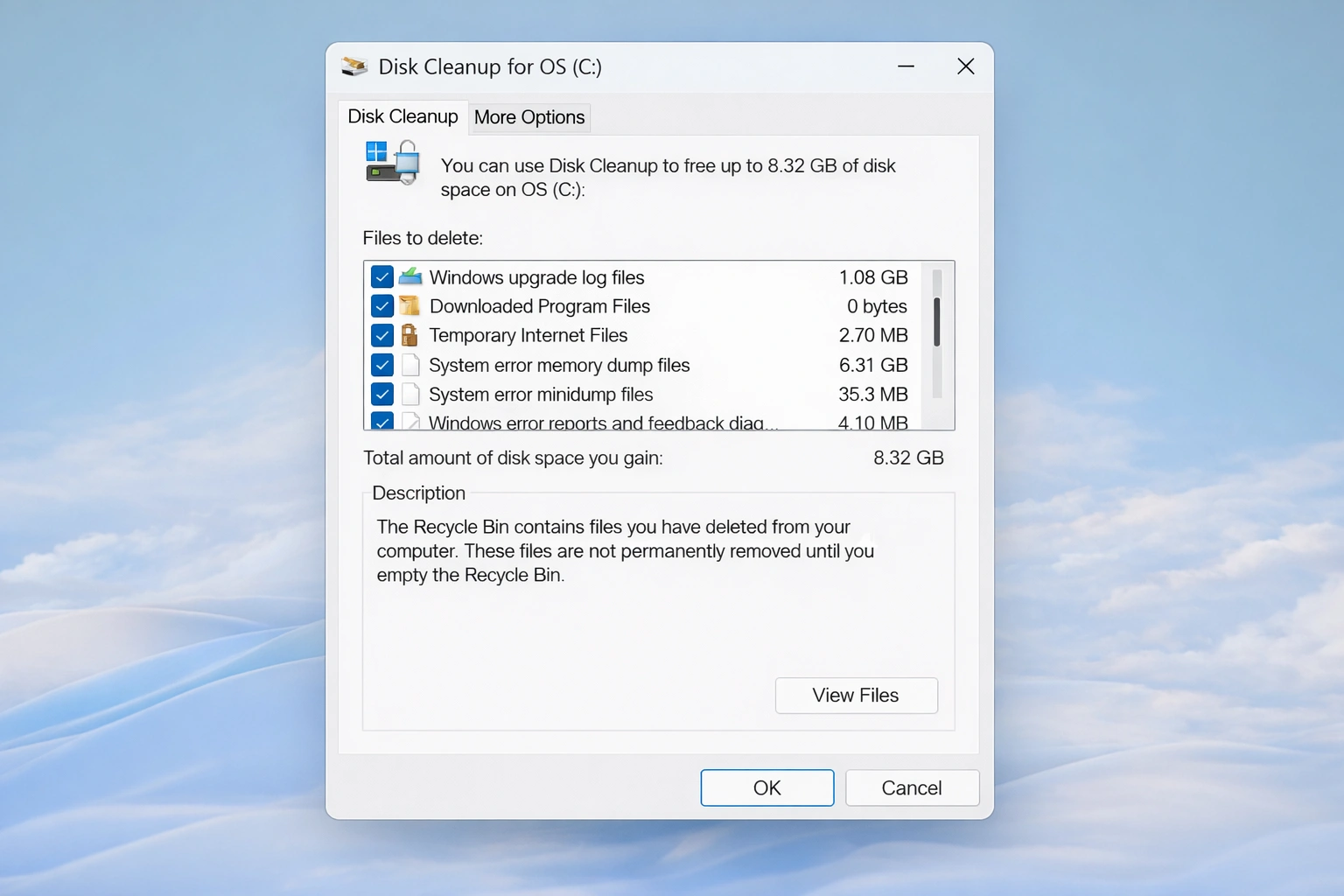
Disk Cleanup is a classic Windows tool that remains highly effective for removing system files and freeing up significant space.
Steps to Use Disk Cleanup
- Press Windows + S and search for "Disk Cleanup"
- Select the drive you want to clean (usually C:)
- Wait while Windows calculates the space that can be freed
- Check the categories you want to delete
- Click "Clean up system files" for advanced options
- Confirm and click OK
Caution with System Files
"Previous Windows installation(s)" can free up 10GB or more, but removes the ability to roll back to the previous Windows version. Only delete if you're sure.
4. Remove Temporary Files
Windows 11 lets you view and delete temporary files directly from Settings, giving you granular control over what to remove.
From Settings
- Open Settings → System → Storage
- Click on Temporary files
- Wait while Windows scans the files
- Review and select categories to delete
- Click Remove files
Temporary File Categories
- Temporary Internet Files: Edge browser cache
- Thumbnails: Image previews in File Explorer
- Windows error reports: Diagnostic logs
- Delivery Optimization cache: Shared update files
- Previous Windows versions: Old installations (Windows.old)
5. Manage Applications
Installed applications can take up significant space. Windows 11 makes it easy to identify the largest apps and uninstall ones you don't need.
View and Sort Apps by Size
- Go to Settings → Apps → Installed apps
- Sort by Size using the dropdown menu
- Identify large apps you don't use
- Click the three dots and select Uninstall
Pro Tip
Games are typically the largest apps. Consider moving games you don't play frequently to an external drive or temporarily uninstalling them.
6. Remove Bloatware
Windows 11 comes with pre-installed apps that many users never use. Removing them can free up space and improve performance.
Safe Apps to Uninstall
- Clipchamp: Video editor (if you use another)
- Microsoft Solitaire Collection: Card games
- News: News app
- Spotify: If you use another music service
- Xbox Game Bar: If you don't game on PC
- Movies & TV: If you use another player
Uninstall via PowerShell
To remove apps that don't appear in Settings, use PowerShell as administrator:
Get-AppxPackage *appname* | Remove-AppxPackage7. OneDrive Files On-Demand
If you use OneDrive, the "Files On-Demand" feature lets you see all your cloud files without downloading them, freeing up significant local space.
Configure Files On-Demand
- Right-click the OneDrive icon in the system tray
- Select Settings
- Go to the Sync and backup tab
- Under "Files On-Demand", enable Save space and download files as you use them
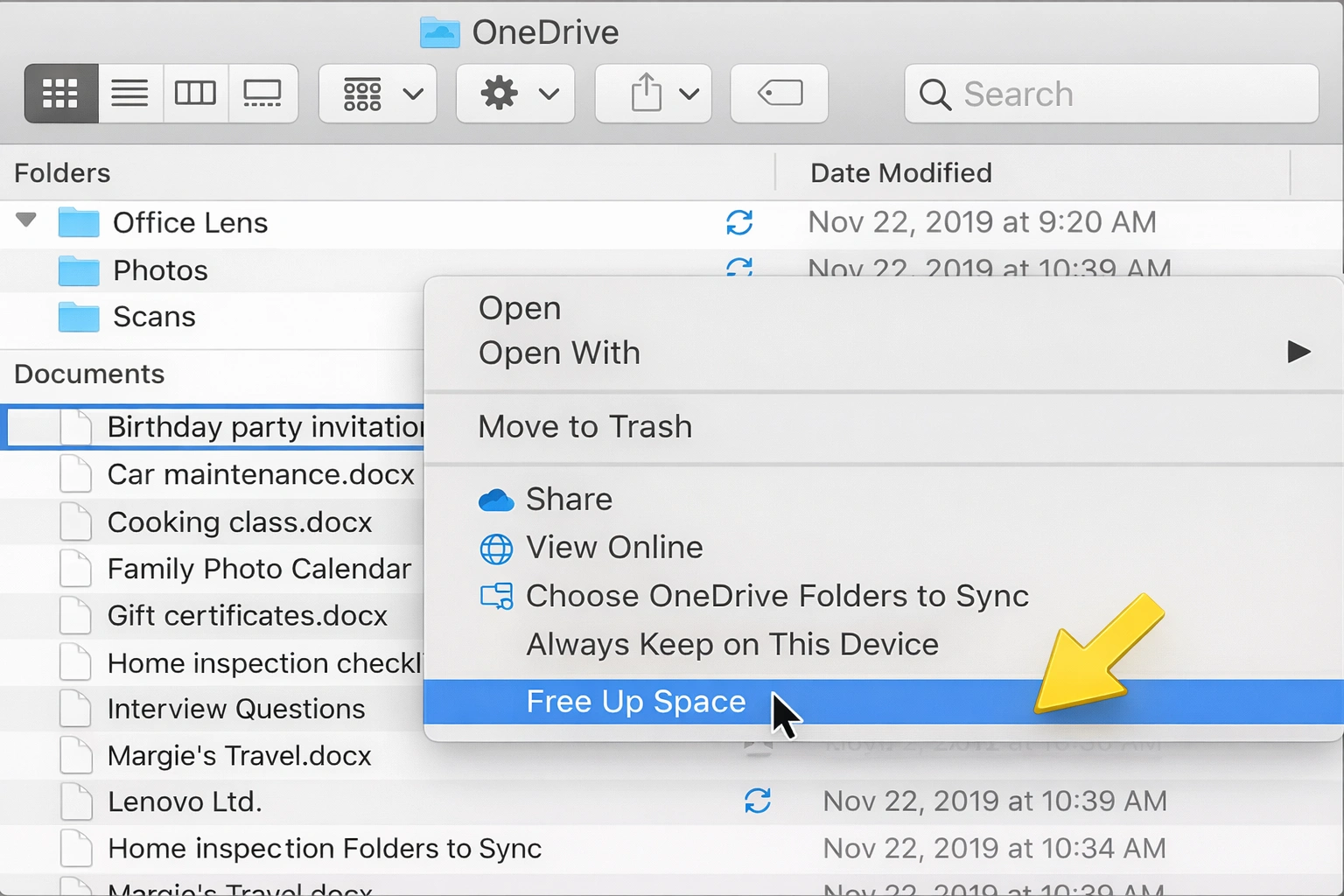
Free Up Space from Synced Files
- Navigate to your OneDrive folder
- Select large files or folders
- Right-click and choose Free up space
- Files will remain visible but stored only in the cloud
8. Cleanup Recommendations
Windows 11 includes a cleanup recommendations feature that analyzes your system and suggests safe files to delete.
Access Cleanup Recommendations
- Open Settings → System → Storage
- Click on Cleanup recommendations
- Review categories: Temporary files, Large or unused files, Files synced to the cloud, Unused apps
- Select items to delete
- Click Clean up
9. Advanced Tools
For advanced users, there are additional tools that can help reclaim more space.
System Compression
Windows can compress system files to save space. Run in PowerShell as administrator:
Compact.exe /CompactOS:alwaysThis can save 2-4GB but may slightly affect performance on older systems.
Reduce Hibernation File Size
The hibernation file can take up several GB. If you don't use hibernation:
powercfg /hibernate offMove System Folders
You can move folders like Documents, Downloads, Music, etc. to another drive:
- Right-click the folder in File Explorer
- Select Properties → Location
- Click Move and select the new location
10. Best Practices
Regular Maintenance
Configure Storage Sense to run automatically every month. This prevents the accumulation of unnecessary files.
Monitor Space Usage
Regularly check what's taking up space in Settings → System → Storage to identify issues early.
Use Cloud Storage
Leverage OneDrive or other cloud services for files you don't need to access frequently.
Empty the Recycle Bin
Don't forget to empty the Recycle Bin regularly. Deleted files remain there taking up space.
Cleanup Tools Summary
- Storage Sense: Automatic scheduled cleanup
- Disk Cleanup: Deep manual cleanup
- Temporary Files: Granular control from Settings
- Cleanup Recommendations: Smart suggestions from Windows
- OneDrive On-Demand: Free up space while maintaining file access