
Windows 11 Sound Settings: Fix Audio Issues & Configure Speakers/Headphones

Callum specializes in breaking down complex technology topics into easy-to-understand guides. He has a background in computer science and technical writing.
Windows 11 Sound Settings: Fix Audio Issues & Configure Speakers/Headphones
Master Windows 11 audio settings to optimize your sound experience. Learn to configure devices, fix common problems, and improve sound quality for work, gaming, and entertainment.
Table of Contents
Windows 11 offers a completely redesigned audio configuration system that lets you control every aspect of sound on your PC. Whether you use speakers, headphones, or a surround sound system, this guide will help you optimize your audio experience.
Did You Know?
Windows 11 includes native support for spatial sound with Windows Sonic, Dolby Atmos, and DTS:X, enabling an immersive 3D audio experience without specialized hardware.
Access Sound Settings
Quick Access Methods
Right-click volume icon
Right-click the volume icon in the taskbar → Sound settings
Keyboard shortcut
Press Win + I → System → Sound
Quick Settings
Click volume icon → Click the arrow next to the volume control
Quick Control Panel
From the taskbar you can:
- •Adjust master volume
- •Change output device
- •Access volume mixer
- •Enable/disable spatial sound
Advanced Settings
In Settings → System → Sound:
- •Configure device properties
- •Manage per-app volume
- •Configure audio enhancements
- •Run audio troubleshooter
Configure Output Devices
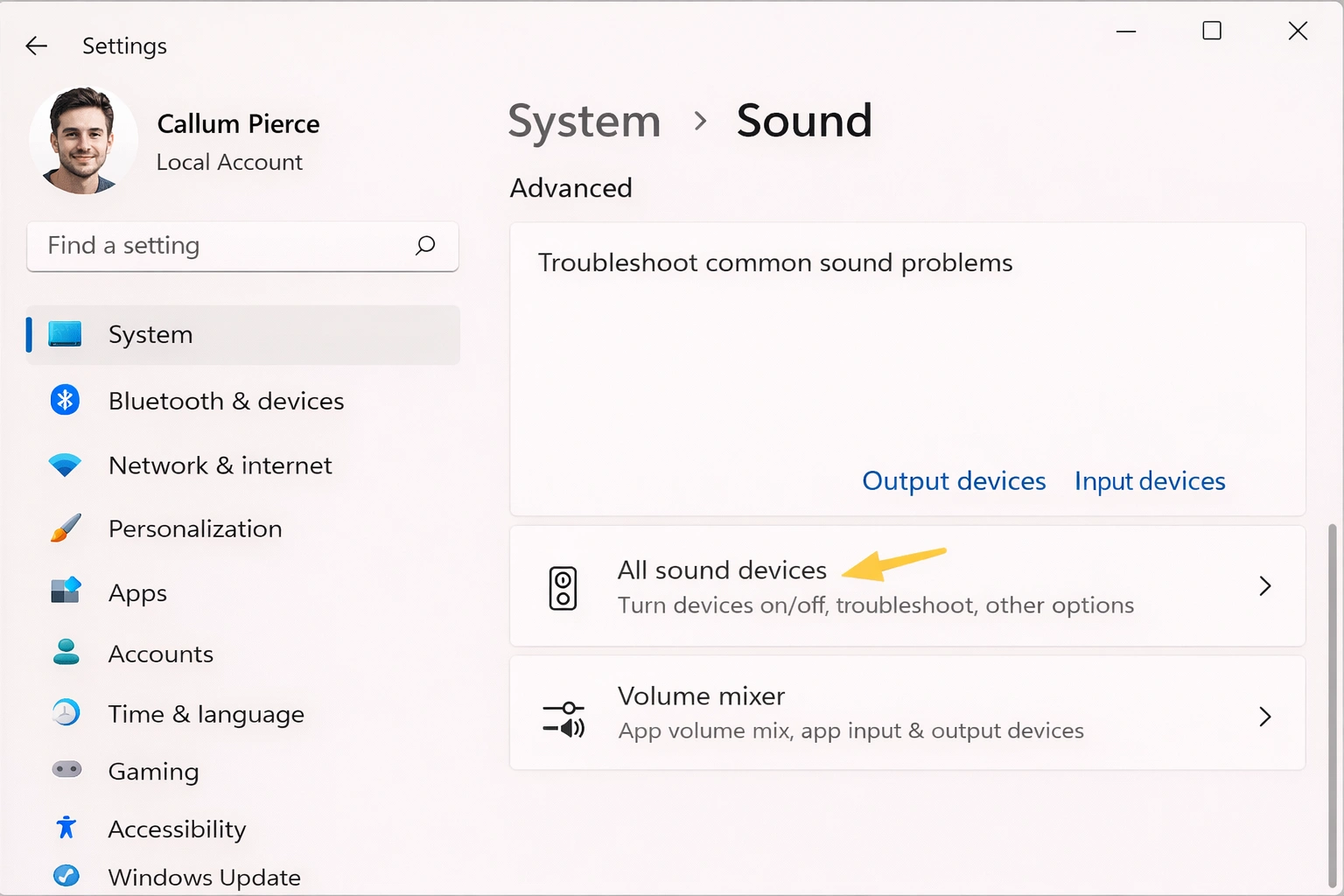
Windows 11 lets you manage multiple audio output devices and switch between them easily. You can have speakers, headphones, and a monitor with built-in speakers, and alternate as needed.
Set Default Device
Open Sound Settings
Settings → System → Sound
Under "Output", select your device
Click the dropdown to see all available devices
Adjust volume
Use the slider to set desired volume level
Speakers
External or built-in audio devices
Headphones
Wired, Bluetooth, or USB
Monitor
Audio via HDMI/DisplayPort
Device Properties
Click the arrow next to the device to access advanced settings:
- •Format: Change audio quality (16/24 bit, sample rate)
- •Left/Right volume: Adjust channel balance
- •Enhancements: Enable audio effects like bass boost
Configure Microphone
Proper microphone configuration is essential for video calls, recordings, and voice commands. Windows 11 offers tools to optimize audio capture.
Configure Microphone Step by Step
Go to Settings → System → Sound
Scroll to the "Input" section
Select your microphone
Choose the correct input device from the dropdown
Adjust input volume
Speak to see the level meter; adjust to avoid distortion
Test the microphone
Click "Start test" to verify it works correctly
Best Practices
- ✓Keep volume between 70-80% to avoid distortion
- ✓Position microphone 6-12 inches from your mouth
- ✓Use a pop filter for professional recordings
- ✓Reduce background noise when possible
Common Issues
- !Not detected: Check connection and permissions
- !Volume too low: Increase gain in properties
- !Echo: Use headphones or reduce speakers
- !Static noise: Check cables and connections
Volume Mixer
The volume mixer lets you control the audio level of each application individually. Perfect for balancing sound between music, games, calls, and notifications.
Access the Mixer
Method 1: Settings
Settings → System → Sound → Volume mixer
Method 2: Taskbar
Right-click volume icon → Open volume mixer
| Control | Function | Recommended Use |
|---|---|---|
| System volume | Master control for all audio | 70-80% as baseline |
| Individual apps | Per-program volume | Adjust to preference |
| System sounds | Notifications and alerts | 50-60% to not disturb |
Pro Tip
You can assign different output devices to specific applications. For example, send music to your speakers while Discord calls go to your headphones. Configure this in Volume mixer → Apps → Output device.
Spatial Sound
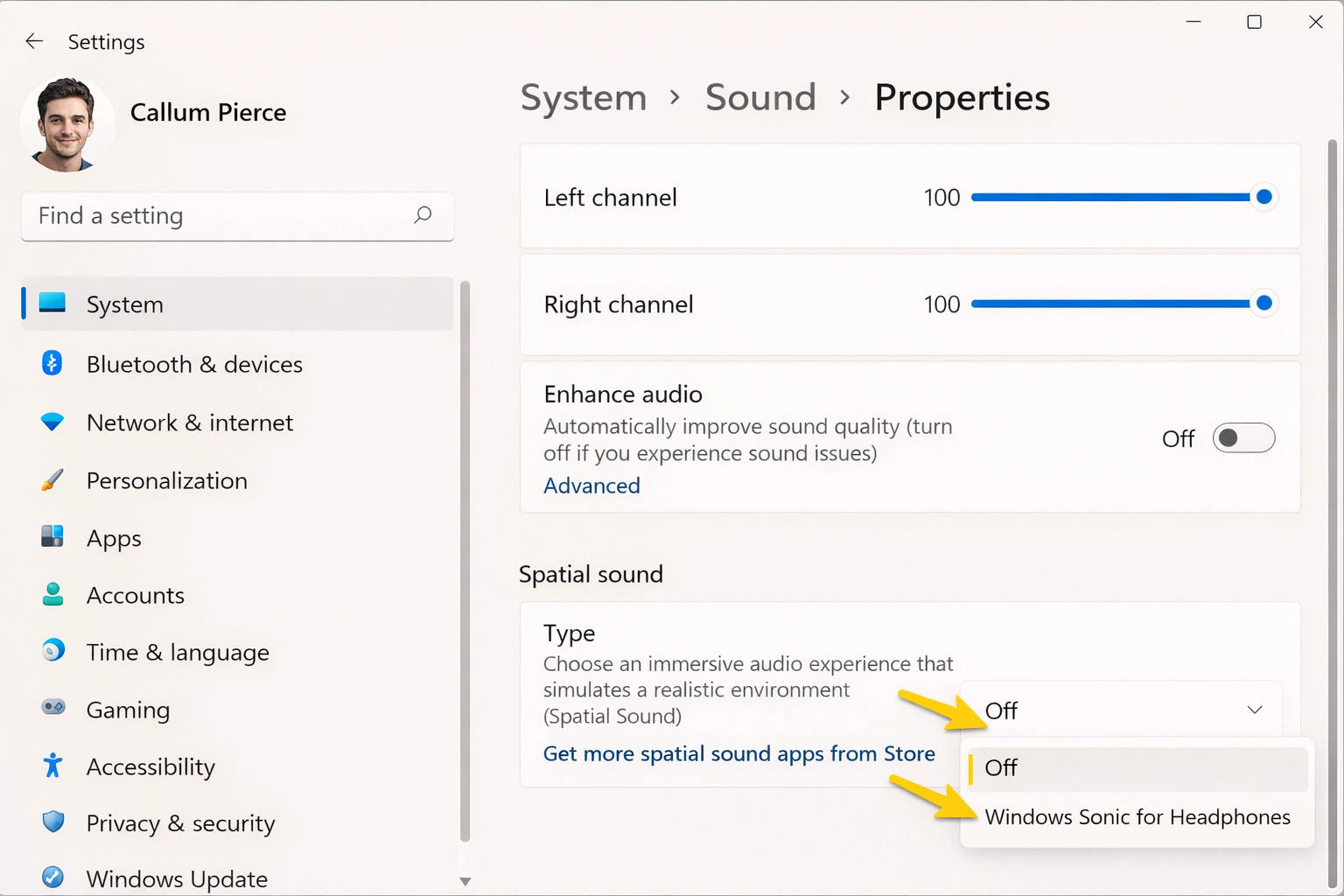
Spatial sound creates an immersive 3D audio experience, perfect for gaming, movies, and music. Windows 11 supports multiple spatial sound formats.
Windows Sonic
Free and built into Windows
FreeDolby Atmos
Premium audio with compatible content
PaidDTS:X
Alternative with excellent quality
PaidEnable Spatial Sound
Right-click the volume icon
In the taskbar
Select "Spatial sound"
You will see available options
Choose your preferred format
Windows Sonic for Headphones is free and recommended to start
Best for Gaming
Spatial sound is especially useful in competitive games where audio positioning matters (FPS, Battle Royale). It lets you hear footsteps and gunshots with directional precision, giving you a competitive edge.
Audio Enhancements
Windows 11 includes several audio enhancements that can optimize sound quality based on your preferences and content type.
Available Enhancements
Bass Boost
Enhances low frequencies for more powerful sound
Headphone Virtualization
Simulates surround sound in stereo headphones
Loudness Equalization
Levels volume differences between content
Room Correction
Compensates for your room acoustics
How to Enable Enhancements
- 1.Settings → System → Sound → Device properties
- 2.Click "Additional device settings"
- 3.Go to the "Enhancements" tab
- 4.Check the enhancements you want to enable
Troubleshooting Audio Problems
Audio problems are common but usually easy to fix. Here are solutions for the most frequent issues.
No Sound
- • Verify volume is not muted
- • Check that the correct device is selected
- • Check physical connections (cables, Bluetooth)
- • Run the audio troubleshooter
Volume Too Low
- • Increase volume in all sources (system, app, device)
- • Disable "Loudness Equalization" if active
- • Check levels in volume mixer
- • Update audio drivers
Distorted or Noisy Audio
- • Reduce volume to avoid distortion
- • Temporarily disable all audio enhancements
- • Try different audio formats (16/24 bit)
- • Check for electromagnetic interference
Audio Cutting or Skipping
- • Close background apps using CPU
- • Update audio drivers
- • For Bluetooth: move device closer or reduce interference
- • Change sample rate to 44100 Hz or 48000 Hz
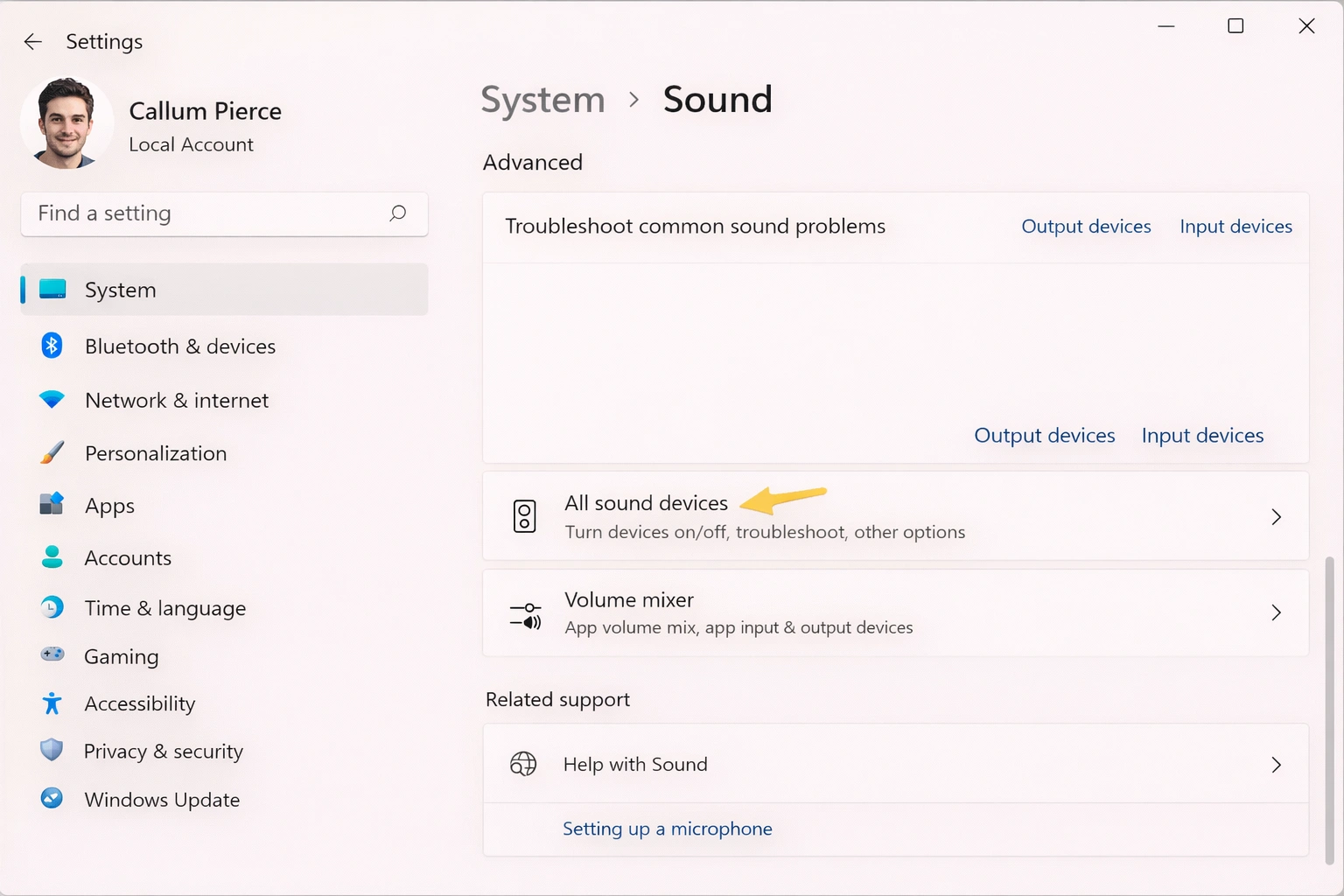
Run Troubleshooter
Settings → System → Troubleshoot
Other troubleshooters
Run "Playing Audio"
Advanced Tips
Update Drivers
Keeping drivers updated is key for best audio performance:
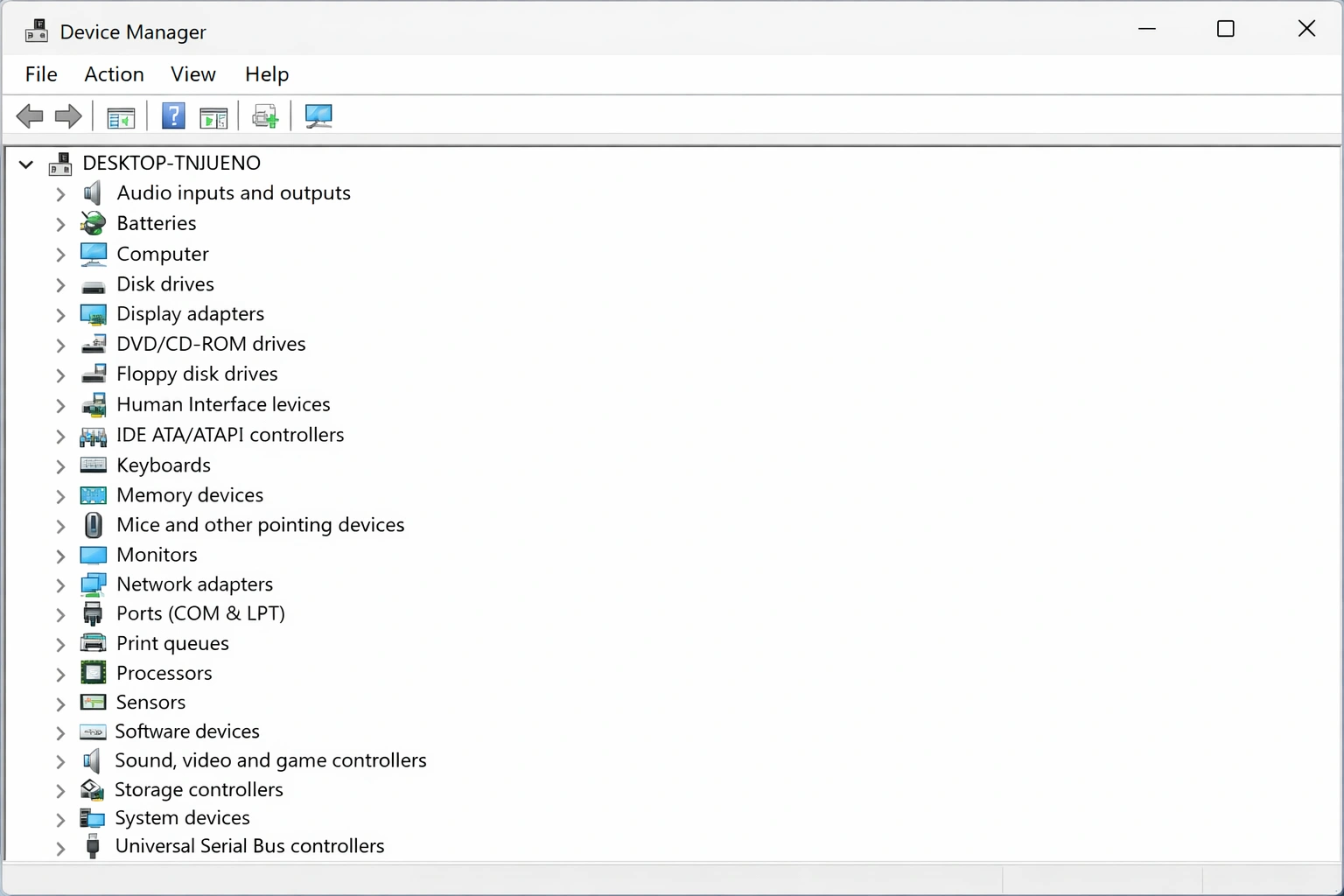
- 1.Right-click Start → Device Manager
- 2.Expand "Sound, video and game controllers"
- 3.Right-click your device → Update driver
Restart Audio Service
If audio suddenly stops working:
- 1.Press Win + R
- 2.Type "services.msc" and press Enter
- 3.Find "Windows Audio", right-click → Restart
Keyboard Shortcuts for Audio
Volume Up
Volume Down
Mute
Media Keys
Optimize Your Audio Experience
With these settings and tips, you can make the most of Windows 11 audio capabilities. From basic device configuration to advanced spatial sound, you have all the tools for an exceptional audio experience.
Remember to regularly update your audio drivers and experiment with different enhancements to find the perfect configuration for your specific use.