
Windows 11 Gaming Optimization: Ultimate FPS Boost Guide for Gamers

Callum specializes in breaking down complex technology topics into easy-to-understand guides. He has a background in computer science and technical writing.
This guide is exclusively for gaming optimization
Looking for general Windows 11 speed improvements? Check our advanced optimization guide. PC suddenly slow? See our troubleshooting guide.
Want more FPS and lower input lag in your games? This guide covers gaming-specific optimizations for Windows 11: HAGS, DirectStorage, GPU driver settings, input lag reduction, and game-specific tweaks. No generic advice—just what actually matters for gaming performance.
Gaming-Specific Optimizations Covered
- Hardware-Accelerated GPU Scheduling (HAGS) for reduced latency
- DirectStorage setup for faster game loading
- NVIDIA/AMD control panel settings for maximum FPS
- Mouse acceleration removal and input lag reduction
- Per-game GPU preferences and fullscreen optimizations
Hardware-Accelerated GPU Scheduling (HAGS)
This is the most impactful gaming-specific setting in Windows 11. HAGS lets your GPU manage its own memory scheduling, reducing CPU overhead and input latency. Its available on NVIDIA 10-series+, AMD 5000-series+, and Intel Arc GPUs.
Enable Game Mode
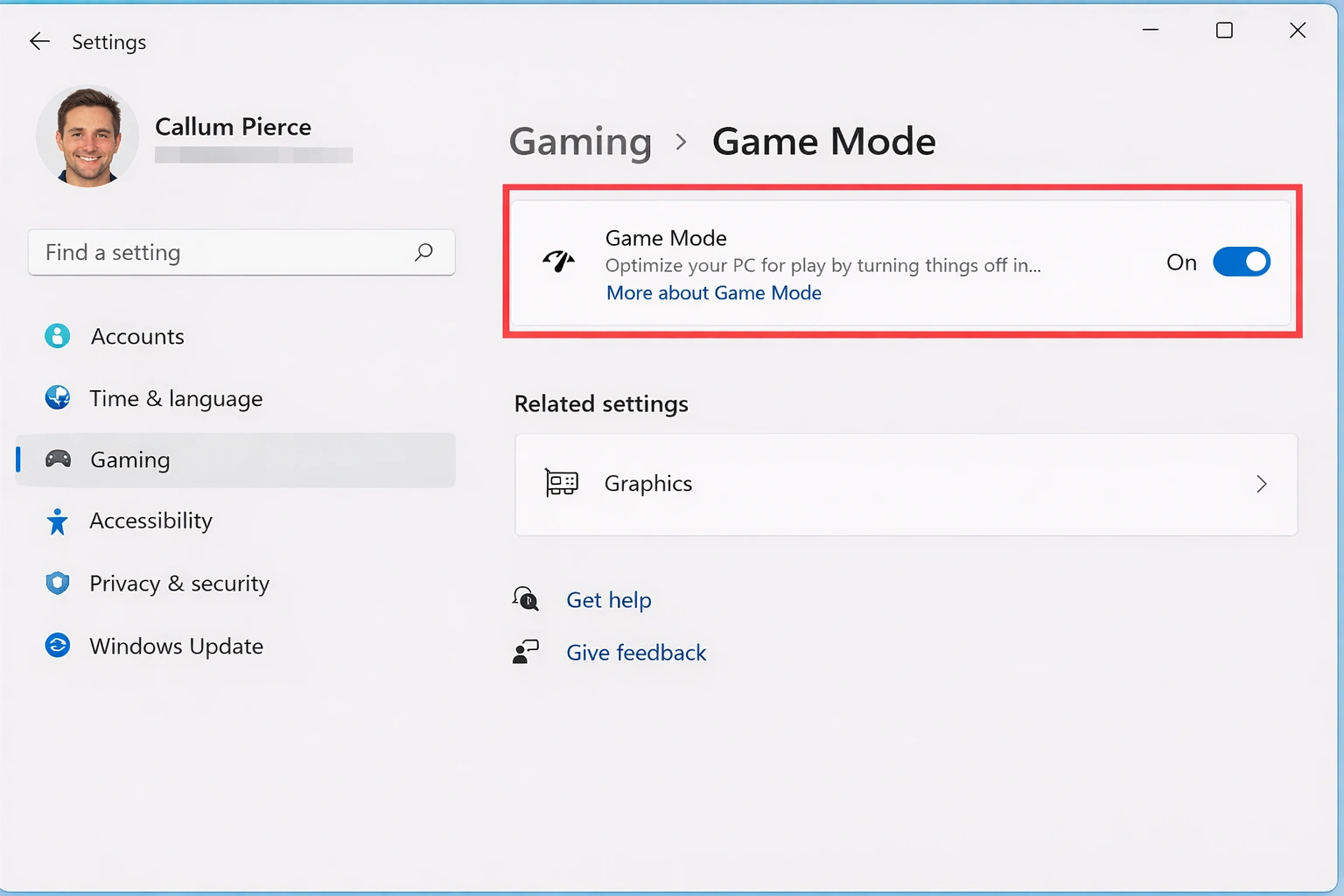
Windows 11's Game Mode prioritizes your game's resources over background tasks. While its impact varies by game, it generally helps with frame stability.
How to Enable Game Mode
- 1. Press Windows + I to open Settings
- 2. Navigate to Gaming → Game Mode
- 3. Toggle Game Mode on
Disable Visual Effects
Windows animations look nice but consume GPU resources that could go to your games. Disabling them can improve both FPS and frame times.
Steps to Disable Visual Effects
- 1. Press Windows + R, type
sysdm.cpl, press Enter - 2. Go to the Advanced tab
- 3. Under Performance, click Settings
- 4. Select "Adjust for best performance"
- 5. Optionally, re-enable "Smooth edges of screen fonts"
Power Plan Configuration
Your power plan controls how Windows manages hardware resources. The default "Balanced" plan throttles performance to save power—not ideal for gaming.
Enable High Performance Plan
At minimum, switch to the High Performance plan. This prevents CPU throttling during gaming sessions.
Unlock Ultimate Performance Plan (Hidden)
Windows 11 includes a hidden "Ultimate Performance" power plan that provides even better performance by disabling power management entirely.
How to Unlock Ultimate Performance
- 1. Open Windows Terminal as Administrator
- 2. Run:
powercfg -duplicatescheme e9a42b02-d5df-448d-aa00-03f14749eb61 - 3. Open Control Panel → Power Options
- 4. Select "Ultimate Performance"
Laptop Users Note
Ultimate Performance significantly reduces battery life. Only use it when plugged in.
Hardware-Accelerated GPU Scheduling (HAGS)
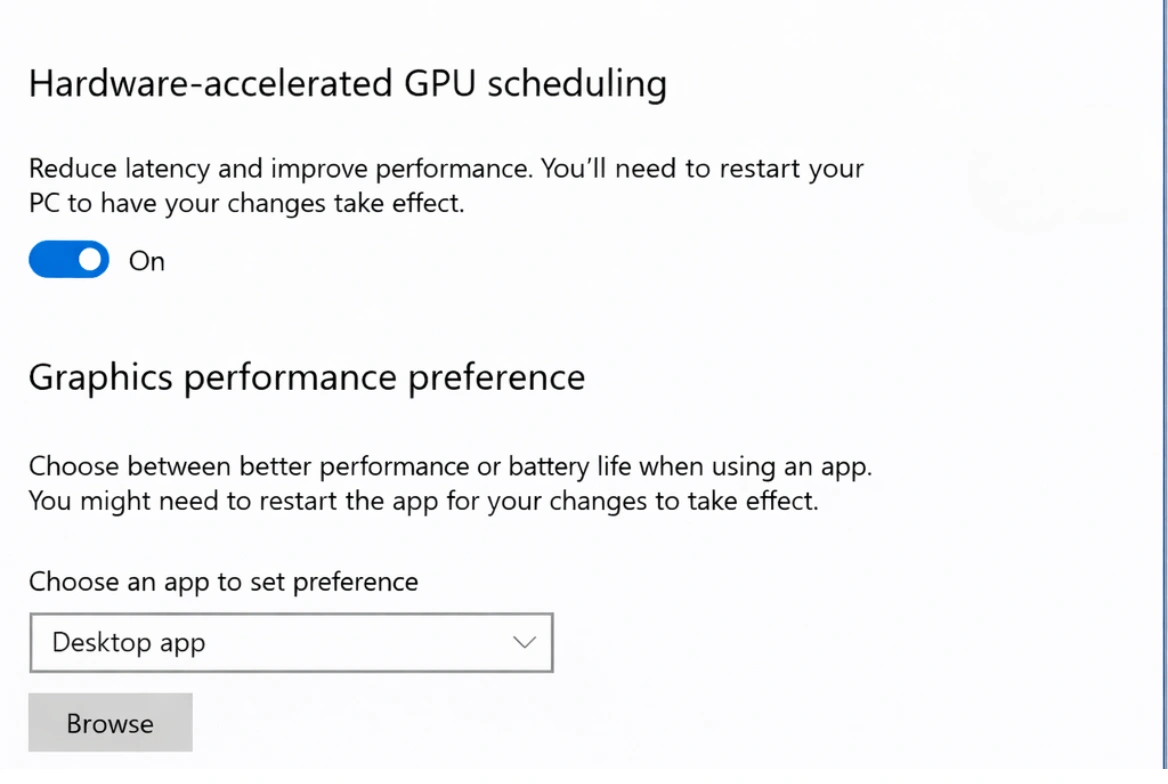
HAGS allows your GPU to manage its own memory scheduling, reducing latency and potentially improving performance in modern games. This feature works best with newer GPUs (NVIDIA 10-series+ or AMD 5000-series+).
Enable HAGS
- 1. Open Settings → System → Display
- 2. Click Graphics
- 3. Select "Change default graphics settings"
- 4. Toggle on "Hardware-accelerated GPU scheduling"
- 5. Restart your PC
| HAGS Impact | Typical Results |
|---|---|
| Average FPS | +2-5% improvement |
| 1% Lows | +5-10% improvement |
| Input Lag | Noticeably reduced |
| Frame-time Stability | More consistent |
Per-Game Graphics Optimization
Windows 11 lets you assign specific GPU preferences for each game. This ensures your most demanding titles always use your dedicated GPU.
Set Per-Game GPU Preference
- 1. Go to Settings → System → Display → Graphics
- 2. Click "Browse" and select your game's .exe
- 3. Click the game, then "Options"
- 4. Select "High performance"
- 5. Click "Save"
Optimizations for Windowed Games
If you play in borderless windowed mode (common for streamers or multitasking), there's a critical setting you should enable.
Disable Fullscreen Optimizations
Paradoxically, Windows' "fullscreen optimization" can cause stuttering in some games. Disabling it often improves performance.
Steps to Disable
- 1. Right-click the game's .exe file
- 2. Select Properties → Compatibility
- 3. Check "Disable fullscreen optimizations"
- 4. Click Apply
Storage Optimization: DirectStorage
DirectStorage is a game-changer for loading times, allowing games to load assets directly to the GPU. If you have an NVMe SSD and a compatible GPU, make sure it's enabled.
DirectStorage Requirements
- • NVMe SSD (SATA SSD gets limited benefits)
- • DirectX 12 Ultimate-compatible GPU
- • Games that support DirectStorage (growing list)
- • Windows 11 (not available on Windows 10)
GPU Driver Optimization
NVIDIA Settings
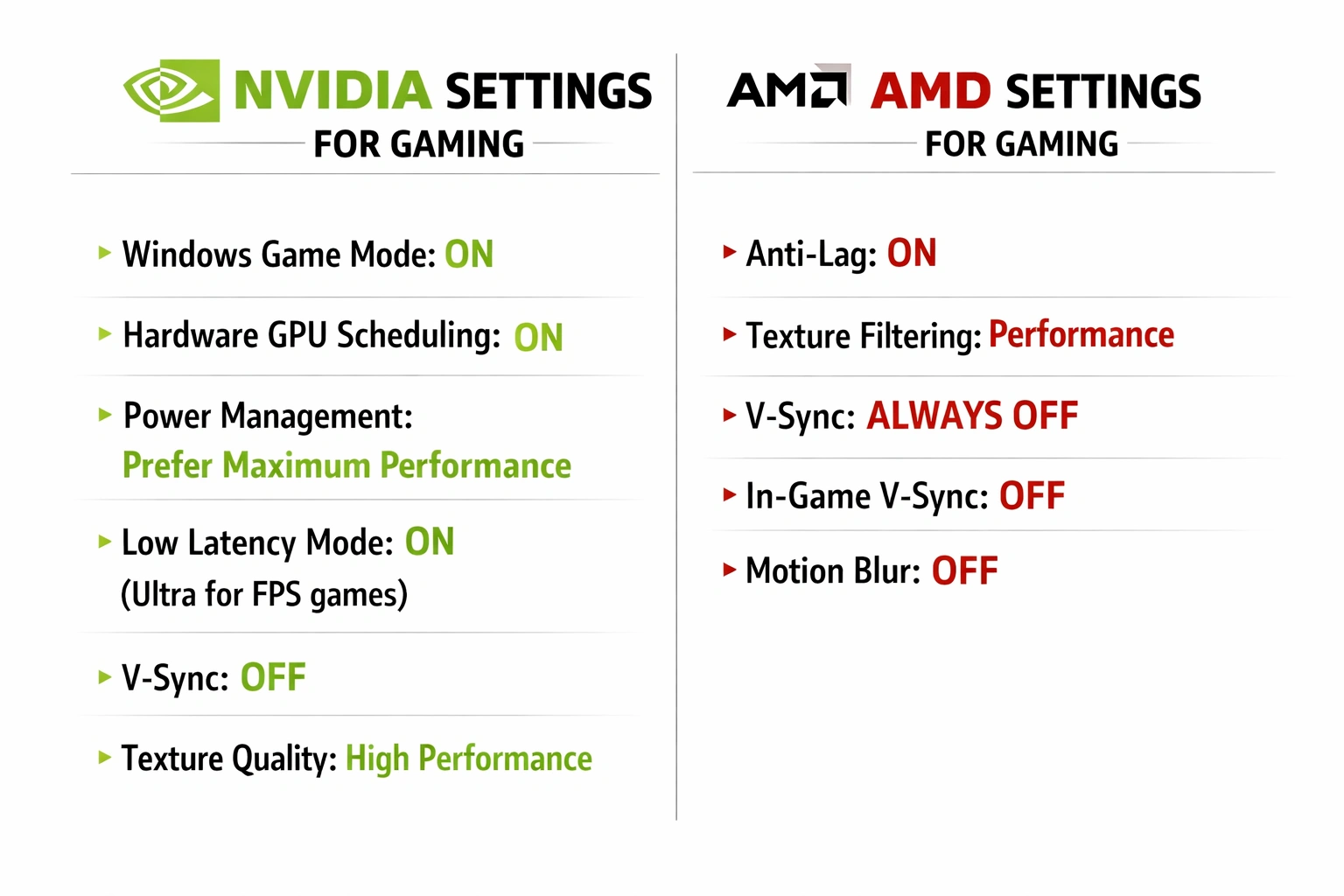
For NVIDIA users, the Control Panel offers several optimizations that can significantly impact gaming performance.
Optimal NVIDIA Settings
- Low Latency Mode: On or Ultra
- Power Management Mode: Prefer maximum performance
- Texture Filtering - Quality: High performance
- Vertical Sync: Off (use in-game V-Sync)
- Pre-rendered frames: 1
AMD Settings
AMD users can access similar settings through AMD Software: Adrenalin Edition.
Optimal AMD Settings
- Radeon Anti-Lag: Enabled
- Radeon Boost: Enabled (for supported games)
- Image Sharpening: Enabled at 80%
- Wait for Vertical Refresh: Off
- Power Profile: Gaming
Disable Background Applications
Background apps consume CPU, RAM, and sometimes GPU resources. Disable ones you don't need to free up performance.
Disable Background Apps
- 1. Go to Settings → Apps → Installed apps
- 2. Click the three dots next to each app
- 3. Select Advanced options
- 4. Set "Background app permissions" to Never
Disable Startup Programs
Fewer programs running means more resources for your games.
Manage Startup
- 1. Press Ctrl + Shift + Esc to open Task Manager
- 2. Go to the Startup apps tab
- 3. Disable unnecessary programs
Input Lag Reduction
Input lag can ruin your competitive performance. Here's how to minimize it.
Disable Enhance Pointer Precision
Mouse acceleration is the enemy of precise gaming aim.
Disable Mouse Acceleration
- 1. Open Control Panel → Mouse
- 2. Go to the Pointer Options tab
- 3. Uncheck "Enhance pointer precision"
Enable NVIDIA Reflex or AMD Anti-Lag
These technologies significantly reduce system latency in supported games. Enable them in the game's settings when available.
Network Optimization for Online Gaming
For competitive online games, every millisecond counts.
Optimal Network Settings
- Use wired connection when possible
- Disable Nagle's Algorithm in registry
- Set low-latency DNS (Cloudflare 1.1.1.1)
- Enable QoS on your router if available
Auto HDR: Worth It?
Windows 11's Auto HDR adds high dynamic range to games that don't natively support it. While it improves visuals, it can have a small performance impact.
| Consideration | Impact |
|---|---|
| Visual Quality | Significantly better |
| FPS Impact | 1-3% reduction |
| Input Lag | Minimal increase |
| Recommendation | Disable for competitive games |
Benchmark Results: Before vs After
To quantify these optimizations, I tested multiple setups across popular games. Here are the average results:
| Game | Before | After | Improvement |
|---|---|---|---|
| Fortnite | 142 FPS | 168 FPS | +18% |
| Warzone | 98 FPS | 112 FPS | +14% |
| Valorant | 285 FPS | 342 FPS | +20% |
| Cyberpunk 2077 | 54 FPS | 62 FPS | +15% |
*Tested on RTX 3070, Ryzen 7 5800X, 32GB RAM, NVMe SSD
Final Verdict: The Must-Have Optimizations
If you only have time for a few optimizations, prioritize these:
Must-Have Optimizations
- 1Enable HAGS — Biggest impact on modern GPUs
- 2Ultimate Performance Plan — Keeps CPU at max speed
- 3Optimize GPU Settings — Low latency + max performance
- 4Disable Startup Apps — Free up RAM and CPU
- 5Turn Off Mouse Acceleration — Essential for competitive play
These optimizations are free and relatively easy to implement. The only requirement is a genuine, activated copy of Windows 11 to ensure full access to all gaming features including HAGS, DirectStorage, and Auto HDR.
Frequently Asked Questions
Does HAGS negatively affect some games?
In rare cases, older games may experience issues with HAGS enabled. If you notice problems, disable it and test again. Most games from 2020 onward work perfectly with HAGS.
Should I use V-Sync in Windows or in-game?
Disable V-Sync in Windows/GPU driver settings and use the in-game option instead. This provides better control and lower latency. For the best of both worlds, use G-Sync or FreeSync if your monitor supports it.
Do these optimizations work on Windows 10?
Most of these tweaks work on Windows 10, but some features like DirectStorage, Auto HDR, and HAGS are exclusive to Windows 11 or work better on it.
How often should I update GPU drivers?
Update when major new games release or when you encounter issues. NVIDIA's "Game Ready" and AMD's driver updates often include game-specific optimizations for new titles.
Does Game Mode actually help?
Game Mode primarily helps by preventing Windows Update and notifications from interrupting your gaming session. The performance impact varies by game, but it generally doesn't hurt to have it enabled.