
Windows 11 Notifications & Focus: Stop Distractions, Boost Productivity

Callum specializes in breaking down complex technology topics into easy-to-understand guides. He has a background in computer science and technical writing.

Windows 11 Notifications & Focus: Stop Distractions, Boost Productivity
Constant notifications can destroy your concentration and productivity. Windows 11 includes powerful tools to control interruptions and create a focused work environment. Learn to master notifications and Focus mode to regain control of your time.
The Notification Problem
The Real Cost of Interruptions
Studies show that after an interruption, the brain needs an average of 23 minutes to fully refocus on a task. With dozens of daily notifications, the productivity loss is significant.
Types of Digital Distractions
The average worker receives between 50-100 notifications per day. Windows 11 lets you regain control without missing important information.
Windows 11 Notification Center
Access the Notification Center
Click on the date/time in the taskbar
Windows + N
From the right edge on touch screens
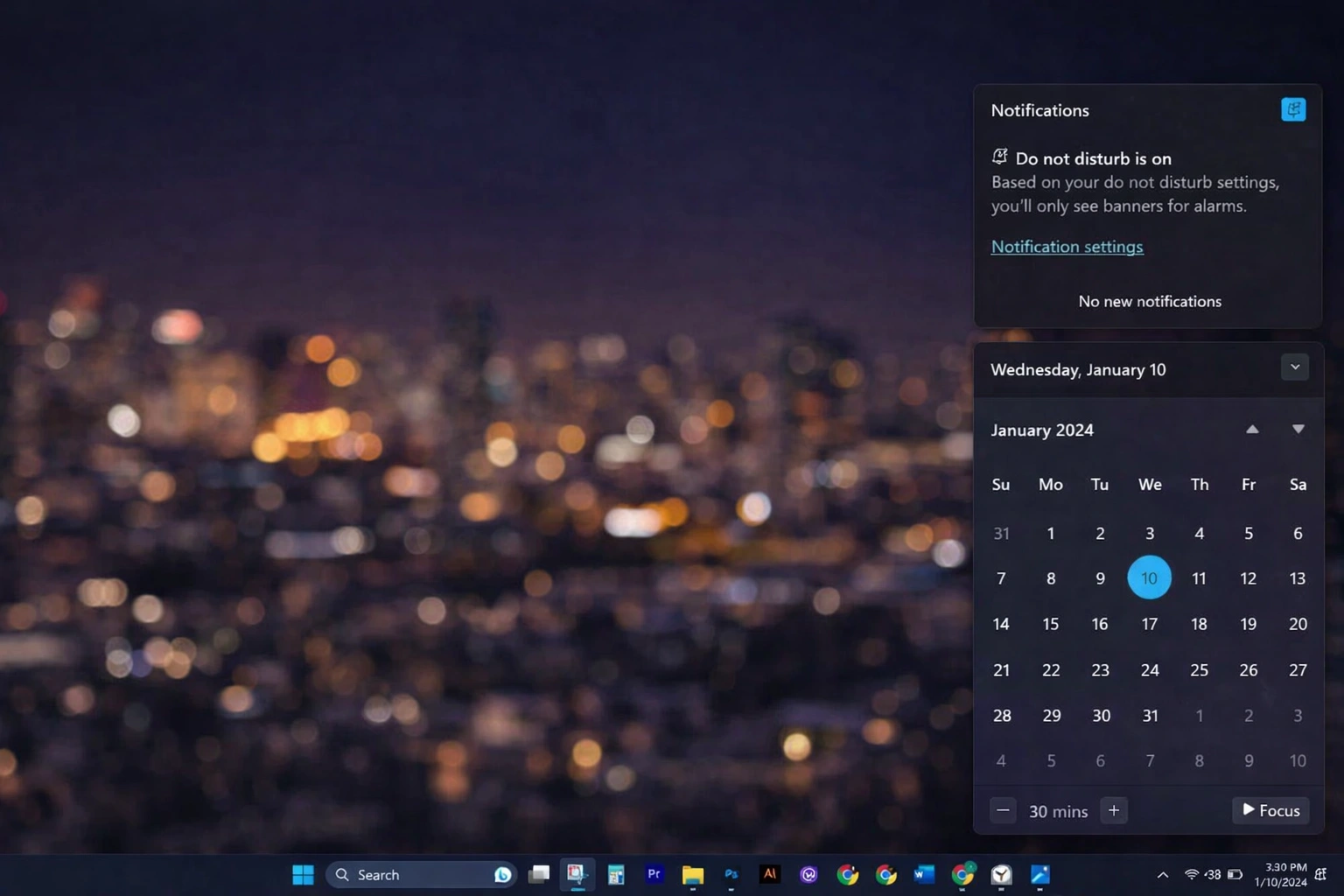
Notification Center Anatomy
Notification panel
Shows recent alerts grouped by app
Integrated calendar
Quick view of your schedule
Quick actions
Buttons for common settings
Focus button
Activates distraction-free mode
Manage Notifications Quickly
Right-click on any notification
Choose "Turn off notifications for [app]" to silence it
Use "Go to notification settings" for advanced options
Swipe right to dismiss individual notifications
Use "Clear all" to clean the panel
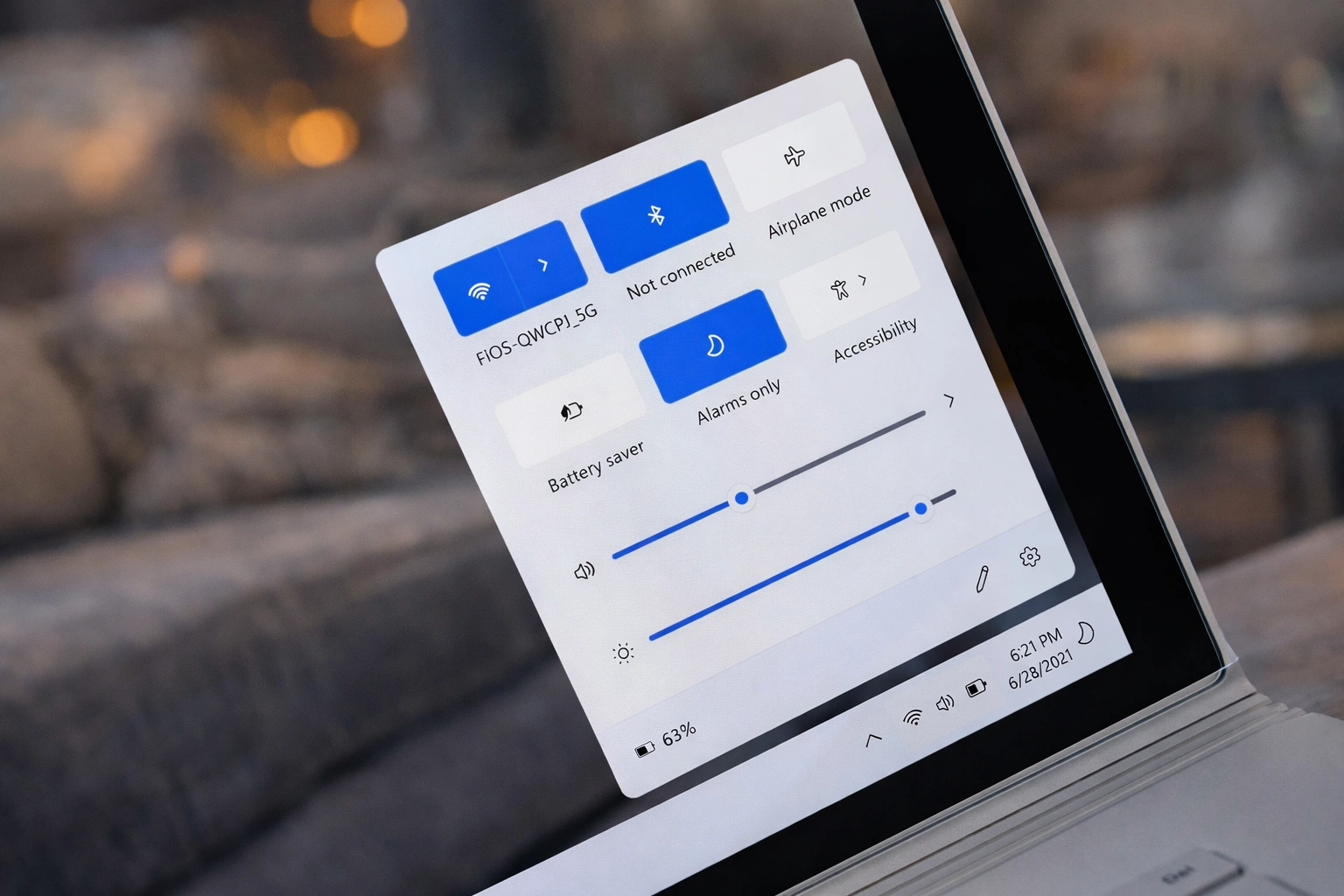
Configure Notifications by Application
Access Settings
Per-App Notification Options
| Option | Description |
|---|---|
| Notifications | Enable/disable all notifications from the app |
| Banners | Show/hide pop-up alerts |
| Sound | Play/mute notification sounds |
| Priority | Normal, High, or Top (appears first) |
| Notification center | Show/hide in the notification panel |
| Lock screen | Show/hide on the lock screen |
Recommended Settings by Category
Critical apps
Calendar, Alarms
All options enabled, high priority
Work communication
Outlook, Teams
Banners enabled, sound disabled
Secondary apps
News, Weather
Notification center only
Social media
Facebook, Instagram
Disabled or center only
Focus Mode: Your Productivity Ally
What is Focus Mode?
Focus is the evolution of Windows 10's old "Focus assist." It's a complete system for eliminating distractions, integrated with the Clock app and the Microsoft ecosystem.
Activate Focus Mode
Click on Notification Center → Focus button
Settings → System → Focus
Open Clock app → Focus Sessions tab
Shortcut Windows + A → Focus Button
What Happens During Focus
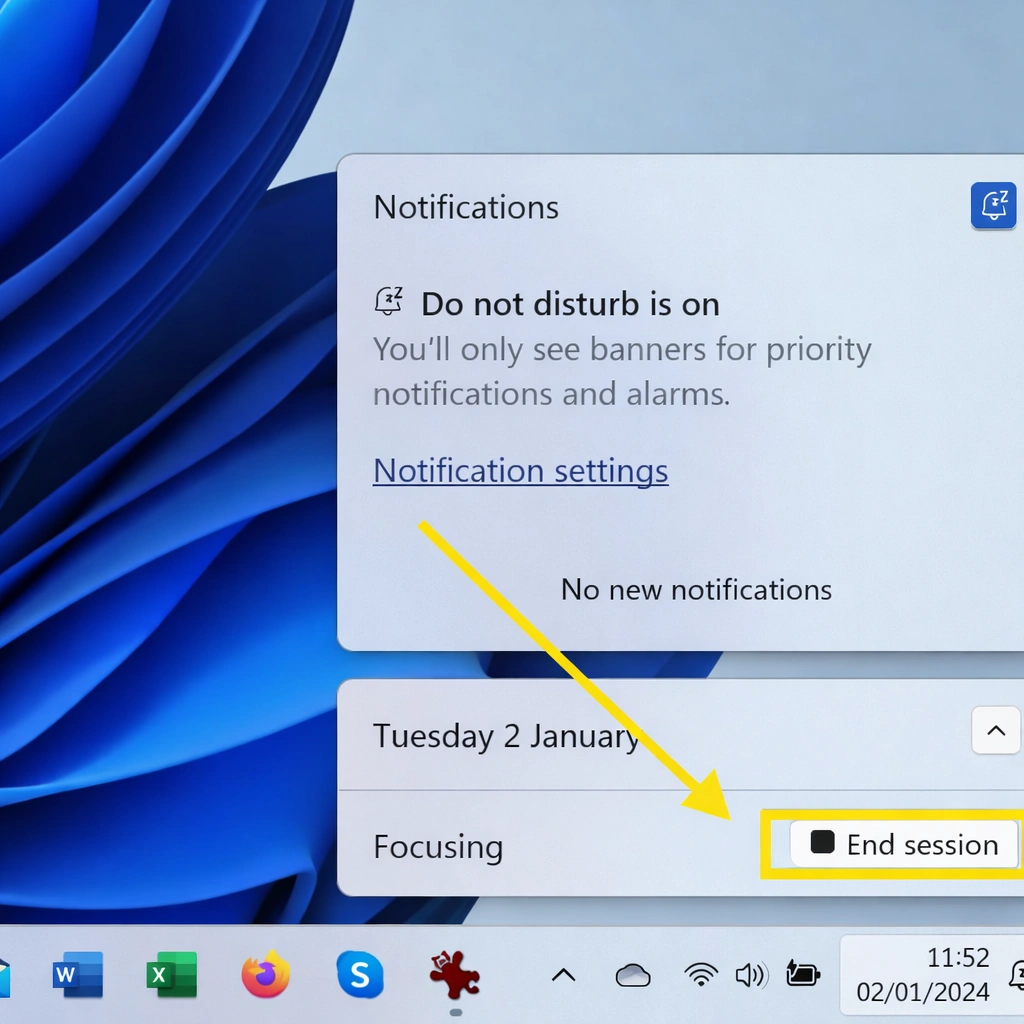
Focus Sessions and Timers
Create a Focus Session
Open the Clock app from the Start menu
Select the "Focus Sessions" tab
Choose your session duration (15 min to 4 hours)
Optionally, link a task from Microsoft To Do
Click "Start Focus Session"
The Pomodoro Technique in Windows 11
Focus sessions are perfect for implementing the Pomodoro technique:
Work session
Intense concentration
Short break
After each session
Long break
After 4 sessions
Optimal Pomodoro Configuration
Smart Automatic Rules
Configure Windows to activate Focus in specific situations:
Available Rules
During these hours
Schedule distraction-free times (e.g., 9am-12pm)
When duplicating display
During presentations
While gaming
Gaming sessions without interruptions
When using a fullscreen app
Videos, immersive reading
During the first hour after an update
Avoid post-update spam
Spotify Integration
Connect Spotify to Focus
Open Clock app → Focus Sessions
Look for the "Link Spotify" section
Click "Connect" and sign in to Spotify
Authorize access
Recommended Playlists
Deep Focus
Instrumental music for deep concentration
Lo-Fi Beats
Relaxed rhythms for creative work
Classical Focus
Classical music for complex tasks
Nature Sounds
Ambient sounds for relaxation
Priority Notifications
Configure Priority List
Go to Settings → System → Focus
Click on "Priority list"
Add apps that can interrupt Focus
Add important contacts (calls, messages)
What to Include in the Priority List
Alarms and timers
Should always pass through
Important reminders
Medical appointments, critical meetings
Emergency contacts
Family, boss
Critical apps
Depending on your work (e.g., monitoring systems)
Keep the priority list as short as possible. Every exception reduces the effectiveness of Focus mode.
Productivity Strategies
Notification Audit
For one week, note every notification you receive
Classify them: Urgent, Important, Unnecessary
Disable everything unnecessary
Set schedules for the important non-urgent ones
Time Blocks
Morning (9-12)
Focus enabled for deep work
Midday (12-14)
Check notifications, meetings
Afternoon (14-17)
Focus for creative tasks
Evening (17+)
Personal notifications allowed
Intense Focus Days
Reserve one day per week for uninterrupted work:
Troubleshooting
Notifications Still Appearing During Focus
Not Receiving Important Notifications
Focus Activates When It Shouldn't
Spotify Integration Not Working
Conclusion
Mastering Windows 11 notifications and Focus mode can transform your daily productivity. The key is being intentional: decide what deserves your immediate attention and what can wait.
Start with small changes: configure notifications for your most annoying apps, try a 25-minute Focus session, and notice the difference. Over time, you'll develop a personalized system that protects your concentration without missing anything important.
Your time and attention are valuable resources. Windows 11 gives you the tools to protect them—you just need to use them.