
Windows 11 Network Settings: Complete Guide to WiFi, Ethernet & Connectivity

Callum specializes in breaking down complex technology topics into easy-to-understand guides. He has a background in computer science and technical writing.
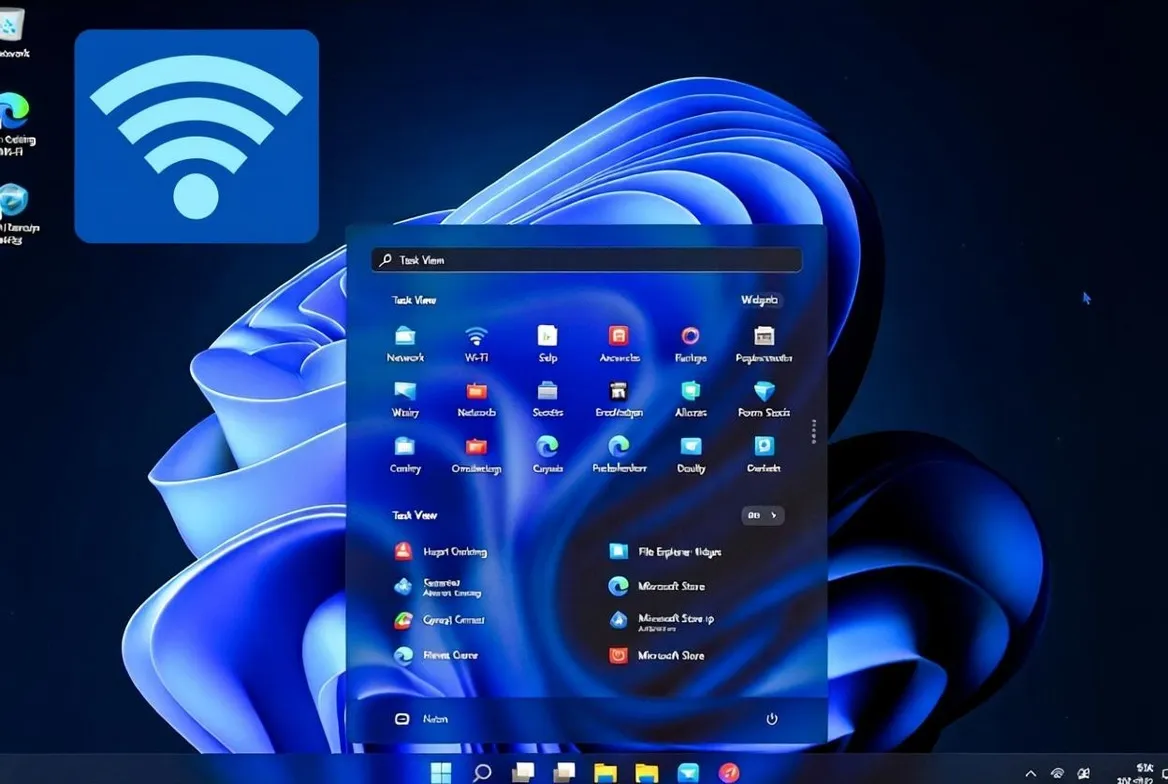
Windows 11 brings a redesigned network settings experience that's more intuitive yet powerful than ever before. Whether you're connecting to WiFi at home, setting up Ethernet for maximum speed, or configuring advanced network options for work, this comprehensive guide covers everything you need to master Windows 11 networking. From basic connections to advanced troubleshooting, we'll help you optimize your connectivity for the best possible experience.
Windows 11 Network Settings Overview
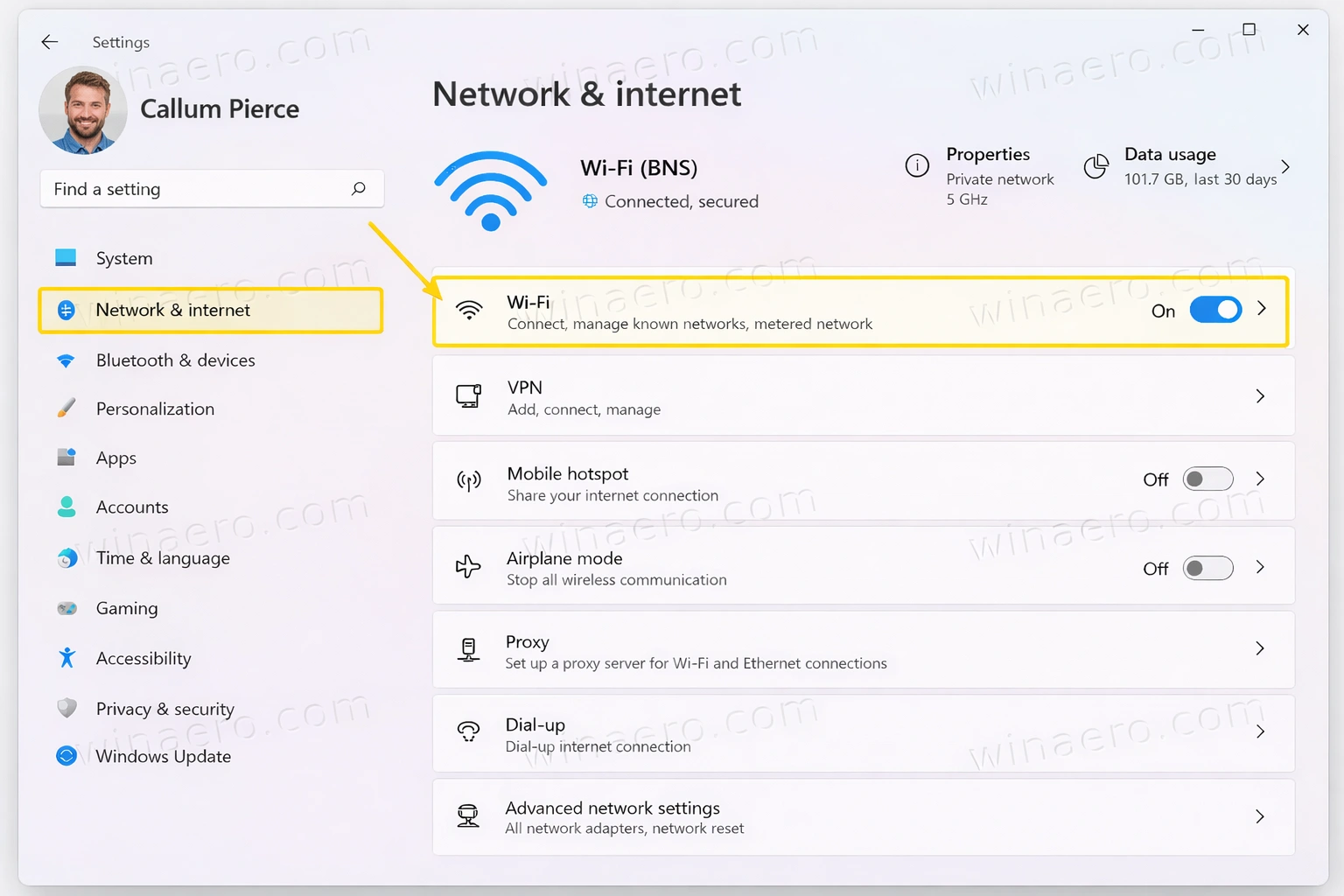
The Windows 11 Settings app consolidates all network configurations in one streamlined location. Access it via Settings → Network & Internet to find options for WiFi, Ethernet, VPN, mobile hotspot, airplane mode, and advanced network properties.
WiFi Configuration & Management
Windows 11 makes connecting to and managing WiFi networks easier than ever with improved UI and new features.
Connect to a WiFi Network
Click the network icon in the taskbar → Select your WiFi network → Enter password → Click Connect
View Available Networks
Settings → Network & Internet → WiFi → Show available networks to see all nearby wireless networks
Manage Known Networks
Settings → Network & Internet → WiFi → Manage known networks to view, forget, or modify saved networks
Set Metered Connection
Mark networks as metered to reduce data usage - useful for mobile hotspots or limited data plans
Random Hardware Addresses
Enable random MAC addresses for privacy when connecting to public WiFi networks
WiFi Sense Settings
Control automatic connection behavior and network sharing preferences
💡 Pro Tip: Enable 'Connect automatically when in range' only for trusted networks to improve security and prevent unwanted connections.
Ethernet Connection Setup
Wired Ethernet connections offer the fastest and most stable internet experience. Here's how to optimize your Ethernet settings.
Automatic Configuration
Windows 11 automatically configures Ethernet when you plug in a cable - no setup needed for most users
Network Profile
Choose between Public (more secure) or Private (allows file sharing) network profiles
IP Settings
Configure automatic (DHCP) or manual (static) IP address assignment
DNS Configuration
Use automatic DNS or set custom DNS servers like Google (8.8.8.8) or Cloudflare (1.1.1.1)
Link Speed
View your current connection speed - typically 100 Mbps or 1 Gbps for modern networks
Network Adapter Settings
Access advanced adapter properties for duplex settings, flow control, and jumbo frames
💡 Pro Tip: For gaming and streaming, always prefer Ethernet over WiFi for lower latency and consistent speeds.
Advanced Network Configuration
Power users can fine-tune their network experience with these advanced settings and configurations.
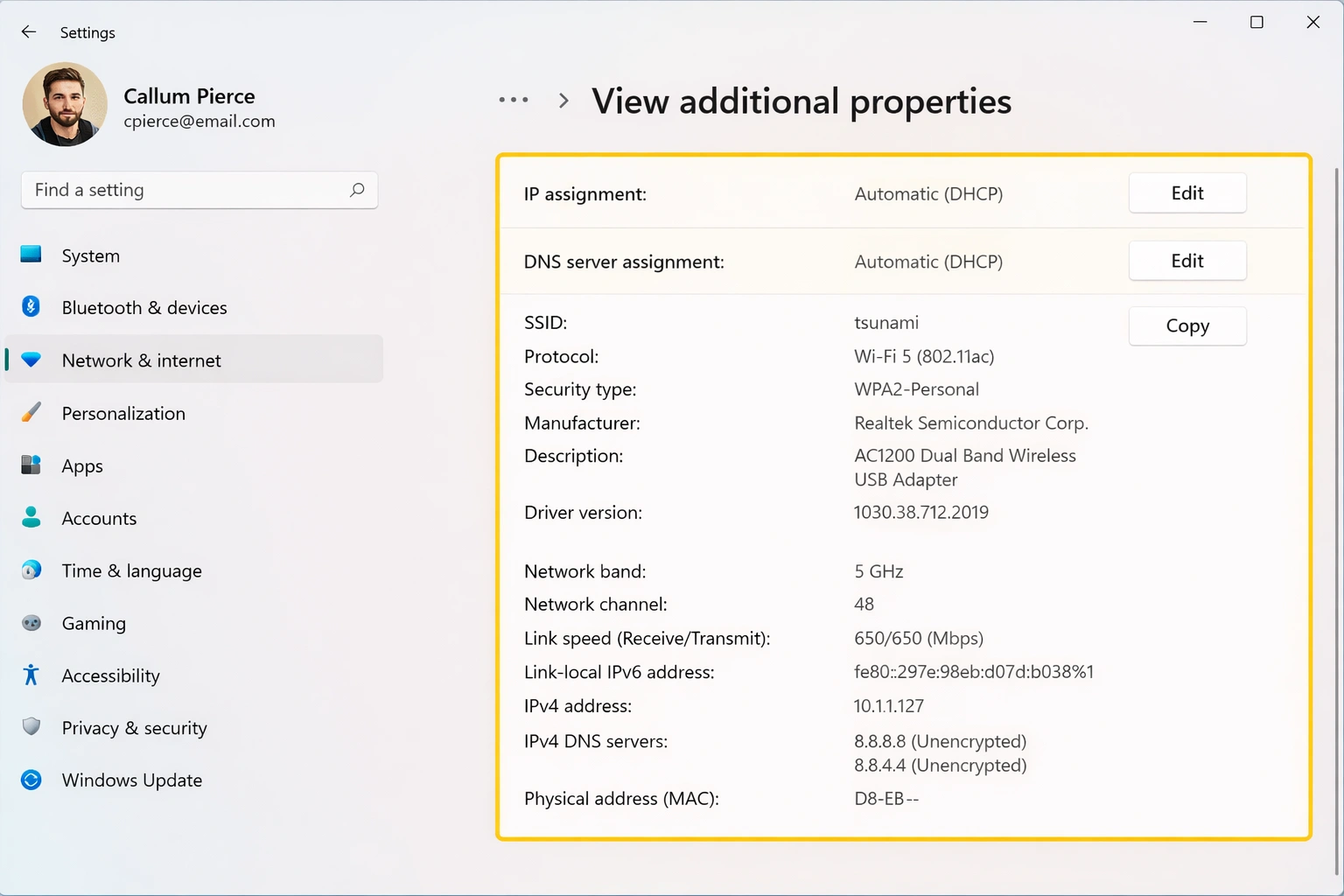
Static IP Address
Settings → Network & Internet → [Connection] → IP assignment → Edit → Manual → Toggle IPv4 → Enter IP, Subnet, Gateway, DNS
Custom DNS Servers
Settings → Network & Internet → [Connection] → DNS server assignment → Edit → Manual → Enter preferred and alternate DNS
DNS over HTTPS (DoH)
When setting custom DNS, enable 'DNS over HTTPS' for encrypted DNS queries and improved privacy
Network Reset
Settings → Network & Internet → Advanced network settings → Network reset to reinstall adapters and reset components
Adapter Options
Settings → Network & Internet → Advanced network settings → More network adapter options for legacy Control Panel settings
Hardware Properties
Access adapter hardware properties to configure driver settings, power management, and advanced features
VPN Configuration in Windows 11
Windows 11 includes built-in VPN support for secure remote connections to work networks or privacy services.
Add VPN Connection
Settings → Network & Internet → VPN → Add VPN → Enter server address, connection name, and credentials
VPN Types Supported
IKEv2, L2TP/IPsec, PPTP, SSTP, and custom VPN apps from providers like NordVPN or ExpressVPN
Connect to VPN
Click network icon in taskbar → Select your VPN → Connect, or use Settings → VPN → Connect
VPN Over Metered
Enable 'Allow VPN over metered networks' if you need VPN on limited data connections
Split Tunneling
Some VPN apps allow split tunneling to route only specific traffic through VPN
Always-On VPN
Enterprise users can configure always-on VPN for automatic secure connections
💡 Pro Tip: For work VPNs, get the exact configuration details from your IT department including server address, VPN type, and authentication method.
Mobile Hotspot & Internet Sharing
Share your PC's internet connection with other devices using Windows 11's built-in mobile hotspot feature.
Enable Mobile Hotspot
Settings → Network & Internet → Mobile hotspot → Toggle on to share your connection
Customize Network Name
Edit the network name (SSID) and password for your hotspot
Choose Band
Select 2.4 GHz for range or 5 GHz for speed when sharing via WiFi
Share Over
Choose to share your hotspot over WiFi or Bluetooth
Power Saving
Enable 'Turn off when no devices are connected' to save battery on laptops
Connected Devices
View devices connected to your hotspot and their connection status
Network Troubleshooting Guide
When network issues arise, Windows 11 provides powerful diagnostic and repair tools.
No Internet Connection
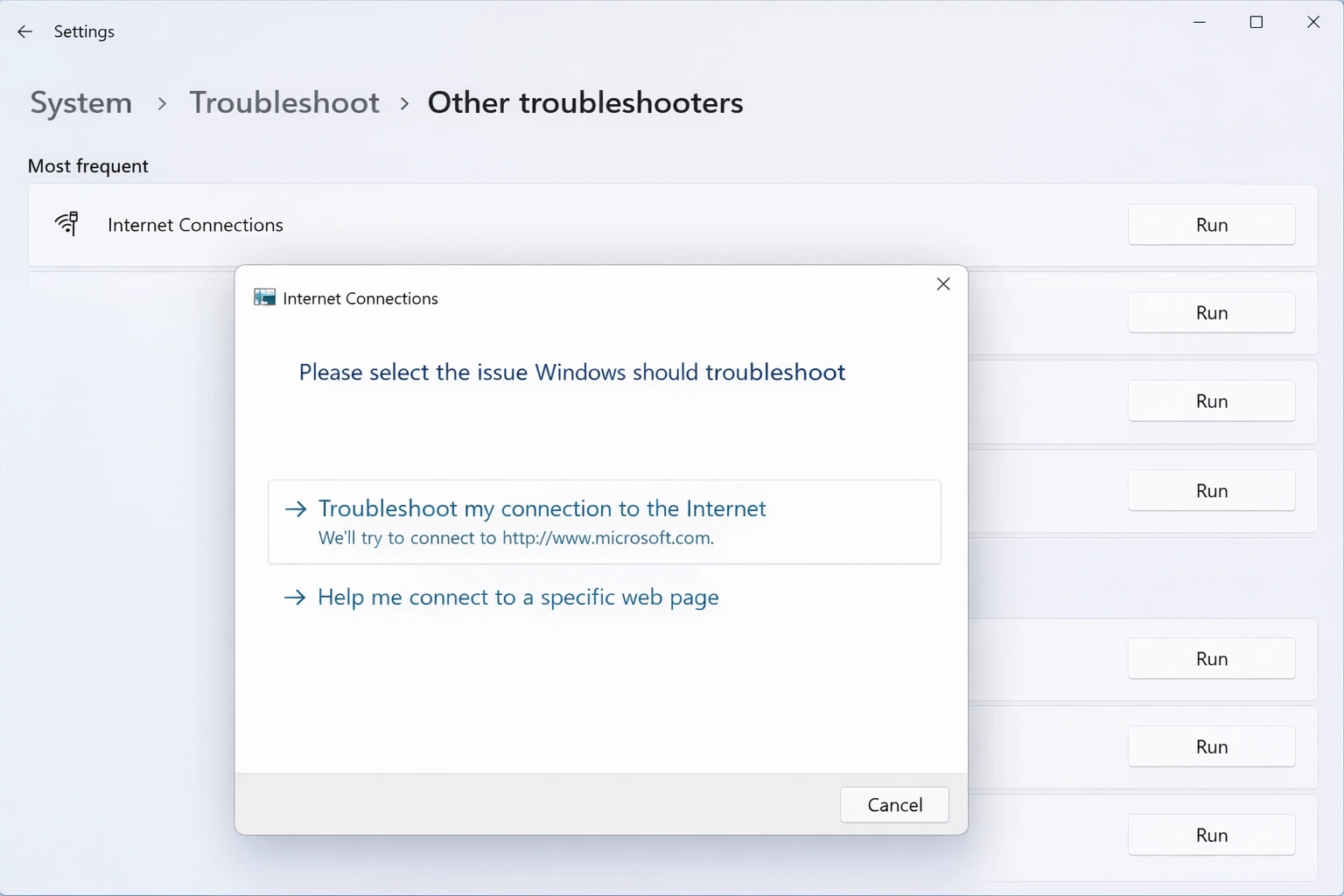
- Run Network Troubleshooter: Settings → System → Troubleshoot → Other troubleshooters → Network Adapter
- Restart your router and modem (unplug for 30 seconds)
- Check if other devices can connect to verify it's not an ISP issue
- Disable and re-enable your network adapter
Slow Internet Speed
- Run a speed test to verify actual speeds vs expected
- Move closer to your WiFi router or use Ethernet
- Check for bandwidth-heavy applications or downloads
- Update network adapter drivers
- Change WiFi channel if interference is detected
WiFi Won't Connect
- Forget the network and reconnect with password
- Check if WiFi is enabled (Fn + WiFi key on laptops)
- Ensure airplane mode is off
- Restart the Windows WLAN AutoConfig service
- Reset network settings as a last resort
Limited Connectivity
- Release and renew IP: Run 'ipconfig /release' then 'ipconfig /renew' in Command Prompt
- Flush DNS cache: Run 'ipconfig /flushdns'
- Reset TCP/IP stack: Run 'netsh int ip reset' as administrator
- Check for IP address conflicts on your network
DNS Issues
- Try alternative DNS servers (Google: 8.8.8.8, Cloudflare: 1.1.1.1)
- Flush DNS cache using Command Prompt
- Disable IPv6 if causing conflicts
- Check hosts file for incorrect entries
Network Performance Optimization
Maximize your network speed and reliability with these optimization techniques.
Update Network Drivers
Keep network adapter drivers updated via Device Manager or manufacturer's website
Disable Power Saving
Prevent adapter sleep: Device Manager → Network Adapter → Properties → Power Management → Uncheck 'Allow to turn off'
Use 5 GHz WiFi
Connect to 5 GHz band for faster speeds and less interference (shorter range than 2.4 GHz)
Optimize DNS
Use fast DNS servers like Cloudflare (1.1.1.1) or Google (8.8.8.8) for quicker website loading
Disable Metered Connection
Ensure your home network isn't set as metered, which limits background data and updates
QoS Settings
Configure Quality of Service in router settings to prioritize gaming or streaming traffic
Network Reset
If persistent issues occur, perform a network reset to restore default settings
Disable Background Apps
Limit apps that use bandwidth in the background: Settings → Apps → Installed apps → Configure
Network Security Best Practices
Protect your Windows 11 PC and data with these essential network security measures.
Use Private Network at Home
Set your home network to Private to enable file sharing while keeping public networks restricted
Enable Windows Firewall
Keep Windows Defender Firewall active to block unauthorized network access
Use WPA3 WiFi Security
Connect to networks using WPA3 encryption when available for strongest protection
Enable Random MAC
Use random hardware addresses on public WiFi to prevent tracking
DNS over HTTPS
Enable DoH for encrypted DNS queries that prevent snooping on your browsing
VPN on Public WiFi
Always use a VPN when connecting to coffee shops, airports, or hotels
Disable Network Discovery
Turn off network discovery and file sharing on public networks
Regular Updates
Keep Windows updated to patch network-related security vulnerabilities
Monitor and Manage Data Usage
Windows 11 provides detailed data usage tracking to help manage bandwidth and avoid overage charges.
View Data Usage
Settings → Network & Internet → Data usage to see consumption over the last 30 days
Per-App Breakdown
See which applications consume the most data and identify bandwidth hogs
Set Data Limit
Configure monthly data limits with warnings when approaching your cap
Background Data
Limit background data for specific apps to conserve bandwidth
Reset Statistics
Reset data usage stats to start fresh tracking for a new billing cycle
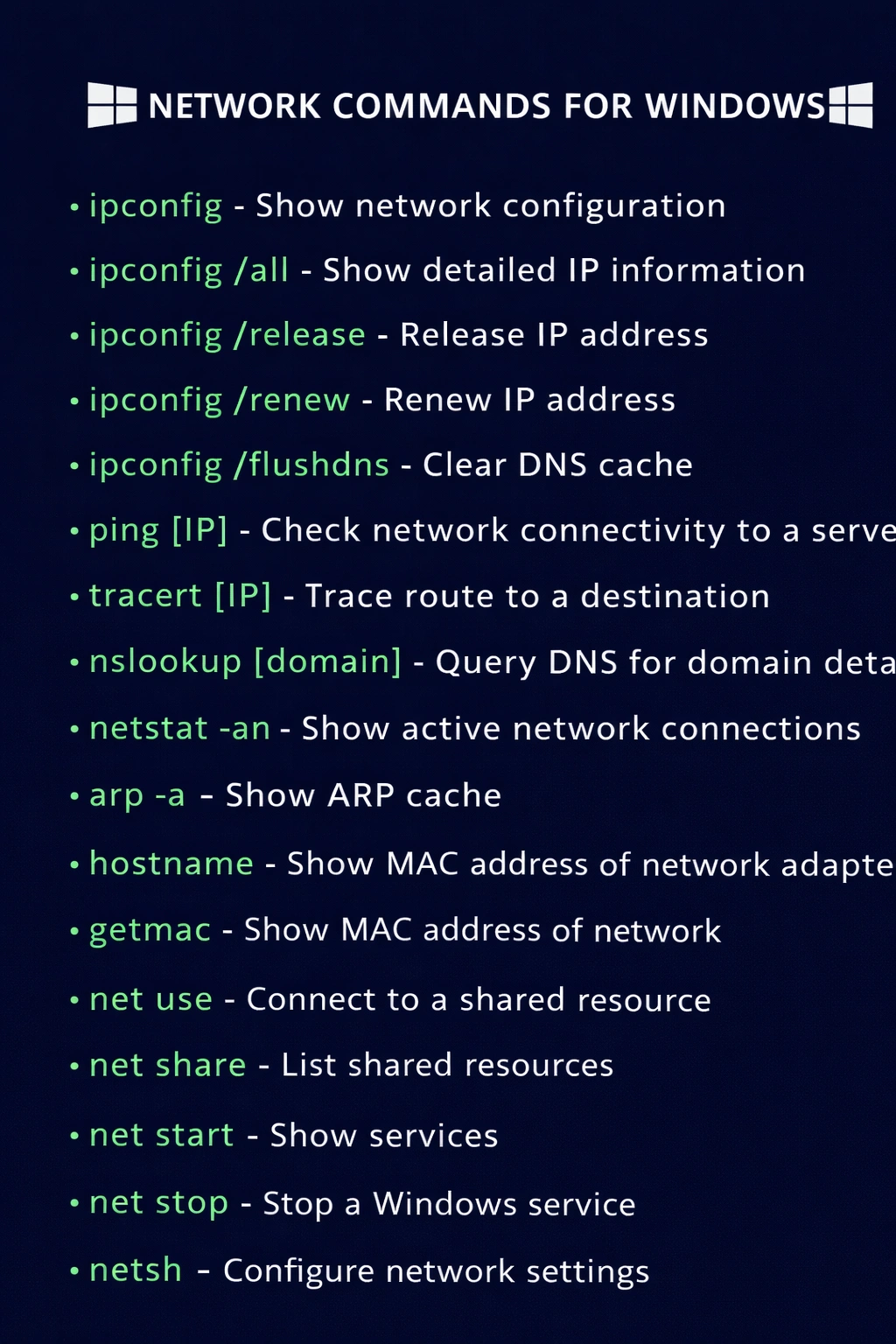
Useful Network Commands
Power users can diagnose and configure networks using these Command Prompt and PowerShell commands.
| Command | Description |
|---|---|
| ipconfig | Display IP configuration for all adapters |
| ipconfig /all | Show detailed network adapter information |
| ipconfig /release | Release current DHCP IP address |
| ipconfig /renew | Request new IP address from DHCP server |
| ipconfig /flushdns | Clear the DNS resolver cache |
| ping [address] | Test connectivity to a specific address |
| tracert [address] | Trace the route packets take to destination |
| netstat -an | Display all active network connections |
| nslookup [domain] | Query DNS for domain information |
| netsh wlan show profiles | List all saved WiFi networks |
| netsh int ip reset | Reset TCP/IP stack (run as admin) |
| netsh winsock reset | Reset Winsock catalog (run as admin) |
Conclusion
Mastering Windows 11 network settings empowers you to maintain fast, reliable, and secure connections for work and play. Whether you're optimizing WiFi performance, setting up a VPN for remote work, or troubleshooting connectivity issues, these skills ensure you stay connected when it matters most. Remember to keep your network drivers updated, use secure configurations on public networks, and don't hesitate to use Windows 11's built-in troubleshooting tools when issues arise.