
Windows 11 Display Settings: Multi-Monitor Setup, Resolution & HDR Guide

Callum specializes in breaking down complex technology topics into easy-to-understand guides. He has a background in computer science and technical writing.
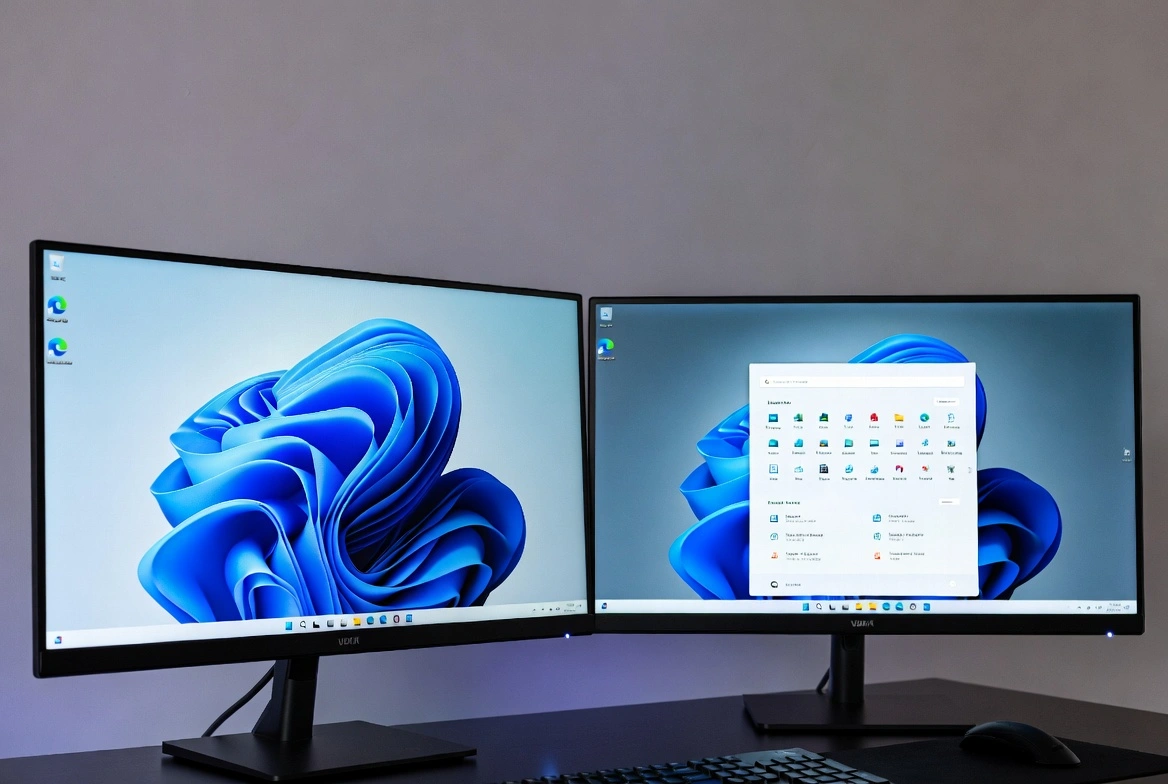
Windows 11 Display Settings: Complete Multi-Monitor, Resolution & HDR Configuration Guide
Master Windows 11's display settings to optimize your visual experience with multiple monitors, perfect resolution configurations, and HDR enabled for stunning image quality.
Windows 11 offers the most advanced display configuration options of any Windows operating system, enabling precise customization of multi-monitor setups, resolution calibration, and HDR features. Whether you're a creative professional, gamer, or productivity user, understanding these settings is essential for maximizing your visual experience.
Accessing Display Settings
Quick Access Methods
Right-click Desktop
Right-click any empty area on your desktop → Display settings
Keyboard Shortcut
Press Win + I → System → Display
Windows Search
Press Win → Type "Display settings" → Enter
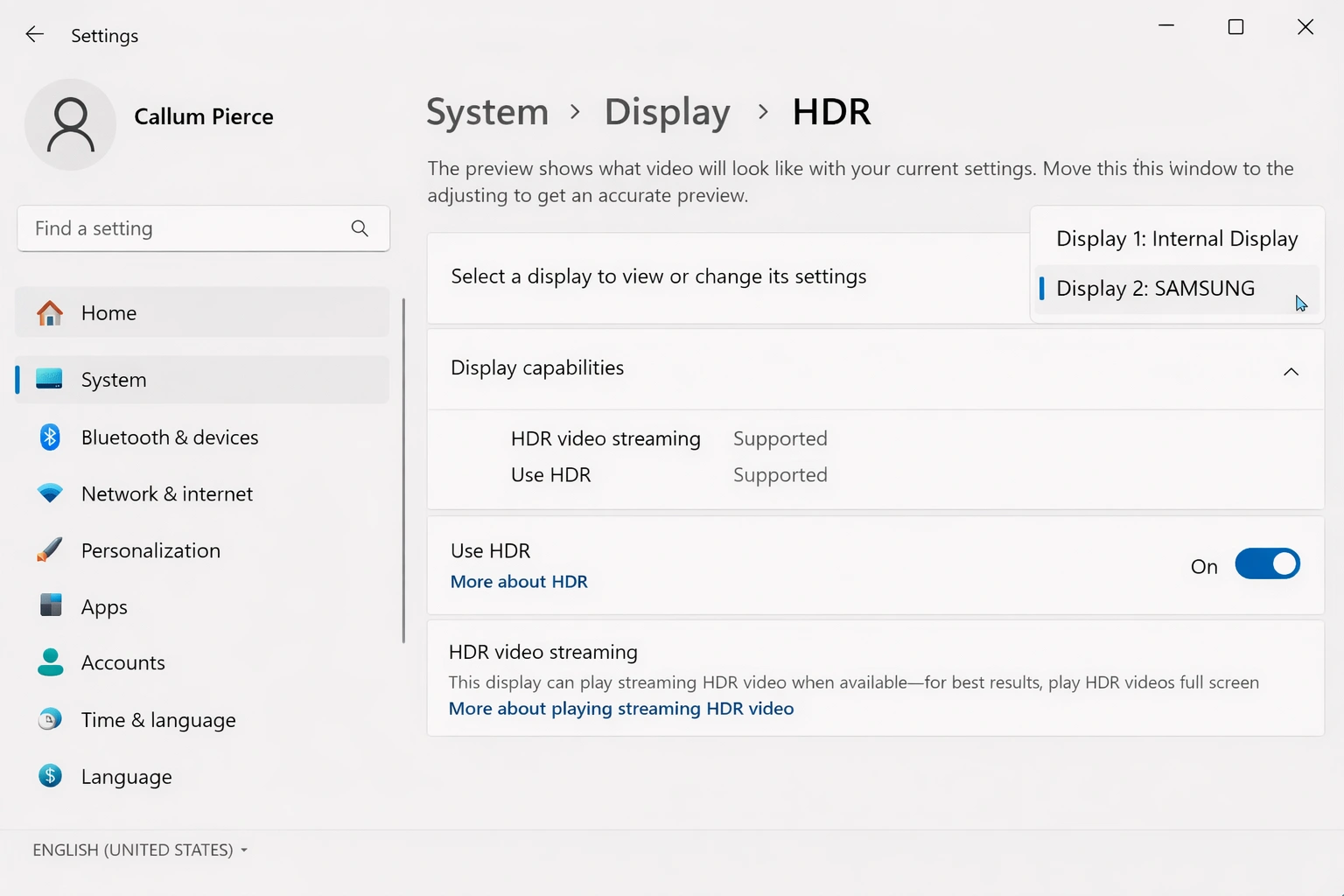
Refresh Rate Settings
Refresh rate determines how many times per second your display updates the image. Higher rates provide smoother motion, especially noticeable in gaming and animations.
Standard
Smooth gaming
Competitive gaming
Pro/Esports
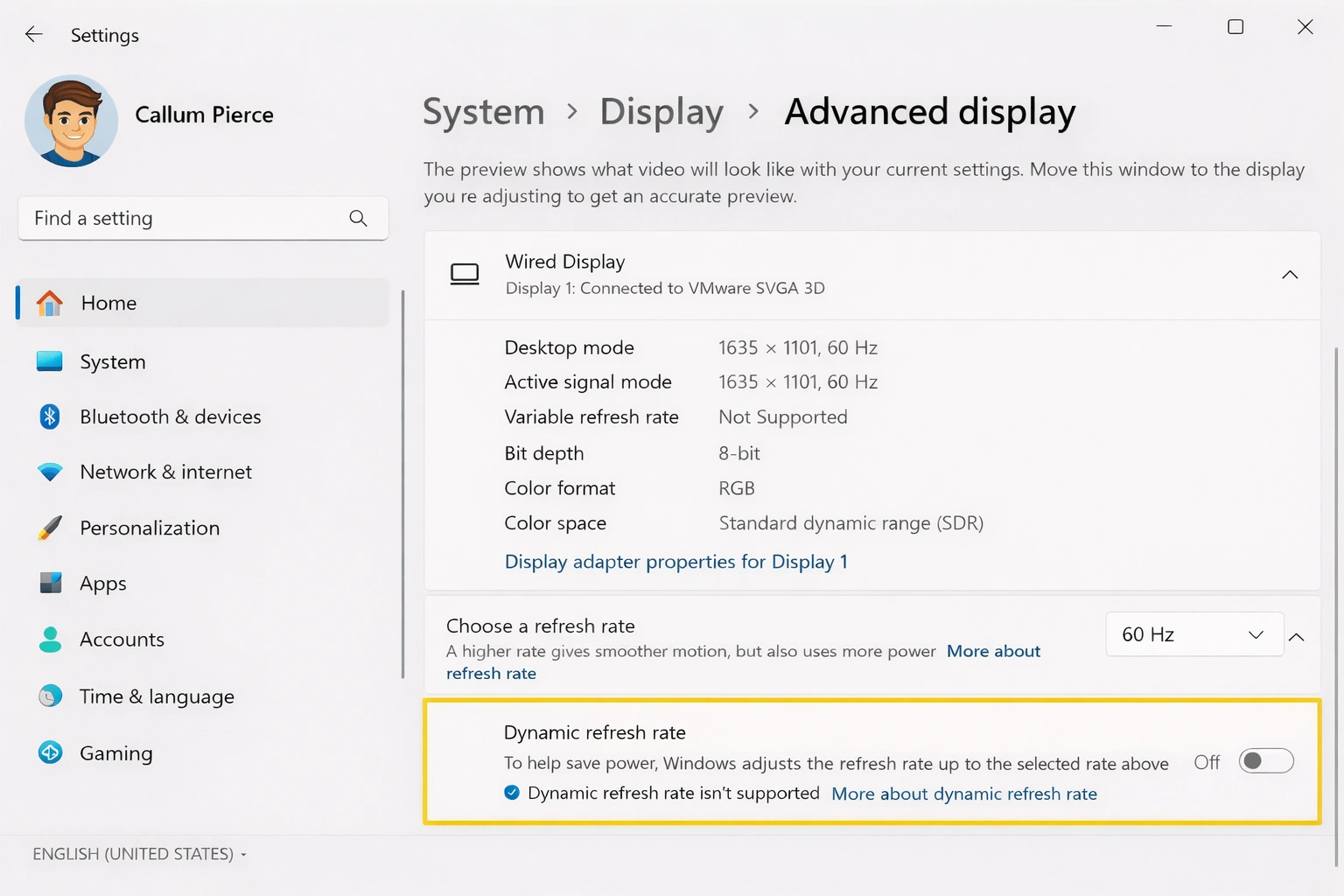
Dynamic Refresh Rate (DRR)
Windows 11 supports DRR on compatible displays, automatically adjusting refresh rate based on content to save battery on laptops while maintaining smoothness when needed.
Troubleshooting Common Issues
Monitor Not Detected
- • Check cable connections (HDMI, DisplayPort, USB-C)
- • Click "Detect" in Display Settings
- • Update graphics drivers
- • Try a different cable or port
Wrong Resolution Displayed
- • Ensure graphics drivers are up to date
- • Check monitor's maximum resolution specs
- • Try "Advanced display settings" for more options
HDR Looks Washed Out
- • Adjust SDR content brightness slider
- • Run Windows HDR Calibration
- • Verify cable supports HDR bandwidth (HDMI 2.0+)
Optimize Your Visual Experience
Mastering Windows 11's display settings allows you to create the perfect work or gaming environment. Whether you're configuring multiple monitors for productivity, enabling HDR for immersive media, or fine-tuning refresh rates for competitive gaming, these tools give you complete control over your visual experience.
Remember that keeping your graphics drivers and Windows updated ensures compatibility with the latest display features and performance fixes.