
Windows 11 Troubleshooting: Fix 15 Common Problems (Complete Guide)

Callum specializes in breaking down complex technology topics into easy-to-understand guides. He has a background in computer science and technical writing.
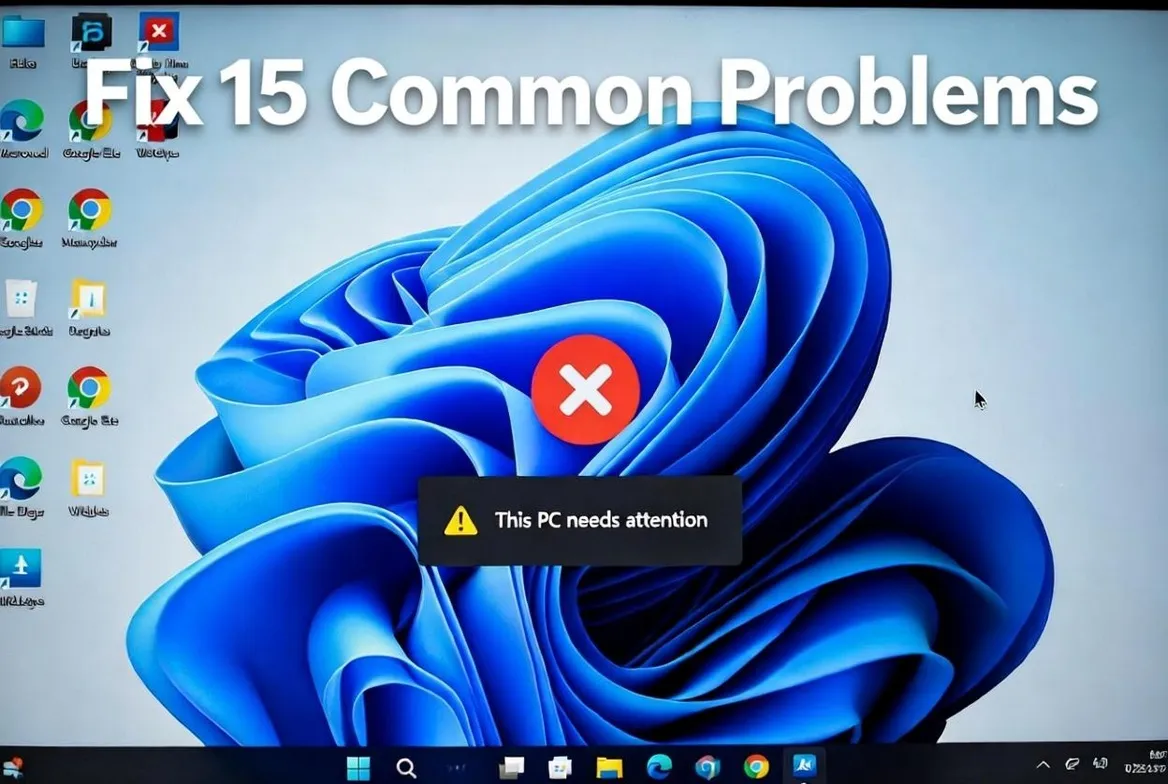
Windows 11 brings a modern interface and powerful features, but like any operating system, it can encounter issues. Whether you're facing slow performance, Wi-Fi problems, or update errors, this comprehensive guide will walk you through proven solutions for the 15 most common Windows 11 problems.
Last Updated: December 2024
Table of Contents
- Slow Performance and Startup
- Wi-Fi and Network Issues
- Windows Update Errors
- Audio and Sound Problems
- Display and Graphics Issues
- Battery Drain Problems
- Start Menu Not Working
- File Explorer Crashes
- Bluetooth Connection Issues
- Printer Not Working
- Blue Screen of Death (BSOD)
- Storage Space Running Low
- App Compatibility Problems
- Sleep and Hibernate Issues
- Activation Errors
1. Slow Performance and Startup
Symptoms
- •Computer takes several minutes to boot
- •Programs open slowly or freeze
- •General system lag and unresponsiveness
Solutions
Disable Startup Programs
- Press Ctrl + Shift + Esc to open Task Manager
- Click the 'Startup apps' tab
- Right-click programs with 'High' impact and select 'Disable'
- Restart your computer
Run Disk Cleanup
- Press Windows + S and search for 'Disk Cleanup'
- Select your system drive (usually C:)
- Check all boxes including 'Previous Windows installations'
- Click 'OK' and then 'Delete Files'
Upgrade to SSD
If you're using a traditional HDD, upgrading to an SSD can dramatically improve boot times and overall responsiveness.
💡 Pro Tip: Enable Fast Startup in Control Panel > Power Options > Choose what the power buttons do > Change settings currently unavailable > Turn on fast startup.
2. Wi-Fi and Network Issues
Symptoms
- •Cannot connect to Wi-Fi networks
- •Wi-Fi keeps disconnecting
- •Slow internet speeds on Windows 11
Solutions
Run Network Troubleshooter
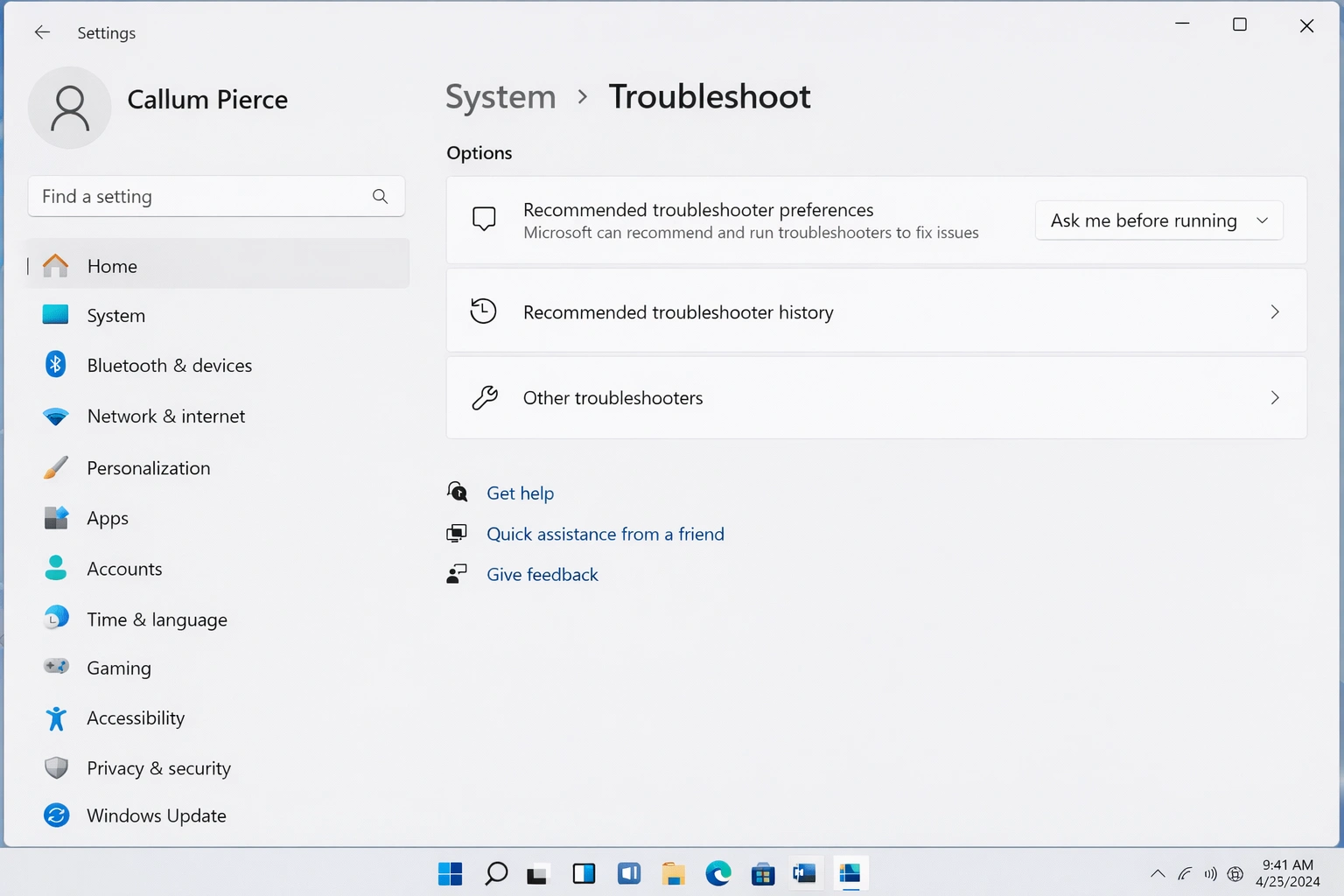
- Go to Settings > System > Troubleshoot
- Click 'Other troubleshooters'
- Find 'Network and Internet' and click 'Run'
- Follow the on-screen instructions
Reset Network Settings
- Open Settings > Network & internet
- Scroll down and click 'Advanced network settings'
- Click 'Network reset'
- Click 'Reset now' and confirm
Update Network Drivers
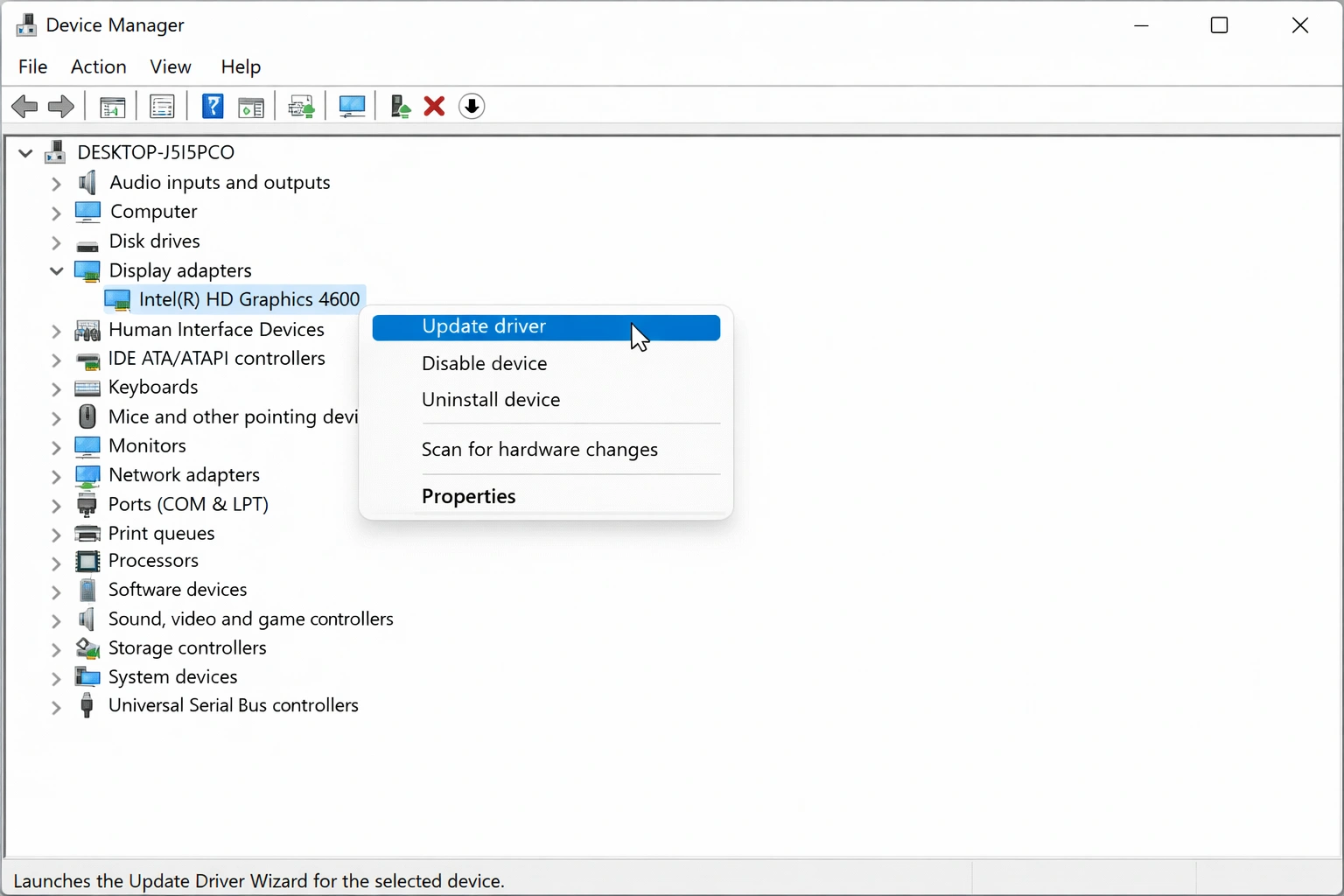
- Right-click Start menu and select 'Device Manager'
- Expand 'Network adapters'
- Right-click your Wi-Fi adapter and select 'Update driver'
- Choose 'Search automatically for drivers'
💡 Pro Tip: If issues persist, try forgetting the network (Settings > Network & internet > Wi-Fi > Manage known networks) and reconnecting.
3. Windows Update Errors
Symptoms
- •Updates fail to install
- •Error codes like 0x80070002 or 0x800f0922
- •Update stuck at a certain percentage
Solutions
Run Windows Update Troubleshooter
- Go to Settings > System > Troubleshoot
- Click 'Other troubleshooters'
- Find 'Windows Update' and click 'Run'
- Apply any recommended fixes
Clear Windows Update Cache
- Press Windows + R, type 'services.msc' and press Enter
- Find 'Windows Update' service, right-click and select 'Stop'
- Navigate to C:\Windows\SoftwareDistribution
- Delete all contents in the Download folder
- Restart the Windows Update service
Use DISM and SFC Commands
- Open Command Prompt as Administrator
- Run: DISM /Online /Cleanup-Image /RestoreHealth
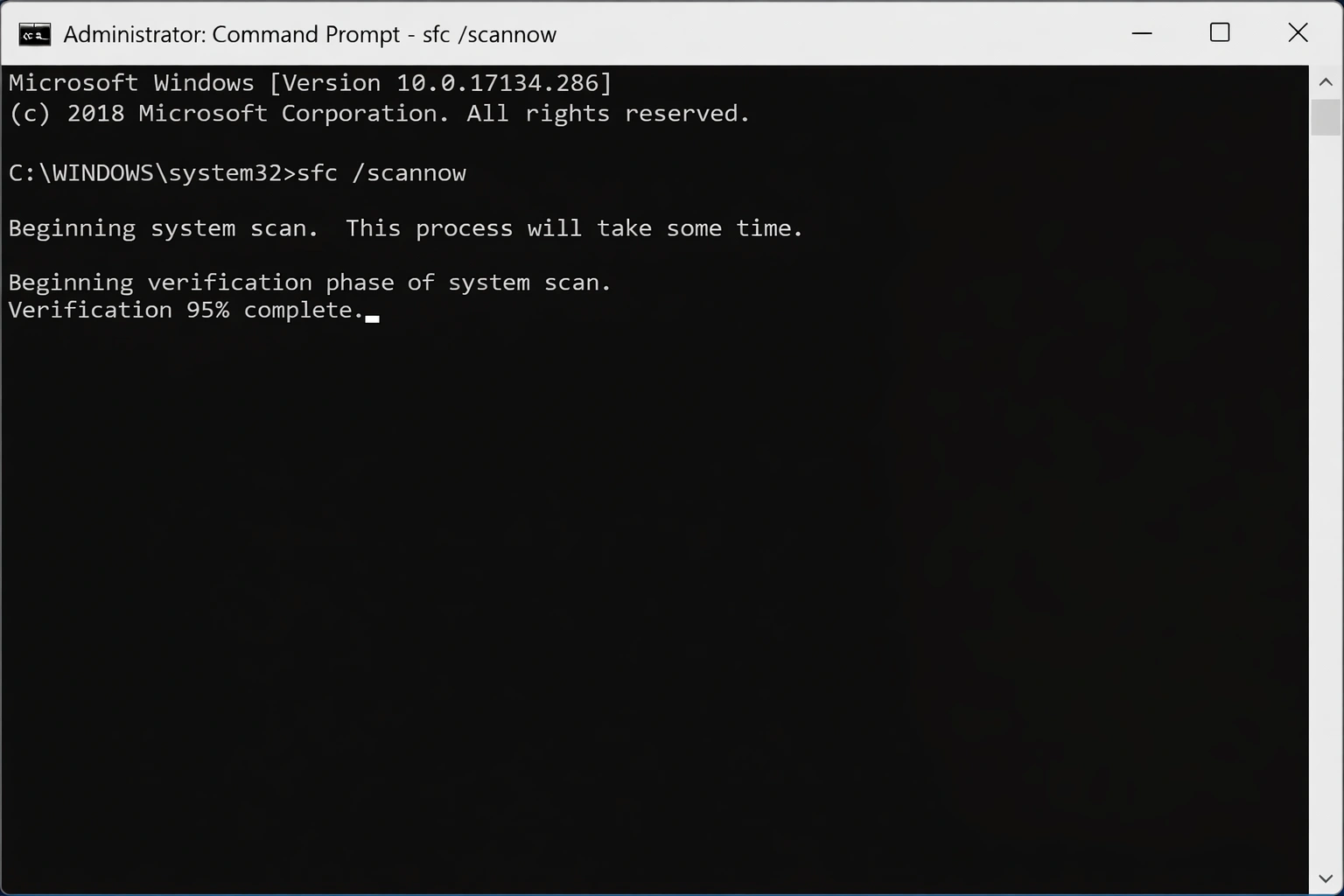
- Wait for completion, then run: sfc /scannow
- Restart and try updating again
💡 Pro Tip: Some updates require significant free space. Ensure you have at least 20GB free on your system drive before major updates.
4. Audio and Sound Problems
Symptoms
- •No sound from speakers or headphones
- •Audio quality is poor or distorted
- •Microphone not working
Solutions
Check Audio Output Device
- Right-click the speaker icon in the taskbar
- Select 'Sound settings'
- Under 'Output', ensure the correct device is selected
- Click on the device and adjust volume
Update Audio Drivers
- Open Device Manager
- Expand 'Sound, video and game controllers'
- Right-click your audio device and select 'Update driver'
- Choose 'Search automatically for drivers'
Restart Windows Audio Service
- Press Windows + R, type 'services.msc'
- Find 'Windows Audio' service
- Right-click and select 'Restart'
- Also restart 'Windows Audio Endpoint Builder'
💡 Pro Tip: If you're using Bluetooth audio devices, ensure they're properly paired and set as the default output device.
5. Display and Graphics Issues
Symptoms
- •Screen flickering or flashing
- •Resolution not displaying correctly
- •Black screen after updates
Solutions
Update Graphics Drivers
- Open Device Manager
- Expand 'Display adapters'
- Right-click your graphics card and select 'Update driver'
- Consider downloading latest drivers from manufacturer's website
Adjust Display Settings
- Right-click desktop and select 'Display settings'
- Check 'Display resolution' is set to recommended
- Adjust 'Scale' if text appears too small or large
- Check 'Refresh rate' under Advanced display settings
Disable Hardware Acceleration
- Open Settings > System > Display
- Click 'Graphics'
- Under 'Default settings', click 'Change default graphics settings'
- Toggle off 'Hardware-accelerated GPU scheduling'
💡 Pro Tip: For black screen issues, try pressing Windows + Ctrl + Shift + B to restart the graphics driver.
6. Battery Drain Problems
Symptoms
- •Laptop battery drains quickly
- •Battery percentage jumps unexpectedly
- •Not charging properly
Solutions
Check Battery Health
- Open Command Prompt as Administrator
- Run: powercfg /batteryreport
- Open the generated HTML file in your browser
- Check 'Design Capacity' vs 'Full Charge Capacity'
Optimize Power Settings
- Go to Settings > System > Power & battery
- Select 'Best power efficiency' under Power mode
- Click 'Screen and sleep' to reduce timeout values
- Enable 'Battery saver' to automatically turn on at 20%
Identify Power-Hungry Apps
- Go to Settings > System > Power & battery
- Expand 'Battery usage'
- Check which apps are consuming the most power
- Close or uninstall unnecessary apps
💡 Pro Tip: Background apps can significantly drain battery. Go to Settings > Apps > Installed apps and disable background permissions for apps you don't need running constantly.
7. Start Menu Not Working
Symptoms
- •Start menu won't open when clicking
- •Start menu opens but freezes
- •Search function not working in Start menu
Solutions
Restart Windows Explorer
- Press Ctrl + Shift + Esc to open Task Manager
- Find 'Windows Explorer' in the processes list
- Right-click and select 'Restart'
- Wait for the taskbar to reappear
Re-register Start Menu Apps
- Open PowerShell as Administrator
- Run this command:
- Get-AppXPackage -AllUsers | Foreach {Add-AppxPackage -DisableDevelopmentMode -Register "$($_.InstallLocation)\AppXManifest.xml"}
- Wait for completion and restart
Create New User Profile
- Go to Settings > Accounts > Other users
- Click 'Add account'
- Create a new local account
- Log in to the new account to test Start menu
💡 Pro Tip: If the issue started after an update, you can use System Restore to revert to a previous working state.
8. File Explorer Crashes
Symptoms
- •File Explorer keeps crashing
- •File Explorer won't open
- •Frequent 'Not Responding' errors
Solutions
Clear File Explorer History
- Open File Explorer Options (search in Start menu)
- Under 'Privacy' section, click 'Clear'
- Uncheck both quick access options
- Click 'Apply' and 'OK'
Run System File Checker
- Open Command Prompt as Administrator
- Run: sfc /scannow
- Wait for the scan to complete (may take 15-20 minutes)
- Restart your computer
Disable Problematic Extensions
- Download ShellExView (free utility from NirSoft)
- Sort by 'Company Name' to find non-Microsoft extensions
- Disable third-party shell extensions one by one
- Identify which extension causes crashes
💡 Pro Tip: Opening File Explorer to 'This PC' instead of Quick Access can sometimes improve stability. Change this in File Explorer Options > General.
9. Bluetooth Connection Issues
Symptoms
- •Bluetooth devices won't pair
- •Bluetooth keeps disconnecting
- •Bluetooth option missing entirely
Solutions
Run Bluetooth Troubleshooter
- Go to Settings > System > Troubleshoot
- Click 'Other troubleshooters'
- Find 'Bluetooth' and click 'Run'
- Follow the recommendations
Restart Bluetooth Service
- Press Windows + R, type 'services.msc'
- Find 'Bluetooth Support Service'
- Right-click and select 'Restart'
- Also restart 'Bluetooth User Support Service'
Remove and Re-pair Device
- Go to Settings > Bluetooth & devices
- Find the problematic device and click 'Remove device'
- Put the device in pairing mode
- Click 'Add device' and pair again
💡 Pro Tip: Some Bluetooth devices have their own software that may conflict with Windows. Check the manufacturer's website for updated drivers.
10. Printer Not Working
Symptoms
- •Printer not detected by Windows
- •Print jobs stuck in queue
- •Poor print quality
Solutions
Run Printer Troubleshooter
- Go to Settings > System > Troubleshoot
- Click 'Other troubleshooters'
- Find 'Printer' and click 'Run'
- Apply any recommended fixes
Clear Print Queue
- Press Windows + R, type 'services.msc'
- Stop the 'Print Spooler' service
- Navigate to C:\Windows\System32\spool\PRINTERS
- Delete all files in this folder
- Start the Print Spooler service again
Reinstall Printer
- Go to Settings > Bluetooth & devices > Printers & scanners
- Select your printer and click 'Remove'
- Disconnect and reconnect the printer
- Click 'Add device' to reinstall
💡 Pro Tip: For network printers, ensure the printer and your computer are on the same network and the printer's IP address hasn't changed.
11. Blue Screen of Death (BSOD)
Symptoms
- •Computer crashes with blue screen
- •Error messages like CRITICAL_PROCESS_DIED
- •System restarts unexpectedly
Solutions
Check for Driver Issues
- If you recently installed hardware or drivers, uninstall them
- Open Device Manager and look for yellow warning icons
- Update or rollback problematic drivers
- Use 'Driver Verifier' to identify bad drivers
Run Memory Diagnostic
- Press Windows + S and search for 'Windows Memory Diagnostic'
- Click 'Restart now and check for problems'
- Wait for the test to complete
- Check results in Event Viewer after restart
Check Disk for Errors
- Open Command Prompt as Administrator
- Run: chkdsk C: /f /r
- Type 'Y' to schedule check on next restart
- Restart and let the scan complete
💡 Pro Tip: Note the error code shown on the BSOD. You can search for specific solutions based on codes like 'IRQL_NOT_LESS_OR_EQUAL' or 'PAGE_FAULT_IN_NONPAGED_AREA'.
12. Storage Space Running Low
Symptoms
- •Low disk space warnings
- •Unable to install updates or apps
- •System slowing down
Solutions
Use Storage Sense
- Go to Settings > System > Storage
- Turn on 'Storage Sense'
- Click 'Configure Storage Sense'
- Set automatic cleanup preferences
Uninstall Unused Programs
- Go to Settings > Apps > Installed apps
- Sort by 'Size' to find largest apps
- Click on unused apps and select 'Uninstall'
- Also check for duplicate or obsolete programs
Move Files to External Storage
- Identify large files using Settings > System > Storage
- Move large media files to external drive or cloud
- Change default save locations for downloads
- Consider using OneDrive for automatic cloud backup
💡 Pro Tip: Use the WinDirStat tool to visualize what's taking up space on your drive. It can reveal hidden folders consuming gigabytes.
13. App Compatibility Problems
Symptoms
- •Older programs won't run
- •Apps crash on startup
- •Error messages about compatibility
Solutions
Run in Compatibility Mode
- Right-click the app's executable or shortcut
- Select 'Properties' > 'Compatibility' tab
- Check 'Run this program in compatibility mode for:'
- Select Windows 10 or an earlier version
Run as Administrator
- Right-click the program
- Select 'Run as administrator'
- If it works, set it as default in Properties > Compatibility
- Check 'Run this program as an administrator'
Check for App Updates
- Visit the software developer's website
- Look for Windows 11 compatible versions
- Download and install the latest version
- Uninstall old version before installing new
💡 Pro Tip: Some very old 32-bit programs may never work on Windows 11. Consider alternatives or use virtualization software to run an older Windows version.
14. Sleep and Hibernate Issues
Symptoms
- •Computer won't go to sleep
- •Won't wake from sleep properly
- •Screen goes black but fans keep running
Solutions
Check Power Settings
- Go to Settings > System > Power & battery
- Click 'Screen and sleep'
- Set appropriate sleep times
- Ensure settings are not set to 'Never'
Identify Wake Sources
- Open Command Prompt as Administrator
- Run: powercfg /requests
- Identify which devices or processes prevent sleep
- Run: powercfg /devicequery wake_armed to see wake sources
Update Power Plan Settings
- Open Control Panel > Power Options
- Click 'Change plan settings' next to your plan
- Click 'Change advanced power settings'
- Check 'Sleep' and 'USB settings' sections
💡 Pro Tip: Some USB devices (like mice and keyboards) can wake your computer unexpectedly. Disable their wake capability in Device Manager > Properties > Power Management.
15. Windows Activation Errors
Symptoms
- •Activate Windows watermark on desktop
- •Error codes like 0xC004F074
- •Some personalization features disabled
Solutions
Run Activation Troubleshooter
- Go to Settings > System > Activation
- Click 'Troubleshoot'
- Follow the on-screen instructions
- If you have a digital license, sign in with your Microsoft account
Re-enter Product Key
- Go to Settings > System > Activation
- Click 'Change product key'
- Enter your 25-character product key
- Click 'Next' to activate
Purchase Genuine License
If you don't have a valid license, purchasing a genuine Windows 11 product key from authorized retailers ensures full functionality, security updates, and Microsoft support.
💡 Pro Tip: If you upgraded from Windows 10, your Windows 11 license should be linked to your Microsoft account. Go to Settings > Accounts > Your info to verify you're signed in.
Preventing Future Problems
While troubleshooting is essential, prevention is always better. Here are best practices to keep your Windows 11 running smoothly:
Keep Windows Updated
Regular updates include security patches and bug fixes. Enable automatic updates in Settings > Windows Update.
Maintain Regular Backups
Use File History or a backup solution to protect your files. Consider system image backups for complete protection.
Use Quality Security Software
Windows Security is good, but consider premium antivirus for enhanced protection against malware that can cause system issues.
Monitor System Health
Regularly check Task Manager for resource usage and use Event Viewer to catch potential issues early.
Clean Up Regularly
Use Disk Cleanup monthly and uninstall programs you no longer use to keep your system lean.
Maintain Free Space
Keep at least 15-20% of your system drive free for optimal performance and update installation.
Essential Diagnostic Commands
These command-line tools are invaluable for troubleshooting Windows 11 issues:
| Command | Description |
|---|---|
sfc /scannow | Scans and repairs corrupted system files |
DISM /Online /Cleanup-Image /RestoreHealth | Repairs the Windows image and enables SFC to work |
chkdsk C: /f /r | Checks and repairs disk errors (requires restart) |
powercfg /batteryreport | Generates detailed battery health report |
powercfg /energy | Creates energy efficiency diagnostic report |
ipconfig /all | Shows all network configuration details |
netsh winsock reset | Resets network stack (fixes many connectivity issues) |
Frequently Asked Questions
How do I access Safe Mode in Windows 11?
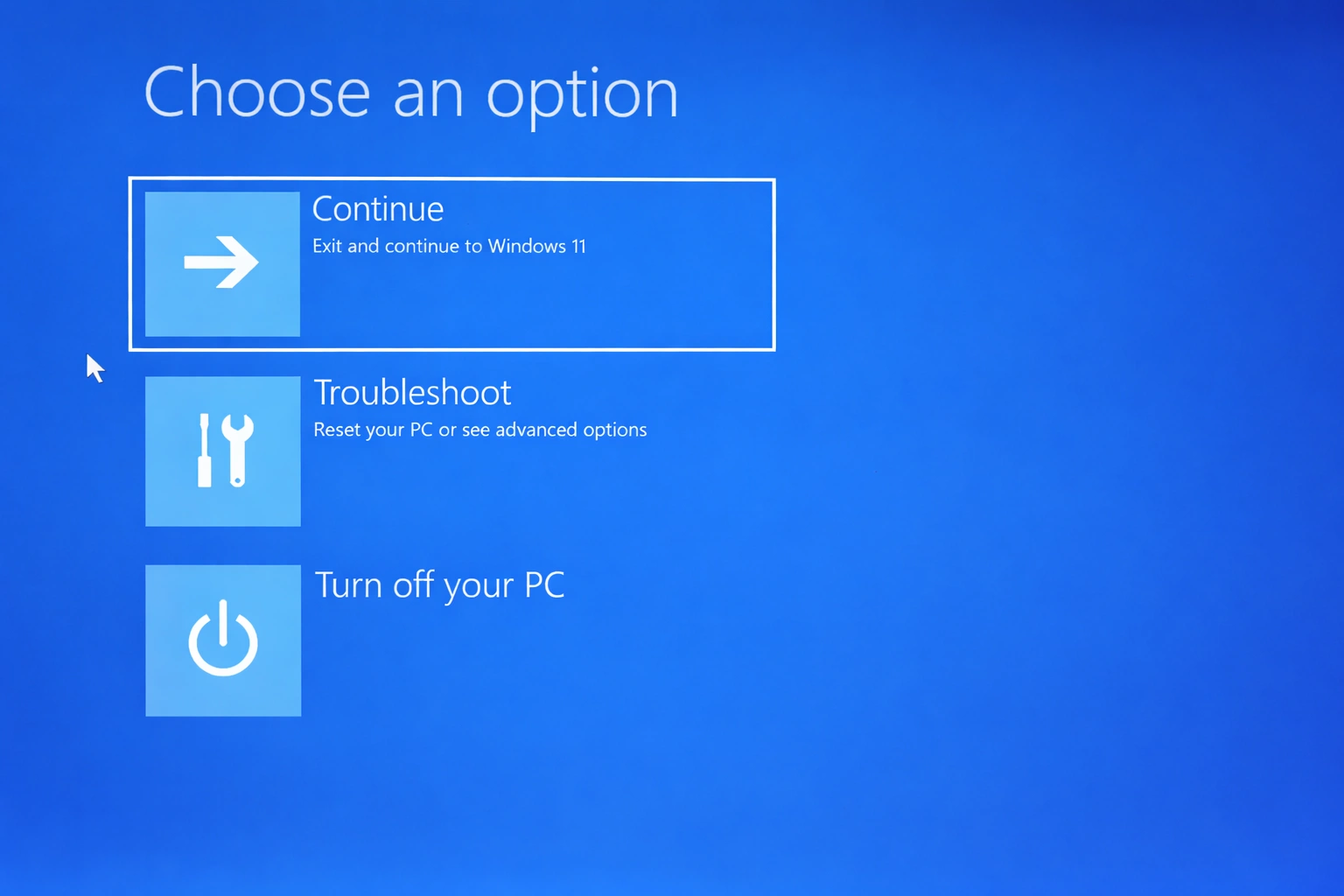
Hold Shift while clicking Restart, then navigate to Troubleshoot > Advanced options > Startup Settings > Restart. Press F4 for Safe Mode or F5 for Safe Mode with Networking.
Can I roll back to Windows 10 if Windows 11 has too many issues?
Within 10 days of upgrading, go to Settings > System > Recovery and click 'Go back' under 'Previous version of Windows'. After 10 days, you'll need to do a clean install.
Why is Windows 11 slower than Windows 10 on my PC?
Windows 11 has higher system requirements. Ensure you have at least 4GB RAM (8GB recommended), an SSD, and a compatible processor. Also check for background processes consuming resources.
How do I reset Windows 11 without losing files?
Go to Settings > System > Recovery > Reset this PC. Choose 'Keep my files' to reinstall Windows while preserving personal files. Apps and settings will be removed.
What should I do if Windows 11 won't boot at all?
Create a Windows 11 installation USB on another computer. Boot from it and select 'Repair your computer' > Troubleshoot > Advanced options. Try Startup Repair first, then System Restore if available.
Conclusion
Windows 11 troubleshooting doesn't have to be intimidating. With this comprehensive guide covering 15 common problems, you now have the knowledge to diagnose and fix most issues you'll encounter. Remember that many problems have simple solutions – updating drivers, restarting services, or running built-in troubleshooters often resolve issues quickly.
For persistent problems, don't hesitate to use more advanced tools like System File Checker (SFC) and DISM, or consider a system reset as a last resort. And always ensure you have current backups before making significant system changes.
If you're dealing with activation issues and need a genuine Windows 11 license, we offer authentic product keys at competitive prices with instant digital delivery and dedicated support.