
Windows 11 Battery Draining Fast? 12 Fixes That Actually Work

Callum specializes in breaking down complex technology topics into easy-to-understand guides. He has a background in computer science and technical writing.
Is your Windows 11 laptop battery draining faster than expected? You're not alone. Many users report significant battery life reduction after upgrading to Windows 11 or after installing updates. The good news is that most battery drain issues can be fixed with the right settings adjustments. This comprehensive guide covers 12 proven fixes to extend your Windows 11 laptop battery life significantly.
Table of Contents
1. Check Battery Health and Capacity
Before troubleshooting software issues, verify your battery's physical health. A degraded battery will drain quickly regardless of settings.
- Open Command Prompt as Administrator (right-click Start > Terminal (Admin))
- Type: powercfg /batteryreport and press Enter
- Open the generated HTML report from C:\Windows\System32\battery-report.html
- Check 'Design Capacity' vs 'Full Charge Capacity'
- If Full Charge Capacity is less than 60% of Design Capacity, consider battery replacement
💡 Tip: The battery report also shows charge/discharge cycles and capacity history over time, helping you understand battery degradation patterns.
2. Enable Battery Saver Mode
Windows 11's Battery Saver mode is the quickest way to extend battery life by limiting background activity and reducing screen brightness.
- Click the battery icon in the system tray
- Click 'Battery saver' to enable it immediately
- Or go to Settings > System > Power & battery
- Set 'Turn battery saver on automatically at' to 30% or higher
- Enable 'Lower screen brightness when using battery saver'
💡 Tip: Battery Saver can extend your battery life by 20-30% by suspending non-essential background apps and reducing visual effects.
3. Optimize Power Mode Settings
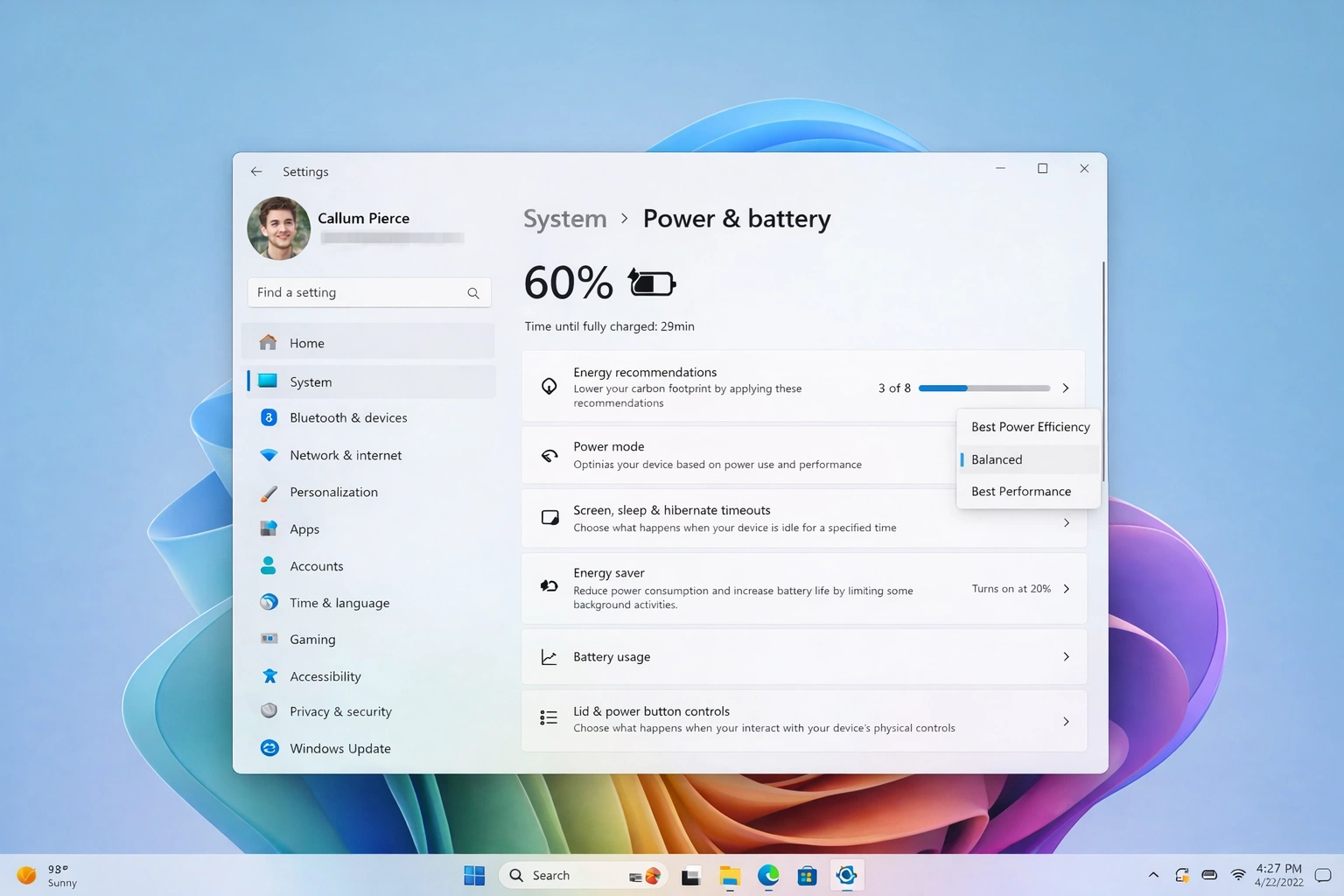
Windows 11 offers different power modes that balance performance and battery life. Choosing the right mode can significantly impact battery drain.
- Go to Settings > System > Power & battery
- Under 'Power mode', select 'Best power efficiency' for maximum battery life
- For balanced usage, select 'Balanced'
- Avoid 'Best performance' when on battery power
- Consider creating custom power plans via Control Panel > Power Options
💡 Tip: You can set different power modes for when plugged in vs on battery. Always use 'Best power efficiency' or 'Balanced' when unplugged.
4. Reduce Screen Brightness and Timeout
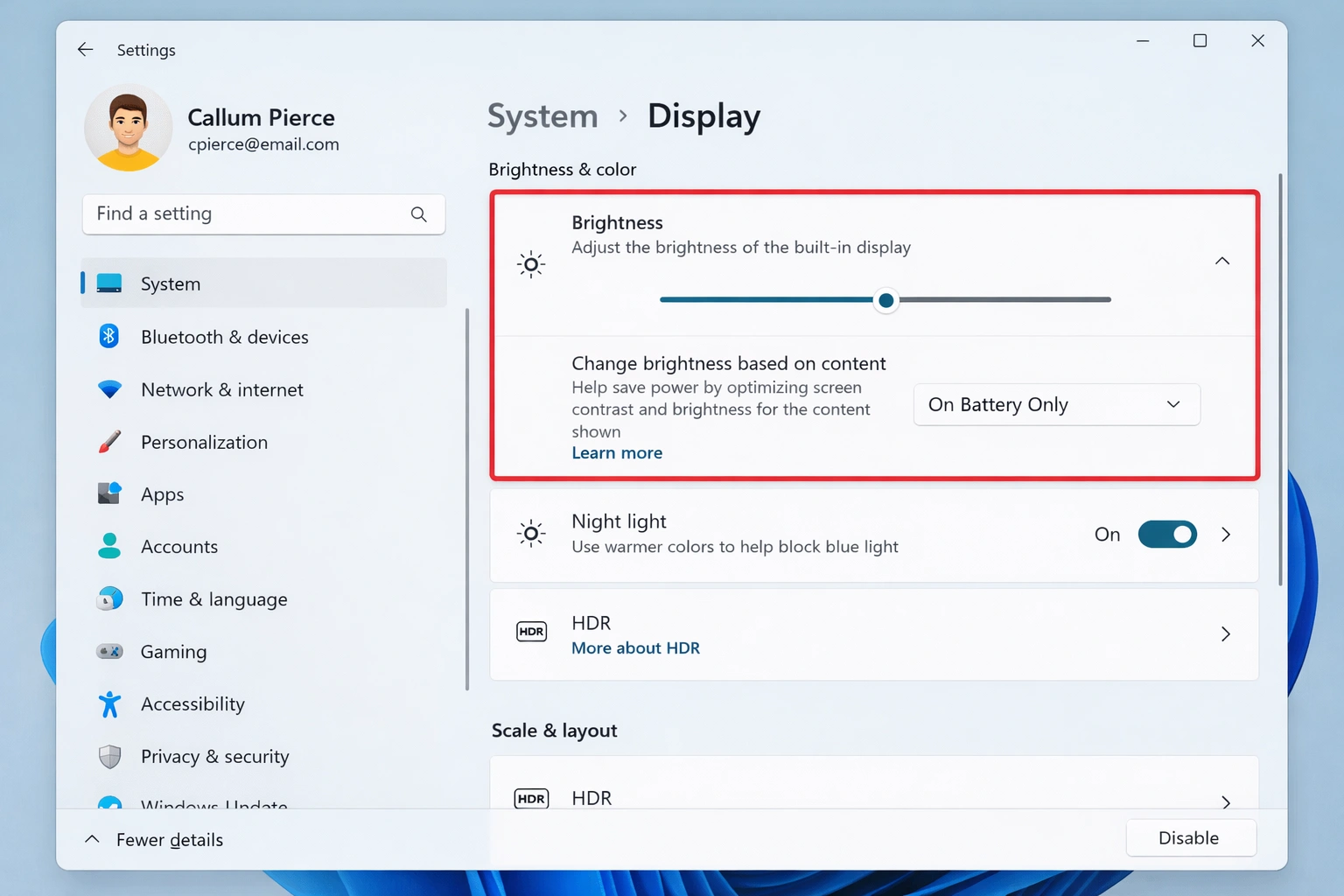
The display is one of the biggest battery consumers. Reducing brightness and screen timeout can dramatically improve battery life.
- Press Windows + I to open Settings
- Go to System > Display
- Reduce brightness to 40-60% for comfortable viewing
- Go to System > Power & battery > Screen and sleep
- Set 'On battery power, turn off my screen after' to 3-5 minutes
- Set 'On battery power, put my device to sleep after' to 10-15 minutes
💡 Tip: Enable 'Change brightness automatically when lighting changes' to let Windows adjust brightness based on ambient light, saving battery without sacrificing visibility.
5. Disable Unnecessary Background Apps
Many apps run in the background consuming CPU, memory, and battery even when you're not using them. Limiting these can significantly extend battery life.
- Open Settings > Apps > Installed apps
- Click the three dots next to apps you don't need running in background
- Select 'Advanced options'
- Under 'Background app permissions', select 'Never' or 'Power optimized'
- Repeat for all non-essential apps like games, social media, and music apps
💡 Tip: Focus on disabling background permissions for apps you rarely use. Essential apps like messaging and email may need 'Power optimized' to receive notifications.
6. Turn Off Location Services
GPS and location services continuously track your position, which drains battery. Disable them when not needed.
- Go to Settings > Privacy & security > Location
- Toggle off 'Location services' entirely, or
- Keep it on but disable location access for individual apps you don't need tracking you
- Turn off 'Let apps access your location' for non-essential apps
- Disable 'Location history' to prevent continuous tracking
💡 Tip: If you need location for specific apps like Maps, enable location only for those apps while disabling it system-wide.
7. Disable Bluetooth and Wi-Fi When Not Needed
Wireless radios consume battery even when not actively transferring data. Disable them when you don't need connectivity.
- Click the network icon in the system tray
- Toggle off Wi-Fi when you don't need internet
- Toggle off Bluetooth when not using wireless devices
- Enable Airplane mode for maximum battery savings when offline work is acceptable
- Go to Settings > Network & internet > Wi-Fi > Hardware properties to disable 'Connect to suggested open hotspots'
💡 Tip: If you need to work offline for extended periods, Airplane mode is the quickest way to disable all wireless radios and maximize battery life.
8. Update or Roll Back Graphics Drivers
Outdated or buggy graphics drivers are a common cause of battery drain. They can cause the GPU to remain active when it should be idle.
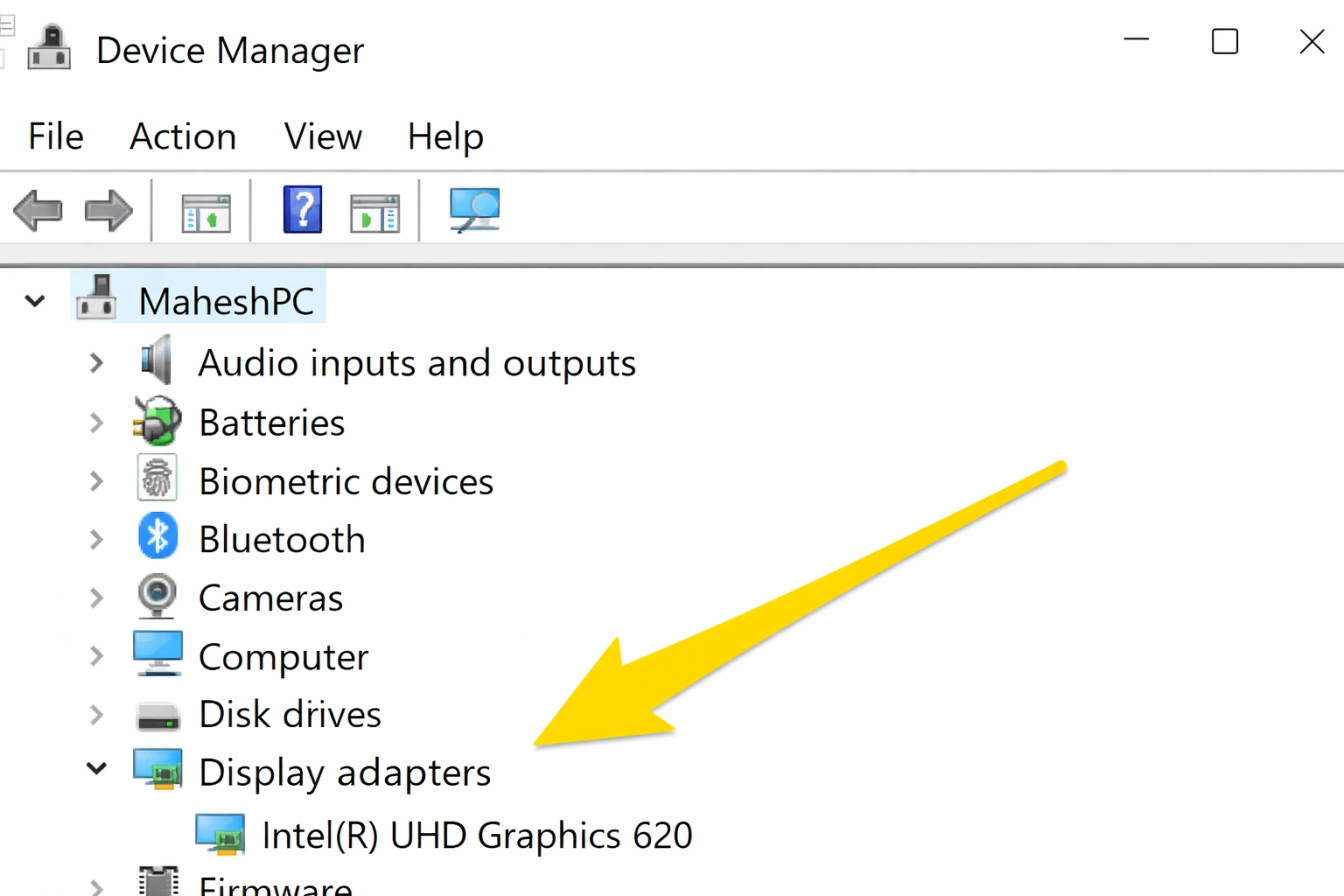
- Press Windows + X and select Device Manager
- Expand 'Display adapters'
- Right-click your graphics card and select 'Update driver'
- Choose 'Search automatically for drivers'
- If issues started after a driver update, right-click > Properties > Driver tab > 'Roll Back Driver'
💡 Tip: For NVIDIA or AMD graphics, download drivers directly from their websites for the latest optimizations. Intel graphics users should check Intel's Driver & Support Assistant.
9. Disable Hardware Acceleration in Apps
Hardware acceleration uses your GPU to improve performance but can drain battery faster. Disable it in apps you use frequently on battery power.
- In Chrome: Settings > System > Toggle off 'Use hardware acceleration when available'
- In Edge: Settings > System and performance > Toggle off 'Use hardware acceleration when available'
- In Discord: User Settings > Advanced > Toggle off 'Hardware Acceleration'
- In Spotify: Settings > Compatibility > Toggle off 'Enable hardware acceleration'
- Restart each app after making changes
💡 Tip: Disabling hardware acceleration may slightly reduce smoothness in videos and animations, but the battery savings are often worth it for laptop users.
10. Check for Power-Hungry Processes
Some processes consume excessive CPU or disk resources, draining battery quickly. Identify and manage these power-hungry apps.
- Open Settings > System > Power & battery
- Scroll down to 'Battery usage' section
- Click 'Battery usage' to see which apps use the most power
- Identify apps consuming high percentages
- Close, uninstall, or limit background access for power-hungry apps
💡 Tip: Common culprits include browser tabs with media, game launchers, cloud sync services, and antivirus software running full scans.
11. Disable Startup Programs
Programs that launch at startup continue running in the background, consuming resources and battery. Disable unnecessary startup apps.
- Press Ctrl + Shift + Esc to open Task Manager
- Click the 'Startup apps' tab
- Review each app and its 'Startup impact'
- Right-click apps you don't need at startup and select 'Disable'
- Focus on high-impact apps that you don't use immediately after booting
💡 Tip: Keep essential apps like security software enabled. Disable game launchers, cloud storage apps, and communication tools you can open manually when needed.
12. Run Windows Update and Check for Firmware Updates
Microsoft regularly releases updates that fix battery drain bugs. Additionally, laptop manufacturers release BIOS/firmware updates that optimize power management.
- Go to Settings > Windows Update
- Click 'Check for updates' and install all available updates
- After updating, restart your computer
- Visit your laptop manufacturer's website
- Download and install any BIOS or firmware updates for your model
💡 Tip: Pay attention to update release notes mentioning 'battery' or 'power management'. Some Windows updates specifically address known battery drain issues.
Bonus Tips for Maximum Battery Life
- Use dark mode: Dark themes use less power on OLED displays. Go to Settings > Personalization > Colors > Choose 'Dark'
- Close unused browser tabs: Each tab consumes memory and CPU resources
- Use the built-in video player: The Windows Films & TV app is more power-efficient than many third-party players
- Avoid extreme temperatures: Batteries degrade faster in very hot or cold environments
- Unplug unnecessary peripherals: USB devices draw power even when idle
- Consider a fresh Windows installation: If nothing else works, a clean install can resolve persistent battery issues
Summary: Best Practices for Windows 11 Battery Life
Combine these strategies for optimal battery performance:
- Check battery health regularly with powercfg /batteryreport
- Use Battery Saver mode when below 30%
- Set Power mode to 'Best power efficiency' on battery
- Keep screen brightness at 50% or lower
- Disable unnecessary background apps and startup programs
- Turn off location, Bluetooth, and Wi-Fi when not needed
- Keep Windows and drivers updated
- Monitor battery usage to identify power-hungry apps