
30 Outlook Tips and Tricks That Will Change How You Manage Email

Callum specializes in breaking down complex technology topics into easy-to-understand guides. He has a background in computer science and technical writing.
Microsoft Outlook is much more than an email client—it's a comprehensive productivity hub that can transform how you manage your work and personal communications. Yet most users barely scratch the surface of its capabilities, leaving powerful time-saving features untapped.
In this guide, we'll explore 30 Outlook tips and productivity hacks that will revolutionize your email workflow. From keyboard shortcuts that save hours each week to automation rules that handle repetitive tasks, you'll discover how to turn Outlook into your personal productivity powerhouse.
What You'll Learn
- 30 essential Outlook tips and keyboard shortcuts
- How to automate email management with rules
- Calendar and scheduling productivity tricks
- Advanced search and organization techniques
- Integration tips for Microsoft 365 apps
Table of Contents
1. Essential Keyboard Shortcuts
Mastering keyboard shortcuts is the fastest way to boost your Outlook productivity. These shortcuts alone can save you 30+ minutes daily:
| Keys | Action |
|---|---|
| Ctrl + N | New email message |
| Ctrl + R | Reply to email |
| Ctrl + Shift + R | Reply all |
| Ctrl + F | Forward email |
| Ctrl + Enter | Send email |
| Ctrl + Q | Mark as read |
| Ctrl + U | Mark as unread |
| Ctrl + Shift + G | Flag for follow-up |
| Ctrl + Shift + V | Move to folder |
| F7 | Spell check |
| Ctrl + Shift + M | New message from anywhere |
| Ctrl + 1 | Switch to Mail |
| Ctrl + 2 | Switch to Calendar |
| Ctrl + 3 | Switch to Contacts |
Pro Tip: Print this shortcut list and keep it near your desk. After a week of conscious practice, these shortcuts will become second nature.
2. Inbox Zero Strategy
Achieving and maintaining Inbox Zero isn't about obsessively clearing every email—it's about having a system that keeps you organized and reduces stress.
The 4 D's Method
For every email, decide: Delete, Do (if under 2 minutes), Delegate, or Defer (schedule for later).
Create Action Folders
Set up folders like @Action, @Waiting, @Reference, and @Someday/Maybe for quick sorting.
Process, Don't Check
Instead of constantly checking email, schedule 2-3 dedicated processing sessions per day.
Use Quick Steps
Create one-click actions for common tasks like 'Reply and Archive' or 'Forward to Team'.
3. Rules and Automation
Outlook rules can automatically handle repetitive email tasks, saving you hours each week. Here are the most useful automation setups:
Auto-Sort Newsletters
Create a rule to move emails from specific senders to a 'Newsletters' folder and mark as read.
Priority Flagging
Automatically flag emails from your manager or key clients for follow-up.
CC Archive
Move emails where you're CC'd (not To) to a 'FYI' folder for later review.
Meeting Requests
Auto-categorize meeting requests with a specific color for quick identification.
Subject Line Actions
Move emails with specific subject keywords (like 'Invoice' or 'Report') to designated folders.
How to Create a Rule
- Select an email you want to base the rule on
- Go to Home > Rules > Create Rule
- Choose conditions (sender, subject, etc.)
- Select actions (move, flag, categorize)
- Run the rule on existing messages if needed
4. Quick Steps Power User
Quick Steps combine multiple actions into a single click. Here are the most useful Quick Steps to create:
Reply & Archive
Opens reply, then moves original to archive after sending.
Forward to Team
Forwards to your team distribution list with a preset message.
Create Task from Email
Creates a task with the email content and moves email to @Waiting folder.
Schedule Follow-up
Flags email, sets reminder for 3 days, and moves to @Action folder.
Delegate & Track
Forwards email, flags for follow-up, and moves to @Waiting folder.
5. Calendar Productivity Tricks
Your Outlook calendar is a powerful scheduling tool when used correctly. These tips will maximize your time management:
Block Focus Time
Schedule recurring 'Focus Time' blocks where you decline meetings and concentrate on deep work.
Use Scheduling Assistant
When booking meetings with colleagues, use Scheduling Assistant to find optimal times instantly.
Color-Code Categories
Assign colors to meeting types: blue for internal, green for client, red for deadlines, etc.
Set Default Meeting Duration
Change default from 60 to 25 or 50 minutes to build in buffer time between meetings.
Add Time Zone Support
Display multiple time zones in calendar for international team coordination.
Use Room Finder
Quickly find available meeting rooms when scheduling in-person meetings.
6. Search Like a Pro
Outlook's search is incredibly powerful when you know the right operators. Stop scrolling through thousands of emails:
| Operator | Description |
|---|---|
| from:name | Find emails from specific sender |
| to:name | Find emails sent to specific recipient |
| subject:keyword | Search only in subject lines |
| hasattachment:yes | Find emails with attachments |
| received:today | Emails received today |
| received:lastweek | Emails from last week |
| sent:lastmonth | Emails you sent last month |
| category:blue | Find categorized emails |
| read:no | Find unread emails only |
| flagged:true | Find flagged emails |
Combined Search Example: from:boss hasattachment:yes received:lastweek - finds attachments from your boss sent last week.
7. Focused Inbox Mastery
Focused Inbox uses AI to separate important emails from the rest. Here's how to train it effectively:
- Right-click emails to 'Move to Focused' or 'Move to Other' to train the algorithm
- Important senders automatically get learned over time
- Check 'Other' inbox at scheduled times, not constantly
- Use rules in addition to Focused Inbox for granular control
- Turn off Focused Inbox if you prefer full manual control
8. Email Template Techniques
Stop rewriting the same emails over and over. Use these template strategies:
Quick Parts
Save frequently used text blocks. Select text > Insert > Quick Parts > Save Selection.
Email Templates
Save entire email formats: File > Save As > Outlook Template (.oft).
Signature Variations
Create multiple signatures for different purposes (formal, casual, sales, etc.).
AutoText
Use autocomplete for frequently typed phrases.
9. Notification Management
Constant notifications destroy productivity. Here's how to take back control:
- Turn off desktop alerts: File > Options > Mail > Message arrival
- Use Focus Assist in Windows to block notifications during focus time
- Disable sound notifications for non-urgent emails
- Keep notifications only for specific VIP senders
- Schedule 'email processing' times instead of reactive checking
- Use Outlook mobile notifications strategically (only for urgent emails)
10. Folder Organization System
A well-organized folder structure is key to managing high email volumes effectively:
| Folder | Purpose |
|---|---|
| 0-Inbox (Empty Goal) | Processing zone—emails move out after handling |
| 1-Action Required | Emails requiring your response or work |
| 2-Waiting For | Tracking delegated or pending items |
| 3-Reference | Important information to keep |
| 4-Archive | Completed items (searchable if needed) |
| Projects/[Name] | Subfolders for major ongoing projects |
Pro Tip: Use numbers at the start of folder names to keep them sorted in your preferred order.
11. Integration with Microsoft 365
Outlook works seamlessly with other Microsoft 365 apps. Leverage these integrations:
Teams
Reply to emails with a Teams meeting invitation instantly.
OneNote
Send emails directly to OneNote for permanent reference and notes.
To Do
Flag emails to automatically create tasks in Microsoft To Do.
SharePoint
Save attachments directly to SharePoint from email.
Planner
Create Planner tasks from emails for team project management.
12. Mobile Outlook Optimization
Make Outlook mobile work for you, not against you:
- Enable Focused Inbox on mobile to reduce notification noise
- Use swipe gestures for quick actions (archive, delete, flag)
- Set quiet hours to prevent notifications outside work hours
- Sync only essential folders to mobile for faster performance
- Use Cortana (or Siri) voice commands to send quick emails
- Enable 'Play My Emails' feature for audio email summaries while commuting
13. Advanced Tips for Power Users
Take your Outlook mastery to the next level with these advanced techniques:
Delayed Sending
Schedule emails to send later: Options > Delay Delivery. Perfect for respecting colleagues' off-hours.
Read Receipts Alternative
Use 'Request Read Receipt' sparingly. Better: ask recipients to confirm in the email body.
Conversation Clean Up
Home > Clean Up Conversation removes redundant replies, keeping only the latest.
Ignore Conversation
Remove yourself from email threads that no longer need your attention.
Conditional Formatting
Make emails from VIPs stand out with custom fonts/colors: View > View Settings > Conditional Formatting.
PST File Management
Archive old emails to PST files to improve Outlook performance.
14. Outlook Web vs Desktop Comparison
Know when to use which version for maximum efficiency:
| Feature | Desktop | Web |
|---|---|---|
| Rules Complexity | Advanced | Basic |
| Quick Steps | Full | Limited |
| Offline Access | Yes | Limited |
| Add-ins | Extensive | Growing |
| Performance | Faster | Browser-dependent |
| Updates | Periodic | Instant |
15. Security Best Practices
Protect yourself and your organization with these security habits:
- Enable multi-factor authentication (MFA) for your Microsoft account
- Never click links in suspicious emails—hover to preview URL first
- Use the 'Report Phishing' button for suspicious emails
- Encrypt sensitive emails: Options > Encrypt
- Don't auto-download external images in emails (prevents tracking)
- Regularly review connected apps and revoke unused permissions
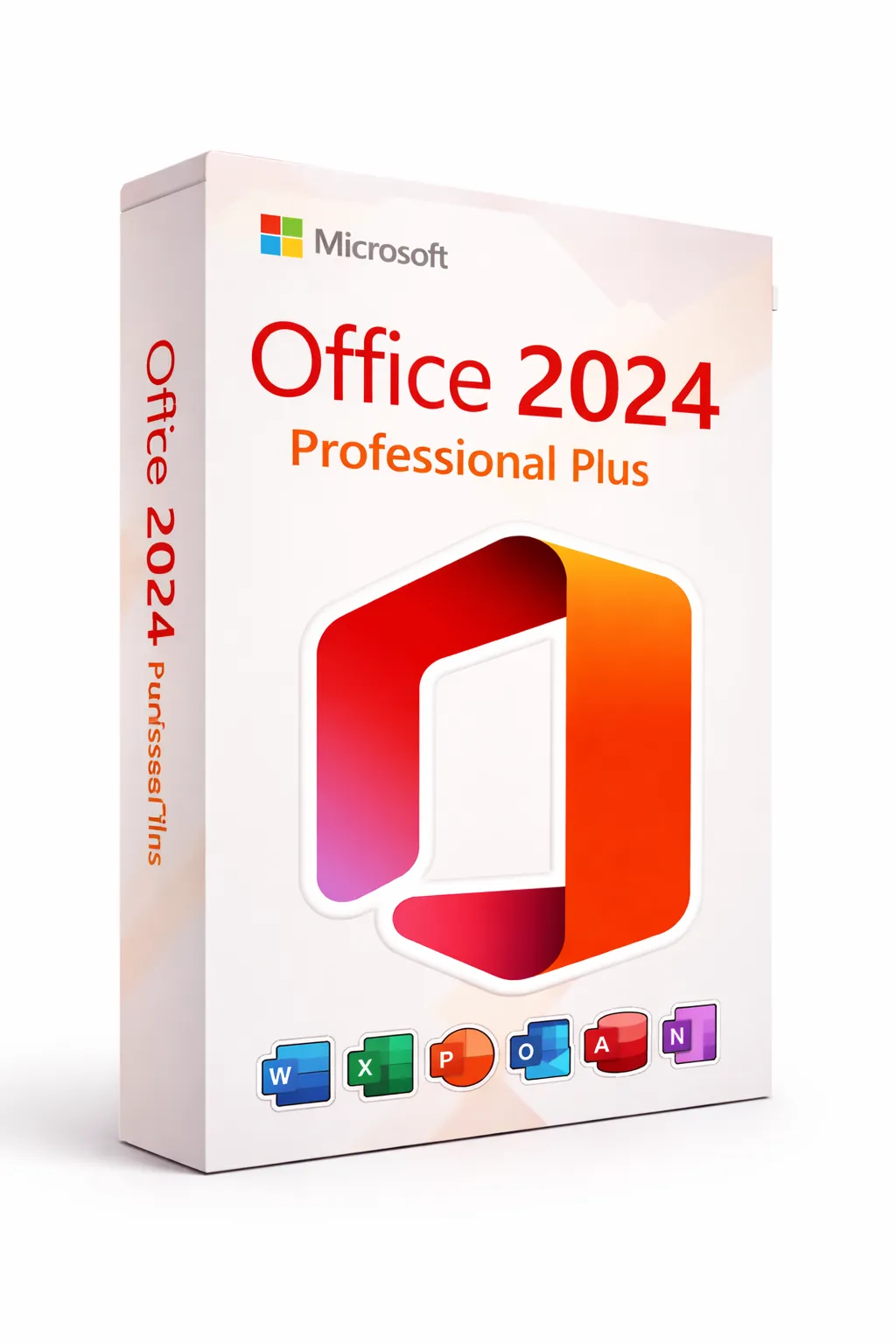
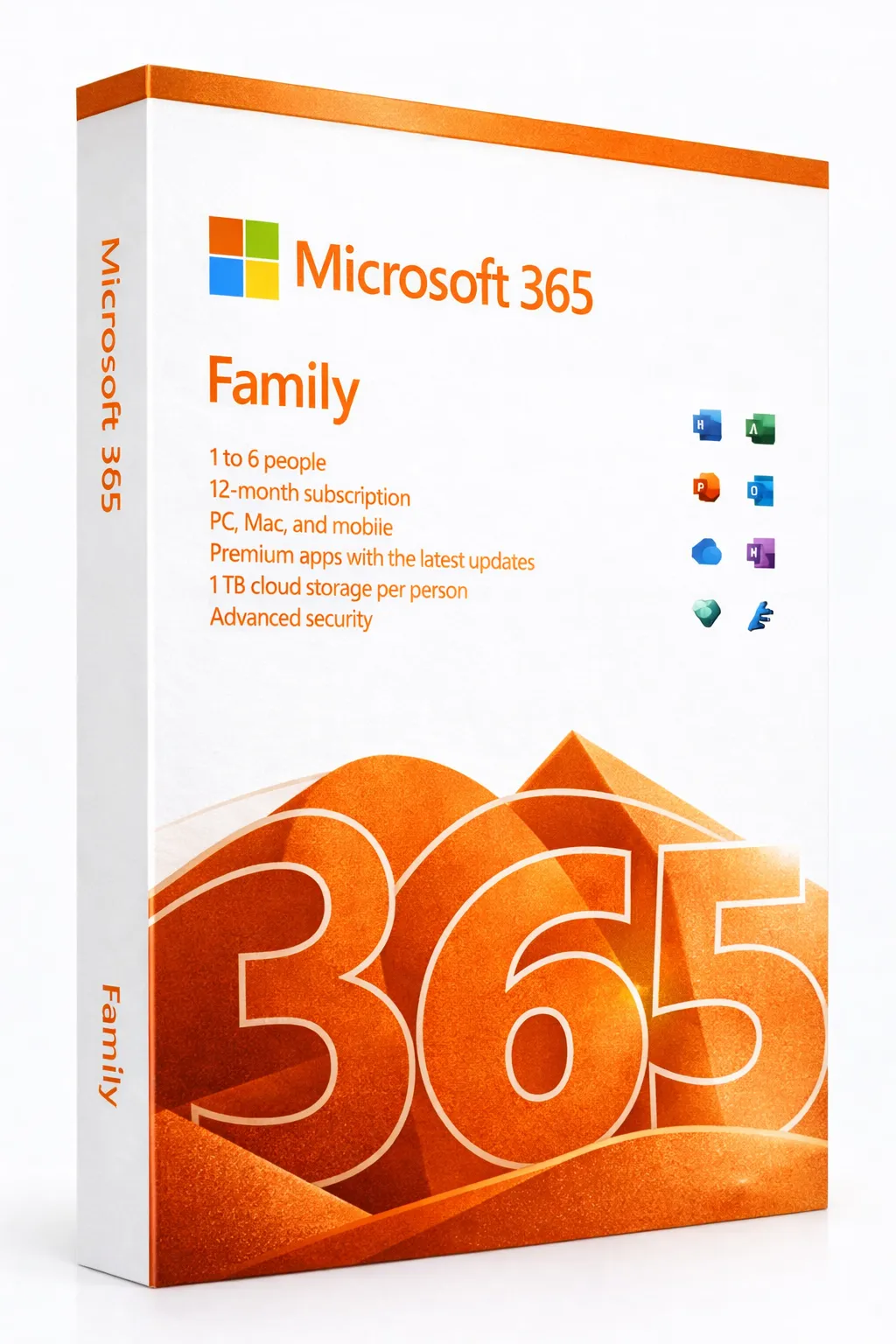
Get Microsoft Office for Maximum Productivity
Unlock the full power of Outlook with Microsoft Office 2024 or Microsoft 365. Get Word, Excel, PowerPoint, and more at unbeatable prices.
Frequently Asked Questions
How do I recall a sent email in Outlook?
Open your Sent Items, open the email, go to Message > Actions > Recall This Message. This only works if the recipient uses Exchange and hasn't read the email yet.
Why is my Outlook running slowly?
Common causes: large mailbox size, too many add-ins, outdated software, or corrupted OST file. Archive old emails, disable unnecessary add-ins, and run the Inbox Repair Tool (scanpst.exe).
How do I set up an out-of-office auto-reply?
Go to File > Automatic Replies (Out of Office). Set your date range, customize messages for internal and external senders, and enable.
Can I use Outlook without Microsoft 365?
Yes! You can buy Outlook as part of Office 2024 one-time purchase, which includes Word, Excel, PowerPoint, and Outlook without a subscription.
How do I sync Outlook with my phone?
Download the Outlook mobile app, sign in with your Microsoft account, and your mail, calendar, and contacts will sync automatically.
Mastering these 30 Outlook tips and productivity hacks will transform how you manage email and time. Start with the keyboard shortcuts and Quick Steps—they offer the biggest immediate impact. Then gradually implement rules, folder systems, and integrations. Within a few weeks, you'll wonder how you ever managed without these techniques.
Remember: The goal isn't to spend more time in Outlook—it's to spend less time while accomplishing more. Happy organizing!