
Microsoft Access for Beginners: Create Your First Database in 30 Minutes

Callum specializes in breaking down complex technology topics into easy-to-understand guides. He has a background in computer science and technical writing.
Microsoft Access for Beginners: Create Your First Database in 30 Minutes
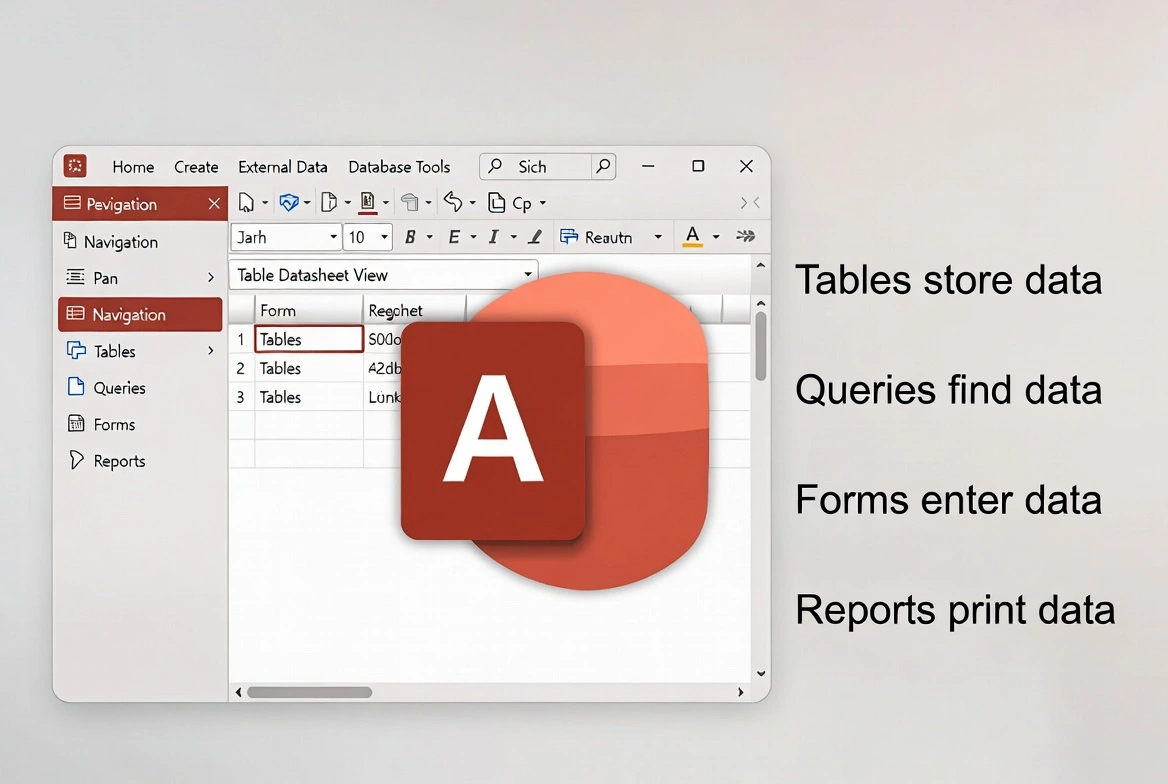
Microsoft Access is a powerful database management tool included in Microsoft 365. This comprehensive guide will teach you how to create your first functional database in just 30 minutes, even if you've never worked with databases before.
What is Microsoft Access?
Microsoft Access is a relational database management system (RDBMS) designed for users who need to organize and analyze large amounts of information without advanced programming knowledge.
Advantages of Microsoft Access
- Intuitive visual interface: Design databases without writing SQL code
- Microsoft 365 integration: Easily connect with Excel, Outlook, and SharePoint
- Pre-designed templates: Get started quickly with professional templates
- Customizable forms: Create attractive user interfaces
- Automated reports: Generate professional reports with one click
When to Use Access?
Access is ideal for small and medium businesses that need to manage inventories, customers, projects, or any type of structured information without investing in expensive enterprise solutions.
Prerequisites
Required Software
- Microsoft 365 (Personal, Family, or Business subscription)
- Microsoft Access 2019 or 2021 (standalone version)
- Windows 10 or 11 (Access is not available for Mac)
Recommended Knowledge
You don't need prior database experience. However, basic familiarity with Excel will help you understand concepts like rows, columns, and data organization.
Tip for beginners:
Think of an Access table as a more structured Excel spreadsheet, where each column has a specific data type and relationships between tables allow you to avoid duplicating information.
Create Your First Database
Step 1: Open Microsoft Access
- Open the Windows Start menu
- Search for "Microsoft Access" and click on the application
- Select "Blank database" to start from scratch
Step 2: Name and Save
- Enter a descriptive name (e.g., "CustomerManagement")
- Choose the location where you'll save the .accdb file
- Click "Create"
Step 3: Understand the Interface
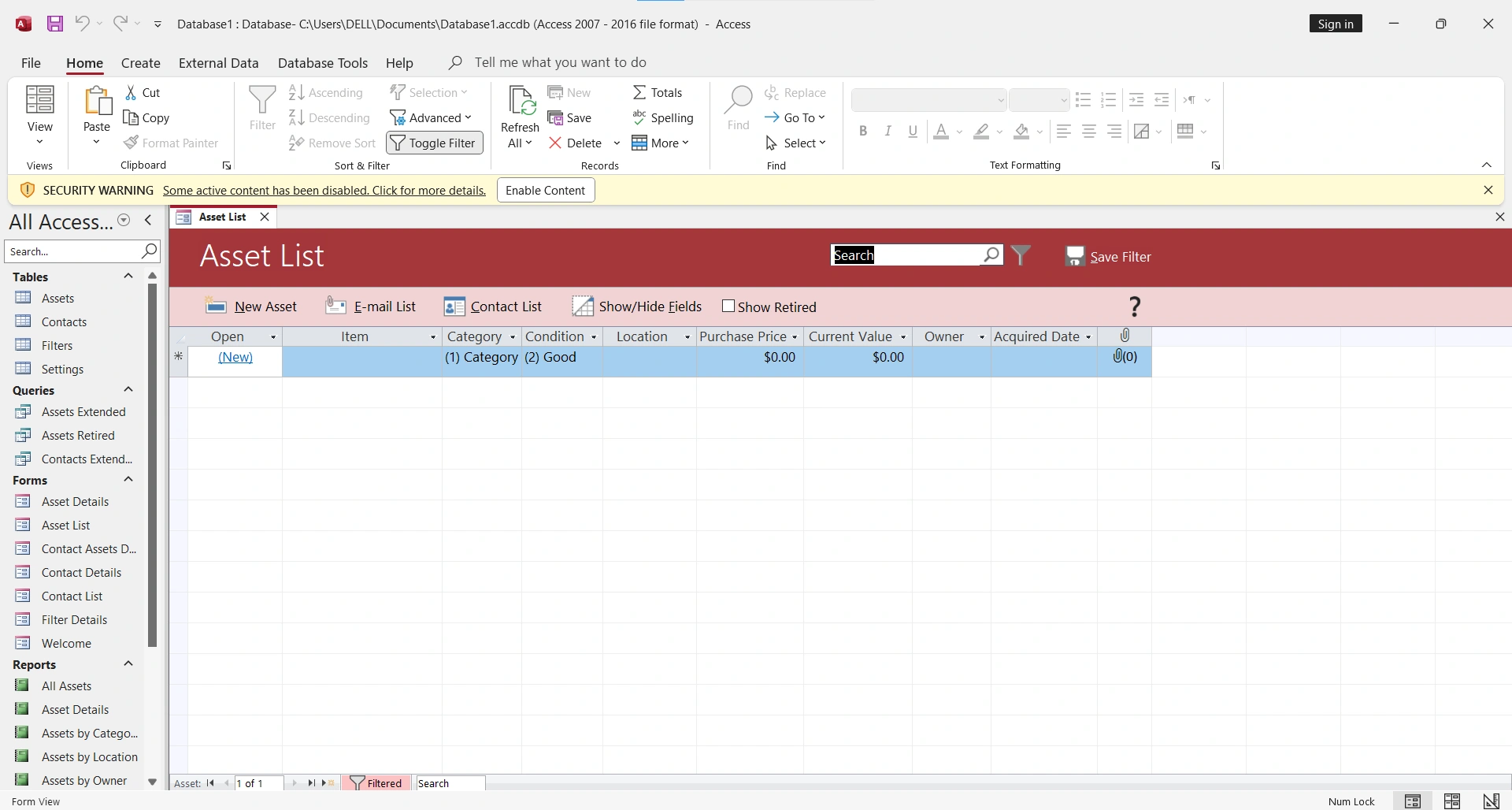
Access will automatically display an empty table called "Table1". The interface includes:
- Navigation Pane: Shows all objects in your database
- Ribbon: Tools organized by tabs
- Work Area: Where you design and view your objects
- Status Bar: Information about the current object
Design Effective Tables
Fundamental Concepts
- Field: A column that stores a specific type of information
- Record: A row containing all data for one item
- Primary Key: A unique field that identifies each record
- Data Type: Defines what kind of information a field can store
Common Data Types
| Type | Use | Example |
|---|---|---|
| Short Text | Names, codes | John Smith |
| Long Text | Descriptions, notes | Extended comments |
| Number | Quantities, IDs | 150, 2500 |
| Currency | Prices, salaries | $1,250.00 |
| Date/Time | Dates, timestamps | 03/15/2024 |
| Yes/No | Boolean states | Active/Inactive |
| AutoNumber | Automatic IDs | 1, 2, 3... |
Create Your First Table: Customers
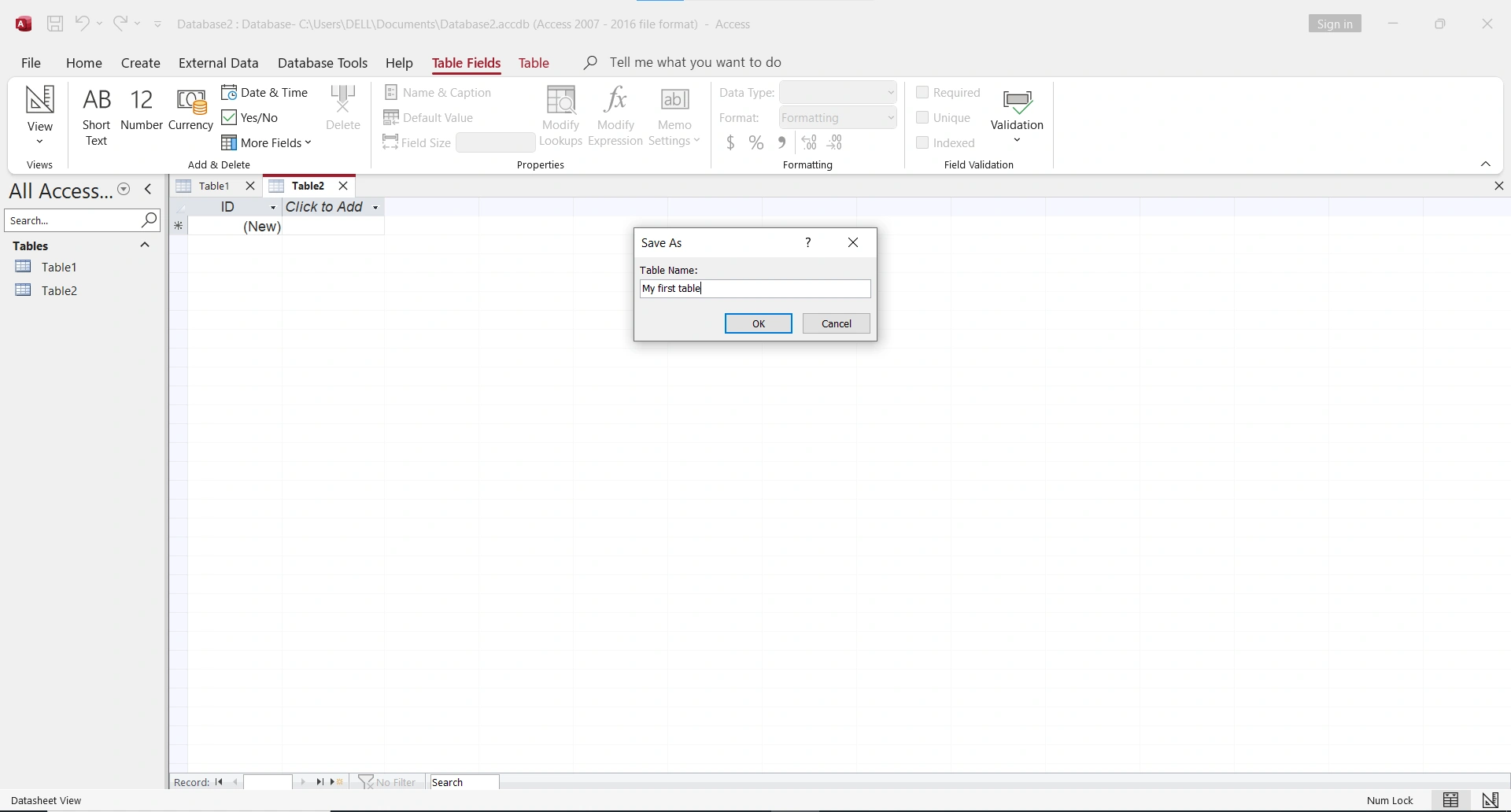
- Right-click on "Table1" → "Design View"
- Save the table as "Customers"
- Add the following fields:
- CustomerID (AutoNumber) - Primary Key
- FirstName (Short Text, 50 characters)
- LastName (Short Text, 50 characters)
- Email (Short Text, 100 characters)
- Phone (Short Text, 20 characters)
- RegistrationDate (Date/Time)
- Active (Yes/No)
- Save changes with Ctrl+S
Establish Relationships
Why Are Relationships Important?
Relationships connect tables to each other, allowing you to organize information efficiently and avoid data duplication.
Types of Relationships
- One-to-many (1:N): One customer can have many orders
- One-to-one (1:1): One employee has one unique file
- Many-to-many (N:N): Students and courses (requires junction table)
Create a Relationship
- Create a second table "Orders" with: OrderID, CustomerID, Date, Total
- Go to Database Tools → Relationships
- Add both tables to the diagram
- Drag CustomerID from Customers to CustomerID in Orders
- Check "Enforce Referential Integrity"
- Click "Create"
Create Data Entry Forms
Why Use Forms?
Forms provide a user-friendly interface for entering and editing data, reducing errors and improving user experience.
Create a Quick Form
- Select the "Customers" table in the Navigation Pane
- Go to Create → Form
- Access automatically generates a basic form
- Save it as "CustomerForm"
Customize the Form
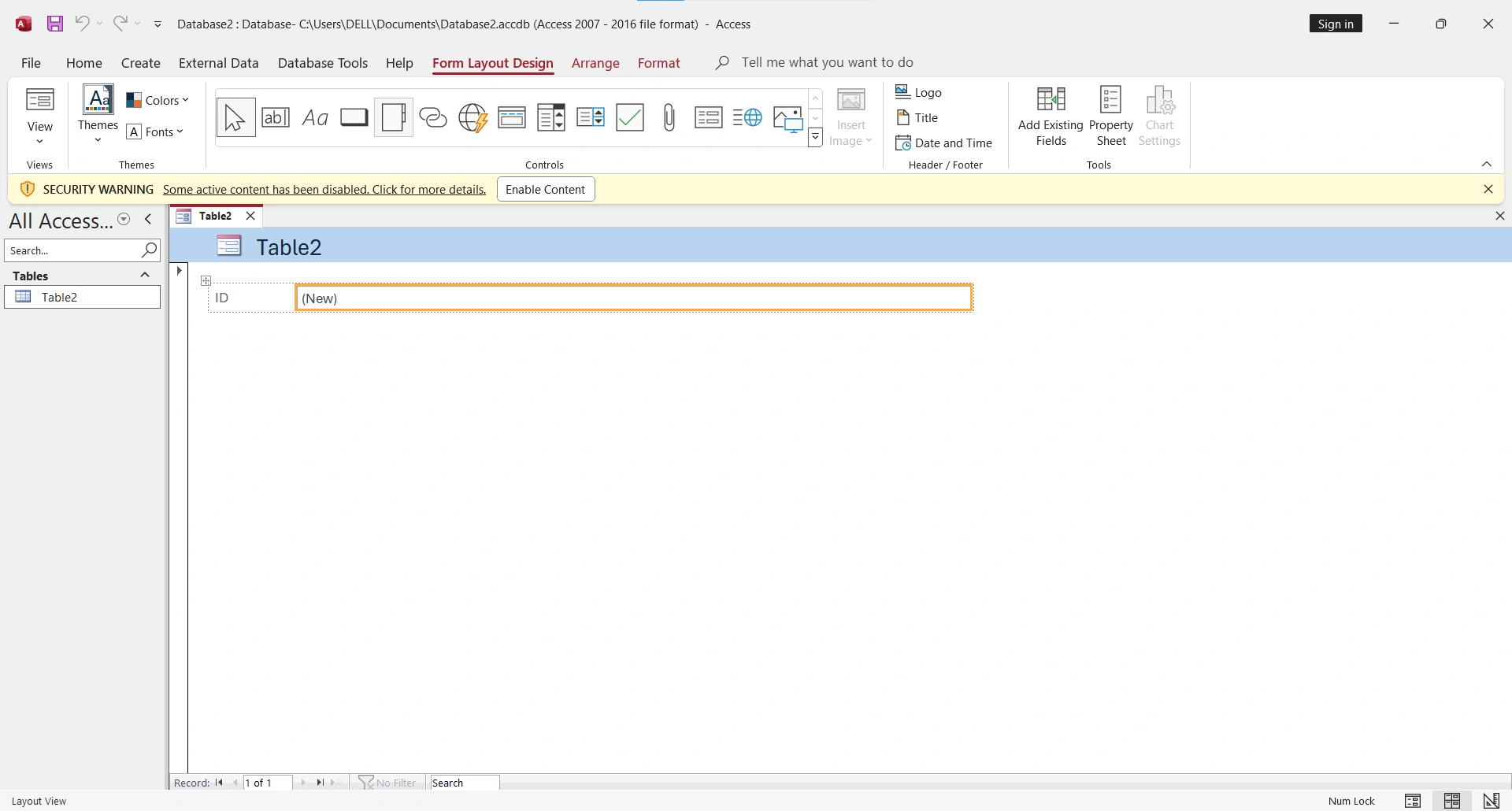
- Switch to Design View to modify the layout
- Drag fields to reorganize them
- Change colors and fonts from the Format tab
- Add titles and logos to professionalize
Basic Queries
What Are Queries?
Queries allow you to filter, sort, and combine data from one or more tables to obtain specific information.
Create a Select Query
- Go to Create → Query Design
- Add the Customers table
- Double-click on the fields you want to see
- In the "Criteria" row, type conditions (e.g., "=Yes" for Active)
- Run the query with the Run button
Examples of Criteria
- Exact text: "New York"
- Contains: Like "*gmail*"
- Date range: Between #01/01/2024# And #12/31/2024#
- Greater than: >1000
- Null values: Is Null
Generate Reports
Create a Basic Report
- Select the source table or query
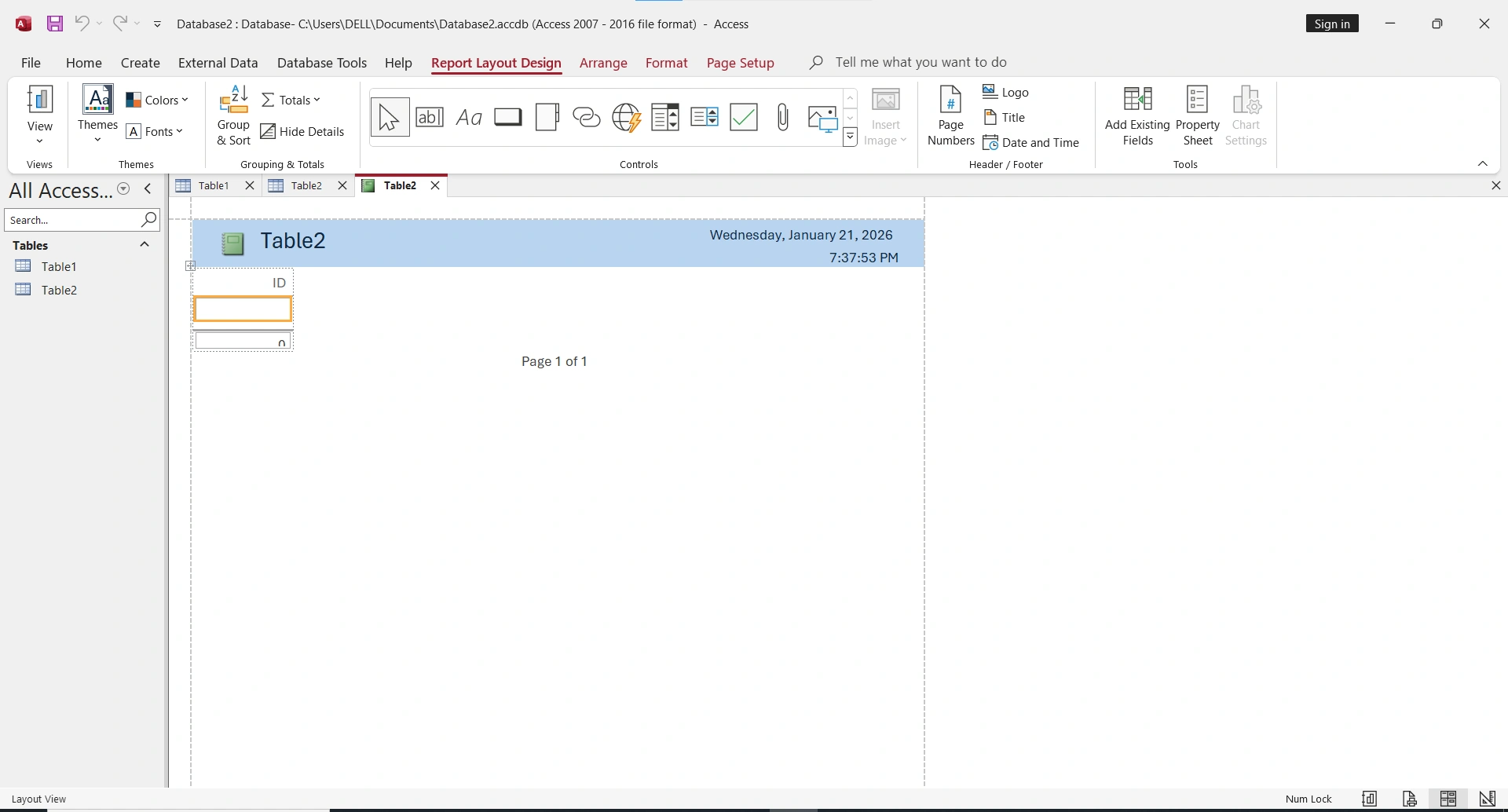
- Go to Create → Report
- Access generates a printable report
- Customize in Design View
Use the Report Wizard
- Create → Report Wizard
- Select the fields to include
- Choose grouping levels
- Define sort order
- Select a layout and style
- Name and save the report
Best Practices for Beginners
Database Design
- Plan before creating: Draw a diagram of your tables and relationships
- Normalize your data: Avoid repeating information in multiple places
- Use descriptive names: "RegistrationDate" is better than "RD"
- Define primary keys: Every table should have a unique identifier
Security and Maintenance
- Make backups: Save regular copies of the .accdb file
- Compact the database: File → Compact and Repair
- Limit access: Use passwords for sensitive databases
- Document your work: Add descriptions to tables and fields
Performance
- Index search fields: Speed up frequent queries
- Avoid calculated fields in tables: Use queries for calculations
- Limit data in forms: Use filters to show only what's needed
Summary: Your First Database in 30 Minutes
- 1. Create a blank database (2 min)
- 2. Design your main table with appropriate fields (8 min)
- 3. Add a related table and establish the relationship (5 min)
- 4. Create a form for data entry (5 min)
- 5. Design a basic query (5 min)
- 6. Generate a simple report (5 min)
Conclusion
Microsoft Access is an accessible and powerful tool for managing structured information. With the basic concepts you've learned in this guide, you can create functional databases for your business, personal projects, or education.
Practice creating different types of tables, experiment with queries, and don't be afraid to make mistakes: it's the best way to learn. As you become familiar with Access, you'll discover more advanced features like macros, VBA modules, and external data connections.