
Microsoft Publisher: Best Templates for Newsletters, Flyers & Business Cards

Callum specializes in breaking down complex technology topics into easy-to-understand guides. He has a background in computer science and technical writing.
Microsoft Publisher: Best Templates for Newsletters, Flyers & Business Cards
Create stunning professional print materials with Microsoft Publisher templates. From informative newsletters to elegant business cards, learn to design like a professional.
Table of Contents
Microsoft Publisher is Microsoft's desktop publishing tool, perfect for creating professional print publications without any graphic design experience. With its extensive template library and intuitive tools, you can produce newsletters, flyers, business cards, brochures, and much more in minutes.
Unlike Word, which is primarily designed for text documents, Publisher offers precise control over element positioning, advanced image handling, and specific tools for creating professional-quality print materials.
Did You Know?
Microsoft Publisher includes over 2,000 pre-designed templates with access to thousands more through Office.com. Each template is fully customizable and optimized for professional printing.
Why Choose Microsoft Publisher?
Key Advantages
- Familiar interface: If you know Word or Excel, Publisher will feel intuitive
- Thousands of templates: Professional designs for any occasion
- Precise control: Exact element positioning for print
- Office integration: Import data from Excel, charts, and more
Ideal For
- Small businesses: Professional marketing without hiring designers
- Non-profits: Quality materials on a limited budget
- Education: School newsletters and teaching materials
- Events: Invitations, programs, and promotional materials
| Feature | Publisher | Word | Canva |
|---|---|---|---|
| Specialized templates | ✓ Excellent | ○ Limited | ✓ Excellent |
| Print control | ✓ Professional | ○ Basic | ○ Limited |
| Offline work | ✓ Full | ✓ Full | ✗ Requires internet |
| Data integration | ✓ Excel, Access | ✓ Excel | ○ Limited |
Newsletter Templates
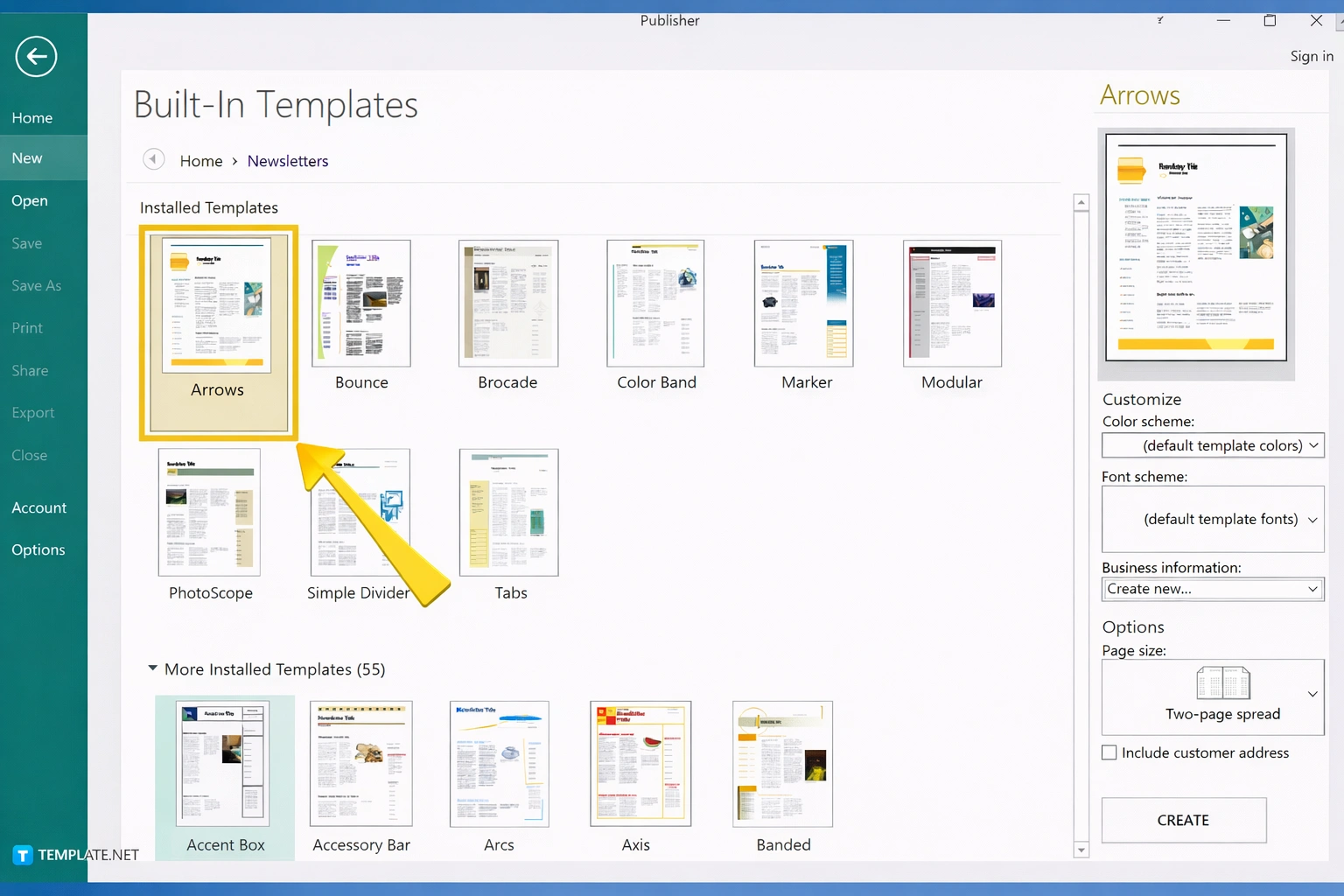
Newsletters are an essential communication tool for keeping customers, employees, or community members informed. Publisher offers templates for 1-4 page newsletters with designs ranging from corporate to creative.
Types of Newsletter Templates
Corporate Newsletters
Professional designs for internal and external business communications.
- • Company updates
- • Industry news
- • Team achievements
School Newsletters
Colorful and friendly templates for schools and educational centers.
- • Monthly events
- • Student achievements
- • School calendar
Community Newsletters
Accessible designs for neighborhood associations and local groups.
- • Neighborhood news
- • Community events
- • Service information
Church Bulletins
Elegant templates for religious organizations and events.
- • Service schedules
- • Special events
- • Inspirational messages
How to Create a Newsletter in Publisher
Open Publisher and select "Newsletters"
On the start screen, browse the newsletter category or use search
Choose a template that fits your style
Preview multiple options before deciding
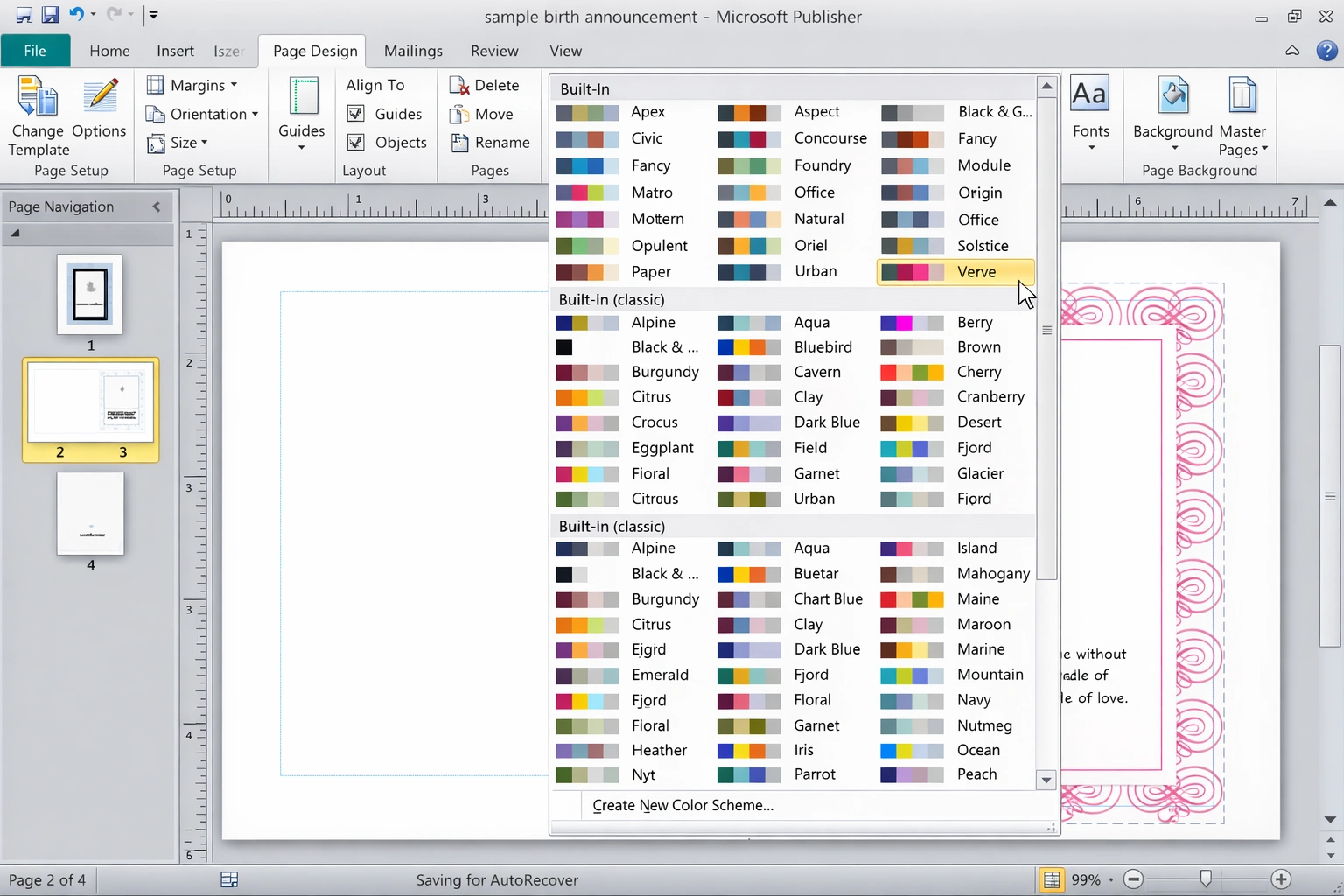
Customize the color scheme
Use Page Design → Schemes to change colors to match your brand
Replace placeholder text and images
Click on each element to edit it with your content
Review and save your work
Use Print Preview to verify before printing or exporting
Tips for Effective Newsletters
- ✓Consistency: Maintain the same design in each issue to build brand recognition
- ✓Quality images: Use minimum 300 DPI images for sharp printing
- ✓Limited typography: Use maximum 2-3 different fonts to maintain readability
- ✓Calls to action: Include clear instructions on what to do after reading
- ✓White space: Do not fill every space; let the design breathe
Flyer Templates
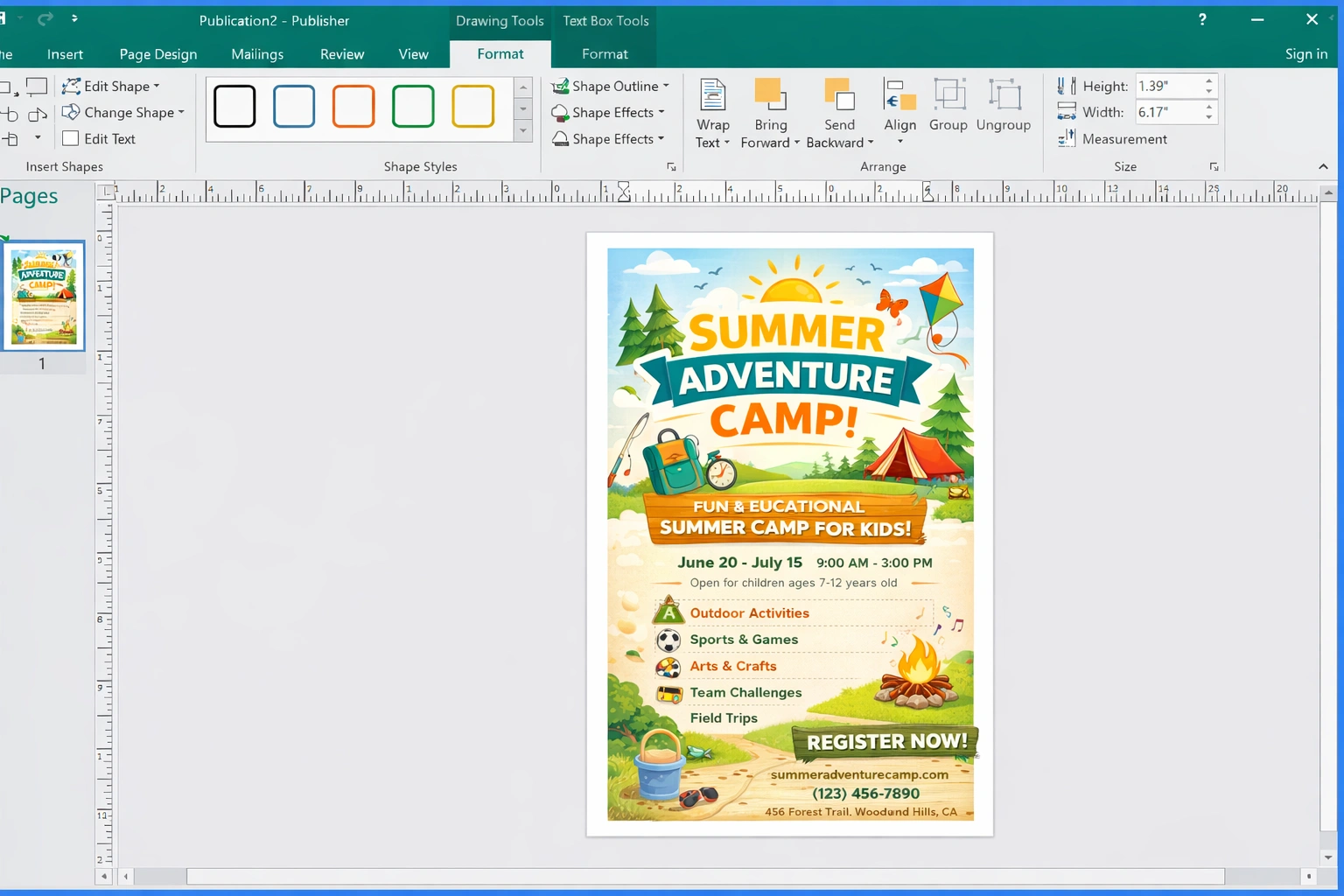
Flyers are perfect for promoting events, products, services, or important information quickly and economically. Publisher includes single-page flyer templates in various sizes and orientations.
| Flyer Type | Best Use | Recommended Size |
|---|---|---|
| Promotional | Sales, discounts, special offers | Letter (8.5" x 11") |
| Event | Concerts, fairs, meetings, parties | Half Letter (5.5" x 8.5") |
| Informational | Announcements, news, important notices | Letter (8.5" x 11") |
| Menu | Restaurants, cafes, catering services | Legal (8.5" x 14") |
| Real Estate | Properties for sale or rent | Letter (8.5" x 11") |
How to Create an Impactful Flyer
Define your main message
A clear and concise headline that captures attention in less than 3 seconds
Select an appropriate template
Choose a design that reflects the tone of your message (formal, fun, urgent)
Use a dominant image
One large, attractive image can be more effective than lots of text
Include essential information
What, when, where, price (if applicable), and how to contact
Add a clear call to action
"Call now," "Visit us today," "Reserve your spot"
Do
- • Use contrasting colors for the headline
- • Keep text to the necessary minimum
- • Include visible contact information
- • Use high-resolution images
- • Create clear visual hierarchy
Avoid
- • Too many different fonts
- • Small text that is hard to read
- • Pixelated or blurry images
- • Too much information in little space
- • Colors that do not contrast well
Business Card Templates
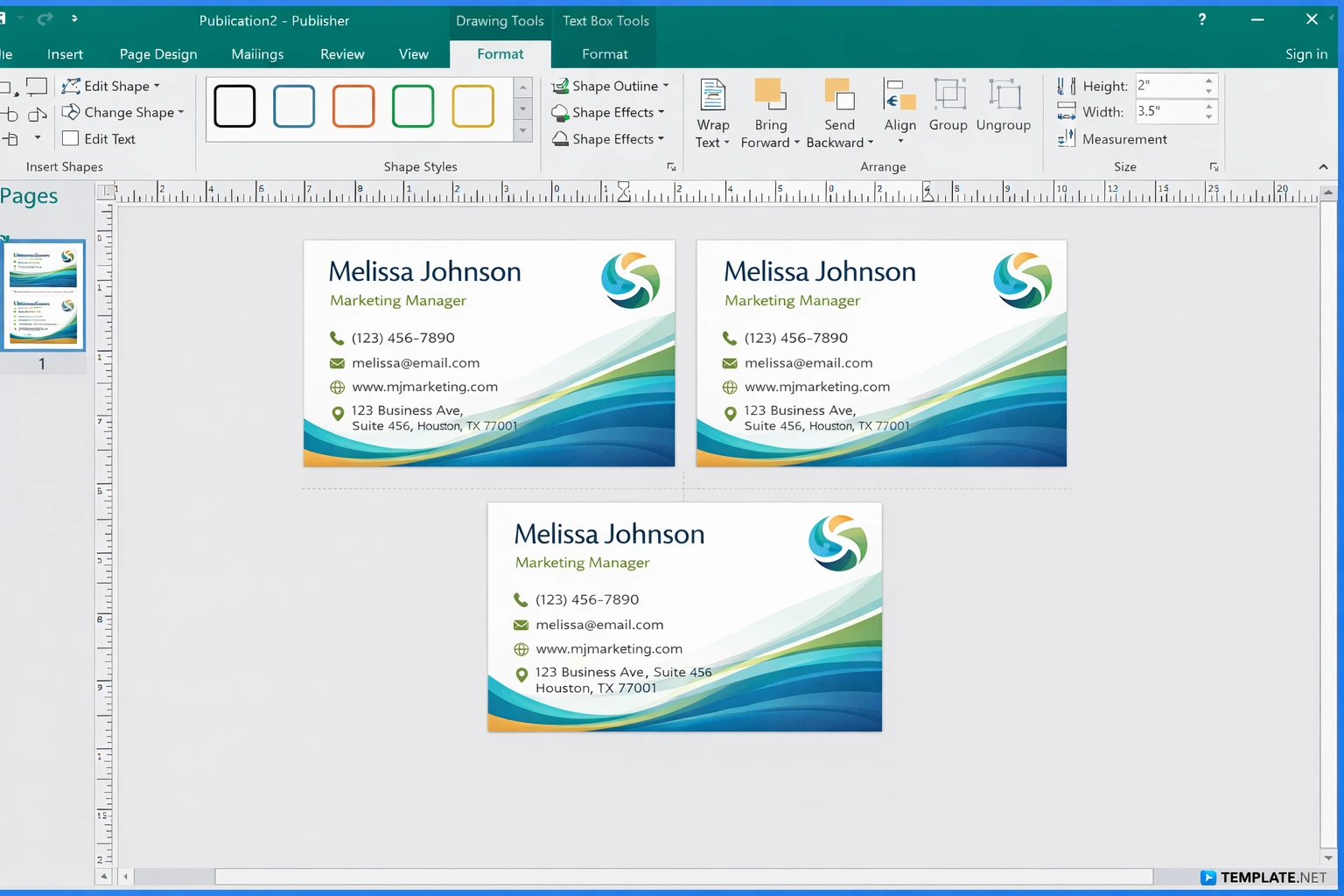
Business cards remain essential for professional networking. Publisher allows you to create customized cards that you can print at home or easily send to a professional printer.
Standard Business Card Size
The standard business card size is 3.5" x 2" (8.9 cm x 5.1 cm). Publisher includes pre-configured templates with this size and safety margins for printing.
North America Standard
Europe Standard
Professional Styles
- • Minimalist corporate
- • Elegant with gold borders
- • Modern with gradients
- • Classic with serif typography
- • Executive in dark tones
Creative Styles
- • Artistic with illustrations
- • Photographic with background image
- • Abstract geometric
- • Vertical orientation
- • Rounded borders
By Industry
- • Technology and startups
- • Professional services
- • Health and wellness
- • Construction and real estate
- • Restaurants and hospitality
Essential Business Card Elements
Full name
Job title
Direct line
Professional email
Brand or company
Tips for Memorable Cards
- ✓Less is more: Do not overload the card with too much information
- ✓Quality paper: Use cardstock of at least 300 gsm for a premium feel
- ✓Consider the back: Use both sides for more information or design
- ✓QR Code: Add a QR code for your website or LinkedIn
Other Popular Templates
Besides newsletters, flyers, and business cards, Publisher includes templates for a wide variety of print materials. Here are some of the most popular:
Postcards
Promotional, thank you, seasonal. Perfect for direct mail campaigns.
Brochures
Tri-folds and bi-folds to present services, products, or detailed information.
Calendars
Wall, desk, or pocket calendars. Customizable with your own images.
Labels
For products, addresses, organization. Compatible with standard label sheets.
Invitations
Weddings, birthdays, corporate events. Elegant and customizable designs.
Menus
Restaurants, cafes, events. Various formats and styles available.
Template Customization
All Publisher templates are fully customizable. Here are the main customization tools available:
Color Schemes
Change all template colors with a single click using predefined schemes or create your own custom scheme.
Access: Page Design → Schemes → Colors
Font Schemes
Apply pre-designed professional font combinations that work well together for headings and body text.
Access: Page Design → Schemes → Fonts
Images and Graphics
Replace placeholder images with your own. Publisher automatically adjusts size and position to maintain the design.
Tip: Right-click on image → Change Picture
Layout and Arrangement
Move, resize, and rearrange elements freely. Use guides and grids to perfectly align each component.
Access: View → Guides → Baseline Guides
Save Your Custom Template
Once you customize a template to your liking, save it as a custom template to reuse in future projects:
- 1.File → Save As
- 2.Change file type to "Publisher Template (*.pub)"
- 3.Give it a descriptive name and save
Printing & Export Settings
Home Printing
- •Paper: Use high-quality paper (80-100 gsm for documents, 200+ gsm for cards)
- •Quality: Select "High Quality" or "Photo" in printer options
- •Preview: Always verify the preview before printing
- •Test: Print a test page on regular paper first
Export for Professional Printing
- •Format: Export as high-quality PDF
- •Bleed: Include 3mm bleed margins
- •Colors: Convert to CMYK if the printer requires it
- •Fonts: Embed all fonts in the PDF
Steps to Export Professional PDF
File → Export
Select the export option in the main menu
Create PDF/XPS Document
Choose this option to generate a PDF
Click "Options"
Access advanced export settings
Select "High quality printing"
This option optimizes the file for professional printing
Save the file
Choose a location and save your print-ready PDF
Available Export Formats
Professional printing
Web with transparency
Photos and web
Web publishing
Professional Design Tips
Visual Hierarchy
Organize elements by importance to guide the reader's eye:
- 1.Main headline: The largest, most eye-catching element
- 2.Main image: Attracts attention visually
- 3.Subheadings: Organize secondary content
- 4.Body text: Supporting information
- 5.Contact/CTA: How to take action after reading
Color Usage
Color communicates emotions and reinforces your brand:
- Blue: Trust, professionalism, technology
- Red: Urgency, passion, sales
- Green: Nature, health, money
- Yellow: Optimism, attention, caution
- Purple: Luxury, creativity, spirituality
Rule of Thirds
Mentally divide your design into a 3x3 grid. Place the most important elements at the intersections of these lines to create more dynamic and attractive compositions that naturally capture the viewer's attention.
Common Mistakes to Avoid
Using low-resolution images
Web images (72 DPI) look pixelated when printed. Always use minimum 300 DPI images for print materials.
Overloading the design
White space is your friend. Do not try to fill every inch; let the design breathe.
Too many different fonts
Limit yourself to 2-3 fonts maximum. Using more creates a chaotic and unprofessional appearance.
Ignoring safety margins
Keep text and important elements away from the edge. Printers may cut slightly outside the marks.
Not checking spelling
Use the spell checker (F7) and ask someone else to review. Printed errors are permanent and costly.
Master Publication Creation
Microsoft Publisher gives you all the tools needed to create professional print materials without being a graphic designer. With the right templates and these tips, you can produce newsletters, flyers, and business cards that will impress your audience.
Remember that the key is brand consistency, quality images, and clear messaging. Start exploring Publisher templates and take your marketing materials to the next level!