
Microsoft Office for Mac: Complete Guide to Installation and Features

Callum specializes in breaking down complex technology topics into easy-to-understand guides. He has a background in computer science and technical writing.
Looking for Microsoft Office for Mac? This complete guide covers everything about Office installation on Mac, from system requirements to optimization tips. Whether you want to download Office for Mac or need help with Microsoft 365 activation on Mac, you'll find all your answers here.
📋 Table of Contents
What is Microsoft Office for Mac?
Microsoft Office for Mac is the world's most popular productivity suite, optimized specifically for the macOS operating system. This native version offers the same power and functionality as the Windows version, but with an interface designed to integrate seamlessly with your Mac.
Unlike web alternatives or third-party applications, Office for Mac provides complete compatibility with Windows documents, access to all advanced features, and a smooth experience that leverages unique macOS capabilities like Touch Bar, Handoff, and iCloud integration.
Office Versions Available for Mac
Microsoft offers several options for Mac users. Choosing the right one depends on your needs and budget:
Microsoft 365 (Subscription)
Complete access to Word, Excel, PowerPoint, Outlook and more. Includes 1TB OneDrive storage and continuous updates.
- Always the latest version
- 1TB cloud storage
- Use on multiple devices
Office 2024 for Mac (Perpetual License)
One-time purchase, use forever. Ideal for those who prefer not to pay monthly subscriptions.
- One-time payment
- No monthly fees
- Core features included
Office 2021 for Mac
Previous version with excellent value for money. Perfect for users with basic needs.
- Lower price point
- Complete essential features
- Supported until 2026

System Requirements for Office on Mac
Before you install Microsoft Office on Mac, verify your system meets these minimum requirements:
Processor
Intel or Apple Silicon (M1, M2, M3). Office is optimized for Apple chips.
Operating System
macOS Monterey (12.0) or later for Office 2024/365.
Storage
Minimum 10GB free space. SSD recommended for best performance.
Connection
Internet required for download, activation, and updates.
How to Install Microsoft Office on Mac: Step-by-Step Guide
Follow these steps to download and install Office on your Mac correctly:
Get Your Office License
Purchase your Microsoft Office or Microsoft 365 product key from an authorized seller. You'll receive a 25-character code.
Access Your Microsoft Account
Go to account.microsoft.com and sign in. If you don't have an account, create one for free with your email.
Redeem Your Product Key
Go to "Services & subscriptions" → "Redeem a code" and enter your 25-character key.
Download the Installer
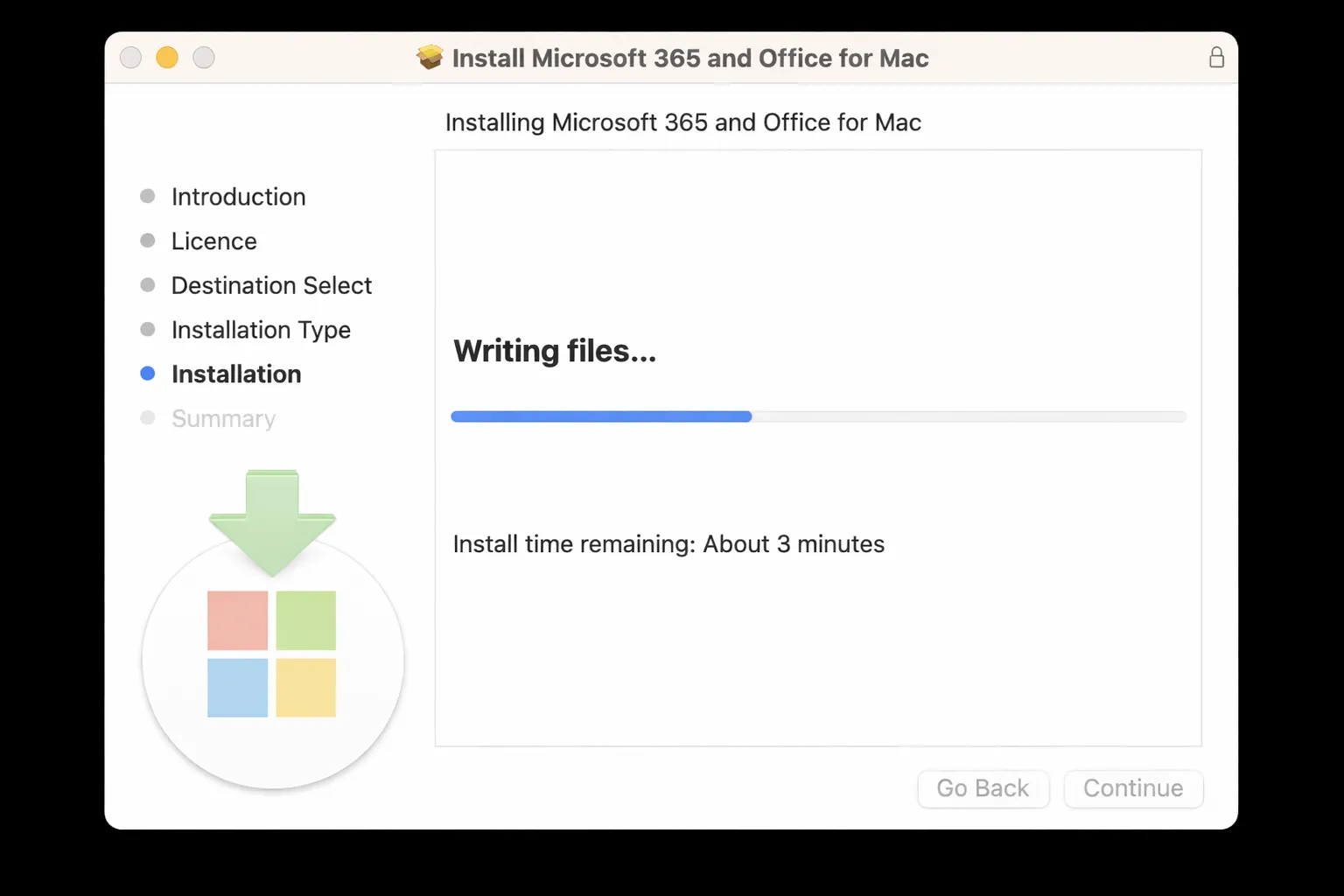
Click "Install Office" and download the .pkg file for Mac. The file is approximately 2GB.
Run the Installation
Open the downloaded file and follow the instructions. Accept permissions when macOS requests them.
Activate Office
Open any Office app (Word, Excel, etc.) and sign in with the same Microsoft account where you redeemed your key.
Applications Included in Office for Mac
Depending on your version, Microsoft Office for Mac includes these applications:
Microsoft Word
Professional word processor for documents, reports, letters and more. Includes collaborative editing tools.
Microsoft Excel
Powerful spreadsheets with advanced formulas, pivot tables, charts, and data analysis.
Microsoft PowerPoint
Create impactful presentations with professional templates, animations, and transitions.
Microsoft Outlook
Complete email client with integrated calendar, contacts, and task management.
Tips to Optimize Office on Mac
Get the most out of Microsoft Office on your Mac with these optimization tips:
- Keep Office updated: Go to Help → Check for Updates regularly to get the latest features and security fixes.
- Use keyboard shortcuts: Learn combinations like ⌘+S (save), ⌘+Z (undo), and ⌘+Shift+S (save as) to work faster.
- Enable AutoSave: Connect OneDrive to have your documents automatically saved to the cloud.
- Customize the toolbar: Add your most-used functions to the Quick Access Toolbar for greater productivity.
- Configure Touch Bar: If you have a MacBook Pro with Touch Bar, customize Office controls for quick access.
Troubleshooting Common Issues
Having problems with Office on Mac? Here are the most common solutions:
Office Won't Open or Freezes
Force quit the app (⌘+Option+Esc), delete cache files in ~/Library/Containers/com.microsoft.* and restart.
Activation Error
Sign out of your Microsoft account in all Office apps, restart your Mac, and sign back in.
Documents Not Syncing
Check your internet connection, close and reopen OneDrive, and ensure you have available cloud storage.
Slow Performance
Close documents and tabs you're not using, check for pending updates, and restart your Mac regularly.
Frequently Asked Questions
Can I use my Windows license on Mac?
Microsoft 365 licenses work on both platforms. Perpetual licenses (Office 2021/2024) are specific to each operating system.
Does Office for Mac work with Apple Silicon chips?
Yes, Microsoft Office is fully optimized for M1, M2, and M3. It runs natively without Rosetta 2, offering excellent performance.
Can I install Office on multiple Macs?
With Microsoft 365, you can install on up to 5 devices. Perpetual licenses are generally for a single device.
Are there differences between Office for Mac and Windows?
Core features are identical. Some advanced VBA and macro features may vary, but for 99% of users they're equivalent.