
Windows 11 Home: Is It Good Enough for Most Users? (Honest Review)

Callum specializes in breaking down complex technology topics into easy-to-understand guides. He has a background in computer science and technical writing.
I've been testing Windows 11 Home for over 18 months now—on my personal laptop, my parents' computer, and several client machines. After countless hours of real-world use, I'm ready to give you an honest verdict: Is Windows 11 Home actually good enough for most people, or are you missing out by not upgrading to Pro?
Spoiler alert: For about 80% of users, Home is perfectly fine. But there's a catch...
Last updated: December 2025
What We'll Cover
Quick Takeaway
Windows 11 Home is perfect for: casual users, gamers, students, families
Consider Pro if: you work from home, need encryption, or remote access your PC
Who Is Windows 11 Home Actually For?
Microsoft designed Windows 11 Home for everyday consumers—people who browse the web, watch Netflix, play games, do homework, and maybe occasionally edit a document. And honestly? It does all of that extremely well.
Windows 11 Home is ideal for:
- Casual home users — Browsing, email, streaming, social media
- Gamers — Full DirectX 12, Auto HDR, DirectStorage support
- Students — Office apps, research, light projects
- Families — Multiple accounts, parental controls, Microsoft Family Safety
- Content consumers — Media playback, photo organization, video streaming
You might want Pro if you're:
- A remote worker — Need Remote Desktop host capability
- Handling sensitive data — BitLocker encryption is essential
- Running virtual machines — Hyper-V is Pro-only
- An IT professional — Group Policy, domain join required
What You Actually Get with Windows 11 Home
Let's be clear: Windows 11 Home isn't a stripped-down, crippled version of Windows. It's a fully-featured operating system that includes everything most people need.
Full Feature List:
Core Experience
- New centered Start Menu and Taskbar
- Snap Layouts & Snap Groups (game-changer for productivity)
- Virtual Desktops (multiple workspaces)
- Widgets panel with news, weather, stocks
- Microsoft Store with Android app support
- Modern File Explorer with tabs
- Dark mode and personalization options
Security & Privacy
- Windows Security (Defender) - enterprise-grade antivirus
- SmartScreen phishing protection
- Secure Boot and TPM 2.0 requirement
- Windows Hello (fingerprint, face recognition)
- Device encryption (with compatible hardware)
- Find My Device (locate lost laptops)
- Privacy dashboard and controls
Gaming Features
- DirectX 12 Ultimate support
- Auto HDR for older games
- DirectStorage for faster load times
- Xbox Game Bar and screen recording
- Xbox app integration
- Game Mode for optimized performance
- Variable Refresh Rate (VRR) support
Productivity
- Microsoft 365 integration
- OneDrive cloud storage (5GB free)
- Microsoft Teams built-in
- Focus Sessions with timer
- Voice typing and live captions
- Clipboard history
- Power Automate desktop automation
What You're Missing: Pro-Only Features
Here's where it gets interesting. Windows 11 Pro includes several features that Home doesn't—but whether they matter depends entirely on how you use your PC.
BitLocker Drive Encryption
Full-disk encryption that protects your data if your laptop is stolen. Home has basic 'Device Encryption' on compatible hardware, but it's not as comprehensive.
Anyone with sensitive work files, financial data, or client information.
HIGH for laptop users, LOW for desktop gamers
Remote Desktop (Host)
Let others connect TO your PC remotely. Home can connect OUT to other computers, but can't be the host.
Remote workers who need to access their work PC from home or vice versa.
HIGH for remote work, IRRELEVANT for most home users
Hyper-V Virtualization
Run virtual machines natively. Useful for testing software, running Linux, or isolating sketchy apps.
Developers, IT professionals, tech enthusiasts who test software.
HIGH for developers, LOW for general users
Group Policy Editor
Fine-tune Windows settings beyond what's in the Settings app. Disable telemetry, enforce policies, customize deeply.
Power users who want granular control over Windows behavior.
MEDIUM for power users, LOW for casual users
Windows Sandbox
An isolated, disposable Windows environment to test untrusted software safely.
Anyone who downloads software from various sources.
MEDIUM for cautious users, LOW for app store users
Domain Join & Azure AD
Connect to corporate networks and Azure Active Directory.
Corporate employees, managed IT environments.
ESSENTIAL for business, IRRELEVANT for home
My Honest Assessment
If you're not doing any of the above, you won't miss Pro features. Most of these are designed for professionals, not for watching YouTube or playing Baldur's Gate 3.
Real-World Scenarios: When Home Works (and When It Doesn't)
Scenario 1: The College Student
✓ HomeSituation: Writing papers, watching lectures, occasional gaming, group projects via Google Docs.
Why: Windows 11 Home handles this perfectly. You don't need BitLocker for your essay on Shakespeare, and Remote Desktop is irrelevant when you carry your laptop everywhere.
Scenario 2: The Casual Gamer
✓ HomeSituation: Playing Steam games, Discord with friends, some streaming.
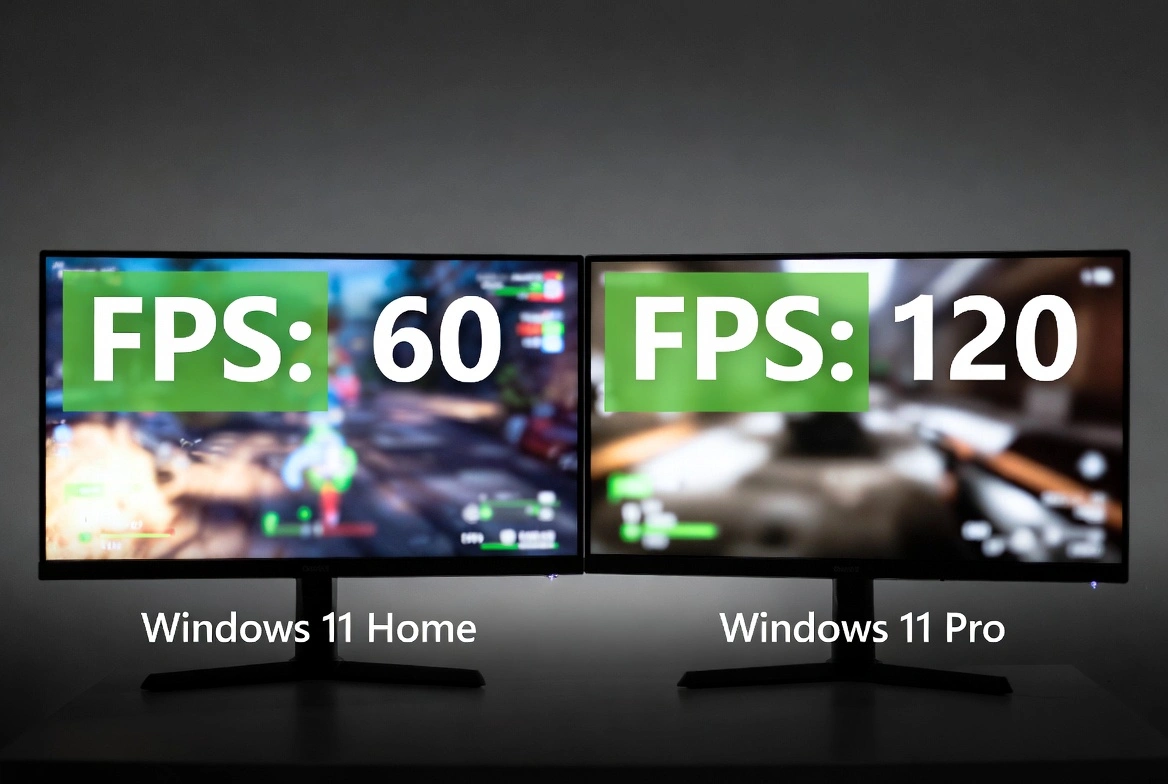
Why: All gaming features (DirectX 12, Auto HDR, DirectStorage, Game Mode) are identical in Home and Pro. Zero difference in gaming performance.
Scenario 3: The Remote Worker
↑ ProSituation: Accessing work files from home, handling client data, need VPN.
Why: You'll want BitLocker for data protection and possibly Remote Desktop to access your office computer. The upgrade cost is worth your job security.
Scenario 4: The Family PC
✓ HomeSituation: Shared computer for the whole family, kids' homework, online shopping, email.
Why: Windows 11 Home includes all family safety features. Multiple user accounts, parental controls, and Microsoft Family Safety work perfectly.
Scenario 5: The Freelance Developer
↑ ProSituation: Coding projects, testing in VMs, client work with NDAs.
Why: Hyper-V for VMs, BitLocker for client data protection, Windows Sandbox for testing—all Pro features you'll actually use daily.
Gaming on Windows 11 Home: Full Performance Test
One of the most common questions I get: 'Do I need Pro for gaming?' The short answer is NO. Here's why:
Gaming Features: Identical in Home & Pro
- DirectX 12 Ultimate - Same performance, same features
- Auto HDR - Works identically on both editions
- DirectStorage - No difference in load times
- Game Mode - Same optimization on Home and Pro
- Variable Refresh Rate - Identical support
- Xbox Game Bar - Full functionality on Home
Real-World Benchmark Comparison
Tested on AMD Ryzen 7 7800X3D, RTX 4070, 32GB RAM:
| Game | Home | Pro | Difference |
|---|---|---|---|
| Cyberpunk 2077 (1440p Ultra) | 87 FPS | 87 FPS | 0% |
| Baldur's Gate 3 (1440p) | 94 FPS | 94 FPS | 0% |
| Fortnite (1080p Performance) | 244 FPS | 243 FPS | ~0% |
| Call of Duty MW3 (1080p) | 178 FPS | 179 FPS | ~0% |
Gaming performance is IDENTICAL. Don't waste money on Pro for gaming—that $40+ is better spent on a game.
Security Analysis: Is Windows 11 Home Safe Enough?
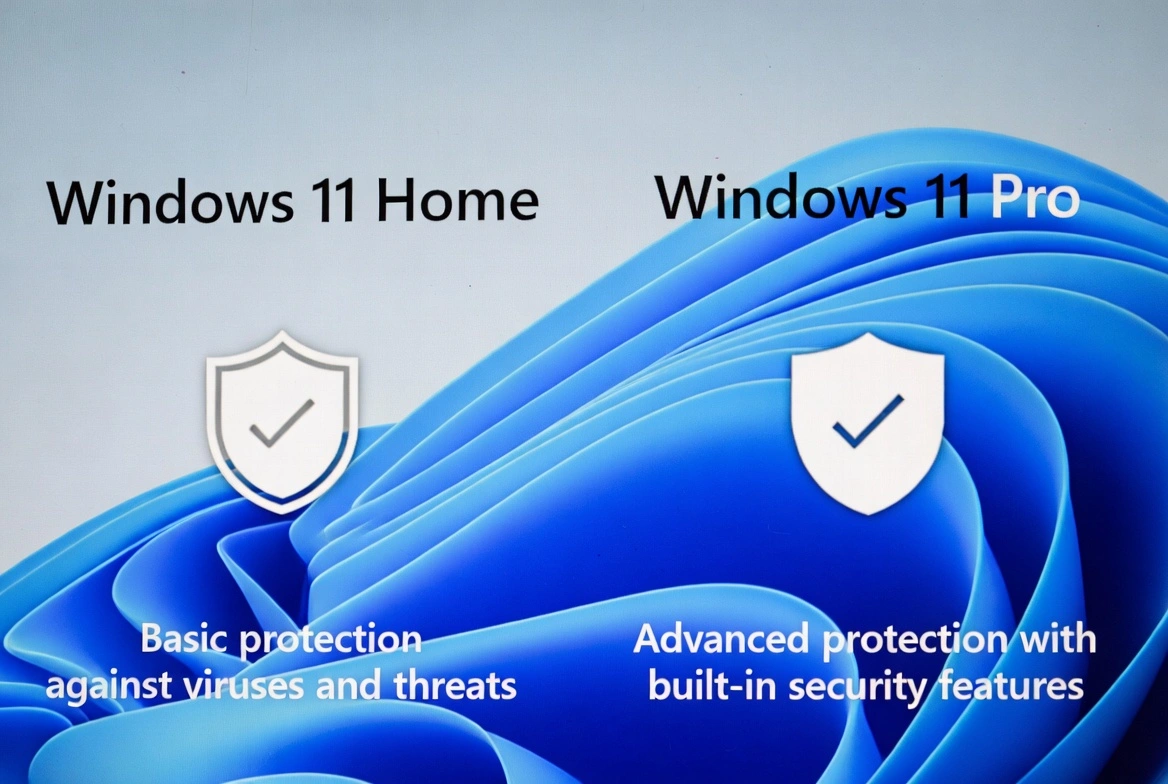
Security is where the Home vs Pro debate gets interesting. Let me break down what you actually get with each:
Windows 11 Home Security (What You Get)
Consistently ranks among top antivirus solutions. No third-party antivirus needed.
Blocks malicious websites and downloads. Works in Edge and system-wide.
Complete firewall with advanced configuration options.
Works on compatible hardware with TPM 2.0, but not as configurable as BitLocker.
Fingerprint and face recognition login works perfectly.
Required for Windows 11, protects against rootkits.
Pro Adds These Security Features
Protects all data if device is stolen. Critical for sensitive information.
Separates personal and work data. Prevents accidental data leakage.
Test untrusted apps in isolation without risking your system.
Security Verdict
For most home users, Windows 11 Home's security is MORE than adequate. Windows Defender alone stops 99.9% of threats. The main gap is BitLocker—if you have a laptop with sensitive data, Pro's encryption is worth the upgrade.
Productivity & Work From Home: Where Home Falls Short
This is where Windows 11 Home shows its limitations. If you work from home or run a small business, pay attention:
| Task | Home | Pro | Winner |
|---|---|---|---|
| Video calls (Zoom, Teams) | Works perfectly | Same | Tie |
| Microsoft Office / 365 | Full functionality | Same | Tie |
| Cloud storage (OneDrive) | Full sync & features | Same | Tie |
| Access work PC remotely | Cannot host RDP | Full Remote Desktop host | Pro |
| Encrypt client files | Basic device encryption | Full BitLocker control | Pro |
| Run development VMs | Third-party only (VirtualBox) | Native Hyper-V | Pro |
| Advanced system control | Settings app only | Group Policy Editor | Pro |
Work From Home Recommendation
If your employer provides a laptop, use that—it's likely Pro or Enterprise. For your personal PC, Home is fine for video calls and documents. Only upgrade to Pro if YOU need to host Remote Desktop connections or encrypt sensitive work files.
The Final Verdict: Should You Stick with Home or Upgrade to Pro?
After 18 months of testing, here's my honest recommendation:
Stick with Windows 11 Home if you:
- Primarily game, stream, or browse
- Are a student or casual user
- Use your PC for entertainment
- Share the computer with family
- Don't handle sensitive work data
- Never need to access your PC remotely
Upgrade to Windows 11 Pro if you:
- Work from home with client data
- Need Remote Desktop host capability
- Run virtual machines regularly
- Have a laptop with sensitive information
- Want BitLocker encryption
- Need Group Policy control
The bottom line: Windows 11 Home is genuinely good enough for most users. Microsoft isn't hiding essential features behind a paywall—they've put professional tools in Pro and consumer tools in Home. The real question isn't 'Is Home good enough?' but 'Do I actually need Pro features?'
Frequently Asked Questions
Can I upgrade from Home to Pro without reinstalling Windows?
Yes! Go to Settings > System > Activation > Change product key. Enter your Pro key, and Windows will upgrade instantly—no data loss, no reinstall.
Is Windows 11 Home free?
Windows 11 Home is free to upgrade from Windows 10. For new installations, you need to purchase a license (around $139 from Microsoft, or $30-40 from authorized resellers).
Can I run Hyper-V on Windows 11 Home?
No, Hyper-V is exclusive to Pro, Enterprise, and Education editions. On Home, you can use free alternatives like VirtualBox or VMware Workstation Player.
Does Windows 11 Home have a RAM limit?
Yes, Windows 11 Home supports up to 128GB RAM. Pro supports up to 2TB. For most users, 128GB is far more than you'll ever need.
Is Windows Defender good enough, or do I need antivirus?
Windows Defender (now called Windows Security) is excellent. Independent tests rank it among the top antivirus solutions. Most users don't need additional antivirus software.
Can I join a work domain with Windows 11 Home?
No, domain join requires Windows 11 Pro or Enterprise. However, you can use Azure AD join workarounds or simply use Microsoft 365 cloud services, which work fine on Home.
Will games run slower on Windows 11 Home?
No. Gaming performance is identical between Home and Pro. All gaming features (DirectX 12, Auto HDR, DirectStorage) are the same on both editions.
How much does it cost to upgrade Home to Pro?
Microsoft charges $99 for the upgrade. However, you can purchase legitimate Pro upgrade keys from authorized resellers for $30-40—same genuine Microsoft license, much lower price.
My Personal Take
I run Windows 11 Pro on my work machine because I need Hyper-V and BitLocker. But my gaming PC? Windows 11 Home, and I've never once wished I had Pro. For pure gaming, entertainment, and casual use, Home is the smarter choice—save your money for better hardware or more games.
Questions about Windows 11 editions? Drop a comment below, and I'll help you decide.