
Windows 11 Accessibility Features: Complete Guide for All Users

Callum specializes in breaking down complex technology topics into easy-to-understand guides. He has a background in computer science and technical writing.
Windows 11 includes the most comprehensive set of accessibility features Microsoft has ever released. Whether you have visual, hearing, motor, or cognitive needs, Windows 11 provides built-in tools to help you use your computer more effectively. This guide covers every accessibility feature available and how to configure them for your specific needs.
📋 Table of Contents
Vision Accessibility Features
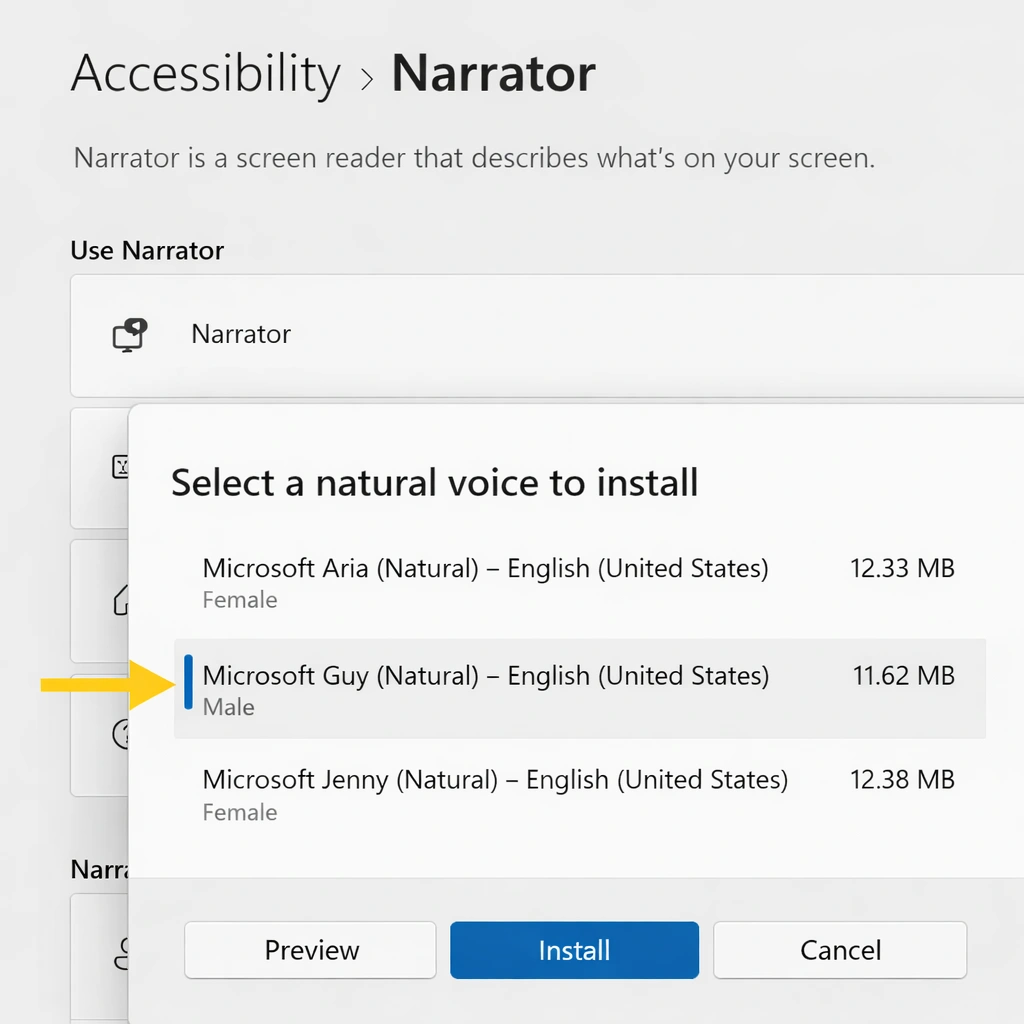
Narrator (Screen Reader)
Narrator is Windows 11's built-in screen reader that reads aloud text on screen, describes events, and helps navigate without seeing the display.
- Read text aloud with natural-sounding voices
- Navigate apps, menus, and web pages with keyboard shortcuts
- Describe images using AI-powered image descriptions
- Support for braille displays
- Customizable verbosity levels and reading speed
💡 How to enable: Press Windows + Ctrl + Enter to toggle Narrator on/off. Access settings via Settings > Accessibility > Narrator.
Magnifier
Magnifier enlarges part or all of your screen, making it easier to see text and images.
- Zoom from 100% to 1600%
- Full screen, lens, or docked modes
- Smooth edges for easier reading
- Reading mode that follows text
- Invert colors within magnified area
💡 How to enable: Press Windows + Plus (+) to open Magnifier. Use Windows + Plus/Minus to zoom in/out.
Color Filters & Contrast Themes
Adjust colors on screen for color blindness or light sensitivity.
- Filters for protanopia, deuteranopia, and tritanopia
- Grayscale and inverted color options
- High contrast themes (Aquatic, Desert, Dusk, Night Sky)
- Custom contrast theme creation
- Quick toggle with Windows + Ctrl + C
Text Size & Display
Make text larger without changing screen resolution.
- Text scaling from 100% to 225%
- Display scaling for all elements
- Custom DPI settings per monitor
- Cursor thickness adjustment
- Text cursor indicator with customizable colors
Hearing Accessibility Features
Live Captions
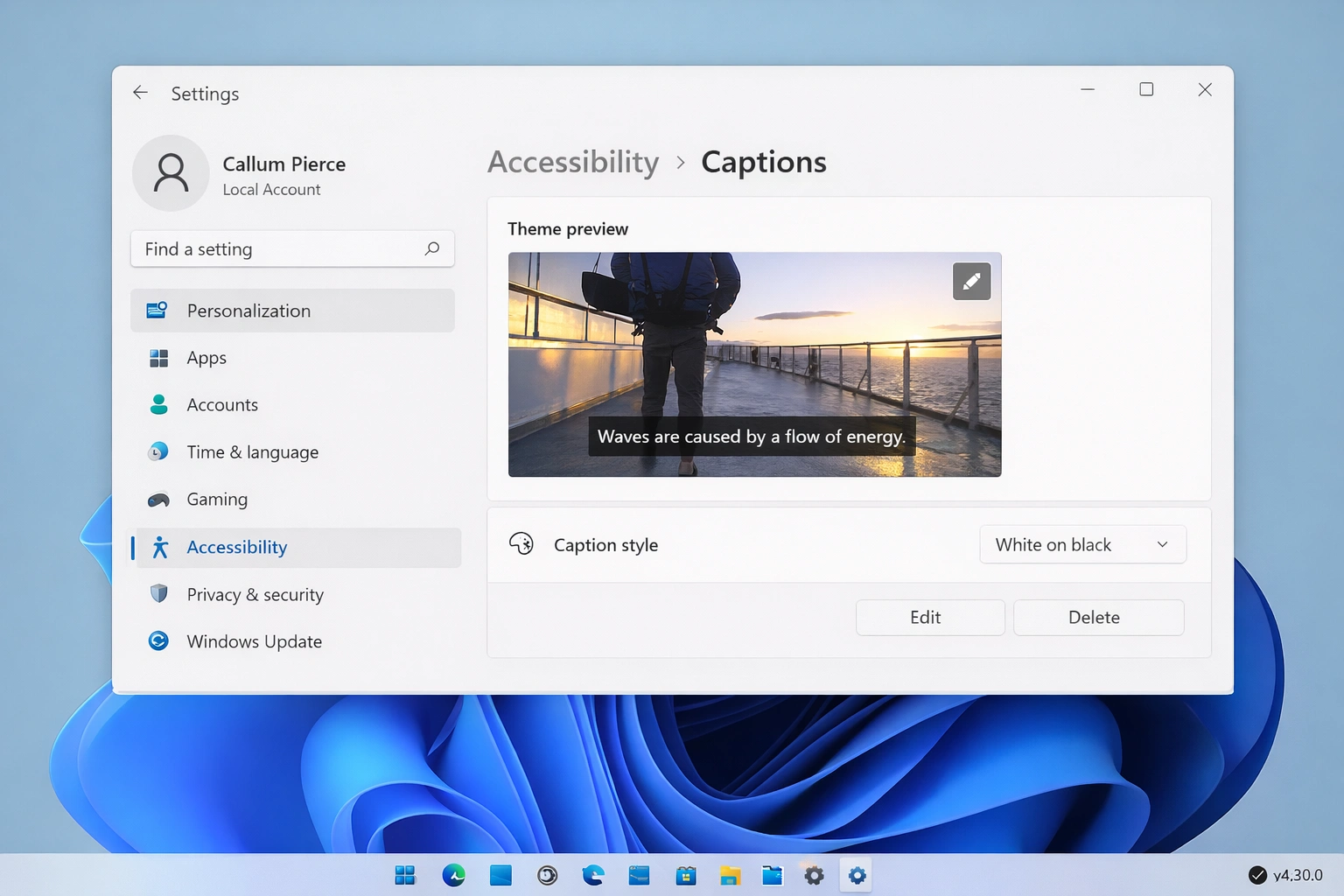
Real-time captions for any audio playing on your PC, including video calls, streaming content, and local media.
- Works with any audio source automatically
- Processes audio locally for privacy
- Customizable caption style and position
- Include microphone audio in captions
- Works offline after initial setup
💡 How to enable: Press Windows + Ctrl + L to toggle Live Captions. First use requires a one-time download.
Mono Audio
Combine left and right audio channels into one, helpful for users with hearing loss in one ear.
- Single-channel audio output
- No audio information lost from stereo sources
- Works with headphones and speakers
Flash Notifications
Get visual alerts when audio notifications play.
- Flash the screen for notifications
- Flash the active title bar
- Customizable flash color and duration
Interaction & Motor Accessibility
Voice Access
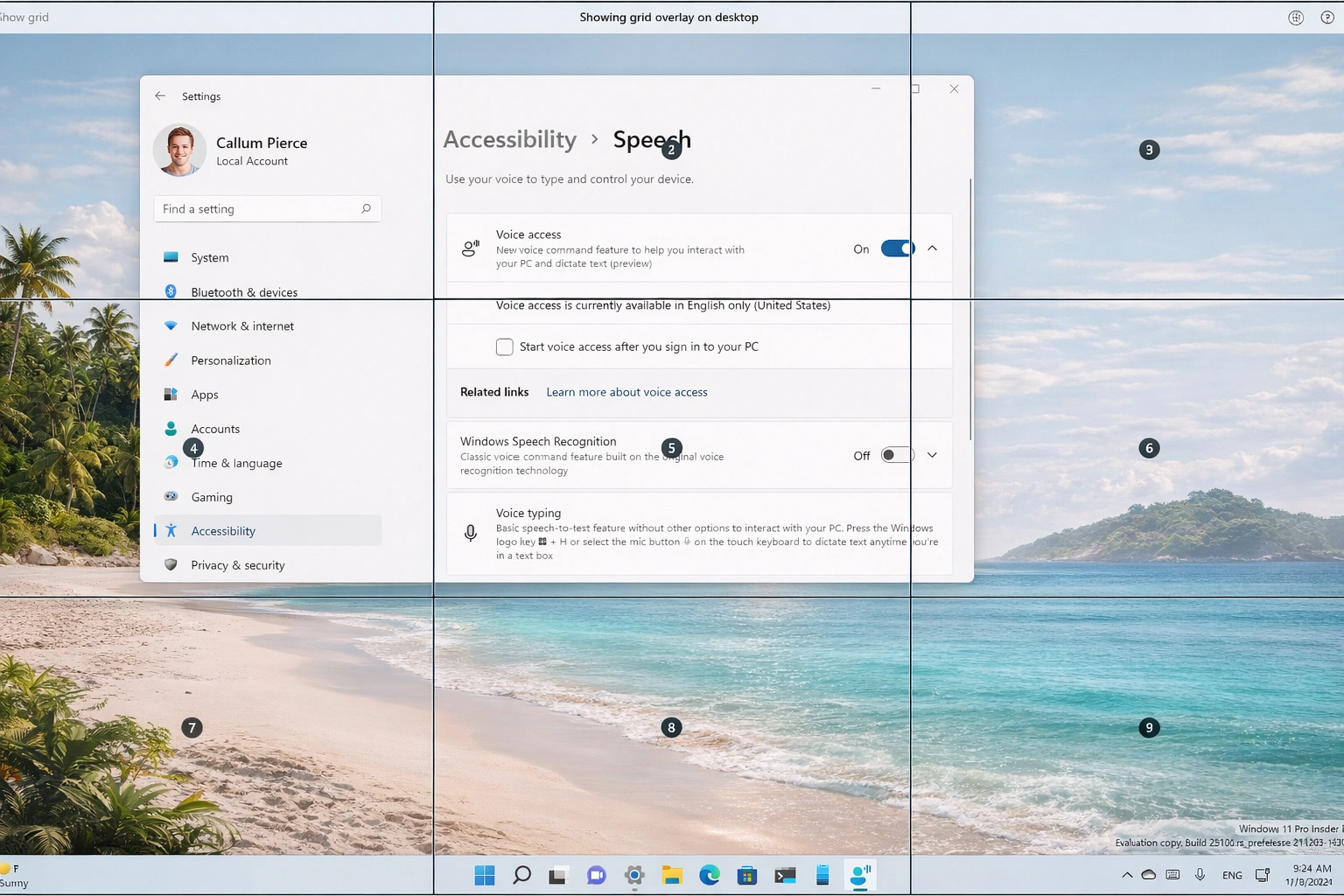
Control your entire PC using only your voice. Dictate text, launch apps, click buttons, and navigate the web hands-free.
- Full voice control without internet
- Numbered grid overlay for precise clicking
- Voice commands for common actions
- Custom voice commands and shortcuts
- Works in multiple languages
💡 How to enable: Search for "Voice Access" in Start menu, or go to Settings > Accessibility > Speech > Voice Access.
Voice Typing
Dictate text instead of typing in any text field.
- Press Windows + H to start voice typing
- Automatic punctuation
- Voice commands for editing
- Works in most applications
Eye Control
Control Windows using only your eyes with a compatible eye tracker device.
- On-screen keyboard for typing
- Mouse control with eye gaze
- Text-to-speech communication
- Shape writing for faster typing
- Works with Tobii and other eye trackers
Keyboard Accessibility
Sticky Keys
Hold modifier keys (Shift, Ctrl, Alt) without pressing simultaneously
Filter Keys
Ignore brief or repeated keystrokes
Toggle Keys
Play a tone when pressing Caps Lock, Num Lock, or Scroll Lock
On-Screen Keyboard
Use an on-screen keyboard with mouse or touch
Mouse & Pointer Accessibility
- Larger mouse pointers in multiple colors
- Mouse pointer trails for easier tracking
- Control mouse with numeric keypad (Mouse Keys)
- Adjust double-click speed and hover time
- Touch keyboard improvements for touch screens
Cognitive & Focus Accessibility
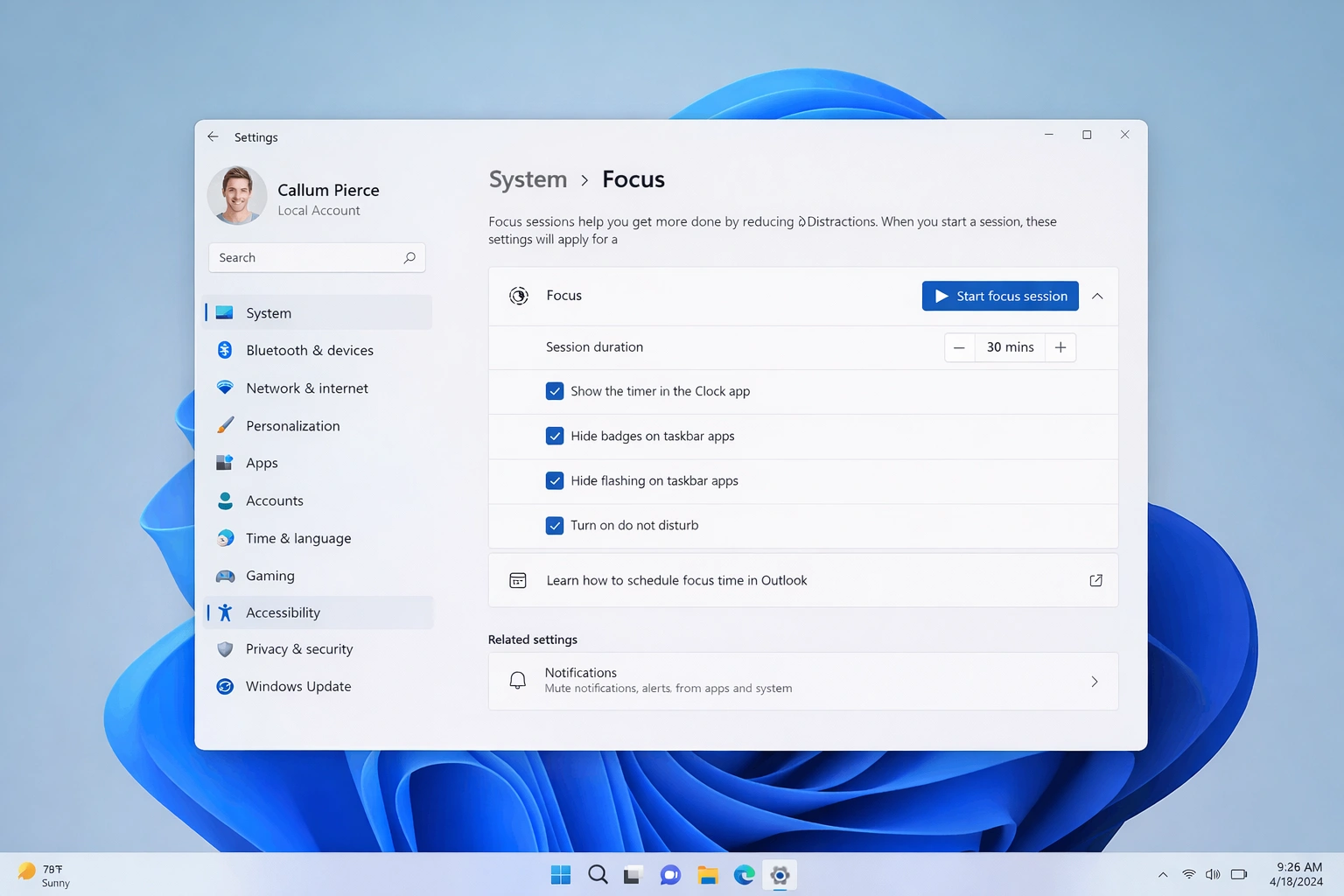
Focus & Do Not Disturb
Minimize distractions by controlling notifications.
- Priority only mode for important contacts
- Alarms only mode for complete focus
- Automatic rules for presentations and gaming
- Focus sessions with timer integration
- Summary of missed notifications
Read Aloud in Microsoft Edge
Have web pages read to you in a natural voice.
- Multiple voice options and speeds
- Highlights words as they are read
- Works on any web page
- Immersive Reader mode for distraction-free reading
Additional Cognitive Features
- Simplified Start menu and taskbar
- Reduce motion and animations
- Disable automatic window arrangement
- Predictive text suggestions
- Spelling and grammar checking
How to Access Accessibility Settings
Settings App
Go to Settings > Accessibility to find all accessibility options organized by category.
Quick Settings
Click the network/volume/battery area in the taskbar, then click Accessibility for quick toggles.
Keyboard Shortcuts
Press Windows + U to open Accessibility settings directly.
Sign-in Screen
Click the Accessibility icon on the sign-in screen to enable features before logging in.

Essential Accessibility Keyboard Shortcuts
| Shortcut | Action |
|---|---|
Windows + U | Open Accessibility settings |
Windows + Ctrl + Enter | Toggle Narrator |
Windows + Plus (+) | Open Magnifier and zoom in |
Windows + Esc | Close Magnifier |
Windows + Ctrl + C | Toggle color filters |
Windows + Ctrl + L | Toggle Live Captions |
Windows + H | Start voice typing |
Shift (5 times) | Toggle Sticky Keys |
Right Shift (8 seconds) | Toggle Filter Keys |
Num Lock (5 seconds) | Toggle Mouse Keys |
Frequently Asked Questions
Are accessibility features available in Windows 11 Home?
Yes, all accessibility features are available in both Windows 11 Home and Pro editions. You do not need to upgrade to access any accessibility tools.
Do I need internet for accessibility features?
Most features work offline. Live Captions requires a one-time download but then works offline. Voice Access also works without internet after initial setup.
Can I use multiple accessibility features together?
Absolutely. Windows 11 is designed to allow multiple accessibility features to work simultaneously. For example, you can use Narrator with Magnifier, or Voice Access with color filters.
How do I reset accessibility settings to default?
Go to Settings > Accessibility and manually toggle off features, or create a new user account which will have default settings.
Does Windows 11 support braille displays?
Yes, Narrator supports braille displays with various input/output options. Connect your braille display and configure it in Settings > Accessibility > Narrator > Use a braille display.
Making Windows 11 Work for You
Windows 11 is designed to be accessible to everyone. Whether you need visual assistance, hearing support, alternative input methods, or cognitive aids, Microsoft has built comprehensive tools directly into the operating system. Take time to explore these features and customize Windows 11 to match your specific needs. Remember that you can always access quick toggles through the Accessibility flyout in Quick Settings, or press Windows + U to jump directly to accessibility settings.