
Avoid These Common Windows & Office 2026 Mistakes That Cost You Time and Money

Callum specializes in breaking down complex technology topics into easy-to-understand guides. He has a background in computer science and technical writing.
After spending years testing software, troubleshooting reader issues, and watching the same preventable problems crop up again and again, I've compiled the mistakes that genuinely cost people time and money. These aren't obscure edge cases—they're the common Windows & Office 2026 mistakes I see every week, and most of them are completely avoidable.
Here's the thing: Windows 11 and Office have become incredibly capable. But that capability comes with complexity, and complexity creates opportunities to mess things up. Whether you're setting up a new PC, migrating from an older version, or just trying to work more efficiently, the path is littered with potential pitfalls.
Let's walk through what actually goes wrong—and more importantly, how to avoid it.
The Licensing Confusion That Costs Real Money
This is the big one. The single most expensive mistake I see? People not understanding what they're actually buying.
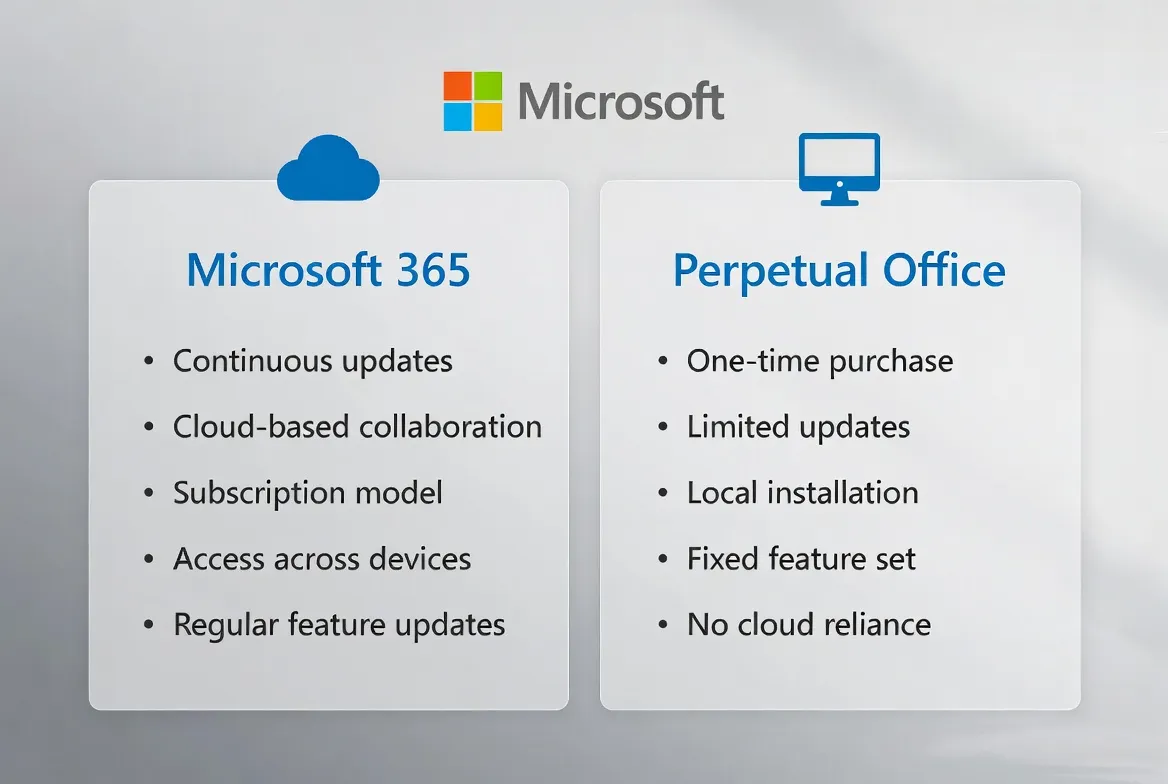
Microsoft offers two fundamentally different paths: subscription-based Microsoft 365 and one-time purchase Office (2021, 2024, or the upcoming 2026 perpetual version). These aren't just different payment models—they're entirely different products with different features, update schedules, and long-term costs.
The Subscription Trap
Microsoft 365 is fantastic if you need cloud storage, always-current apps, and multi-device access. But I've talked to dozens of people who subscribed because they thought it was their only option, then realized after a year or two that they barely use any cloud features. They've spent $300+ on something a $150 one-time license would have covered.
Flip side: I've seen users buy a perpetual Office license, then get frustrated when they don't receive the latest AI features or can't access files on their phone without awkward workarounds.
How to Avoid This
Before you spend anything, ask yourself three questions:
- Do I actually need cloud storage, or do I work locally?
- Will I use Office on more than one or two devices?
- Do I need the absolute latest features, or are core Word/Excel/PowerPoint functions enough?
If you answered "no" to most of these, a lifetime license is probably your better bet. You pay once, you own it, done. If you genuinely need collaboration features and cloud everything, Microsoft 365 makes sense—just go in with your eyes open about the ongoing cost.
Skipping Activation Verification (Then Losing Everything)
This sounds basic, but it happens constantly. Someone installs Windows or Office, everything works fine, and they assume they're good. Then three months later, they get hit with "Windows is not activated" watermarks or Office suddenly enters read-only mode.
The problem? They never actually verified their activation. Maybe the key didn't apply correctly. Maybe they bought from a sketchy reseller and got a volume license that Microsoft later revoked. Maybe they just forgot to enter the key at all during setup.
What Actually Happens
When Windows deactivates, you lose personalization options and get that annoying watermark. Irritating, but functional. When Office deactivates? You can view documents but can't edit them. If you're on a deadline, this is catastrophic.
The Fix
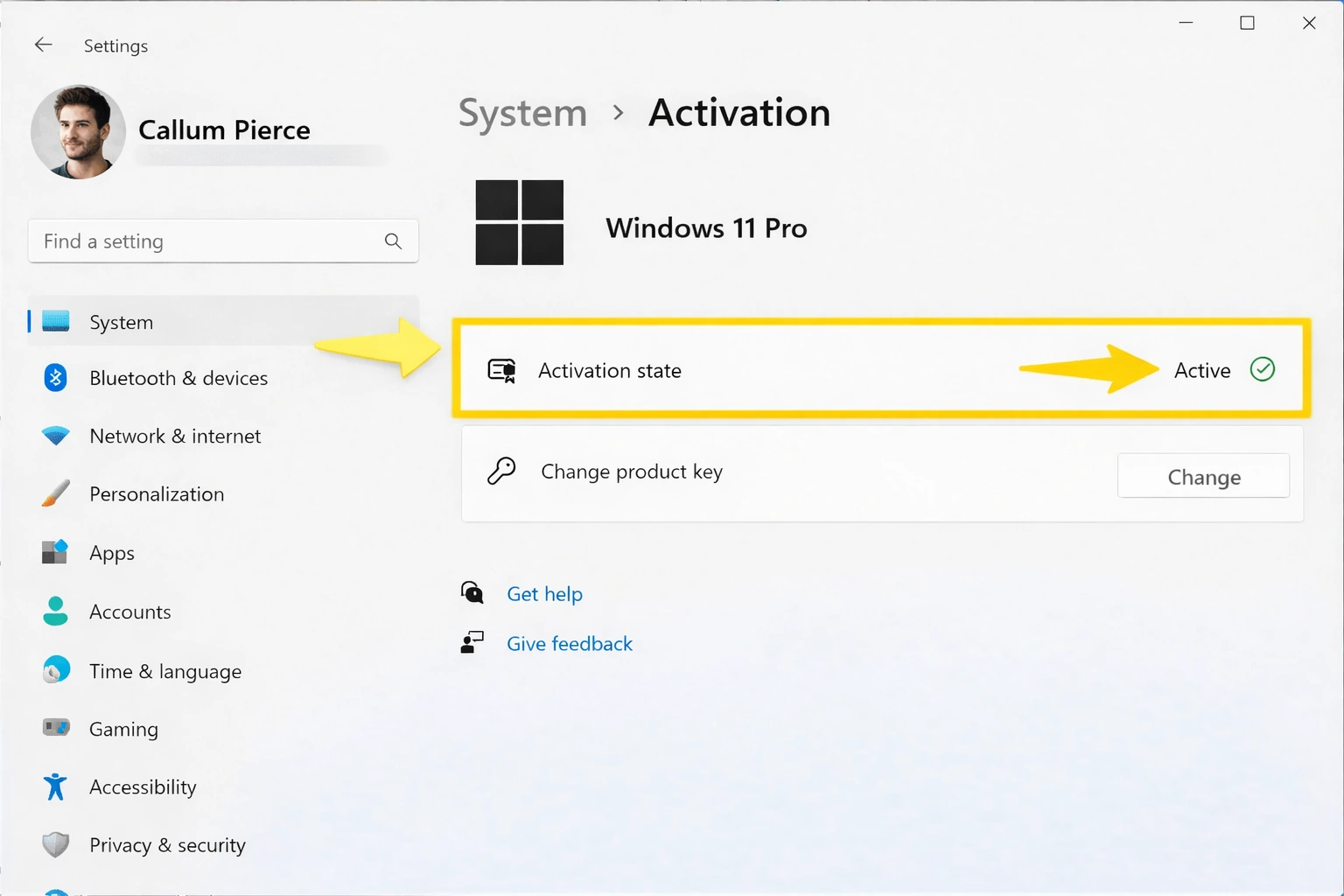
Right after installation—like, immediately—go verify your activation status. For Windows, hit Settings → System → Activation. You should see "Windows is activated with a digital license." For Office, open any app, click File → Account, and confirm your license status.
If anything looks wrong, deal with it now while you still have time to contact the seller or request a replacement key.
Ignoring Windows Update Settings
This one cuts both ways, and it's one of the trickier common Windows & Office 2026 mistakes to navigate because there's no universally right answer.
Some people disable Windows Updates entirely because they're tired of restarts and changes they didn't ask for. Others leave everything on automatic and end up with a major feature update installing the night before an important presentation.
The Real Risk
Disabling updates completely exposes you to security vulnerabilities. I'm not being dramatic here—unpatched Windows systems are actively targeted by attackers, and critical vulnerabilities get exploited within days of being publicly disclosed.
But blindly accepting every update has its own problems. Feature updates can break software compatibility, change settings you'd configured, or simply take forever at the worst possible time.
A Balanced Approach
What I recommend to most people: Keep security updates automatic, but pause or defer feature updates until they've been out for a few weeks. You can do this in Settings → Windows Update → Advanced Options.
For feature updates specifically (the big twice-yearly releases), wait about a month after launch. Let other people find the bugs first. Microsoft usually releases fixes within the first few weeks, and by the time you install, the worst issues are resolved.
Buying From Questionable Sources
I get it. Seeing a Windows 11 Pro key for $15 on some random marketplace is tempting. The listings look legitimate, reviews seem positive, and hey—it's just software, right?
Here's what often happens: Those cheap keys are frequently volume licenses, educational licenses resold illegally, or keys from other regions that violate Microsoft's terms. They might work initially, but Microsoft's license verification systems are sophisticated. Revocations happen, and when they do, you have no recourse.
What "Genuine" Actually Means
A genuine retail or OEM license means:
- The key was issued for individual resale, not stripped from a volume agreement
- You have license rights that won't be revoked
- You can contact Microsoft support if issues arise
- The seller offers actual customer support and guarantees
Yes, legitimate keys cost more than those $15 specials. But they also don't randomly stop working six months later. The peace of mind is worth the difference—especially for something you'll use daily for years.
If you're looking for genuine lifetime licenses at fair prices, reputable sellers offer Windows licenses that balance affordability with legitimacy.
Not Setting Up Backup Before You Need It
Everyone knows they should back up their files. Almost no one does it until they've lost something important.
The common Windows & Office 2026 mistakes around backup aren't about not knowing it matters—they're about assuming the default setup is sufficient or that OneDrive is handling everything automatically.
Where People Get Burned
OneDrive's "backup" feature for Desktop, Documents, and Pictures folders is actually sync, not true backup. If you delete a file locally, it gets deleted from the cloud too (after a sync delay). If ransomware encrypts your files, those encrypted versions sync up as well.
True backup means versioned copies stored separately, ideally with at least 30 days of history. OneDrive does have version history, but it's limited and not everyone knows how to use it during a crisis.
What to Actually Do
Set up Windows Backup (the built-in tool works reasonably well) or use a third-party solution. Make sure you have:
- Local backup to an external drive or NAS
- Cloud backup to a service that keeps file versions
- Test restores occasionally so you know the process works
Yes, this takes 30 minutes to set up. Yes, you'll feel like you're wasting time. No, you won't regret it when something goes wrong.
Overlooking OneDrive Configuration
Speaking of OneDrive, the default configuration catches a lot of people off guard. When you sign into Windows with a Microsoft account, OneDrive often enables itself automatically and starts redirecting your main folders to the cloud.
For some people, this is exactly what they want. For others, it's a nightmare of confusion—suddenly files aren't where expected, storage fills up, and sync conflicts create duplicate files everywhere.
The "Files On-Demand" Confusion
OneDrive's Files On-Demand feature shows cloud-only files in your file system as if they're local. Great for saving space. Terrible if you try to access those files without an internet connection and didn't realize they weren't actually downloaded.
I've heard from photographers who thought their entire photo library was on their laptop, only to find cloud-only placeholders when they opened Lightroom on a plane. Documents that can't open during a presentation because the venue Wi-Fi is down. This stuff happens.
Taking Control
Decide intentionally how you want OneDrive to work. Either embrace it fully and understand the cloud-first workflow, or disable the folder backup features and manage your files locally. The worst approach is letting it half-configure itself and never understanding what's actually happening.
Right-click the OneDrive icon in your system tray, go to Settings, and review every option. Especially pay attention to "Backup" (folder redirection) and "Files On-Demand" (cloud-only files).
Missing Keyboard Shortcuts That Save Hours
This isn't a technical mistake—it's a productivity mistake. And it's costing you more than you think.
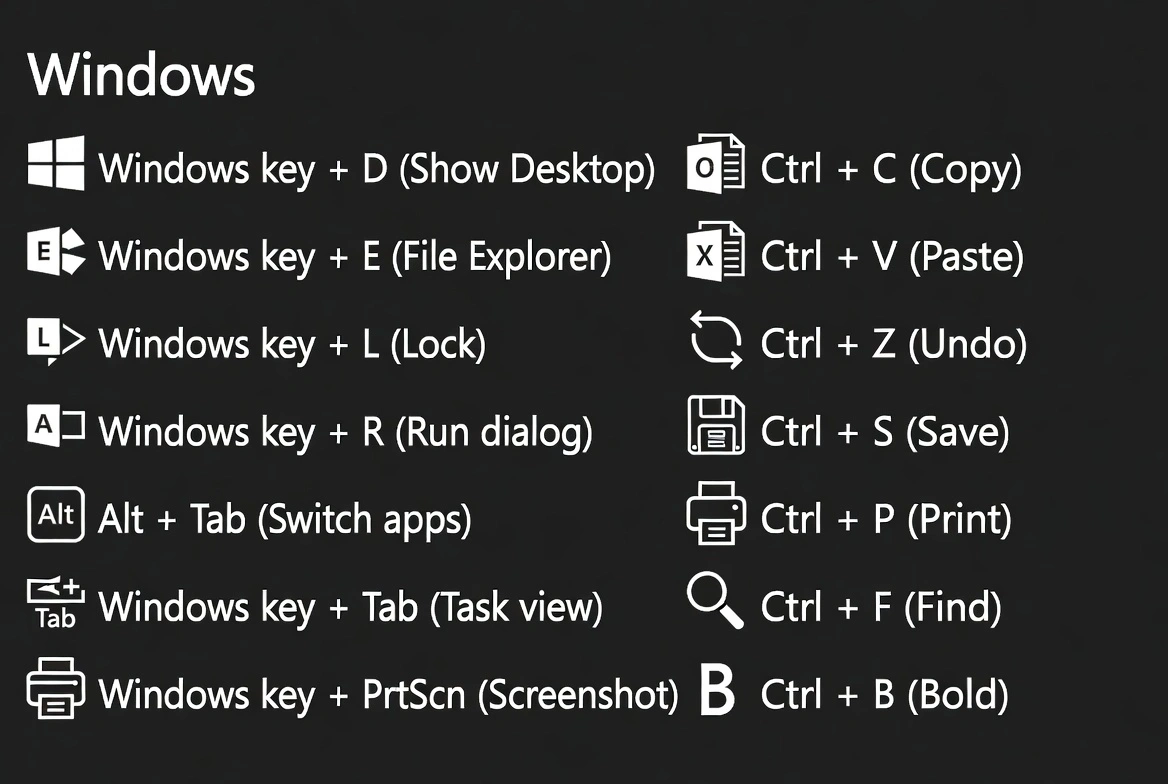
I've watched people use Word, Excel, and Outlook for years without knowing shortcuts that would save them literal hours per week. These are Windows 11 and Office 2026 tips that every user should internalize:
Windows Essentials
| Shortcut | What It Does | Why It Matters |
|---|---|---|
| Win + V | Clipboard history | Access anything you've copied recently |
| Win + Shift + S | Screenshot snipping | Capture any screen region instantly |
| Win + E | Open File Explorer | Faster than clicking icons |
| Win + L | Lock your PC | Security when stepping away |
| Alt + Tab | Switch windows | Navigate open apps efficiently |
Office Power Moves
| Shortcut | Application | Function |
|---|---|---|
| Ctrl + Shift + V | Word | Paste without formatting |
| F4 | Excel | Repeat last action |
| Ctrl + ; | Excel | Insert today's date |
| Ctrl + Shift + M | Outlook | Create new message |
| Alt + H + O + I | Excel | Auto-fit column width |
Learning even five of these shortcuts pays dividends for years. It's the closest thing to free productivity gains you'll find.
Ignoring Office's Built-In Recovery Features
File crashes. Power outages. Accidental saves over important documents. These things happen, and Office has had your back for years—if you know where to look.
AutoRecover: Your Safety Net
Office automatically saves recovery copies of your documents every 10 minutes by default. But many people either don't know this exists or have never checked that it's actually working.
Go to File → Options → Save in any Office app. Verify that AutoRecover is enabled and check the save interval. For critical work, consider reducing it to 5 minutes—the performance impact is negligible on modern hardware.
Version History
If you're saving files to OneDrive or SharePoint, you get version history automatically. Right-click any file, select "Version history," and you can restore or view any previous save from the past 30 days (or longer with Microsoft 365).
This has saved countless documents for me. Accidentally overwrote important data? Previous version. Made changes you regret? Previous version. It's remarkably useful once you remember it exists.
Neglecting Privacy and Telemetry Settings
Windows 11 collects diagnostic data by default. Some of it is necessary for functionality. Some of it is... less necessary. Whether this bothers you is a personal choice, but you should at least make that choice consciously.
What Gets Collected
Microsoft categorizes data collection into "Required" (basic device info, error reports) and "Optional" (app usage patterns, browsing data, inking and typing). The optional category is extensive, and it's enabled by default on most installations.
Adjusting Your Settings
Go to Settings → Privacy & Security → Diagnostics & Feedback. From there, you can:
- Switch from "Optional" to "Required" diagnostic data
- Disable tailored experiences (which use your data for personalization)
- Delete diagnostic data Microsoft has already collected
- Review and control app permissions individually
I'm not suggesting you need to lock everything down—that's a personal preference. But walking through these settings once and making informed decisions is worth the 10 minutes.
Not Using Virtual Desktops
Windows has had virtual desktops since Windows 10, and it remains one of the most underused features for productivity. Most people have never tried it, and those who have often don't realize how to use it effectively.
How It Actually Helps
Imagine having separate workspaces: one for your main project with relevant apps and documents open, another for communication (email, Teams, Slack), a third for research or reference material. You can switch between these instantly without closing anything or hunting through a crowded taskbar.
Press Win + Tab to see your virtual desktops at a glance. Click "New Desktop" to create one. Drag windows between desktops to organize. Use Ctrl + Win + Left/Right Arrow to switch between them quickly.
This is legitimately one of the best Office 2026 productivity hacks for multitasking, and it's been hiding in plain sight for years.
Troubleshooting Mistakes That Make Things Worse
When something breaks, the instinct is to start clicking and trying things. But untrained troubleshooting often creates new problems while failing to solve the original one.
The Registry "Fixes"
Random internet advice telling you to edit the Windows Registry should be treated with extreme caution. The Registry is the central configuration database for Windows—mess it up, and you can create problems that are incredibly difficult to undo.
Before editing any Registry values, always export a backup of the specific key you're modifying. Better yet, create a full system restore point. And if a "fix" asks you to delete Registry keys entirely, get a second opinion before proceeding.
Cleaning Too Aggressively
"PC cleaner" software promising to speed up your computer by cleaning the Registry or deleting "junk files" is usually unnecessary and sometimes harmful. Modern Windows manages disk space reasonably well on its own.
The built-in Disk Cleanup tool (search for it in Start) handles legitimate cleanup safely. Third-party cleaners often remove files that look unused but are actually needed, or they make Registry changes that cause application problems.
A Sensible Windows 2026 Troubleshooting Guide Approach
When something goes wrong:
- Restart first. Yes, really. It resolves a surprising number of issues.
- Check for updates. Known bugs often have patches already available.
- Use built-in troubleshooters. Settings → System → Troubleshoot covers most common problems.
- Search the exact error message. Microsoft's support site and forums usually have specific guidance.
- Create a restore point before trying fixes. So you can undo if something goes wrong.
Forgetting About Windows Security Settings
Windows Security (formerly Windows Defender) is actually quite good now. It consistently performs well in independent testing, runs efficiently, and requires minimal user intervention. But "minimal" isn't "none."
What to Actually Check
Open Windows Security from the Start menu and review each category:
- Virus & threat protection: Should show recent scan dates and real-time protection enabled
- Firewall & network protection: Verify your active network shows firewall on
- App & browser control: SmartScreen should be enabled for reputation-based protection
- Device security: Check that core isolation (memory integrity) is on if supported
If any section shows warnings or needs attention, address it. These aren't nagging notifications—they're legitimate security gaps.
Underestimating the Learning Curve of New Features
Office keeps adding features: AI-powered writing assistance, dynamic arrays in Excel, Loop components for collaboration. These can be genuinely useful, but they also represent learning curves that people underestimate.
The Adoption Problem
New features often go unused because people don't take time to learn them. Then they wonder why their expensive software subscription doesn't feel more valuable than the old version.
If you're paying for Microsoft 365, spend an hour exploring what's actually new. Microsoft has decent learning resources built into the apps (the "Help" menu exists for a reason). Or search YouTube for specific feature tutorials—visual demonstrations make things click faster than reading documentation.
The Over-Adoption Problem
The opposite mistake: jumping on every new feature immediately and disrupting workflows that were working fine. Not every feature is right for every user. Evaluate whether something actually solves a problem you have before restructuring how you work.
Final Thoughts: Avoiding Common Windows & Office 2026 Mistakes
Most of these mistakes share a common thread: they happen when people don't take a few minutes upfront to understand what they're using. The technology itself is mature and capable—the problems come from mismatched expectations, default settings that don't fit everyone, and troubleshooting approaches that create more chaos than they resolve.
If you're setting up a new Windows PC or Office installation, here's my recommendation: spend your first hour configuring instead of diving into work. Verify your licenses. Review your backup situation. Adjust OneDrive to match how you actually want to work. Check your privacy settings. Learn five new keyboard shortcuts.
That upfront investment pays off for years. And it's infinitely easier than trying to recover from the common Windows & Office 2026 mistakes that catch people who skip this step.
Ready to Set Up Your Software Right?
If you're looking for genuine Windows or Office licenses with proper support, check out our verified product catalog. We focus on legitimate lifetime licenses that you can activate and forget about—no subscription worries, no surprise revocations.
Frequently Asked Questions
What's the biggest mistake people make with Windows and Office licenses?
Buying from unverified sources to save money, then having licenses revoked months later. Genuine licenses from reputable sellers cost more initially but don't create problems down the road.
Should I use Microsoft 365 or buy Office outright?
It depends on your needs. If you use Office on multiple devices, need cloud storage, and want always-current features, Microsoft 365 makes sense. If you work primarily on one computer and core Office functionality is enough, a one-time license is more economical long-term.
How do I check if my Windows activation is legitimate?
Go to Settings → System → Activation. You should see "Windows is activated with a digital license" or "Windows is activated with a digital license linked to your Microsoft account." Any other message indicates a potential issue.
Is Windows Defender enough, or do I need third-party antivirus?
For most users, Windows Defender (now called Windows Security) provides excellent protection. It performs well in independent tests and is tightly integrated with Windows. Third-party options are rarely necessary unless you have specific enterprise requirements.
How often should Windows update?
Security updates should install regularly—these patch vulnerabilities that attackers actively exploit. Feature updates (the big releases twice yearly) can be deferred for a few weeks to let early bugs get fixed, but shouldn't be postponed indefinitely.
What's the best way to back up my files?
Use a combination: OneDrive or cloud sync for real-time access, plus local backup to an external drive for full recovery options. Windows Backup or third-party solutions work well. The key is having versioned copies in case files get corrupted or accidentally deleted.
Can I recover an unsaved Word document?
Usually, yes. Go to File → Info → Manage Document → Recover Unsaved Documents. Office saves AutoRecover versions periodically. The recovery files may be slightly older than your last work, but they're usually much better than starting over.
How do I stop OneDrive from syncing my Desktop folder?
Right-click the OneDrive icon in the system tray, go to Settings → Backup → Manage backup, and toggle off the folders you don't want synced. Files already synced will remain in OneDrive—you can move them back locally afterward if needed.
Why does my Office license keep asking to reactivate?
This usually indicates either a license conflict (Office installed on too many devices) or a problem with the original key. Check File → Account in any Office app to see your license status. If it shows errors, you may need to deactivate Office on another device or contact the seller.
What keyboard shortcuts should I learn first?
Start with Win + V (clipboard history), Win + Shift + S (screenshots), and Ctrl + Shift + V in Office apps (paste without formatting). These three alone save significant time and are easy to remember. Build from there based on apps you use most.