
Windows 11 Virtual Desktops: The Ultimate Productivity Hack

Callum specializes in breaking down complex technology topics into easy-to-understand guides. He has a background in computer science and technical writing.
Windows 11 Virtual Desktops: Complete Productivity Guide
Master the art of multitasking with virtual desktops - your secret weapon for organized, efficient work
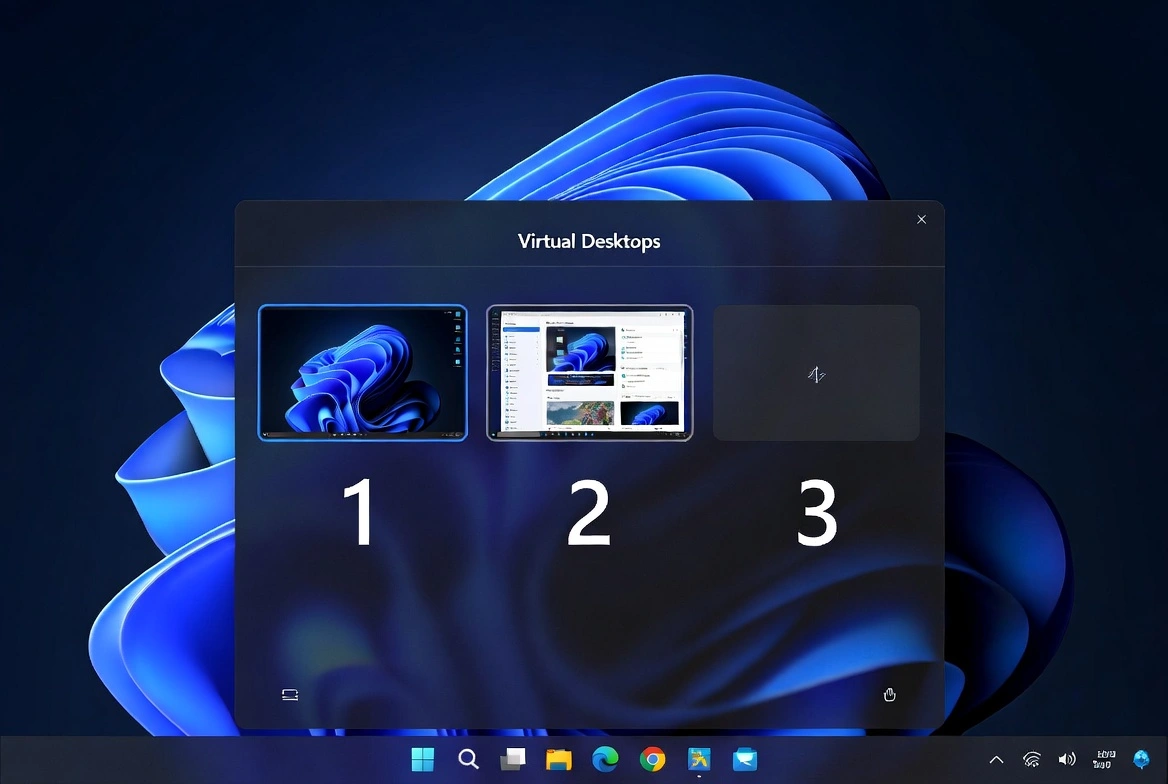
Virtual desktops in Windows 11 let you create separate workspaces for different tasks, projects, or contexts. Instead of cluttering one desktop with dozens of windows, you can organize your work across multiple clean, focused environments.
What Are Virtual Desktops?
Virtual desktops are separate workspace environments within Windows 11. Each desktop can have its own set of open windows and applications, allowing you to:
- 1Separate work from personal activities
- 2Organize projects into dedicated spaces
- 3Reduce visual clutter and distractions
- 4Switch contexts quickly without closing apps
- 5Maintain focus on specific tasks
How to Create Virtual Desktops
Task View Method
- 1Click the Task View button in the taskbar (or press Win + Tab)
- 2Click '+ New desktop' at the top of the screen
- 3Your new desktop is ready to use
Keyboard Shortcut
- 1Press Win + Ctrl + D to instantly create a new desktop
- 2You'll be switched to the new desktop automatically
- 3Repeat to create additional desktops
Touchpad Gesture
- 1Swipe up with four fingers to open Task View
- 2Tap '+ New desktop' to create
- 3Swipe left/right with four fingers to switch between desktops
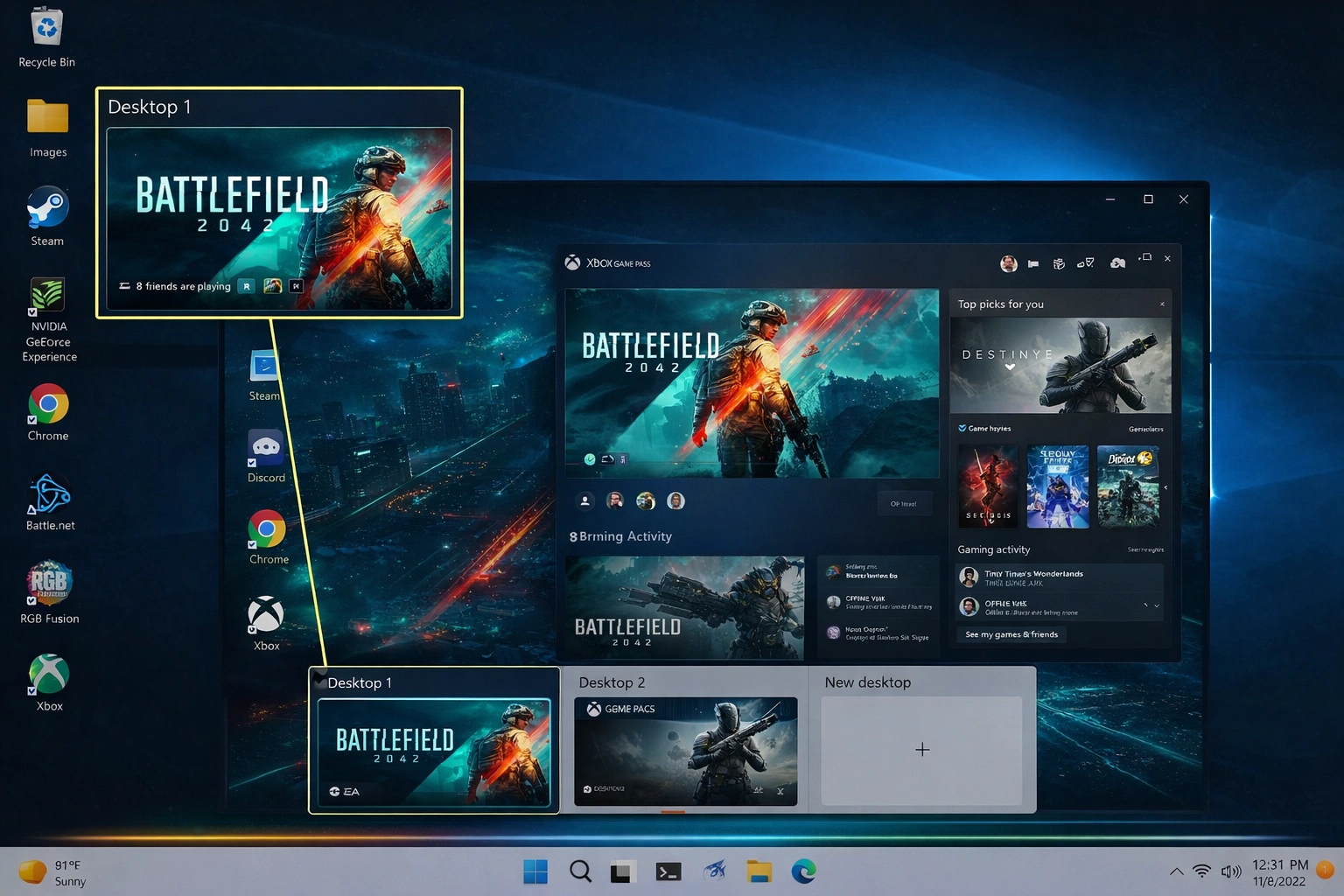
Essential Keyboard Shortcuts
Win + TabWin + Ctrl + DWin + Ctrl + Left/RightWin + Ctrl + F4Ctrl + Win + NumberProductivity Strategies
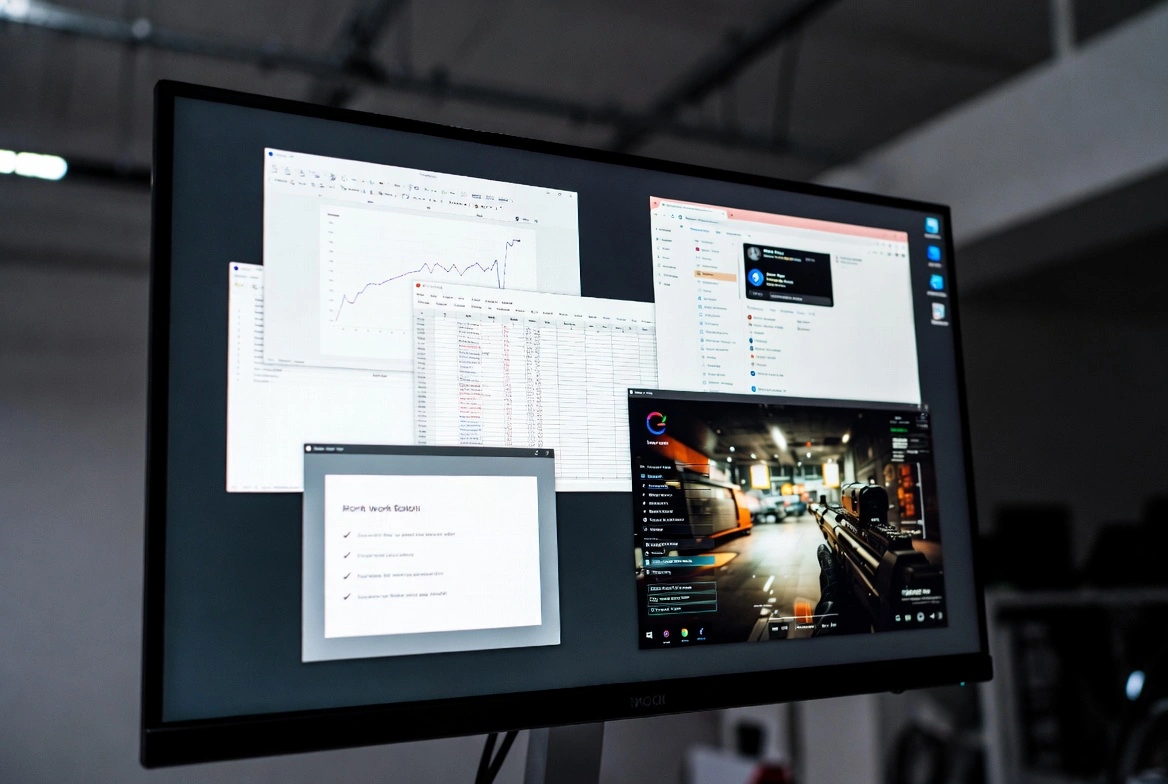
Work/Life Separation
Desktop 1 for work apps (email, documents, Teams). Desktop 2 for personal (social media, entertainment, shopping).
Project-Based Organization
Dedicate each desktop to a specific project. Keep all related windows, files, and tools together.
Task-Type Grouping
One desktop for communication (email, chat). Another for creative work. A third for research and reading.
Focus Mode Setup
Create a 'distraction-free' desktop with only essential apps. Switch there when you need deep focus.
Customization Options
Rename Desktops
Right-click on a desktop thumbnail in Task View and select 'Rename'. Give meaningful names like 'Work', 'Research', 'Personal'.
Custom Backgrounds
Right-click a desktop thumbnail and choose 'Choose background'. Each desktop can have a unique wallpaper for visual distinction.
Reorder Desktops
Drag and drop desktop thumbnails in Task View to rearrange them in your preferred order.
App Placement
Right-click any window in Task View to move it to a different desktop or show it on all desktops.
Pro Tips for Maximum Efficiency
- 💡Keep your first desktop clean as a 'home base' for quick access
- 💡Use descriptive names so you can quickly identify each workspace
- 💡Limit yourself to 3-5 desktops to avoid confusion
- 💡Remember: closing a desktop doesn't close its windows - they move to the previous desktop
- 💡Pin frequently-used apps to appear on all desktops
- 💡Use different wallpapers as visual cues for each context
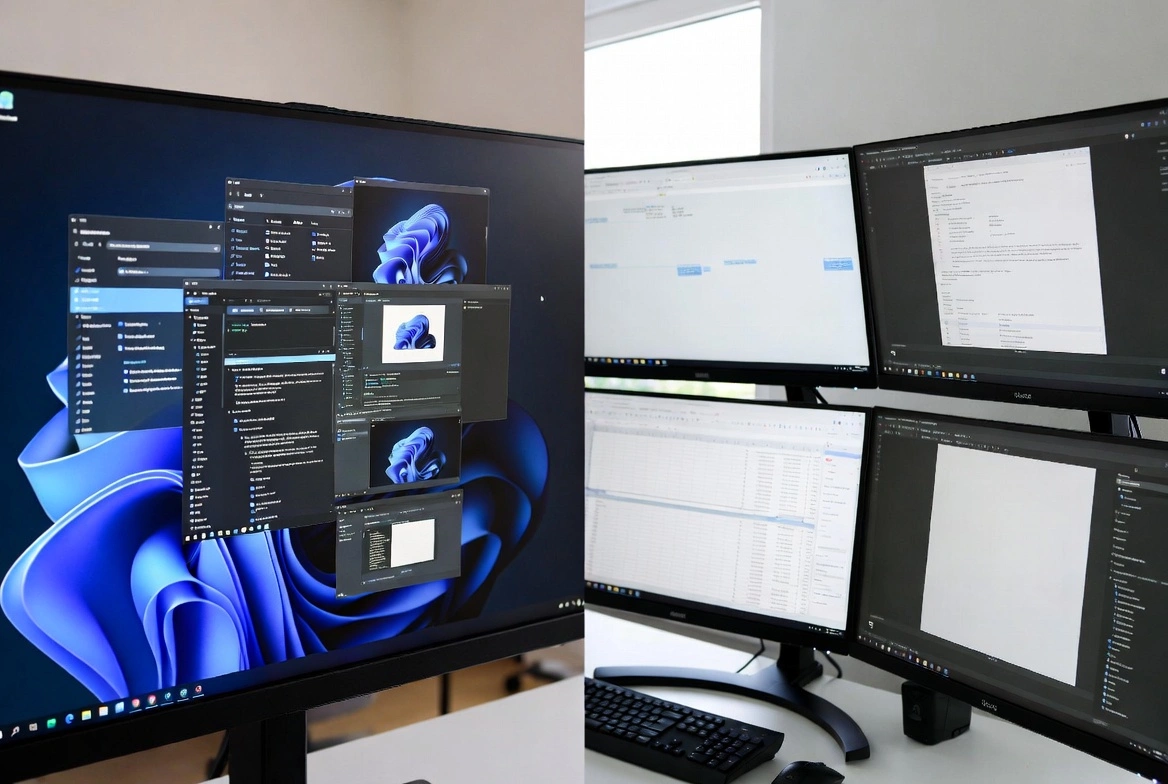
Virtual Desktops vs. Multiple Monitors
| Feature | Virtual Desktops | Multiple Monitors |
|---|---|---|
| Cost | Free (built-in) | Requires additional hardware |
| Physical Space | No extra space needed | Needs desk space |
| Simultaneous Viewing | One at a time | All visible at once |
| Portability | Works on any Windows 11 PC | Fixed setup |
| Best For | Context switching, focus | Reference work, comparison |
Start Using Virtual Desktops Today
Virtual desktops are one of Windows 11's most underutilized productivity features. They cost nothing, require no setup, and can dramatically improve how you organize your digital workspace. Start with just two desktops - one for work, one for personal - and expand from there as you discover your optimal workflow.