
Mastering Microsoft 365 AI Tools in 2026: Boost Productivity in Word, Excel, and PowerPoint

Callum specializes in breaking down complex technology topics into easy-to-understand guides. He has a background in computer science and technical writing.

If you've been using Microsoft 365 the same way for years, you're leaving serious productivity on the table. The AI features baked into Word, Excel, and PowerPoint aren't gimmicks—they're genuine time-savers that can shave hours off your weekly workload. But here's the thing: most people either don't know these tools exist or have no idea how to use them properly.
I've spent the last several months putting Microsoft 365 AI tools 2026 through their paces, testing everything from simple text suggestions to complex data analysis. What I've discovered is that the gap between users who leverage these features and those who don't is widening fast. The productivity difference is stark, and frankly, it's becoming a competitive advantage in the workplace.
This guide breaks down exactly how to master these AI capabilities across the entire Microsoft 365 suite. No fluff, no marketing speak—just practical techniques that actually work in real-world scenarios. Whether you're a seasoned Office veteran or someone who still struggles with pivot tables, there's something here that will genuinely improve how you work.
📋 What You'll Learn
The Current State of AI in Microsoft 365
Let's be honest: the term "AI" gets thrown around so loosely in tech marketing that it's almost meaningless. But what Microsoft has built into their productivity suite is genuinely different. We're not talking about basic autocomplete or template suggestions—these are sophisticated language models that understand context, learn from your patterns, and can handle complex multi-step tasks.
The Microsoft 365 AI tools 2026 lineup represents years of development, incorporating everything from natural language processing to predictive analytics. The integration is seamless enough that you might not even realize you're using AI half the time. That's kind of the point—it fades into the background and just makes your work better.
Word
Intelligent writing assistance, tone detection, content generation, and document summarization
Excel
Natural language formulas, pattern recognition, predictive analysis, and automated insights
PowerPoint
Design suggestions, speaker coaching, automatic layouts, and presentation generation
What Makes 2026 Different
The biggest shift this year is contextual awareness. Previous AI implementations felt like they were working in isolation—they'd help with one task but couldn't connect the dots across your entire workflow. That's changed dramatically. The system now understands relationships between documents, tracks your projects across applications, and offers suggestions based on the bigger picture of what you're trying to accomplish.
There's also been massive improvement in accuracy. Early AI writing assistants had a tendency to produce content that sounded vaguely robotic or off-brand. The current iteration is significantly better at matching your voice, understanding industry-specific terminology, and producing output that actually sounds like you wrote it.
Pro Tip: Train the AI on Your Style
The more you use these tools and accept or reject their suggestions, the better they get at understanding your preferences. Don't just ignore bad suggestions—actively dismiss them so the system learns what you don't want.
AI Productivity in Word: Beyond Spell Check
Remember when the most advanced thing Word could do was catch misspellings and suggest grammar fixes? That feels almost quaint now. AI productivity in Word has evolved into something that genuinely understands what you're trying to say and can help you say it better.
Intelligent Writing Suggestions
The writing assistant now goes far beyond basic grammar. It analyzes sentence structure, identifies unclear passages, and suggests ways to improve readability. More importantly, it does this in context—understanding that technical documentation requires different treatment than marketing copy or casual emails.
What I find most useful is the tone detection feature. It can flag when your writing comes across as too aggressive, too passive, or inconsistent with the rest of the document. For anyone who's ever sent an email that landed wrong, this is genuinely valuable.
Key AI Writing Features in Word
Highlight any passage and get alternative versions that preserve meaning while improving clarity
Generate executive summaries, key points, or abstracts from lengthy documents automatically
Take bullet points or outlines and expand them into full paragraphs while maintaining your intended message
Identify when your writing might be too close to other sources, helpful for academic and professional contexts
Research and Citation Assistance
The Researcher tool has gotten significantly smarter. You can now describe what kind of information you're looking for in natural language, and it will find relevant sources, suggest citations, and even help you integrate quotes into your text seamlessly. For anyone writing reports, papers, or documentation, this cuts research time dramatically.
There's also improved integration with your organization's internal documents. If you're working on a project and there are related files in SharePoint or OneDrive, Word can surface them proactively and help you reference or incorporate that content.
Watch Out For...
AI-generated content should always be reviewed carefully. It can occasionally produce factually incorrect information or make assumptions that don't hold. Treat it as a starting point, not a final product.
Excel AI Features That Actually Matter
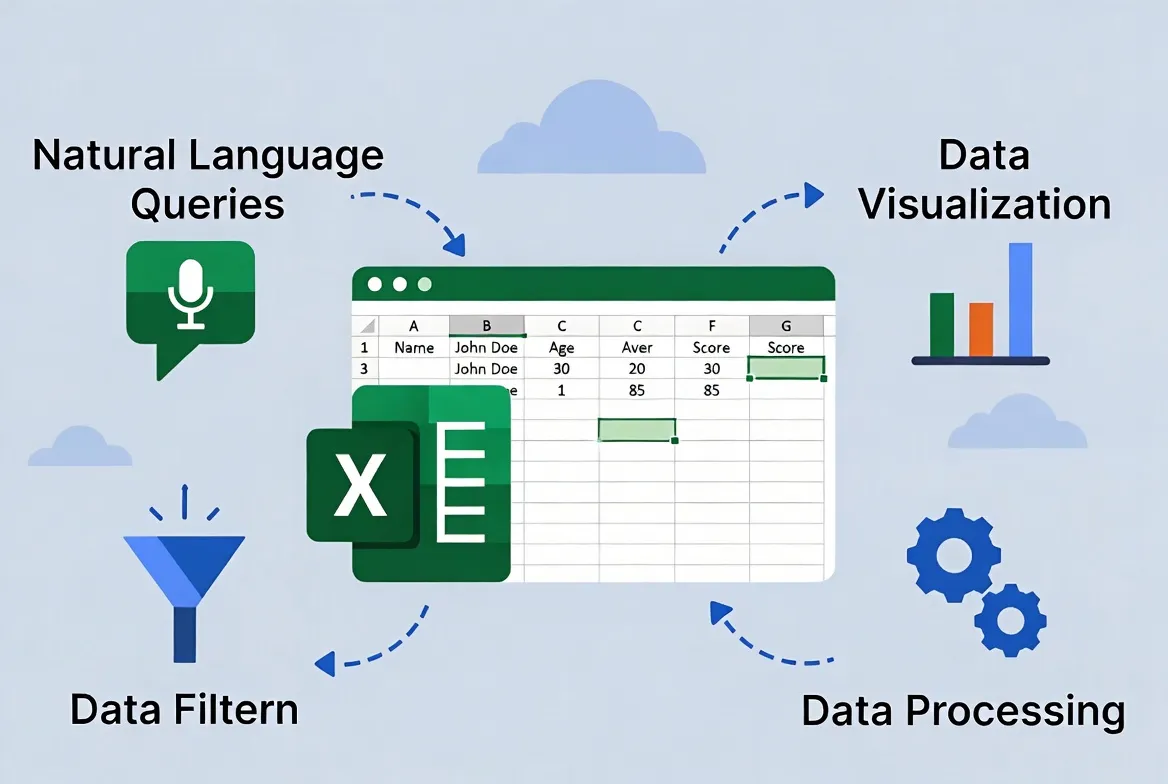
Excel has always been powerful, but let's be real—it's also intimidating. The learning curve for advanced features is steep, and most users barely scratch the surface of what's possible. Excel AI features change that dynamic entirely by making sophisticated analysis accessible to everyone.
Natural Language Queries
This is the game-changer. Instead of memorizing complex formula syntax or spending twenty minutes Googling how to do something, you can just... ask. Type "What was our total revenue by region last quarter?" and Excel will analyze your data and produce the answer. No VLOOKUP expertise required.
The system understands context, so it can interpret column headers, recognize date formats, and figure out what you mean even when your phrasing isn't precise. It's not perfect—sometimes you need to clarify or rephrase—but it's remarkably good at getting to the right answer quickly.
| What You Can Ask | What Excel Does | Traditional Method |
|---|---|---|
| "Show me a breakdown of sales by month" | Creates pivot table with visualization | Manual pivot table creation |
| "Highlight all values above average" | Applies conditional formatting | Conditional formatting rules |
| "Find duplicate entries in column A" | Identifies and marks duplicates | COUNTIF formulas or remove duplicates |
| "Predict next quarter's numbers" | Runs forecast analysis | FORECAST function + chart |
Automatic Data Insights
The Insights feature scans your data and automatically surfaces interesting patterns, outliers, and trends. It's like having a data analyst looking over your shoulder pointing out things you might have missed. Sometimes the suggestions are obvious, but other times they catch genuine anomalies or correlations that would take hours to discover manually.
What makes this genuinely useful for everyday work is that you don't need to know what questions to ask. The system proactively identifies what's notable about your data and presents it in plain language. For managers reviewing reports or anyone dealing with data they didn't create themselves, this is invaluable.
Formula Generation and Explanation
Here's a feature that should have existed years ago: describe what you want a formula to do, and Excel writes it for you. Need to extract the month from a date, compare it to another cell, and return different values based on the result? Just explain it, and the formula appears.
Even better, you can select any existing formula and ask for an explanation. This is huge for inheriting spreadsheets from other people. Instead of reverse-engineering complex nested functions, you get a plain-English breakdown of what each part does.
PowerPoint AI Templates and Design Intelligence
Creating presentations that don't look terrible is harder than it should be. Most people either spend way too much time fiddling with layouts or just accept that their slides will look generic. PowerPoint AI templates and design features address both problems with tools that handle the visual heavy lifting.
Designer: Automatic Layout Intelligence
The Designer panel has evolved from a nice-to-have into something I actually rely on. Drop content onto a slide—text, images, charts—and Designer offers multiple professional layout options. These aren't just templates with your content slotted in; the system genuinely considers visual hierarchy, balance, and flow.
The AI understands that a slide with three bullet points needs different treatment than one with a single key message or a comparison between two concepts. It adapts suggestions based on content type, and the results are consistently better than what most non-designers would produce manually.
What Designer Handles Automatically
Presentation Generation from Documents
One of the more impressive capabilities is creating entire presentations from existing content. Feed it a Word document, outline, or even meeting notes, and PowerPoint generates a complete deck with appropriate structure, suggested visuals, and speaker notes.
Is the output perfect? Not usually. But it's a dramatically better starting point than a blank slide. You'll spend your time refining and polishing rather than building from scratch. For recurring reports or standardized presentations, this cuts creation time by 60-70%.
Speaker Coach and Rehearsal Features
The Speaker Coach feature deserves more attention than it gets. It analyzes your rehearsal—pacing, filler words, pitch variation—and provides actionable feedback. It even tracks whether you're reading slides verbatim (don't do that) and how well you're engaging with different parts of your content.
For anyone who presents regularly, this is like having access to a speaking coach without the cost or scheduling hassle. The feedback is surprisingly nuanced and actually helps improve delivery over time.
Copilot: The AI Assistant That Changes Everything
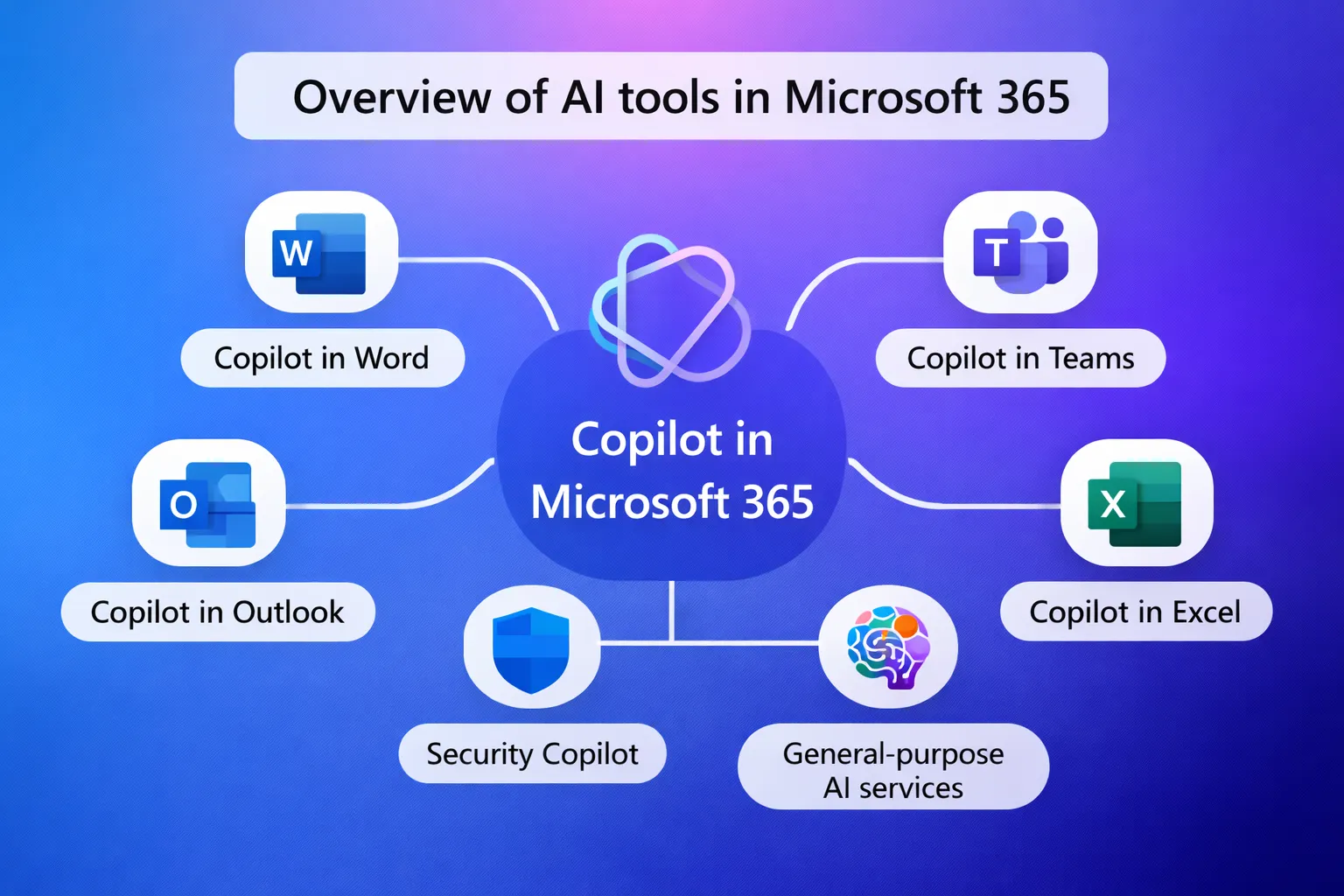
Copilot represents the most significant advancement in how we interact with Microsoft 365 AI tools 2026. Rather than using AI features in isolation within each app, Copilot provides a unified assistant that works across your entire digital workspace. It's the closest thing we have to a genuinely intelligent productivity partner.
What Copilot Actually Does
At its core, Copilot is a conversational interface to all your Microsoft 365 content and capabilities. You can ask it to draft emails based on previous conversations, create presentations from research documents, summarize meeting transcripts, or analyze data across multiple spreadsheets. The key differentiator is context—Copilot understands your work across applications and uses that understanding to provide more relevant assistance.
Real-World Copilot Use Cases
"Draft a follow-up email to the marketing team about the Q3 campaign, referencing our discussion from Tuesday's meeting"
"Prepare a brief on the Henderson account including recent emails, shared documents, and any mentioned concerns"
"Compare the budget projections in the finance spreadsheet with what was discussed in last month's leadership meeting"
"Create a presentation for new hire orientation using content from our employee handbook and recent announcements"
Getting the Most From Copilot
The effectiveness of Copilot correlates directly with how you interact with it. Vague prompts produce vague results. Being specific about what you want, providing context about the intended audience or purpose, and iterating on initial outputs yields dramatically better results.
Think of it less like giving commands to a computer and more like collaborating with a capable but literal-minded colleague. The more context you provide upfront, the less back-and-forth required to get the output you need.
Copilot in Meetings
The integration with Teams meetings deserves special mention. Copilot can join calls, transcribe in real-time, identify action items, summarize discussions, and even answer questions about what was said after the fact. For anyone who's ever struggled to participate fully in a meeting while also taking notes, this is genuinely liberating.
After meetings, you can ask things like "What did Sarah say about the timeline?" or "Were there any objections raised to the proposal?" and get accurate answers pulled from the transcript. It's like having a perfect memory of every conversation.
Building AI-Powered Workflows
Individual AI features are useful, but the real productivity gains come from integrating them into coherent workflows. When you chain capabilities together, Microsoft 365 AI tools 2026 become genuinely transformative rather than just incrementally helpful.
Example: Automated Report Generation
Here's a workflow I use regularly: Data comes into Excel from various sources. The AI identifies trends and anomalies, generating natural language summaries. Those summaries feed into a Word template that Copilot helps polish and format. The key findings then become a PowerPoint deck with Designer handling the visual presentation. What used to take most of a day now happens in under an hour.
Example: Customer Response System
For anyone handling customer communications, consider this approach: incoming emails get analyzed for sentiment and intent. Copilot drafts responses based on your communication history and knowledge base. You review and send. The system learns from your edits over time. Response quality stays consistent even across team members, and response times drop significantly.
Time Savings Reality Check
In my testing, well-designed AI workflows save 30-50% of time on routine tasks. The savings compound—what seems like a few minutes per task adds up to hours per week and days per month. Track your baseline before implementing AI assistance to quantify actual improvements.
AI Mistakes to Avoid
For all the benefits, there are legitimate pitfalls when working with AI productivity tools. Understanding these helps you avoid frustration and get better results from the technology.
Over-Reliance on AI Output
The most common mistake is treating AI-generated content as final. It's a tool for acceleration, not replacement. AI can miss nuance, introduce subtle errors, or produce content that sounds right but misses your actual point. Always review, always edit, always verify facts.
Privacy and Confidentiality Concerns
Be thoughtful about what you feed into AI tools, especially with sensitive business or personal information. While Microsoft's enterprise offerings include privacy protections, understanding what data is processed and how is essential. This is particularly important in regulated industries or when dealing with client information.
Skill Atrophy
There's a genuine risk that relying too heavily on AI assistance can erode underlying skills. If Excel writes all your formulas, you might lose the ability to troubleshoot when things go wrong. Balance AI assistance with maintaining core competencies—you should understand what the tools are doing, not just accept their output blindly.
Common AI Pitfalls at a Glance
| Pitfall | Impact | Prevention |
|---|---|---|
| Accepting output without review | Errors in final work | Always proofread and verify |
| Vague prompts | Unhelpful results | Be specific about context and goals |
| Ignoring AI suggestions | Missed opportunities | Evaluate suggestions before dismissing |
| Sharing sensitive data | Privacy breaches | Know your organization's policies |
What's Coming Next
Microsoft's AI development shows no signs of slowing. Based on announced roadmaps and industry trends, here's what to expect from Microsoft 365 AI tools in the near future.
Deeper Integration Across Applications
The walls between applications continue to dissolve. Expect even more seamless transitions between apps, with AI understanding not just individual documents but entire projects across multiple file types and platforms. The goal is an experience where the application you're using becomes almost irrelevant—you work on your objectives, and the right tools appear automatically.
Enhanced Personalization
AI systems will get significantly better at understanding individual work patterns, preferences, and goals. Rather than generic assistance, expect tools that adapt to your specific role, industry, and habits. The system that knows you're a finance manager will offer different suggestions than one working with a creative director.
Real-Time Collaboration Features
AI-powered collaboration is an area of active development. Think intelligent conflict resolution when multiple people edit documents, automatic summarization of changes across team members, and proactive suggestions about who should be involved in specific discussions or decisions.
Practical Next Steps
Mastering Microsoft 365 AI tools 2026 isn't about learning every feature—it's about identifying the capabilities most relevant to your work and integrating them into your daily routine. Start small, build habits, and expand from there.
Recommended Learning Path
Pick Word, Excel, or PowerPoint and focus exclusively on its AI features
Learn to craft effective prompts and integrate AI assistance into routine tasks
Connect capabilities across applications for compound productivity gains
As new features release, evaluate and integrate the ones relevant to your work
The productivity gap between AI-enabled workers and everyone else is real and growing. The good news is that the barrier to entry is lower than ever—these tools are designed to be accessible, and the investment required to learn them pays dividends quickly. The question isn't whether to adopt these capabilities; it's how fast you can make them second nature.
Frequently Asked Questions
Do all Microsoft 365 plans include AI features?
Basic AI features like Designer in PowerPoint and Editor in Word are included in all Microsoft 365 subscriptions. Advanced Copilot features require either a Copilot Pro add-on for personal plans or Copilot for Microsoft 365 for business accounts.
Is my data safe when using AI features?
Microsoft's enterprise AI features are designed with privacy in mind. Your data stays within your tenant and isn't used to train models. However, policies vary by plan type, so review Microsoft's documentation for your specific subscription.
Can AI features work offline?
Most AI capabilities require an internet connection since processing happens in the cloud. Some basic features like spell check work offline, but advanced AI assistance needs connectivity.
How accurate are Excel's AI-generated formulas?
In my testing, accuracy is high for common operations—usually 85-95% correct on the first attempt. Complex multi-step formulas sometimes need refinement. Always verify results, especially for critical calculations.
Will AI replace the need to learn Excel formulas?
Not entirely. Understanding how formulas work helps you verify AI output and troubleshoot issues. Think of AI as accelerating your work, not replacing your knowledge. The best results come from combining AI assistance with genuine understanding.
What languages do Microsoft 365 AI features support?
Microsoft continues expanding language support. Major languages like English, Spanish, French, German, and Japanese have full feature support. Lesser-used languages may have limited AI capabilities. Check Microsoft's documentation for specific language availability.
Can I use Copilot with documents stored locally?
Copilot works best with documents stored in OneDrive or SharePoint because it can access and reference them across applications. Local files can still use in-app AI features but won't benefit from cross-document context.
How do I access AI features if my organization hasn't enabled them?
Enterprise AI features are typically controlled by IT administrators. Contact your IT department to inquire about availability. For personal use, consider a personal Microsoft 365 subscription with Copilot Pro add-on.