
Windows 11 for Creators: Complete Guide to Optimize Your PC for Video Editing, Design & 3D

Callum specializes in breaking down complex technology topics into easy-to-understand guides. He has a background in computer science and technical writing.
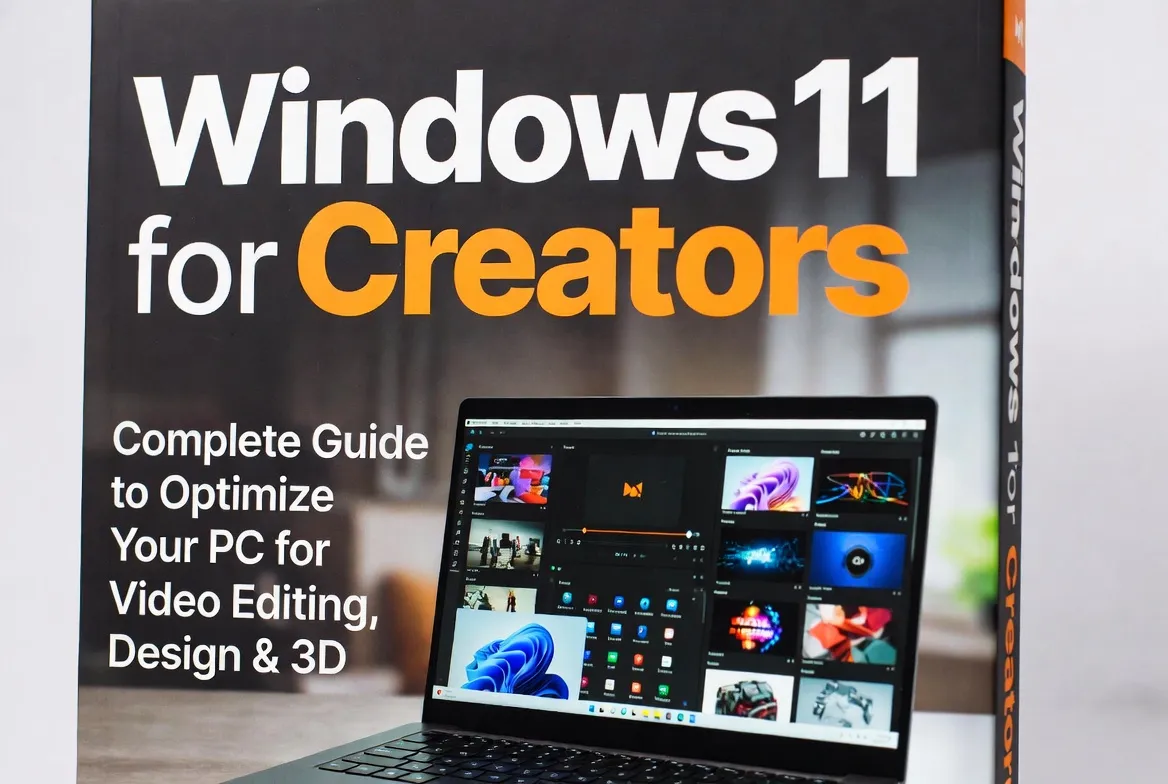
Windows 11 has become the preferred platform for content creators, video editors, graphic designers, and 3D artists. With features specifically designed for creative workflows, GPU optimizations, and HDR display support, Windows 11 Pro delivers the performance and stability that creative professionals need. This comprehensive guide teaches you how to configure and optimize your Windows 11 PC for professional creative work.
📋 Table of Contents
Why Windows 11 Is Ideal for Creators
Windows 11 introduces significant improvements that directly benefit creative professionals:
DirectStorage
Load game and 3D project assets directly to GPU, reducing load times by up to 70%.
Auto HDR
Automatic SDR to HDR enhancement with 1000+ compatible games and applications.
Snap Layouts
Efficiently organize multiple creative app windows in multi-monitor setups.
Windows Studio Effects
AI-powered camera effects: background blur, eye contact, automatic framing for streaming.
🎯 Windows 11 Pro vs Home for Creators
Windows 11 Pro is recommended for professional creators due to: support for up to 2TB RAM (vs 128GB on Home), Hyper-V virtualization for testing in different environments, BitLocker for protecting confidential projects, and Remote Desktop for accessing your workstation from anywhere.

Hardware Requirements for Creators
Optimal hardware varies by creative discipline. Here are the 2026 recommendations:
| Component | Video Editing | Graphic Design | 3D/Animation |
|---|---|---|---|
| CPU | Intel i7/i9 or AMD Ryzen 7/9 | Intel i5/i7 or AMD Ryzen 5/7 | Intel i9 or AMD Ryzen 9/Threadripper |
| RAM | 32GB minimum, 64GB recommended | 16GB minimum, 32GB recommended | 64GB minimum, 128GB+ ideal |
| GPU | RTX 4070 or higher / RX 7800 XT | RTX 4060 / RX 7600 | RTX 4080/4090 or Quadro RTX |
| Storage | 1TB NVMe + HDD for archives | 512GB NVMe minimum | 2TB+ NVMe Gen4, RAID for projects |
| Monitor | 4K HDR, 100% sRGB minimum | 100% Adobe RGB, calibrated | 4K+, high refresh for viewport |
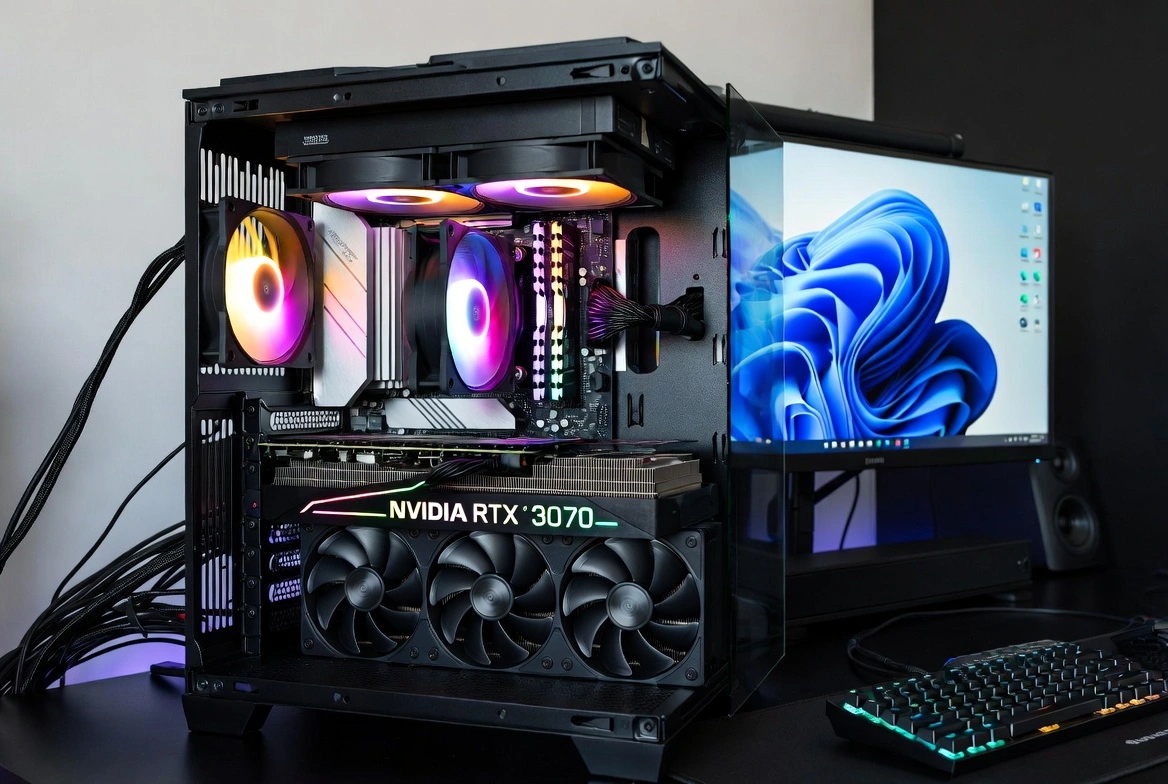
Video Editing Optimization
Configure Windows 11 for optimal performance in video editing with Premiere Pro, DaVinci Resolve, and After Effects:
System Configuration
1. High Performance Power Plan
Prevent CPU throttling during renders:
Control Panel → Power Options → High Performance2. Configure Scratch Disk
Use a separate NVMe SSD for temporary files:
- Premiere Pro: Edit → Preferences → Scratch Disks
- DaVinci Resolve: Preferences → System → Media Cache
- After Effects: Edit → Preferences → Media & Disk Cache
3. Virtual Memory
Increase page file for large projects:
- System → About → Advanced system settings
- Performance → Settings → Advanced
- Virtual memory → Change → Custom size (1.5x-2x your RAM)
DaVinci Resolve Optimization
GPU Configuration:
- Preferences → System → Memory and GPU
- Processing Mode: CUDA (NVIDIA) or OpenCL (AMD)
- GPU Memory: Auto or maximum available
- Timeline Quality: Optimized for editing, Maximum for color grading
Graphic Design Setup
Optimize Windows 11 for Photoshop, Illustrator, InDesign, and Affinity:
Photoshop Performance
RAM Allocation
Edit → Preferences → Performance → Memory Usage: 70-80% of available RAM
History States
Reduce to 20-30 states for large projects. Use snapshots instead.
Cache Levels
Cache Levels: 4-6. Tile Size: 1024K or 1028K for large documents.
Graphics Processor
Preferences → Performance → Use Graphics Processor: On with Advanced mode.
Graphics Tablet Calibration
For Wacom, Huion, or XP-Pen users:
- Install the latest drivers from the manufacturer (don't use Windows generic drivers)
- Configure pen pressure in the tablet software
- In Windows: Settings → Bluetooth & devices → Pen & Windows Ink
- Disable "Use your finger as an input device" if you only use the stylus
3D & Animation Optimization
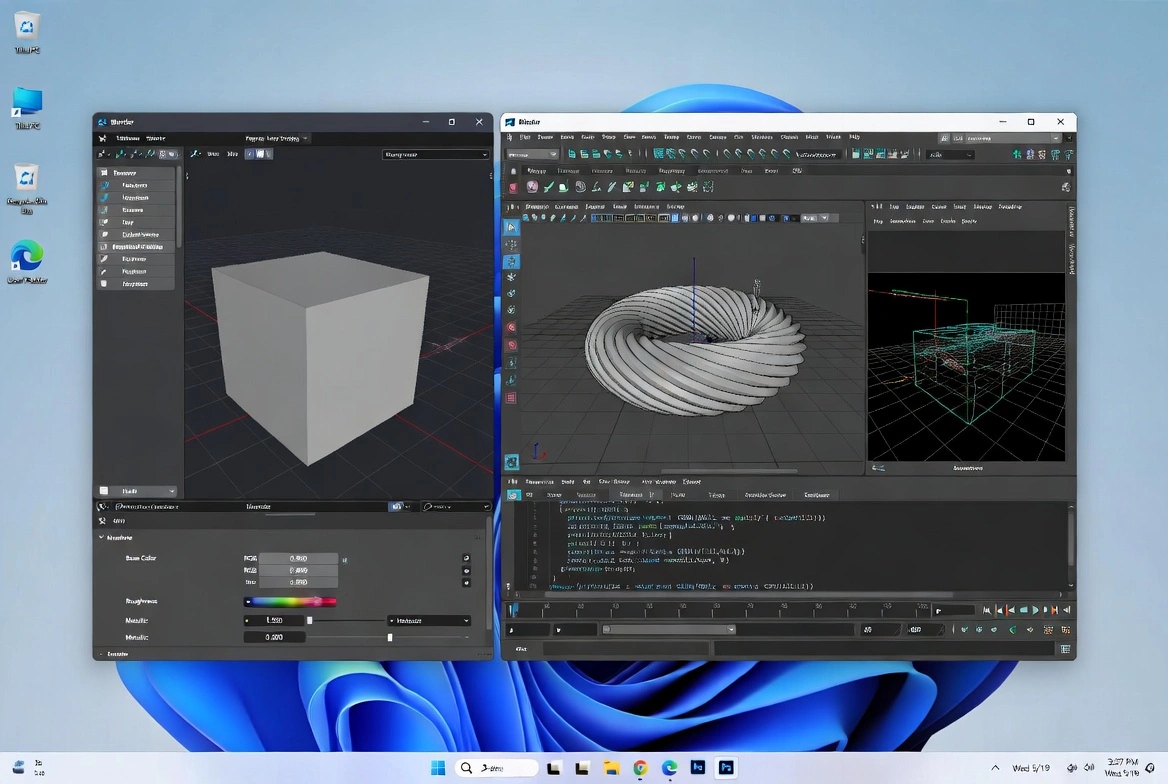
Windows 11 configuration for Blender, Maya, 3ds Max, Cinema 4D, and Unreal Engine:
NVIDIA Rendering Configuration
NVIDIA Control Panel:
- Manage 3D Settings → Global Settings
- Power management mode: Prefer maximum performance
- Shader Cache: Enabled
- Threaded optimization: Auto
- For specific apps, create a custom profile
Blender: Optimal Settings
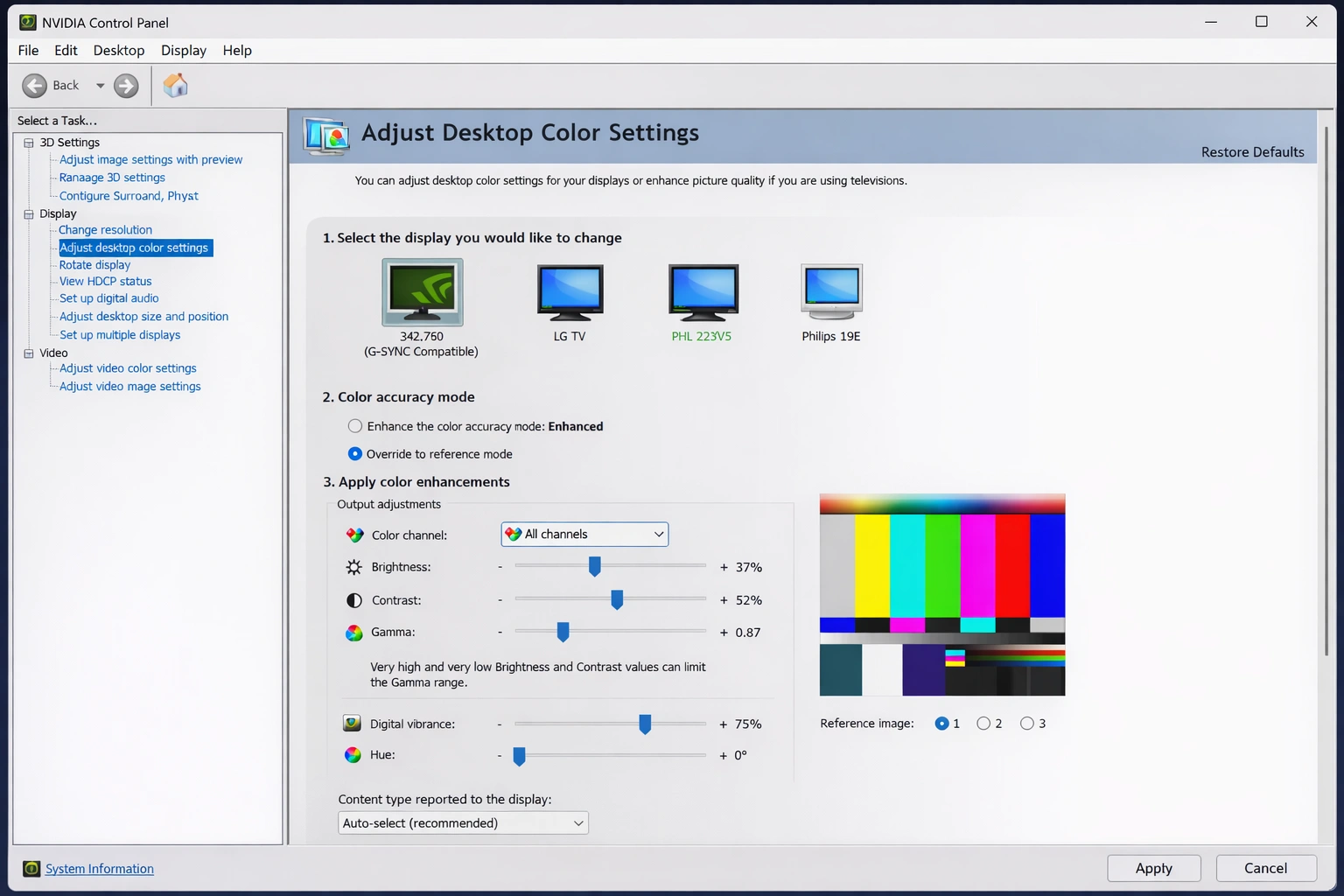
Color Management & HDR in Windows 11
Color accuracy is crucial for professionals. Properly configure color management in Windows 11:
Monitor Calibration
- Use a hardware calibrator (X-Rite i1Display, Datacolor SpyderX)
- Calibrate under your studio's lighting conditions
- Target: D65 (6500K), Gamma 2.2, 120 cd/m² for SDR work
- Recalibrate monthly or when lighting conditions change
ICC Profile Setup
Assign Profile in Windows:
- Settings → System → Display → Advanced display settings
- Display adapter properties
- Color Management tab → Color Management
- Select your monitor → Add ICC profile from calibrator
- Set as default profile
HDR Configuration
For HDR Monitors:
- Settings → System → Display → HDR
- Enable Use HDR if your monitor supports it
- Adjust SDR content brightness for balance
- For HDR video editing, use DaVinci Resolve with native HDR workflow
Storage & Workflow
A well-organized storage strategy dramatically improves productivity:
System Drive
NVMe Gen4 500GB+
Windows + Creative apps
Work Drive
NVMe Gen4 1-2TB
Active projects + cache
Archive
HDD 4TB+ or NAS
Completed projects
Recommended Folder Structure
D:\Projects\
├── _Active\ (current projects)
├── _Templates\ (reusable templates)
├── _Assets\ (shared resources)
├── Client_Name\
│ ├── 01_Brief\
│ ├── 02_Assets\
│ ├── 03_WIP\
│ ├── 04_Export\
│ └── 05_Final\
Streaming & Windows Studio Effects
Windows 11 includes Windows Studio Effects, AI-powered camera effects available on PCs with NPU (Neural Processing Unit):
🎯 Eye Contact
Adjusts your gaze to appear like you're looking at the camera even when reading.
🖼️ Background Blur
Automatically blurs your environment without a green screen.
📹 Automatic Framing
Follows you automatically keeping you centered in frame.
🎙️ Voice Focus
Reduces background noise and improves voice clarity.
OBS Studio Setup
- Encoder: NVENC (NVIDIA) or AMF (AMD) for minimal CPU impact
- Resolution: 1080p60 for streams, 4K30 for recording
- Bitrate: 6000-8000 Kbps for Twitch, 10000+ for YouTube
- Preset: Quality or Max Quality if your GPU allows
General Performance Optimization
Disable Unnecessary Processes
Process Priority Configuration
To prioritize your creative application:
- Open Task Manager (
Ctrl+Shift+Esc) - Details tab → Right-click on your app's process
- Set priority → High (not Realtime)
- To automate: use Process Lasso or Task Scheduler
Essential Creator Software 2026
| Category | Premium | Free Alternative |
|---|---|---|
| Video Editing | Premiere Pro, Final Cut | DaVinci Resolve, Kdenlive |
| Motion Graphics | After Effects | DaVinci Fusion, Natron |
| Graphic Design | Photoshop, Illustrator | Affinity Photo/Designer, GIMP, Inkscape |
| 3D/Animation | Maya, 3ds Max, Cinema 4D | Blender (professional and free) |
| Audio | Pro Tools, Logic Pro | Audacity, REAPER |
| Streaming | Streamlabs, vMix | OBS Studio |
🎨 Power Your Creative Workstation
Windows 11 Pro delivers the advanced features creative professionals need. Combine it with Microsoft 365 for collaboration and cloud storage.
Frequently Asked Questions
Is Windows 11 Pro better than Home for video editing?
Yes, for professionals. Windows 11 Pro supports more RAM (up to 2TB vs 128GB), includes Hyper-V for virtualization, and offers better memory management for large projects.
Do I need a professional GPU (Quadro/RTX A-series)?
For most creators, gaming GPUs (RTX 4070/4080/4090) are sufficient and offer better price-to-performance. Quadro cards are only recommended for certified CAD work or enterprise 3D rendering.
How much RAM do I really need?
It depends: 16GB is the absolute minimum, 32GB is comfortable for most, 64GB+ for 4K/8K editing, complex compositing, or heavy 3D scenes.
Conclusion
Windows 11 offers an excellent foundation for creative professionals. With the right configuration, you can maximize performance of your editing, design, and 3D applications. Remember to:
- Invest in appropriate hardware for your discipline
- Properly configure power management and priorities
- Organize your storage across multiple drives
- Calibrate your monitor regularly
- Keep GPU drivers updated
With these optimizations, your Windows 11 workstation will be ready for any creative project you undertake.