How to Activate Windows 11 Pro: Complete Windows 11 Activation Guide With Product Key

Callum specializes in breaking down complex technology topics into easy-to-understand guides. He has a background in computer science and technical writing.
Looking to activate Windows 11 Pro with a product key? You're in the right place! This comprehensive Windows 11 activation guide will walk you through the entire Windows 11 Pro activation process in under 5 minutes. Whether you're performing a fresh install, completing a Windows 11 Pro upgrade from Windows 10, or setting up a new PC with a Windows 11 Pro lifetime key, we'll cover everything from entering your Windows 11 Pro product key to troubleshooting common activation errors.
📋 Windows 11 Activation Guide Contents
Before You Start: What You Need for Windows 11 Pro Activation
Before you can activate Windows 11 Pro, make sure you have the following ready for a smooth activation process:
Valid Product Key
A 25-character key in the format XXXXX-XXXXX-XXXXX-XXXXX-XXXXX. You'll receive this instantly via email from Prise Keys.
Internet Connection
Required to verify your key with Microsoft's activation servers. Any connection speed works.
Windows 11 Installed
Either Windows 11 Home or Pro already installed. You can download from Microsoft's official site.
Administrator Access
You need admin rights to activate Windows. Most users already have this on their personal PC.
Don't have a Windows 11 Pro product key yet? Read our complete Windows 11 Pro buyer's guide to learn where to get genuine Windows 11 Pro lifetime keys at the best prices.
Method 1: How to Activate Windows 11 Pro via Settings (Easiest)
This is the recommended method to activate Windows 11 Pro. It's straightforward, takes less than 2 minutes, and doesn't require any technical knowledge—perfect for users new to Windows 11 Pro activation.
Open Windows Settings
Press Win + I on your keyboard, or click the Start menu and select the gear icon for Settings.
Navigate to Activation
Click on System in the left sidebar, then scroll down and click Activation.
Click "Change Product Key"
Expand the "Activation state" section and click the Change button next to "Change product key".
Enter Your 25-Character Key
Type or paste your product key. Windows will automatically add the dashes. Double-check for typos (common: 0 vs O, 1 vs I).
Click "Next" and "Activate"
Windows will verify your key with Microsoft's servers. Once confirmed, click Activate to complete the process.
✅ Windows 11 Pro Activation Complete!
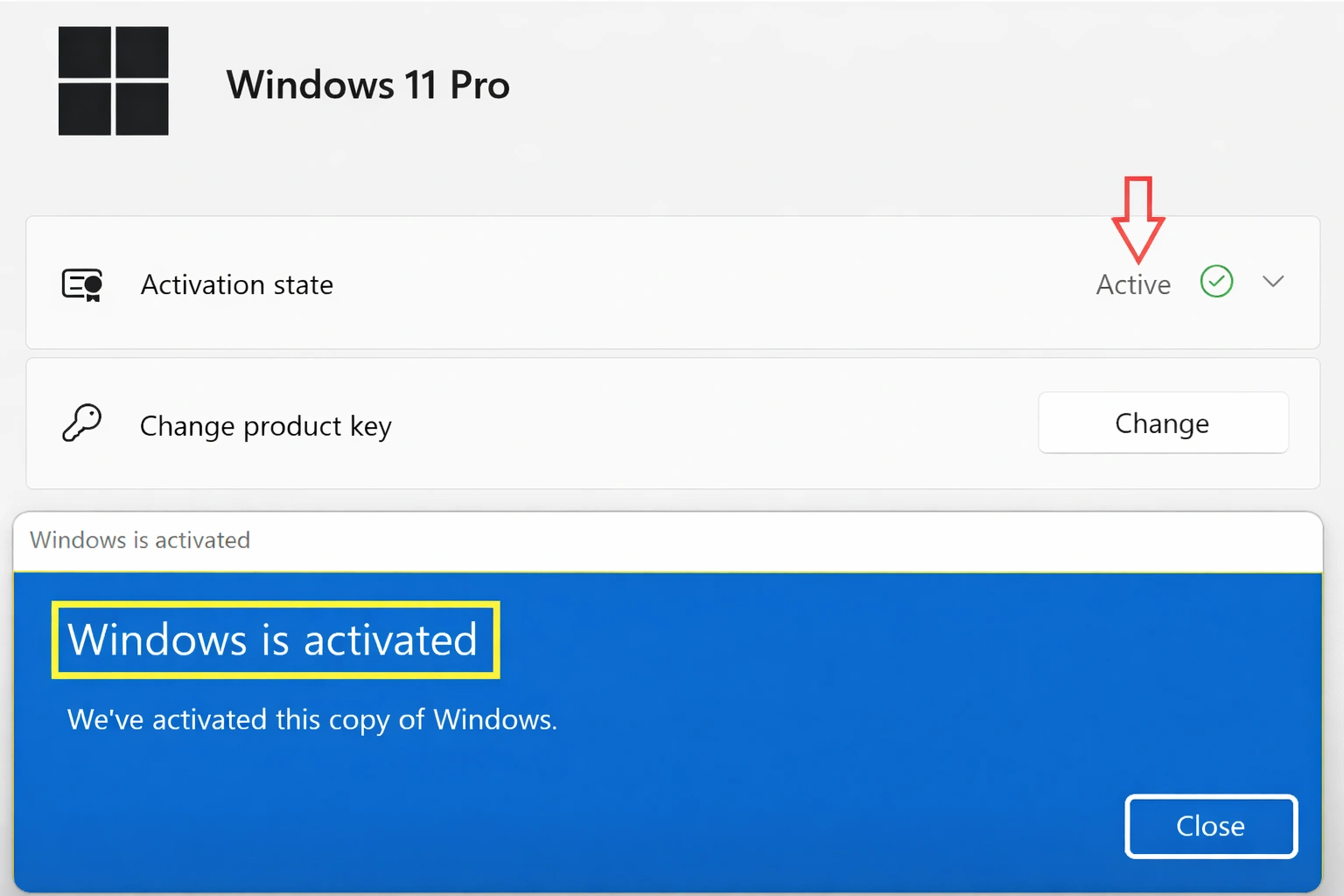
You should now see "Windows is activated" or "Windows is activated with a digital license" in your Activation settings. Your Windows 11 Pro digital license is now fully activated!
Method 2: Activate Windows 11 Pro via Command Prompt (Advanced)
If the Settings method doesn't work, or you prefer command-line tools for Windows 11 activation, you can activate Windows 11 Pro using Command Prompt:
Open Command Prompt as Administrator
Right-click the Start button and select Terminal (Admin) or Command Prompt (Admin).
Install Your Product Key
Type the following command and press Enter (replace with your actual key):
slmgr /ipk XXXXX-XXXXX-XXXXX-XXXXX-XXXXXActivate Windows
Type the following command and press Enter:
slmgr /ato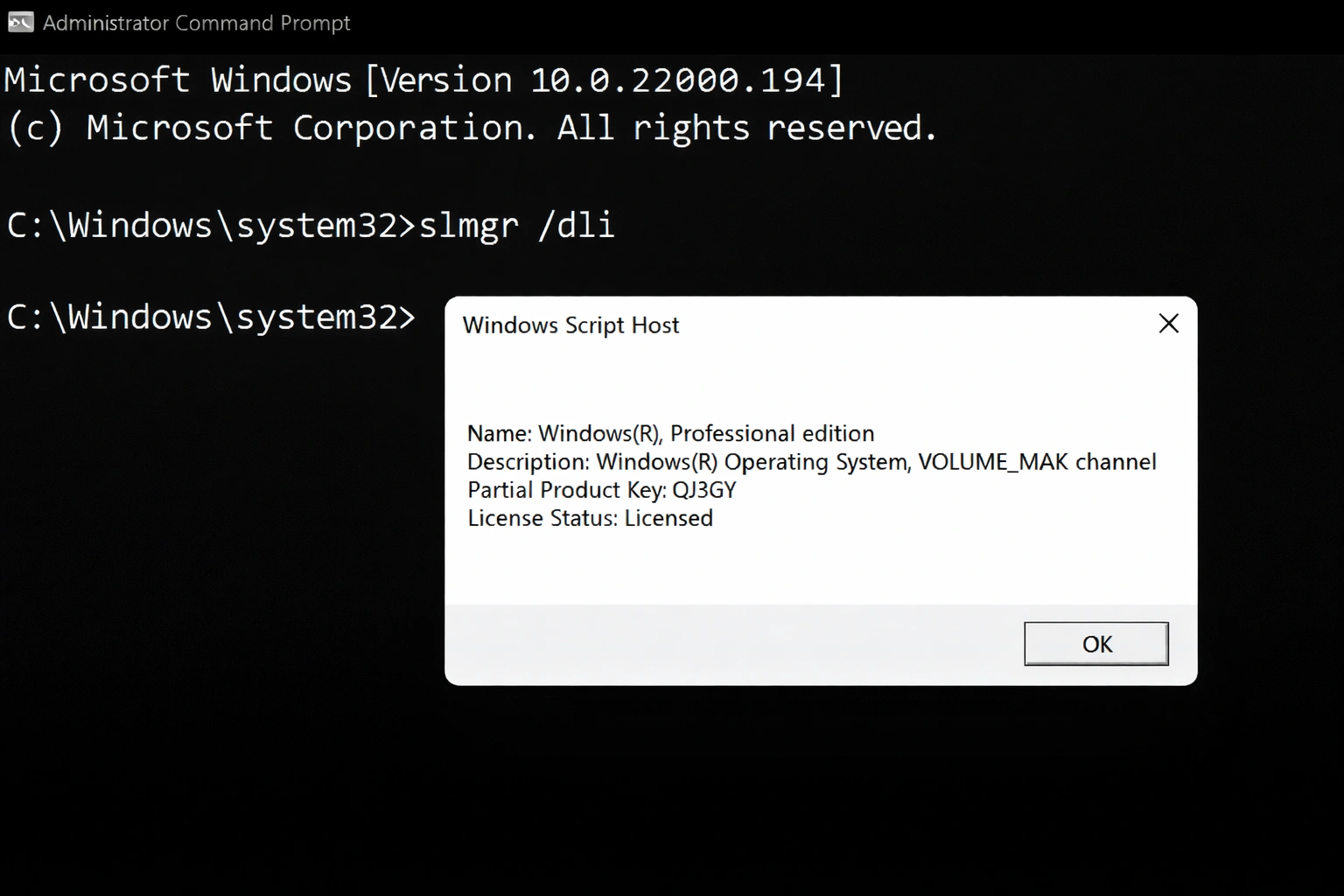
A dialog box will appear confirming successful Windows 11 Pro activation. If you see "Product activated successfully", your Windows 11 Pro digital license is now active!
How to Activate Windows 11 Home to Pro Upgrade
Already running Windows 11 Home and want to complete a Windows 11 Pro upgrade? Great news: you don't need to reinstall Windows. Here's how to activate Windows 11 Pro from Home:
- Purchase a Windows 11 Pro key from Prise Keys
- Go to Settings → System → Activation
- Click Upgrade your edition of Windows
- Click Change product key and enter your Pro key
- Windows will upgrade and may require a restart
The Windows 11 Pro upgrade process takes about 5-10 minutes. All your files, apps, and settings are preserved—you'll just gain access to Pro-exclusive features like BitLocker, Remote Desktop, and Hyper-V. Learn more about what you're getting in our Windows 11 Pro vs Home comparison.
How to Verify Your Windows 11 Pro Digital License Status
Want to confirm your Windows 11 Pro activation was successful? Here are two quick methods to check your Windows 11 Pro digital license:
Via Settings
- Press Win + I
- Go to System → Activation
- Look for "Windows is activated"
Via Command Prompt
- Open Command Prompt
- Type
slmgr /xpr - A dialog shows your license status
If Windows 11 Pro activation was successful, you'll see either "Windows is activated" or "Windows is activated with a digital license linked to your Microsoft account"—confirming your Windows 11 Pro digital license is active.
Windows 11 Activation Troubleshooting: Common Errors & Fixes
Having trouble with your Windows 11 Pro activation? Don't worry—Windows 11 activation troubleshooting is usually straightforward. Here are solutions to the most common errors:
Error 0xC004F074: "Software Licensing Service reported..."
Cause: Windows can't connect to activation servers.
Fix: Check your internet connection, disable VPN temporarily, and try again. If using a firewall, ensure outbound connections to Microsoft are allowed.
Error 0xC004C003: "The activation server determined the key is blocked"
Cause: The key may have been used on too many devices or is invalid.
Fix: Contact the seller for a replacement key. At Prise Keys, our 24/7 support team will resolve this immediately.
Error 0x803F7001: "Windows isn't activated"
Cause: Hardware change detected or license not linked to Microsoft account.
Fix: Run the Activation Troubleshooter: Settings → System → Activation → Troubleshoot. If you changed hardware, select "I changed hardware on this device recently."
"This product key didn't work" Error
Cause: Typo in the key, wrong Windows edition, or key already in use.
Fix: Double-check for typos (0 vs O, 1 vs I, 5 vs S). Ensure you're activating the correct edition (Pro key won't work on Home without upgrading first).
Still stuck with Windows 11 activation troubleshooting? Microsoft's official Windows activation support page has additional steps. You can also contact our 24/7 support team for help with your Windows 11 Pro product key.
Windows 11 Pro Activation: Frequently Asked Questions
How long does Windows 11 Pro activation take?
Typically under 1 minute. Once you enter the Windows 11 Pro product key and click Activate, Windows verifies with Microsoft's servers almost instantly.
Can I use the same Windows 11 Pro product key on multiple computers?
No, each Windows 11 Pro lifetime key is valid for one PC at a time. If you need to move it to a new computer, you must first deactivate it on the old one.
Will I lose my Windows 11 Pro digital license if I upgrade my hardware?
If you link your Windows 11 Pro digital license to a Microsoft account, you can reactivate after hardware changes using the Activation Troubleshooter. Retail keys are more flexible than OEM keys.
What's the difference between OEM and Retail Windows 11 Pro keys?
OEM keys are tied to the original hardware and cannot be transferred. Retail Windows 11 Pro lifetime keys (like those from Prise Keys) can be transferred to a new PC if you deactivate the old one first.
Do I need to reactivate Windows 11 Pro after updates?
No. Once you activate Windows 11 Pro, your license persists through all Windows updates, including major feature updates. Only significant hardware changes may require reactivation.
Conclusion: Activate Windows 11 Pro Today
Windows 11 Pro activation is a quick and straightforward process that takes less than 5 minutes. Whether you use the Settings method or Command Prompt, the result is the same: a fully activated Windows 11 Pro digital license with access to all premium features like BitLocker encryption, Remote Desktop, and Hyper-V. This Windows 11 activation guide has covered everything you need—from using your Windows 11 Pro product key to completing a Windows 11 Pro upgrade from Home edition.
If you haven't purchased your key yet, get a genuine Windows 11 Pro lifetime key from Prise Keys for just $33.99—with instant delivery and 24/7 support for any Windows 11 activation troubleshooting you may need.