
Windows 11 for Developers: Complete WSL2, Docker & Dev Tools Setup Guide

Callum specializes in breaking down complex technology topics into easy-to-understand guides. He has a background in computer science and technical writing.
Windows 11 has become a first-class development platform thanks to WSL2, Windows Terminal, Docker Desktop, and seamless integration with modern development tools. This comprehensive guide teaches you how to set up your Windows 11 PC as a professional development workstation for web development, backend, DevOps, and more.
📋 Table of Contents
Why Windows 11 Is Ideal for Developers
Windows 11 offers the best hybrid development experience, combining native Windows tools with the Linux ecosystem:
Native WSL2
Run full Linux distributions with a real kernel, native performance, and access to Windows file system.
Integrated Docker
Docker Desktop with WSL2 backend offers superior performance and lower resource consumption.
VS Code Remote
Develop directly in WSL, containers, or remote servers with the Remote Development extension.
PowerToys
Set of utilities for developers: window management, text extractor, color picker, and more.
🎯 Windows 11 Pro vs Home for Development
Windows 11 Pro is required for Docker Desktop as it includes Hyper-V. It also offers BitLocker encryption for confidential source code, Remote Desktop for accessing your dev machine, and support for up to 2TB of RAM for large projects.
WSL2 Installation & Configuration
WSL2 (Windows Subsystem for Linux 2) lets you run a real Linux kernel on Windows:
Quick Installation
# Open PowerShell as Administrator
wsl --install
# Installs Ubuntu by default. For other distros:
wsl --install -d Debian
wsl --install -d Ubuntu-22.04
Optimal WSL2 Configuration
Create the file .wslconfig in your user folder (C:\Users\YourUsername\.wslconfig):
[wsl2]
memory=8GB
processors=4
swap=4GB
localhostForwarding=true
nestedVirtualization=true
~/projects inside WSL, not in /mnt/c/, for better I/O performancesudo apt update && sudo apt upgrade weekly[boot] systemd=true to /etc/wsl.conf for services like snap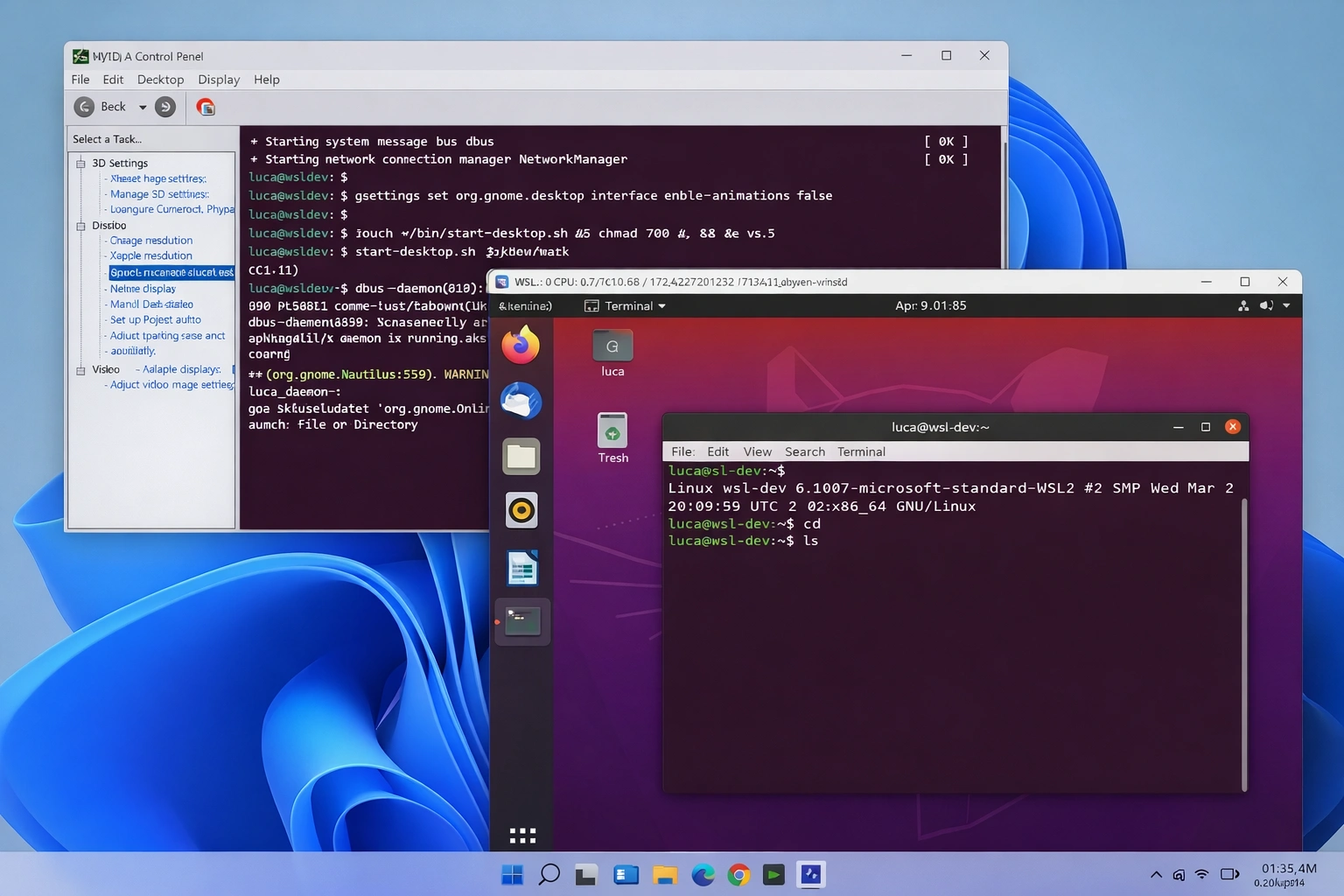
Windows Terminal Setup
Windows Terminal is Microsoft's modern terminal with support for multiple shells, tabs, and advanced customization:
Installation & Profiles
# Install from Microsoft Store or winget
winget install Microsoft.WindowsTerminal
Recommended Configuration (settings.json)
{
  "defaultProfile": "{YOUR-UBUNTU-GUID}",
  "profiles": {
    "defaults": {
      "font": {
        "face": "CaskaydiaCove Nerd Font",
        "size": 12
      },
      "opacity": 95,
      "useAcrylic": true
    }
  },
  "actions": [
    { "command": "paste", "keys": "ctrl+v" },
    { "command": "copy", "keys": "ctrl+c" }
  ]
}
💡 Install Oh My Posh
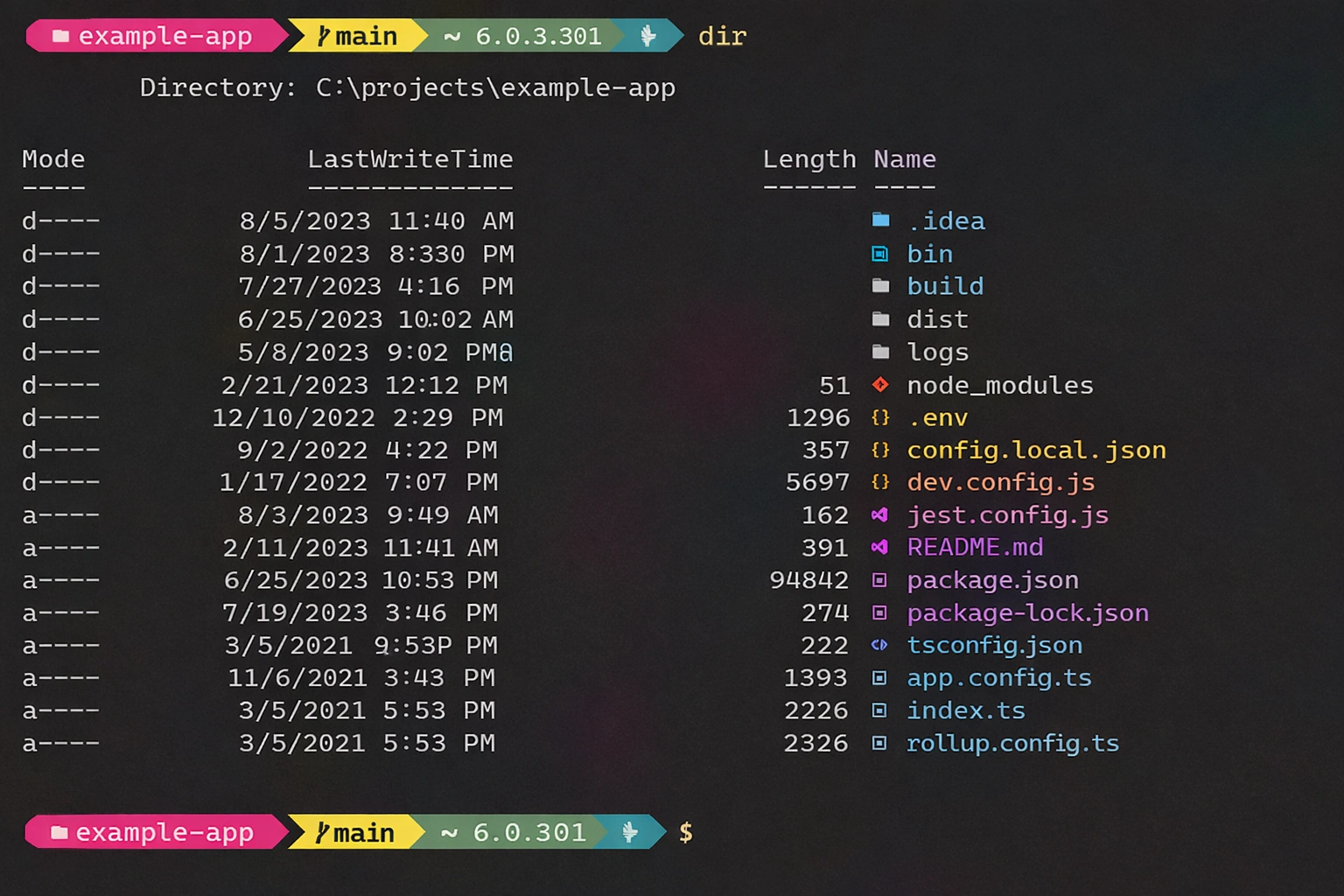
Oh My Posh adds themes and informative prompts. Install with: winget install JanDeDobbeleer.OhMyPosh and configure your favorite shell with the included themes.
Docker Desktop with WSL2 Backend
Docker Desktop on Windows 11 with WSL2 offers the best container experience:
Installation
- Download Docker Desktop from docker.com
- During installation, select "Use WSL 2 instead of Hyper-V"
- Restart Windows after installation
- In Docker Desktop Settings → Resources → WSL Integration, enable your distro
Docker Optimization
Resources
Docker inherits WSL2 limits. Adjust .wslconfig to control CPU and RAM allocation.
Cleanup
Run docker system prune -a regularly to free space from unused images and volumes.

VS Code + Remote Development
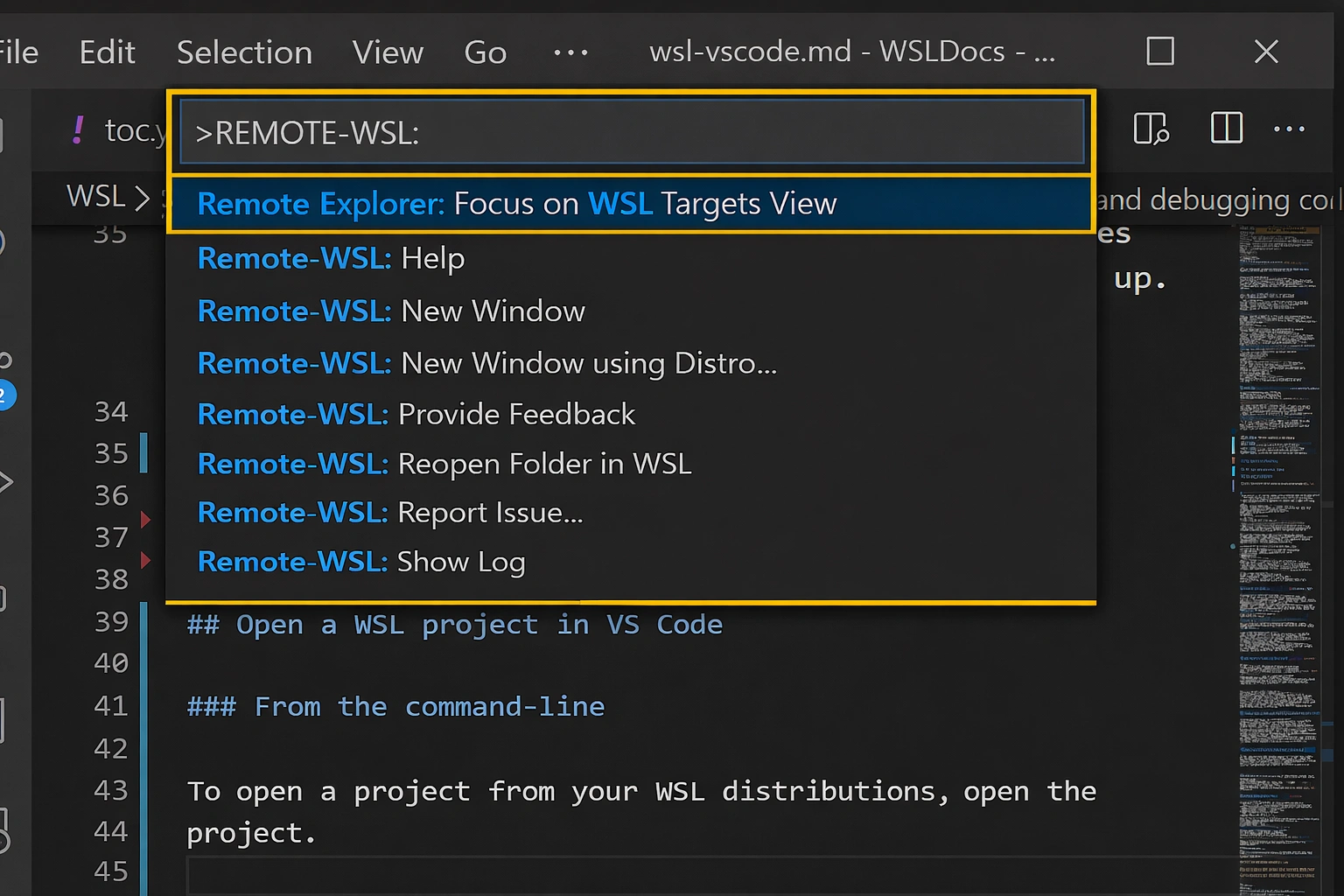
Visual Studio Code with the Remote Development extension lets you edit code directly in WSL:
Essential Extensions
# From your WSL terminal, open VS Code in the project:
code .
Git & GitHub CLI
Configure Git in both Windows and WSL for a unified workflow:
# Global Git configuration
git config --global user.name "Your Name"
git config --global user.email "your@email.com"
git config --global core.autocrlf input
git config --global init.defaultBranch main
# Install GitHub CLI
sudo apt install gh
gh auth login
PowerToys for Developers
Microsoft PowerToys includes essential tools for development productivity:
🪟 FancyZones
Create custom window layouts for your workflow.
🔍 PowerToys Run
Quick launcher like Spotlight (Alt+Space).
📝 Text Extractor
OCR to extract text from any on-screen image.
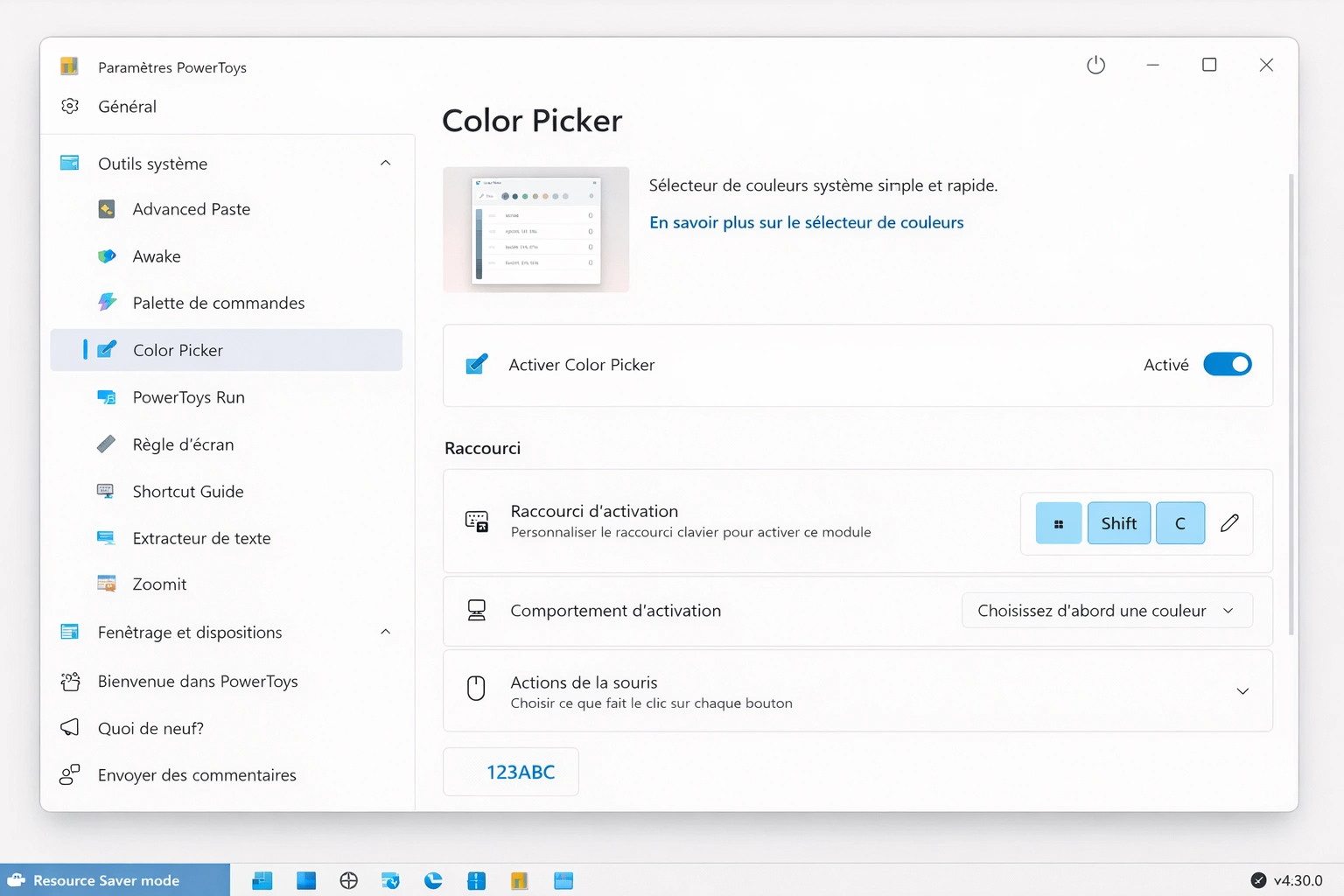
🎨 Color Picker
Global color picker with HEX, RGB, HSL codes.
Local Databases
Run databases in Docker containers for local development:
# PostgreSQL
docker run --name postgres-dev -e POSTGRES_PASSWORD=dev123 -p 5432:5432 -d postgres:16
# MySQL
docker run --name mysql-dev -e MYSQL_ROOT_PASSWORD=dev123 -p 3306:3306 -d mysql:8
# MongoDB
docker run --name mongo-dev -p 27017:27017 -d mongo:7
# Redis
docker run --name redis-dev -p 6379:6379 -d redis:7
Performance Optimization for Development
Essential Tools
| Category | Tool | Installation |
|---|---|---|
| Node.js | nvm (Node Version Manager) | curl -o- https://raw.githubusercontent.com/nvm-sh/nvm/v0.39.0/install.sh | bash |
| Python | pyenv | curl https://pyenv.run | bash |
| Rust | rustup | curl --proto '=https' --tlsv1.2 -sSf https://sh.rustup.rs | sh |
| API Testing | Bruno / Insomnia | winget install Bruno.Bruno |
💻 Build Your Perfect Dev Environment
Windows 11 Pro offers the features developers need: Hyper-V for Docker, encryption for source code, and the best WSL2 performance.
Frequently Asked Questions
Is WSL2 as fast as native Linux?
For most development workloads, WSL2 offers comparable performance to native Linux. I/O operations are slower when accessing files in /mnt/c/, but are native when working within the Linux filesystem.
Can I use Docker without Hyper-V?
Docker Desktop requires Hyper-V or WSL2 (which internally uses virtualization). Windows 11 Home doesn't include Hyper-V, but you can use the WSL2 backend. However, Windows 11 Pro is recommended for the best experience.
Conclusion
Windows 11 combined with WSL2, Docker, and modern tools offers a world-class development experience. You no longer have to choose between Windows and Linux: you can have the best of both worlds on a single machine.