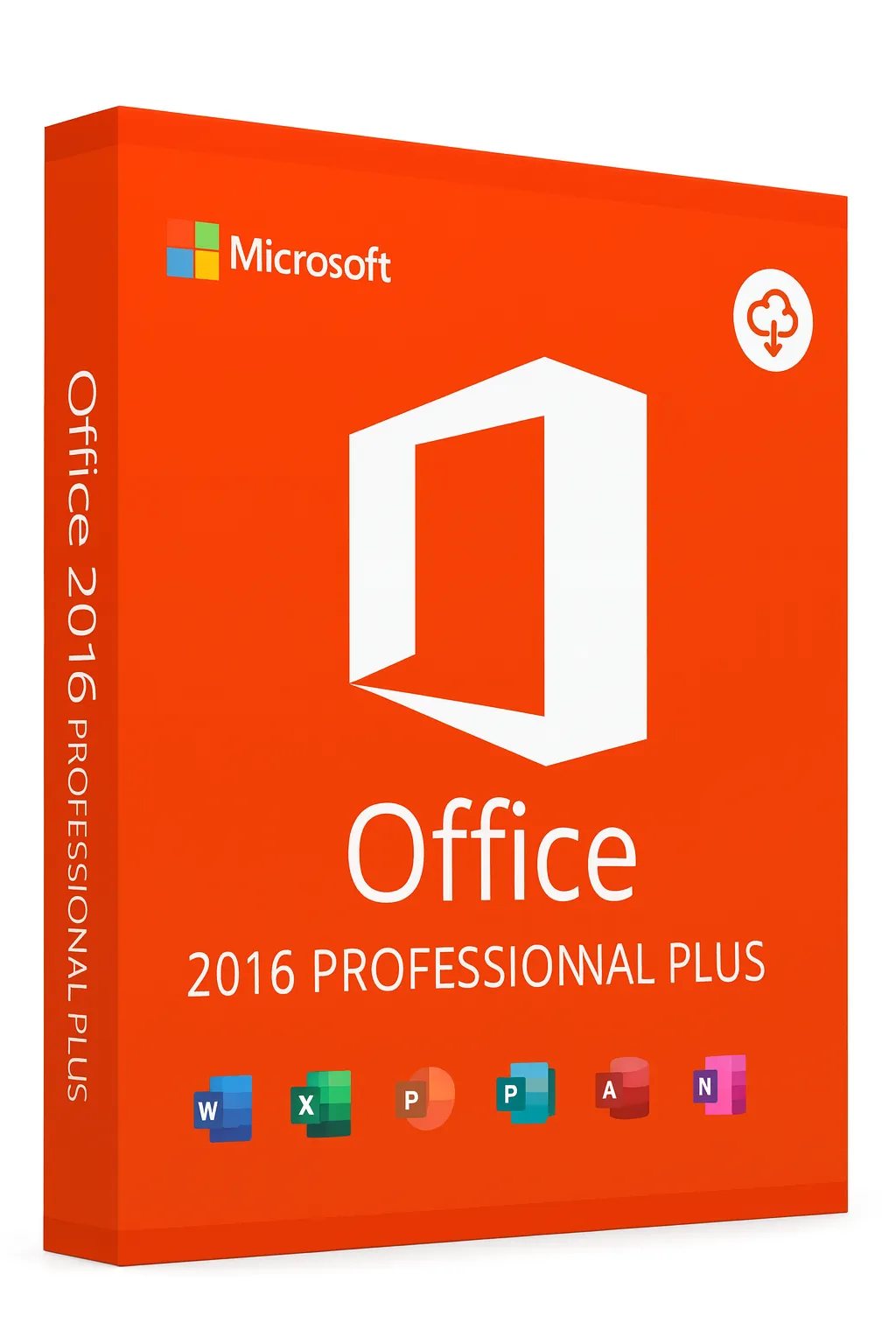
How to Transfer Office 2016 to a New PC
Move your Office 2016 license to a new computer without losing your activation
Transferring Microsoft Office 2016 to a new computer is a straightforward process when you follow the correct steps. This guide will walk you through deactivating Office on your old PC, finding your product key, and activating on your new computer.
Before You Begin
Locate Your Product Key
Find your 25-character product key from your original purchase email, product packaging, or Microsoft account
Check License Type
Verify you have a retail license (transferable) rather than OEM (tied to original hardware)
Backup Your Data
Save your Outlook data, custom templates, and any Office settings you want to preserve
Understanding License Types
Not all Office 2016 licenses can be transferred. Here's what you need to know:
Retail License
TransferablePurchased separately from a store or Microsoft. Can be transferred to a new PC after deactivating on the old one.
OEM License
Not TransferableCame pre-installed on your computer. Tied to the original hardware and cannot be transferred.
Volume License
Not TransferableUsed by organizations. Managed by IT department and typically not transferable by end users.
Step-by-Step Transfer Process
Find Your Product Key
Before doing anything, locate your Office 2016 product key. You'll need this to activate on your new PC.
- Check your Microsoft account at account.microsoft.com
- Look for the original purchase confirmation email
- Check the product packaging or card if you bought a physical copy
- Use a key finder tool if Office is still installed
Deactivate on Old Computer
You must deactivate Office on your old PC before you can use the license on a new one.
- Open any Office application (Word, Excel, etc.)
- Go to File > Account
- Click 'Manage Account' to open your Microsoft account
- Find Office 2016 under 'Subscriptions & services'
- Click 'Install' then 'Deactivate Install'
Uninstall from Old PC (Optional)
While not required, uninstalling helps ensure a clean deactivation.
- Open Control Panel > Programs > Programs and Features
- Find Microsoft Office 2016 in the list
- Right-click and select 'Uninstall'
- Follow the uninstall wizard to completion
Download Office on New PC
Get the Office 2016 installer on your new computer.
- Sign in to your Microsoft account at account.microsoft.com
- Go to 'Services & subscriptions'
- Find Office 2016 and click 'Install'
- Download and run the installer
Activate on New Computer
Complete the activation process with your product key.
- Open any Office application after installation
- When prompted, enter your 25-character product key
- Sign in with your Microsoft account if required
- Wait for activation to complete
Transferring Your Office Data
Don't forget to move your important Office files and settings:
Outlook Data (PST Files)
C:\Users\[Username]\Documents\Outlook Files\
Export your mailbox before uninstalling, then import on the new PC
Custom Templates
C:\Users\[Username]\AppData\Roaming\Microsoft\Templates\
Copy your .dotx and .xltx files to the same location on the new PC
AutoCorrect Entries
C:\Users\[Username]\AppData\Roaming\Microsoft\Office\
Copy the .acl files to preserve your custom autocorrect entries
Quick Access Toolbar
Stored in the Windows Registry
You'll need to manually recreate or export/import registry keys
Troubleshooting Common Issues
Product key already in use
Wait 24-72 hours after deactivating on the old PC, or contact Microsoft Support to manually release the license.
Can't find product key
Check your Microsoft account, original purchase email, or use a key finder tool like ProduKey while Office is still installed.
Activation limit reached
Office 2016 allows one installation per license. Ensure you've properly deactivated on all previous devices.
Office won't activate online
Try phone activation by calling the number shown during activation, or check your internet connection.
Pro Tips for a Smooth Transfer
- Screenshot your current Office settings before transferring
- Export your Outlook rules and signatures separately
- Consider upgrading to Microsoft 365 for easier multi-device management
- Keep your product key in a safe place for future transfers
- Check if your antivirus is blocking the activation process
Need a New Office 2016 License?
Get a genuine Office 2016 product key with instant delivery and full transfer rights.
Buy Office 2016 LicenseRelated Guides
Related Office 2016 Guides