
Windows 11 Security Features: Built-in Protection You're Probably Not Using

Callum specializes in breaking down complex technology topics into easy-to-understand guides. He has a background in computer science and technical writing.
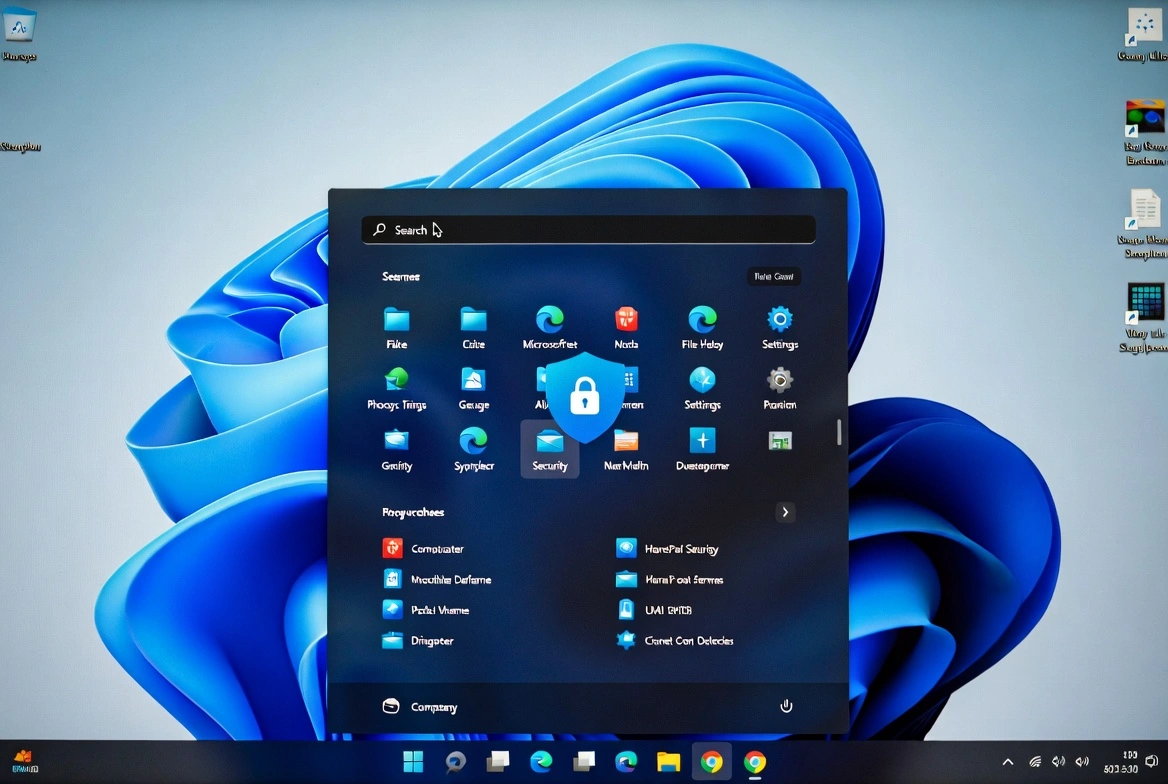
Windows 11 comes packed with powerful built-in security features that most users never activate. This guide shows you the Windows 11 protection features you're probably not using, from Windows Defender to BitLocker and beyond. Learn how to maximize Windows 11 security without additional software.
📋 Table of Contents
Why Windows 11 Security is Different
Windows 11 represents a significant leap in built-in security compared to previous versions. Microsoft designed this operating system with a "security-first" approach, requiring specific hardware like TPM 2.0 and Secure Boot from installation.
The reality is that many of these Windows 11 protection features are disabled by default or require manual configuration. This article will guide you to activate each available security layer.
Important: Windows 11 Home vs Pro
Some features like full BitLocker and Windows Sandbox are only available in Windows 11 Pro. Windows 11 Home includes Device Encryption, which is a simplified version.
Windows Security: Your Security Control Center
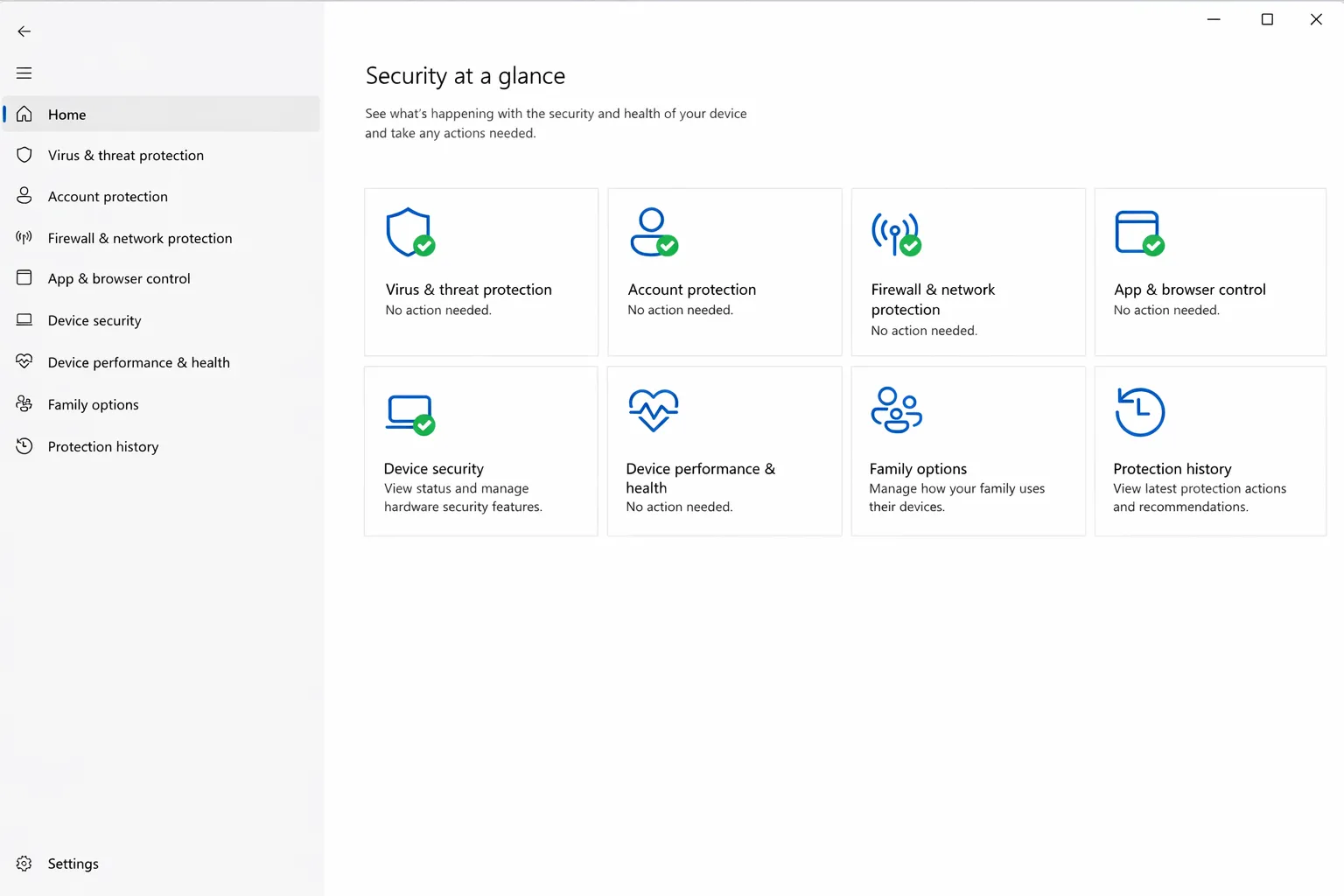
Windows Security (formerly Windows Defender Security Center) is the central dashboard where you can manage all Windows 11 security features. Access it from Settings → Privacy & security → Windows Security.
Virus & threat protection
Real-time antivirus, scheduled scans, and ransomware protection.
Firewall & network protection
Control incoming and outgoing network traffic with profiles for public and private networks.
App & browser control
SmartScreen, exploit protection, and potentially unwanted app control.
Device security
Core isolation, TPM, Secure Boot, and memory encryption.
Microsoft Defender Antivirus: More Powerful Than You Think
Microsoft Defender has evolved from a basic antivirus to an enterprise-level security solution. Independent tests consistently rank it among the best antivirus products on the market, often surpassing paid options.
Features you're probably not using:
- Ransomware protection: "Controlled folder access" blocks unauthorized applications from modifying your important documents.
- Cloud protection: Sends suspicious samples to Microsoft for real-time AI-powered analysis.
- Tamper protection: Prevents malware from disabling Windows Defender protection.
- Offline scan: Detects rootkits and persistent malware by running a scan before Windows starts.
How to enable Controlled Folder Access:
- Open Windows Security → Virus & threat protection
- Click "Manage ransomware protection"
- Turn on "Controlled folder access"
- Add additional folders you want to protect
BitLocker: Full Disk Encryption
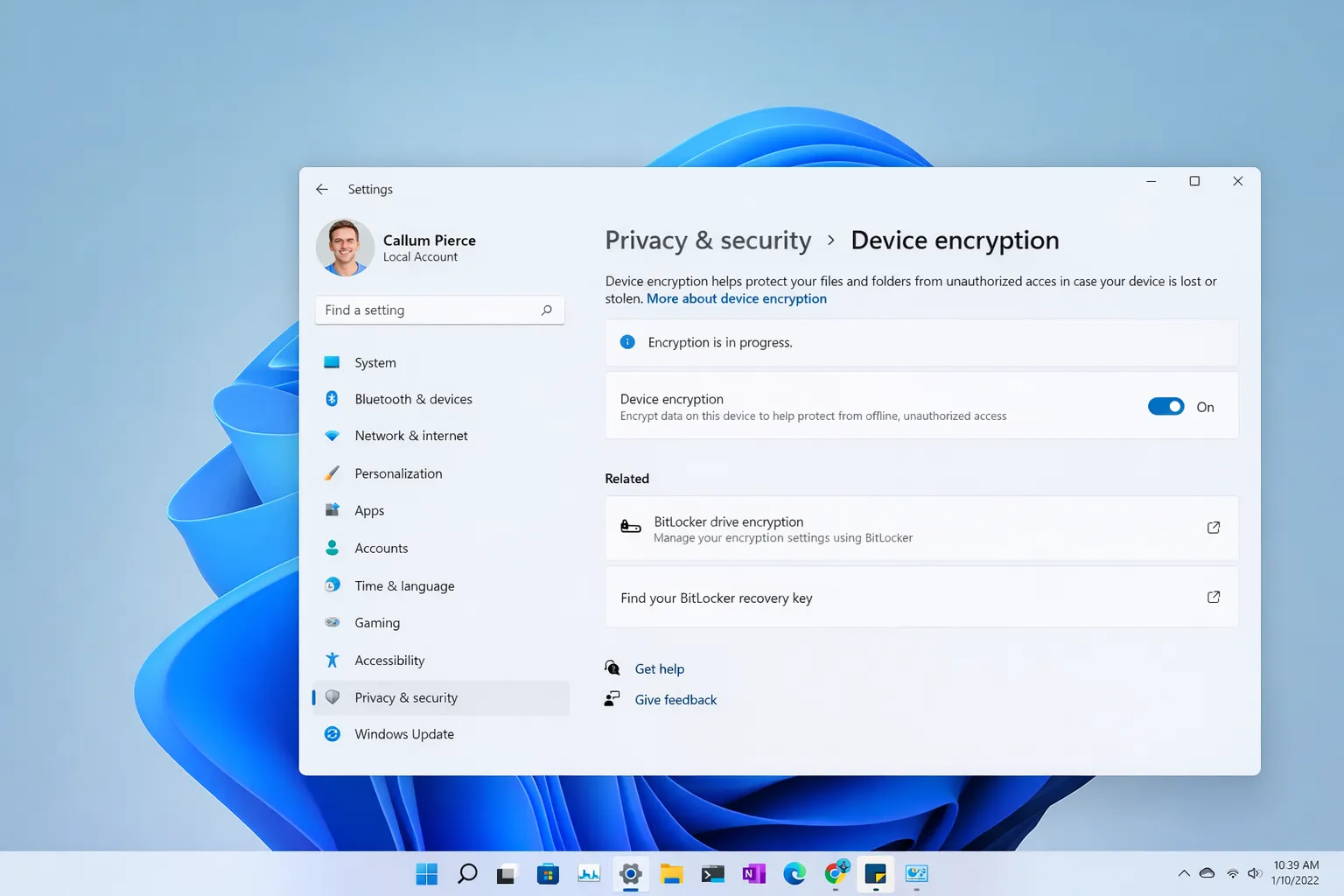
BitLocker is one of the most important security features in Windows 11 Pro. It encrypts your entire hard drive, making your data unreadable without the correct recovery key.
Theft protection
If your laptop is stolen, no one can access your files without the password or recovery key.
Transparent encryption
Once activated, it works in the background. You won't notice any difference in daily use.
Removable drives
BitLocker To Go encrypts USB drives and external disks with the same protection.
Cloud key backup
Save your recovery key to your Microsoft account so you never lose access.
Windows Hello: Biometric Authentication
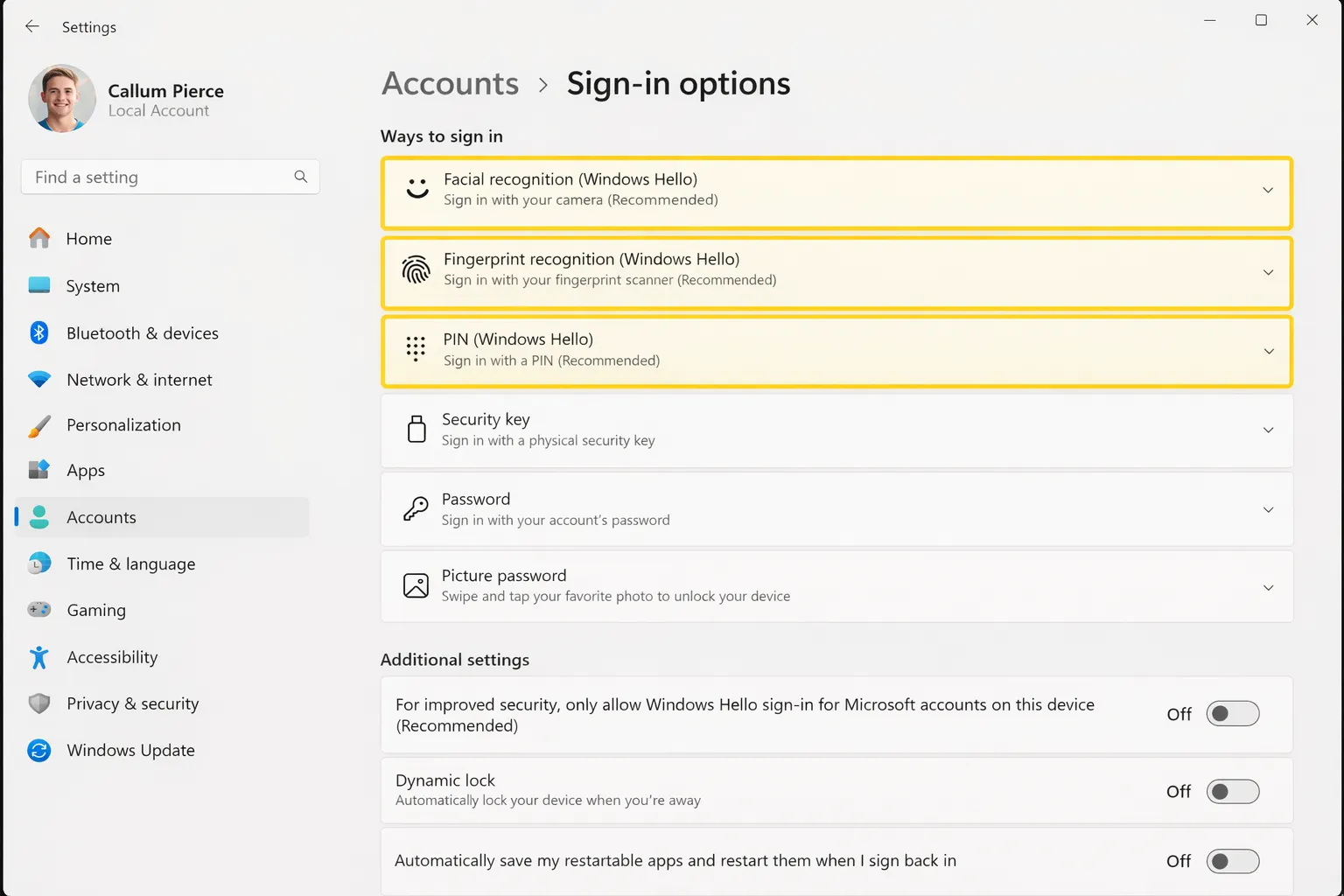
Windows Hello lets you sign in using your face, fingerprint, or a secure PIN. It's more secure than traditional passwords and much more convenient.
Facial Recognition
Uses infrared camera to create a 3D map of your face. Cannot be fooled with photos.
Fingerprint
Capacitive or ultrasonic readers for instant and secure authentication.
Windows Hello PIN
A device-bound PIN is more secure than a password that can be used anywhere.
SmartScreen: Protection Against Phishing and Malware
Microsoft Defender SmartScreen protects you from malicious websites, dangerous downloads, and potentially unwanted applications before they can cause harm.
- Phishing protection: Blocks websites that try to steal your credentials by impersonating legitimate sites.
- Download verification: Analyzes downloaded files against a database of known malware.
- App protection: Warns about applications with low reputation or potentially harmful.
Windows Sandbox: Secure Isolation (Pro Only)
Windows Sandbox creates an isolated, temporary desktop environment where you can run suspicious software without risk to your main system. It's like having a disposable virtual PC.
How to enable Windows Sandbox:
- Open Control Panel → Programs → Turn Windows features on or off
- Check the box for "Windows Sandbox"
- Restart your PC
- Search for "Windows Sandbox" in the Start menu to use it
Ideal use cases:
- • Testing software downloaded from unknown sources
- • Opening suspicious email attachments
- • Visiting potentially dangerous websites
- • Running installers you don't fully trust
Recommended Security Settings
Follow this checklist to maximize your Windows 11 security:
Frequently Asked Questions
Do I need additional antivirus with Windows 11?
For most users, Microsoft Defender is sufficient. It offers enterprise-level protection at no additional cost. Only users with specific needs might benefit from additional software.
Does BitLocker slow down my PC?
With modern hardware (especially with hardware encryption on SSDs), the performance impact is imperceptible for daily use.
What if I forget my BitLocker key?
If you saved the key to your Microsoft account, you can recover it from account.microsoft.com/devices/recoverykey. Without the key, data is unrecoverable.