
How to Disable Startup Programs in Windows 11 (Speed Up Boot Time)

Callum specializes in breaking down complex technology topics into easy-to-understand guides. He has a background in computer science and technical writing.
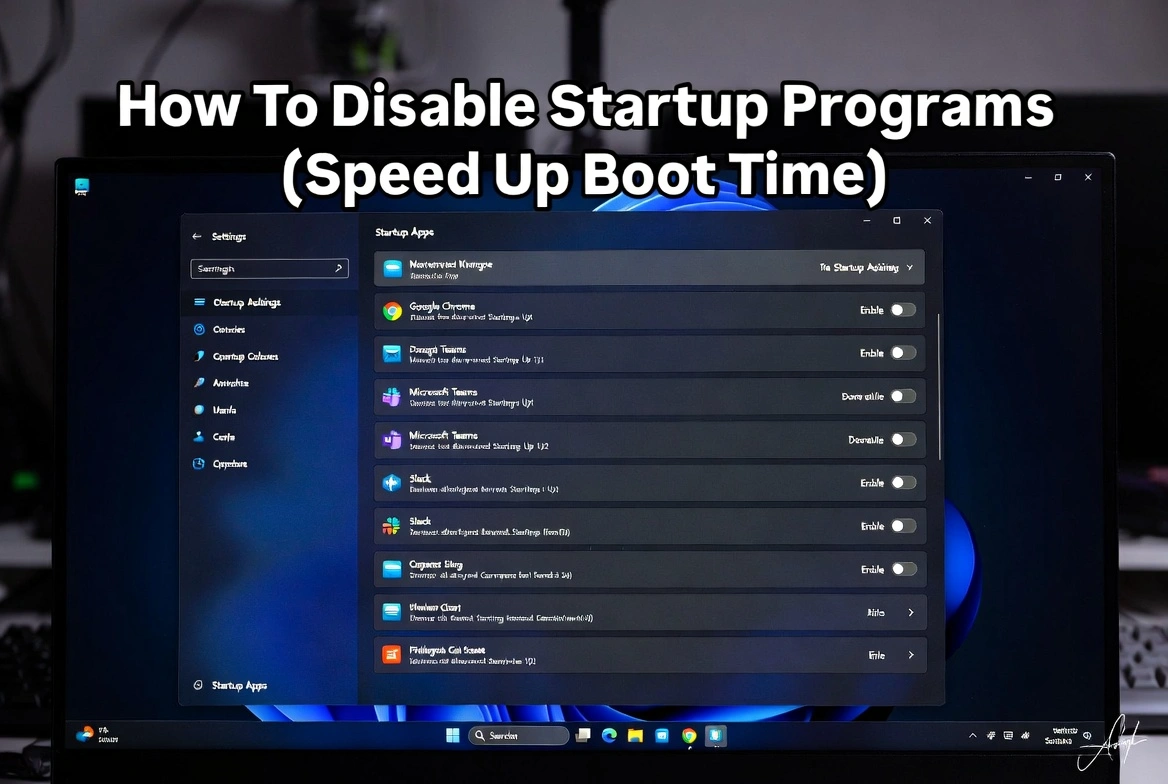
Is your Windows 11 computer taking forever to boot? The culprit is often too many startup programs loading automatically. Every application that launches at startup adds precious seconds to your boot time and consumes valuable system resources. This comprehensive guide shows you exactly how to identify and disable unnecessary startup programs, potentially cutting your boot time in half.
Why Startup Programs Slow Down Your PC
When Windows 11 boots, it loads dozens of programs automatically. Each one competes for CPU, RAM, and disk resources during the critical startup phase. The more programs loading simultaneously, the longer you wait to use your computer.
Slower Boot Times
Each startup app adds 2-15 seconds to total boot time
Reduced Available RAM
Background apps consume memory even when not in use
Higher CPU Usage
Multiple apps initializing creates CPU bottlenecks
Delayed Responsiveness
System feels sluggish for minutes after login
Method 1: Using Task Manager (Recommended)
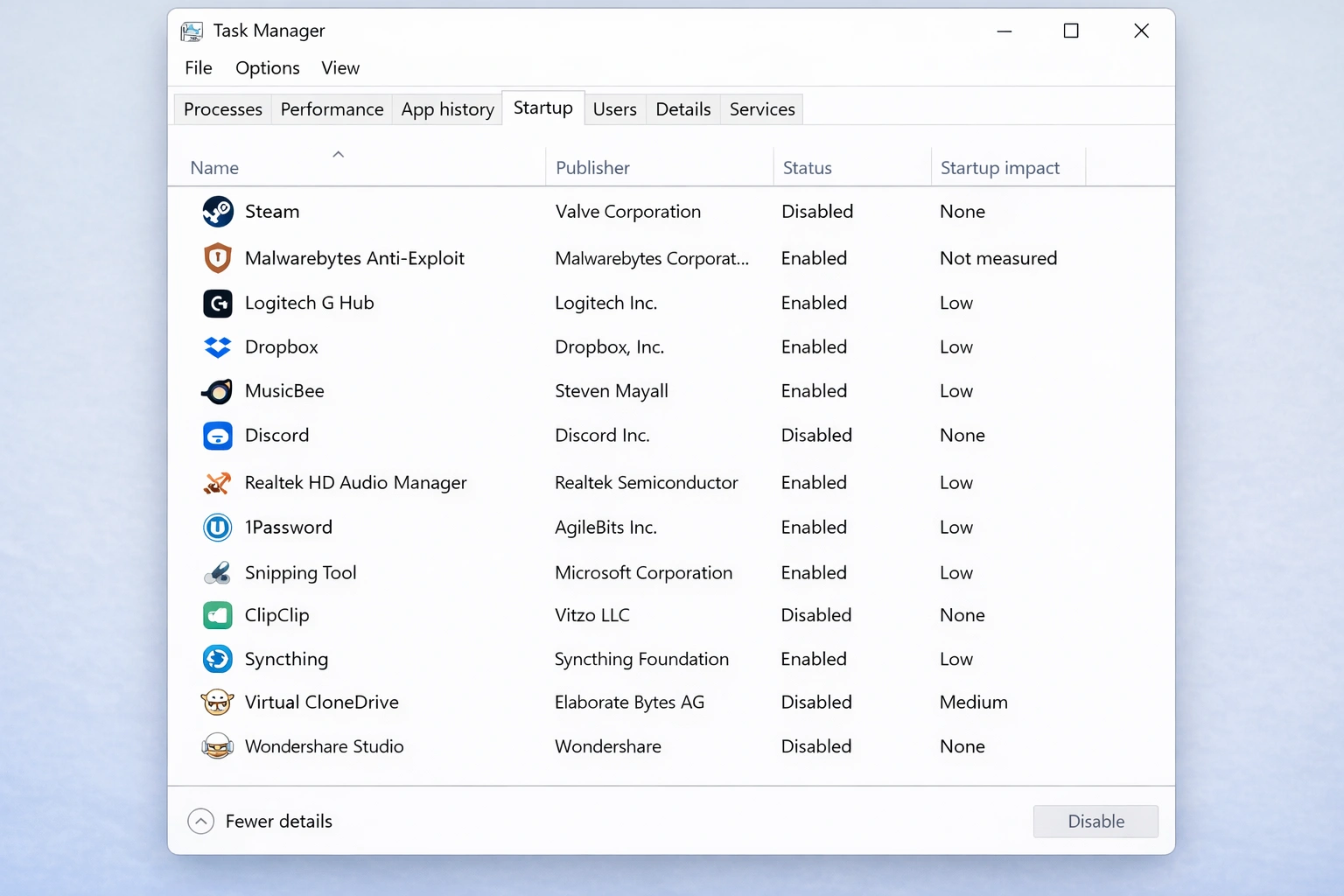
Task Manager is the fastest and most straightforward way to manage startup programs in Windows 11.
Open Task Manager
Press Ctrl + Shift + Esc or right-click the taskbar and select 'Task Manager'
Navigate to Startup Apps
Click the 'Startup apps' tab in the left sidebar (Windows 11 22H2+) or the 'Startup' tab
Review Startup Impact
Check the 'Startup impact' column—focus on 'High' and 'Medium' impact apps first
Disable Unnecessary Apps
Right-click any app and select 'Disable' or use the toggle switch
💡 Pro Tip: The 'Last BIOS time' shown in Task Manager reveals how long your hardware takes to initialize before Windows even starts loading.
Method 2: Using Windows Settings
Windows Settings provides a user-friendly interface for managing startup apps with additional details.
Open Settings
Press Windows + I to open the Settings app
Navigate to Startup
Go to Apps → Startup
Toggle Apps Off
Use the toggle switches to disable apps you don't need at startup
Sort by Impact
Use the 'Sort by' dropdown to organize by startup impact
Method 3: Advanced Startup Management
For power users who want complete control over startup behavior.
Startup Folder
Remove shortcuts from shell:startup folder
Press Win + R, type 'shell:startup' and delete unwanted shortcuts
Registry Editor
Advanced: Edit HKEY_CURRENT_USER\SOFTWARE\Microsoft\Windows\CurrentVersion\Run
For experienced users only—incorrect edits can cause system issues
Task Scheduler
Some apps use scheduled tasks instead of traditional startup entries
Open Task Scheduler and review 'At log on' triggers
Services.msc
Manage Windows services that start automatically
Set non-essential services to 'Manual' or 'Disabled'
Programs Safe to Disable at Startup
These common startup programs can usually be disabled without issues:
Programs to Keep Enabled
Some startup programs are essential for security and functionality:
Antivirus Software
Critical for real-time protection
Windows Security
Built-in protection must run
Audio/Graphics Drivers
Realtek, NVIDIA Control Panel
Backup Software
If you rely on automatic backups
VPN Client
If always-on VPN is required
Accessibility Tools
Screen readers, magnifiers
Real Performance Improvements
Typical results after disabling unnecessary startup programs:
| Metric | Before | After | Improvement |
|---|---|---|---|
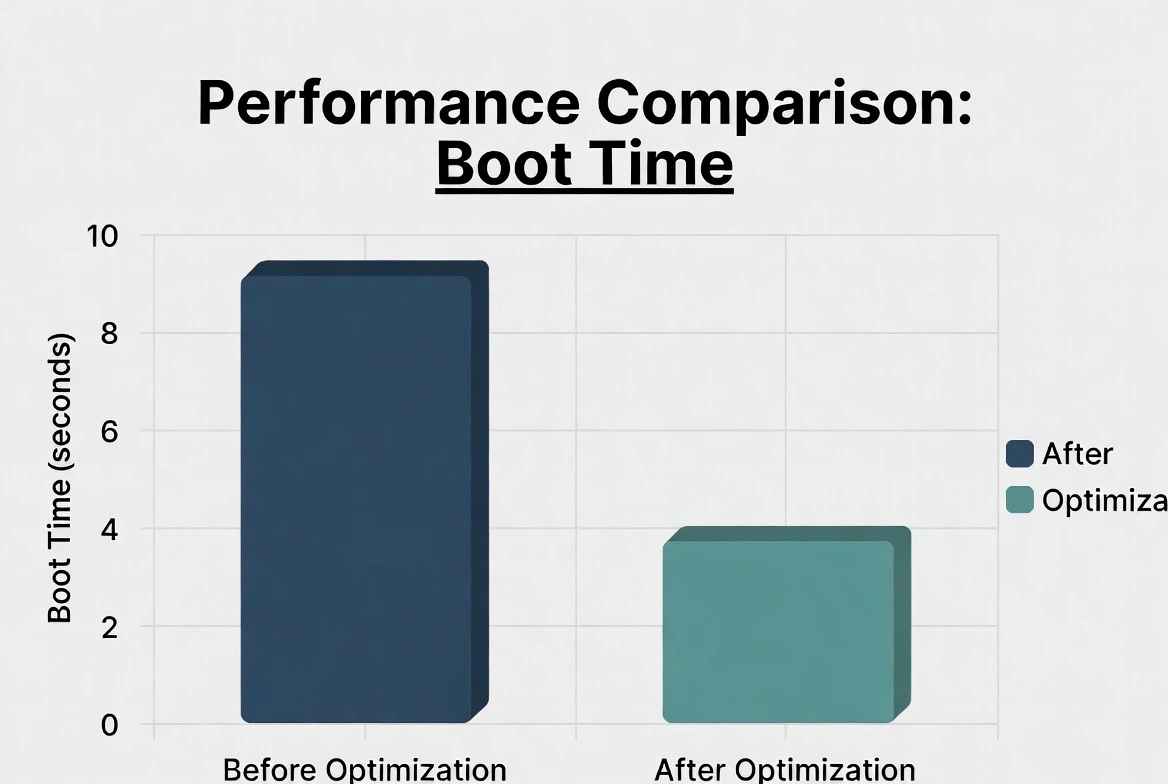
| Boot Time | 45-90 seconds | 15-30 seconds | 50-70% |
| Time to Usable | 2-3 minutes | 30-60 seconds | 60-75% |
| RAM at Idle | 4-6 GB | 2.5-4 GB | 25-40% |
| CPU at Idle | 15-30% | 1-5% | 80-95% |
Troubleshooting Common Issues
App keeps re-enabling itself
Check the app's own settings for 'Start with Windows' option and disable it there
Can't find an app in startup list
It may use a scheduled task or Windows service instead—check Task Scheduler
System unstable after disabling
Re-enable the last disabled app—it may be system-critical
Startup list is empty
Run Task Manager as administrator to see all startup items
Additional Boot Speed Tips
1Enable Fast Startup
Settings → System → Power → Additional power settings → Choose what power buttons do → Enable fast startup
2Upgrade to SSD
SSDs boot 5-10x faster than HDDs—the single biggest upgrade for boot speed
3Disable Unnecessary Services
Services like Print Spooler (if no printer), Fax, and Xbox services can be set to Manual
4Keep Windows Updated
Updates often include boot optimizations and driver improvements
5Clean Boot Troubleshoot
Use msconfig for a clean boot to identify problematic startup items
Maximize Your Windows Performance
A properly configured Windows 11 installation with optimized startup programs delivers the best experience. Ensure you're running a genuine, fully-activated Windows license for complete access to all performance features.
Get Windows LicenseConclusion
Disabling unnecessary startup programs is one of the most effective ways to speed up your Windows 11 boot time. Using Task Manager or Windows Settings, you can easily identify high-impact apps and prevent them from loading automatically. Most users can safely disable 50-70% of their startup programs without losing any functionality—these apps will still work perfectly when launched manually. Combined with an SSD and Fast Startup enabled, your Windows 11 PC can boot in under 20 seconds.