
Windows 11 Dark Mode: Complete Customization Guide

Callum specializes in breaking down complex technology topics into easy-to-understand guides. He has a background in computer science and technical writing.
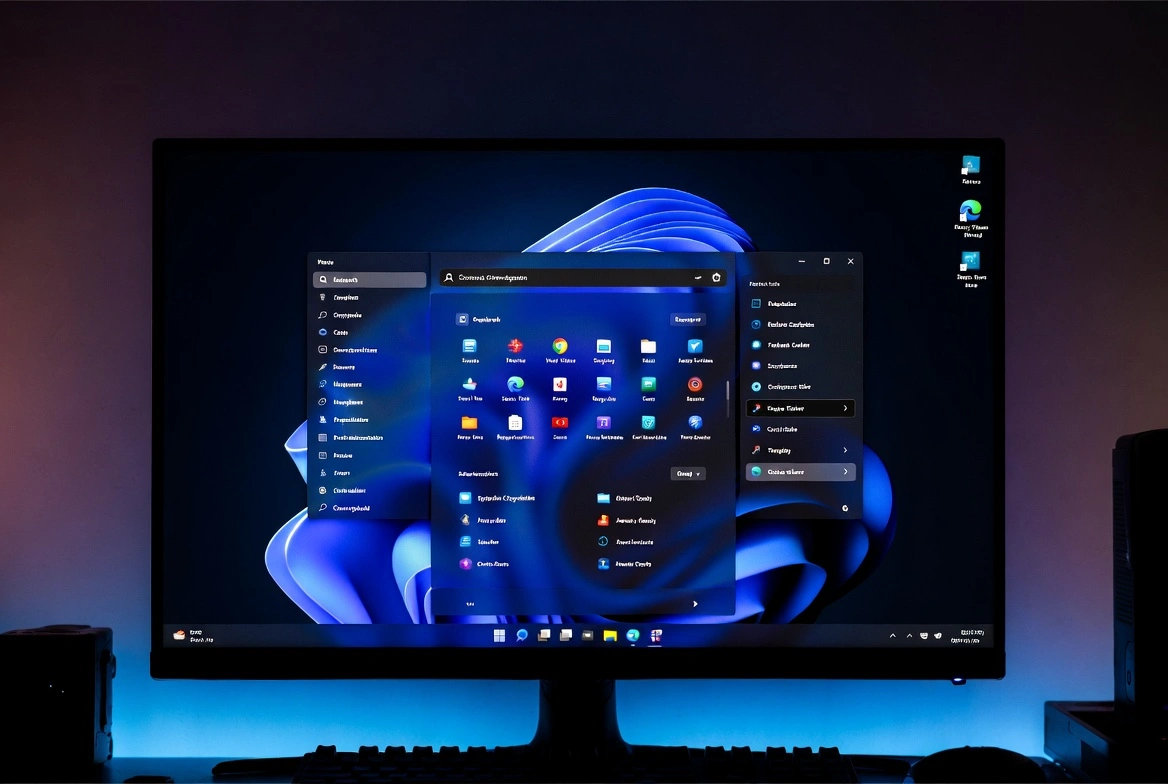
Dark mode isn't just an aesthetic preference—it reduces eye strain, saves battery on OLED screens, and for many of us, it simply looks amazing. Windows 11 offers a stunning dark mode, but the default options only scratch the surface. In this complete guide, I'll show you how to customize every aspect of dark mode to create the perfect visual experience.
What You'll Learn
- Enable and customize dark mode in Windows 11
- Schedule automatic day/night switching
- Customize accent colors and transparency
- Force dark mode in problematic applications
- Recommended third-party dark themes
Enabling Dark Mode
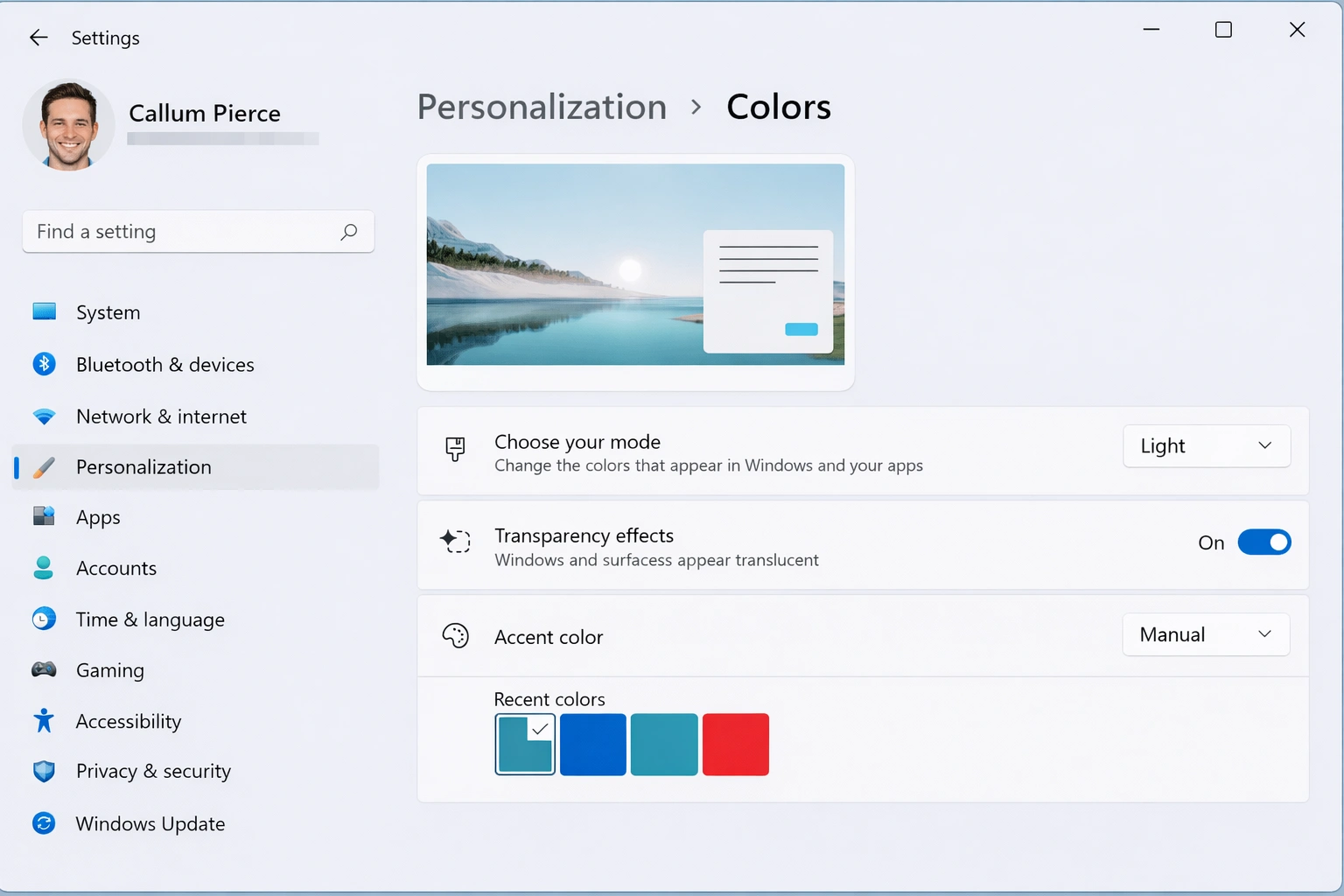
Let's start with the basics. Windows 11 offers three main color modes: Light, Dark, and Custom (which allows you to mix elements).
Steps to Enable Dark Mode
- 1. Press Windows + I to open Settings
- 2. Go to Personalization → Colors
- 3. Under "Choose your mode", select Dark
- 4. The change applies instantly
Custom Mode: The Best of Both Worlds
The "Custom" option lets you choose different modes for Windows and apps. For example, you can have:
- Dark taskbar + Light apps: Popular for daytime productivity
- Light taskbar + Dark apps: A unique, distinctive style
Pro Tip
Custom mode is ideal if you work with apps that don't support dark mode well. You can keep Windows dark while those apps stay light.
Scheduling Automatic Day/Night Switching
Windows 11 doesn't include automatic theme scheduling natively, but there are several ways to achieve it:
Method 1: Task Scheduler (Free)
You can create scheduled tasks to automatically switch between light and dark modes.
Set Up Task for Dark Mode (Night)
- 1. Search for "Task Scheduler" in the Start menu
- 2. Click Create Basic Task
- 3. Name the task: "Enable Dark Mode"
- 4. Trigger: Daily at your desired time (e.g., 7:00 PM)
- 5. Action: Start a program
- 6. Program:
reg - 7. Arguments:
add HKCU\SOFTWARE\Microsoft\Windows\CurrentVersion\Themes\Personalize /v AppsUseLightTheme /t REG_DWORD /d 0 /f
Method 2: Auto Dark Mode (Recommended)
Auto Dark Mode is a free, open-source app that automates the entire process:
- Automatically switches based on time of day
- Can sync with sunrise/sunset
- Sets different wallpapers for each mode
- Available on Microsoft Store
Download Auto Dark Mode
Available free on Microsoft Store or GitHub. Search "Auto Dark Mode" in the store for easy installation.
Customizing Accent Colors
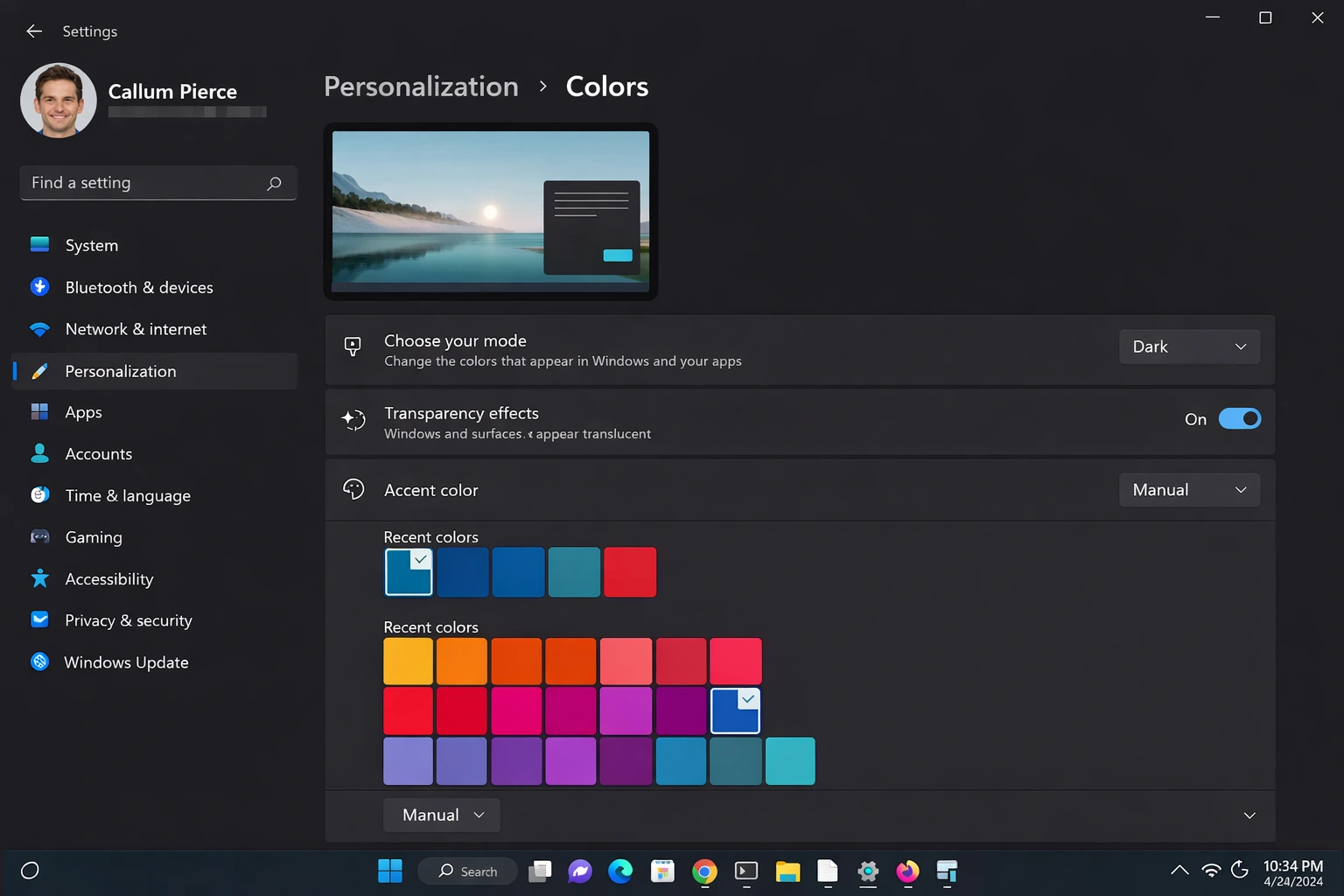
The accent color affects buttons, links, selections, and many UI elements. Choosing the right one can transform your experience.
Change Accent Color
- 1. Go to Settings → Personalization → Colors
- 2. Under "Accent color", select Manual
- 3. Choose from the palette or click View colors to customize
- 4. Enable "Show accent color on Start and taskbar"
- 5. Enable "Show accent color on title bars and window borders"
Recommended Accent Colors for Dark Mode
| Color | Hex Code | Style |
|---|---|---|
| Electric Blue | #0078D4 | Professional, Windows default |
| Night Purple | #8B5CF6 | Modern, sophisticated |
| Emerald Green | #10B981 | Fresh, natural |
| Warm Orange | #F59E0B | Energetic, cozy |
| Neon Pink | #EC4899 | Bold, futuristic |
Transparency Effects
Windows 11 includes beautiful transparency and blur effects that complement dark mode perfectly.
Configure Transparency Effects
- 1. Go to Settings → Personalization → Colors
- 2. Enable Transparency effects
- 3. For more options, go to Accessibility → Visual effects
- 4. Enable Transparency effects here as well
Performance Note
Transparency effects may slightly impact performance on older hardware. If you notice lag, disable them.
Night Light to Protect Your Eyes
Night light reduces the blue light from your screen, which is especially important when using dark mode at night.
Configure Night Light
- 1. Go to Settings → System → Display
- 2. Click on Night light
- 3. Enable Schedule night light
- 4. Choose Sunset to sunrise or set custom hours
- 5. Adjust the Strength to your preference
Forcing Dark Mode in Problematic Apps
Some applications don't respect system settings. Here's how to force dark mode:
Microsoft Edge
- Go to edge://settings/appearance
- Change "Default theme" to Dark
- Enable "Force Dark Mode for Web Content" in edge://flags
Google Chrome
- Go to chrome://flags
- Search for "Auto Dark Mode for Web Contents"
- Set it to Enabled
Microsoft Office Applications
Enable Dark Mode in Office
- 1. Open any Office app (Word, Excel, etc.)
- 2. Go to File → Account
- 3. Under "Office Theme", select Black or Dark Gray
- 4. The change applies to all Office apps
Wallpapers for Dark Mode
A good wallpaper can make or break your dark mode setup. Here are my recommendations:
Characteristics of a Good Dark Wallpaper
- Predominantly dark tones: Avoid light backgrounds that contrast too much
- Low contrast: Subtle colors reduce eye strain
- High resolution: At least 1920x1080, ideally 4K
- No bright elements: Avoid large white areas
Dynamic Wallpapers with Windows Spotlight
Enable Windows Spotlight on Desktop
- 1. Go to Settings → Personalization → Background
- 2. Under "Personalize your background", select Windows Spotlight
- 3. Windows will display beautiful backgrounds that change daily
Third-Party Dark Themes
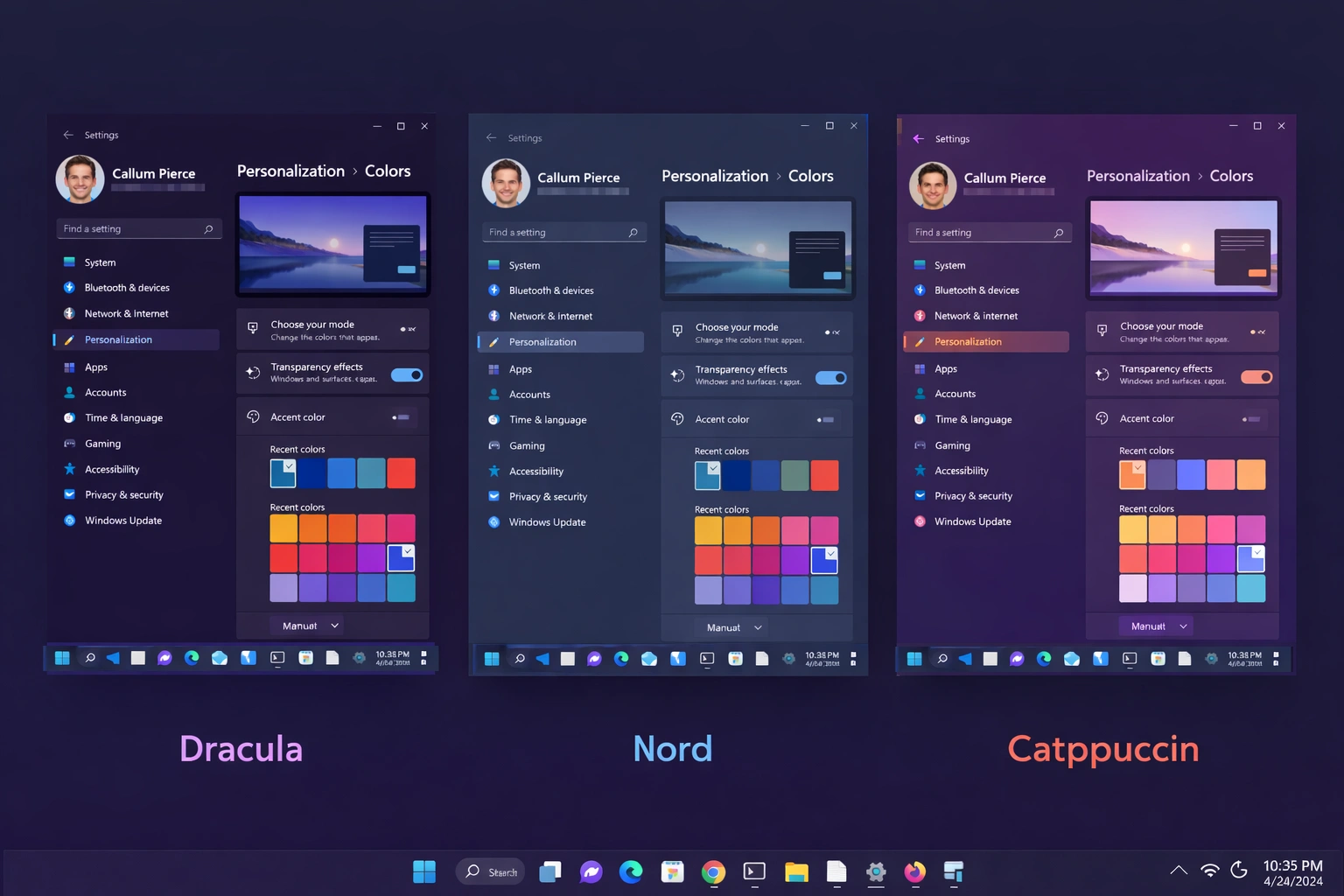
If you want to go beyond native options, these dark themes are excellent:
| Theme | Description | Source |
|---|---|---|
| Dracula | Elegant dark purple, popular among developers | draculatheme.com |
| Nord | Minimalist, relaxing arctic blue | nordtheme.com |
| Catppuccin | Soft pastel palette, multiple variants | GitHub |
| One Dark | Atom-inspired, balanced contrast | Microsoft Store |
Customizing the Cursor for Dark Mode
The default white cursor can be glaring in dark mode. Change it:
Change Cursor Scheme
- 1. Go to Settings → Accessibility → Mouse pointer and touch
- 2. Choose the Black or Inverted pointer style
- 3. Adjust the size if needed
Quick Additional Tips
- Translucent taskbar: Use TranslucentTB from Microsoft Store for a transparent taskbar
- Dark icons: Search for dark icon packs on DeviantArt or iconarchive.com
- Dark terminal: Windows Terminal already comes with beautiful dark themes
- File Explorer: Dark mode applies automatically when you enable system dark mode
Quick Access to Dark Mode
Press Windows + A to open the Action Center and quickly change brightness. For dark mode, you can create a desktop shortcut to the color settings panel.
Conclusion
Windows 11 dark mode goes far beyond simply flipping a switch. With the customizations we've covered—automatic scheduling, accent colors, transparency, night light, and third-party themes—you can create a visual experience that's both beautiful and functional for your eyes.
Remember: There's no "correct" setup—experiment with different combinations until you find what works best for you. And if you spend a lot of time in front of the screen, consider combining dark mode with night light for maximum visual comfort.
Need Windows 11?
Get Windows 11 Pro with all customization features at unbeatable prices. Genuine licenses with instant activation.