Cómo Recuperar Documentos de Word No Guardados: 7 Métodos que Realmente Funcionan

Callum specializes in breaking down complex technology topics into easy-to-understand guides. He has a background in computer science and technical writing.
Panic mode: Your Word document is gone. Maybe Word crashed, you accidentally closed without saving, or your computer shut down unexpectedly. Don't worry—your document can likely be recovered. This guide covers 7 proven methods to recover unsaved Word documents, from built-in recovery tools to hidden temp files.
Act Fast!
The sooner you attempt recovery, the better your chances. Avoid creating new files or installing software in the meantime.
📋 7 Recovery Methods
Method 1: Document Recovery Pane (Easiest)
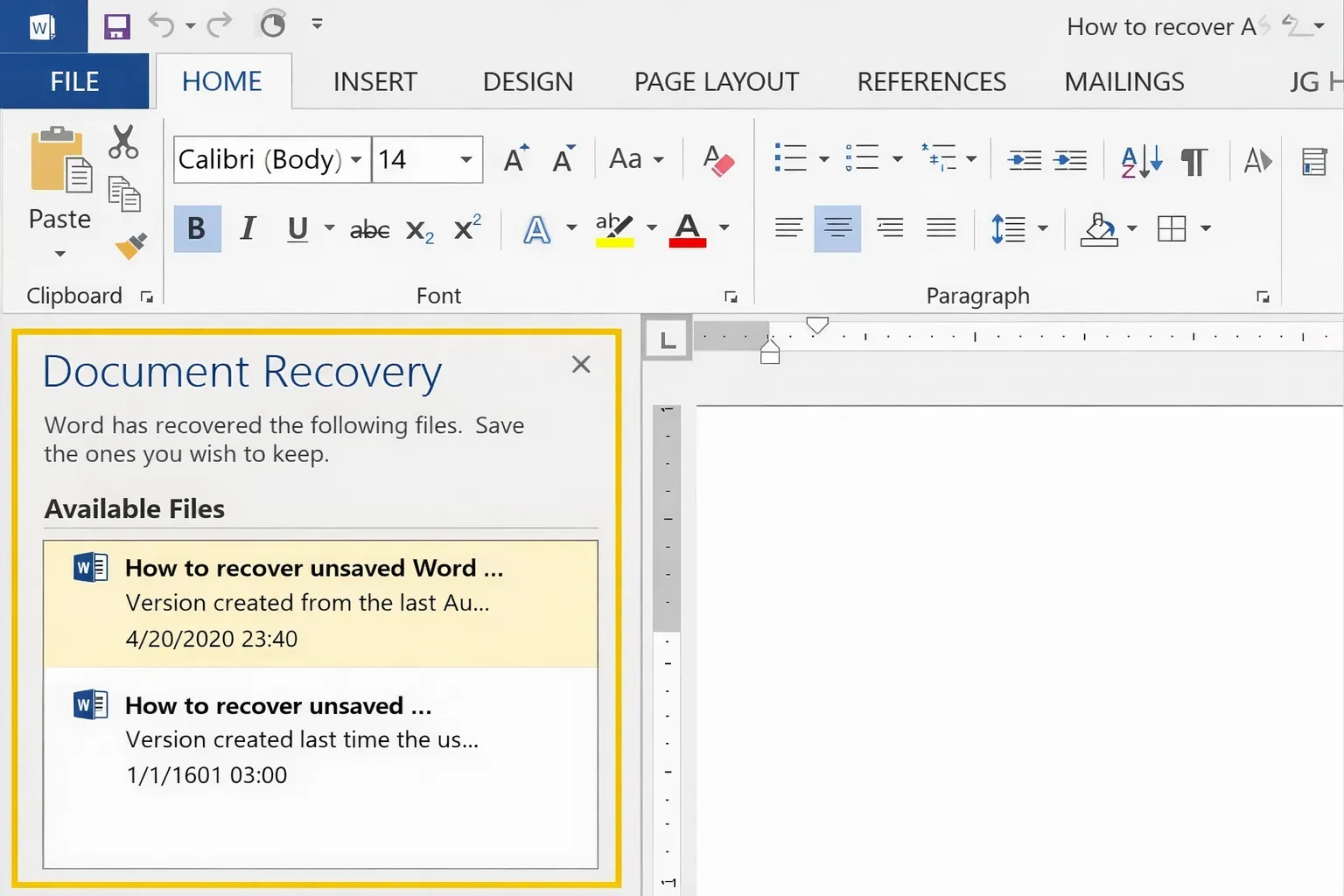
When Word crashes and you restart it, the Document Recovery pane should appear automatically on the left side.
Open Word
After a crash, simply reopen Microsoft Word
Look Left
The Document Recovery pane appears on the left side
Click to Recover
Click on your document and save it immediately
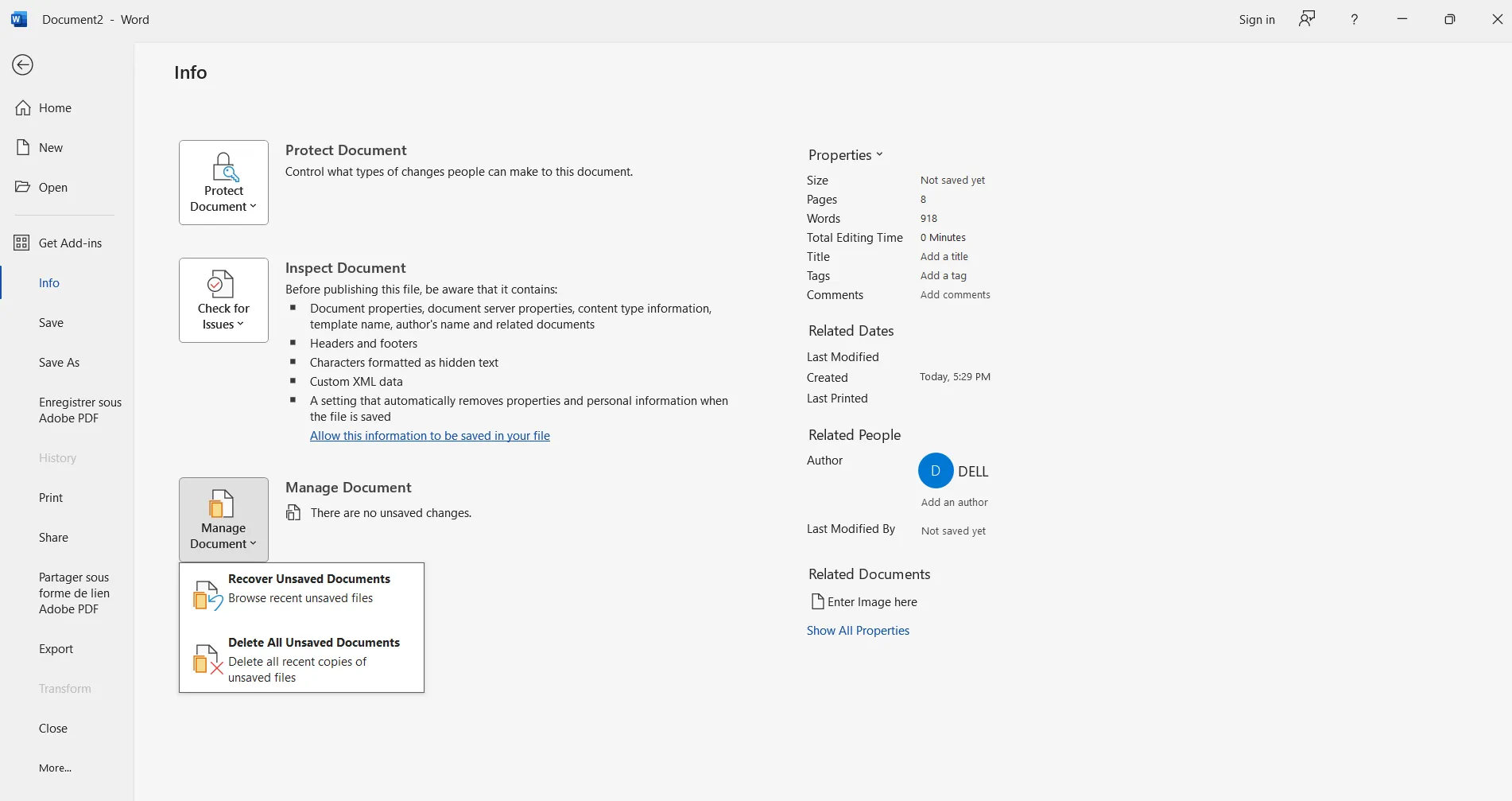
Method 2: Recover Unsaved Documents
Word has a built-in feature specifically for recovering unsaved documents:
Go to File → Info
Open Word and navigate to File menu
Click "Manage Document"
Select "Recover Unsaved Documents" from dropdown
Browse & Open
Find your document in the UnsavedFiles folder
Method 3: AutoRecover File Location
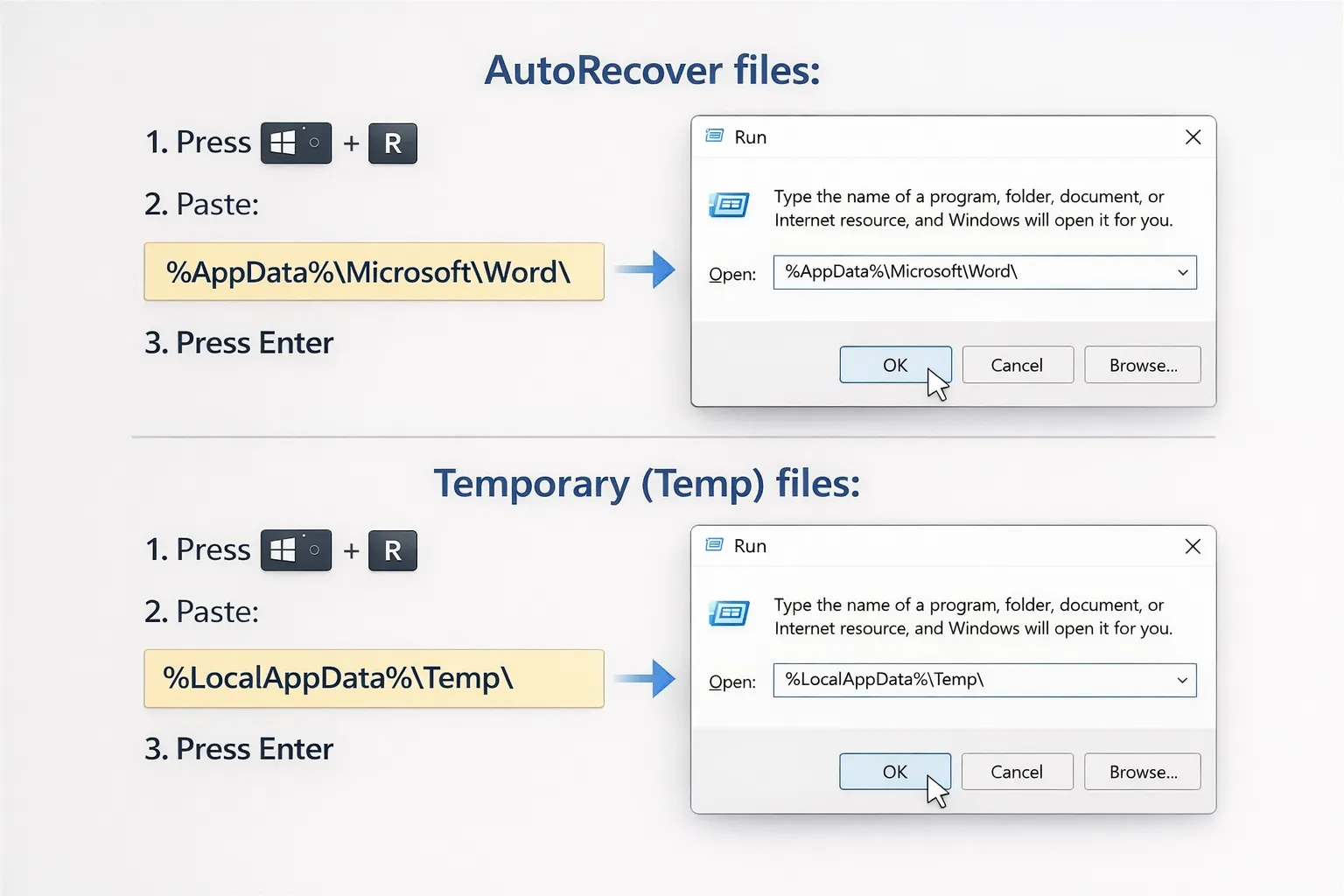
Word automatically saves recovery files. Here's where to find them:
Windows AutoRecover Location:
C:\Users\[YourName]\AppData\Roaming\Microsoft\Word\Mac AutoRecover Location:
/Users/[YourName]/Library/Containers/com.microsoft.Word/Data/Library/Preferences/AutoRecovery/Look for files with .asd extension and open them with Word.
Method 4: Windows Temp Files
Word creates temporary files while you work. Search for them:
Temp File Location:
C:\Users\[YourName]\AppData\Local\Temp\Search for files starting with "~" or ending in ".tmp"
Method 5: Previous Versions (Windows)
Windows keeps previous versions of files if System Restore is enabled:
- Navigate to the folder where the file was saved
- Right-click the folder → Properties
- Click "Previous Versions" tab
- Select a version and click "Restore"
Method 6: OneDrive Version History
If your file was synced to OneDrive, you can restore previous versions:
- Go to onedrive.com and sign in
- Right-click your document
- Select "Version history"
- Choose a previous version to restore
Method 7: Recycle Bin Recovery
If you accidentally deleted the file:
- Open Recycle Bin on your desktop
- Search for your document name
- Right-click → "Restore"
Prevent Future Data Loss
Enable AutoSave
Turn on AutoSave for OneDrive/SharePoint documents for real-time saving.
Reduce AutoRecover Interval
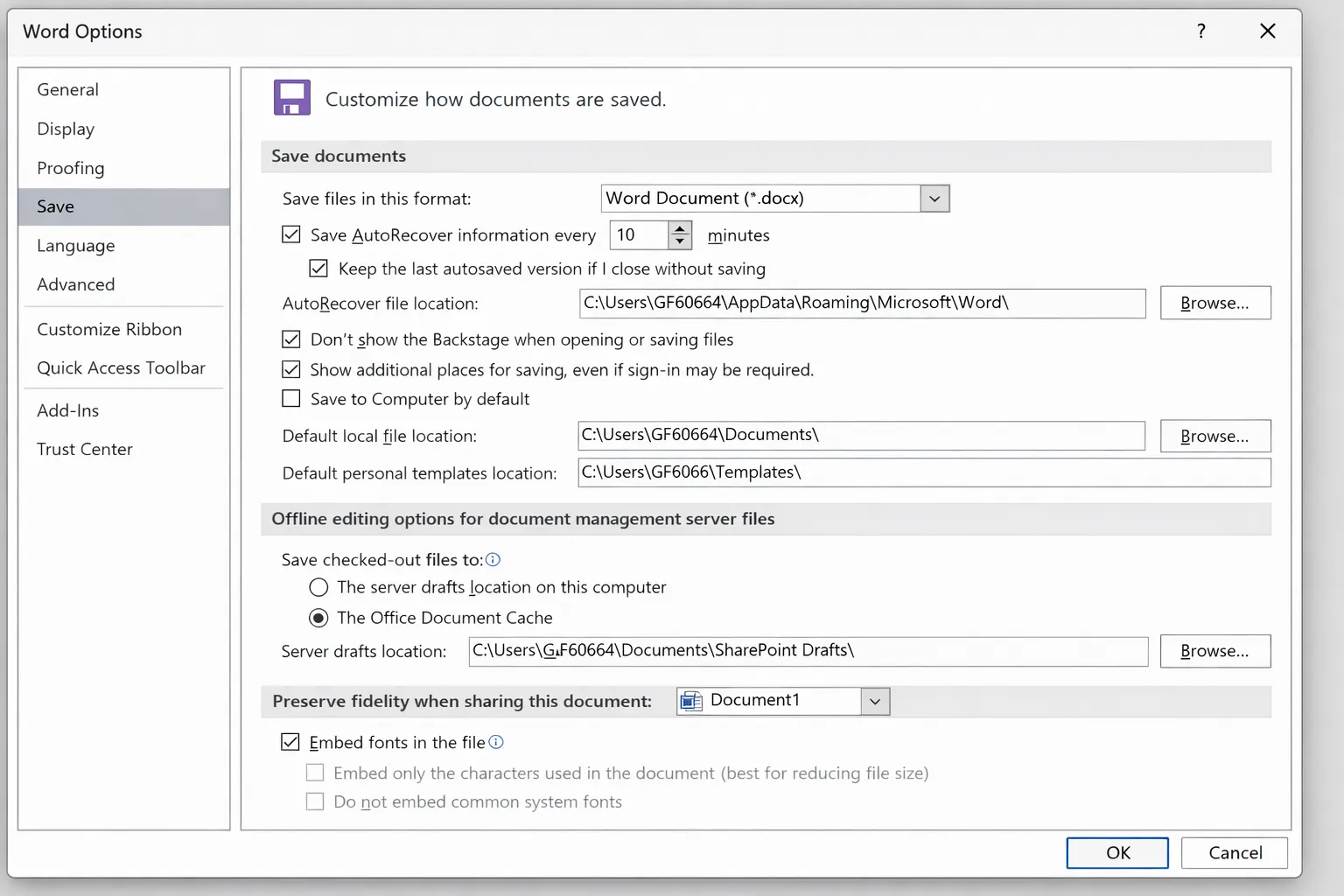
File → Options → Save → Set AutoRecover to 1-2 minutes.
Use Cloud Storage
Save to OneDrive or SharePoint for automatic version history.
Ctrl+S Habit
Build the habit of pressing Ctrl+S (or Cmd+S) frequently while working.